> ## Documentation Index
> Fetch the complete documentation index at: https://docs.preprod.world/llms.txt
> Use this file to discover all available pages before exploring further.
# Be aware of the service status, scheduled and emergency maintenance
[Status Page](https://status.gcore.com) is a communication tool that displays information about service status, outages, and planned maintenance. It is reached directly, or from the book icon in the top-right corner of the [Gcore Customer Portal](https://portal.gcore.com).
## Subscription methods
To receive notifications about scheduled works and incidents, subscribe to Status Page by clicking the **Subscribe to updates** button in the upper-right corner.
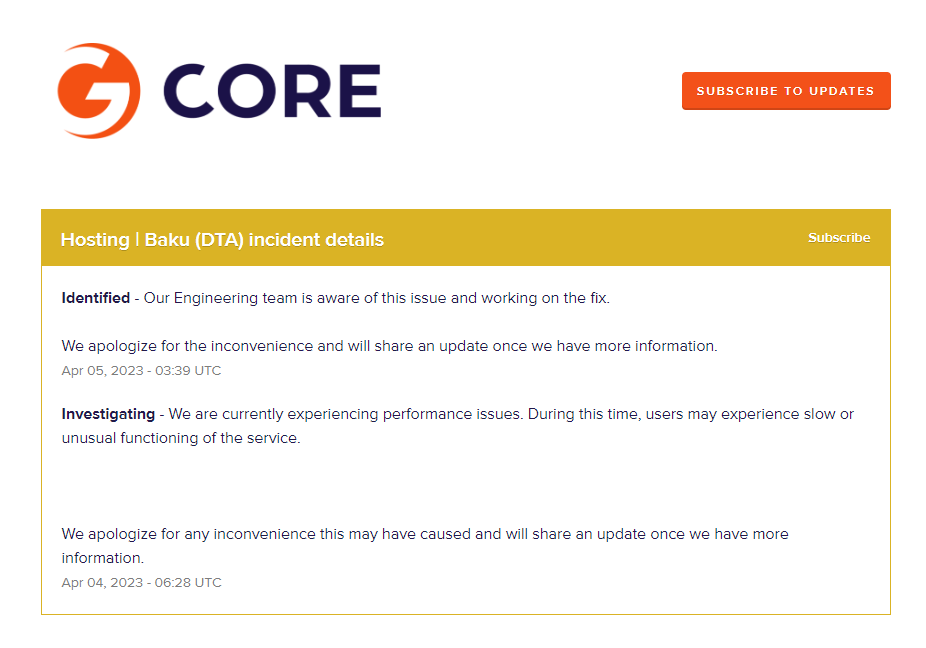 Then select a subscription method: email, Slack, or webhook.
### Email
To subscribe by email:
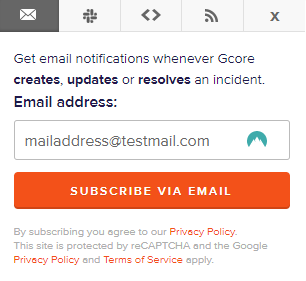
1. Enter an email address in the **Email Address** field, then click **Subscribe via email**. This redirects to the subscription management page.
2. Select the components to receive status information for, then click **Save**.
Then select a subscription method: email, Slack, or webhook.
### Email
To subscribe by email:
1. Enter an email address in the **Email Address** field, then click **Subscribe via email**. This redirects to the subscription management page.
2. Select the components to receive status information for, then click **Save**.
 3. Confirm the subscription by clicking **Confirm subscription** in the email sent to the specified address.
### Slack
Slack notifications route through an app added to the workspace; accounts still using the previous Status Page version need to remove the old integration before setting up the new one.
#### Old Slack integration removal
To correctly configure notifications from the current Status Page, disable notifications from the previous version first:
1. Open the workspace in Slack.
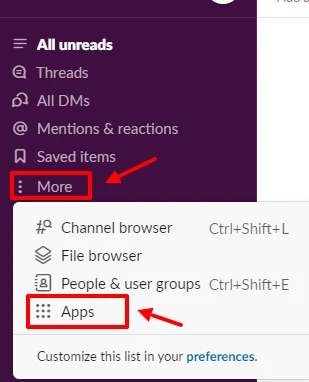
2. On the left side of the workspace, click **More**, then select **Apps**.
3. Confirm the subscription by clicking **Confirm subscription** in the email sent to the specified address.
### Slack
Slack notifications route through an app added to the workspace; accounts still using the previous Status Page version need to remove the old integration before setting up the new one.
#### Old Slack integration removal
To correctly configure notifications from the current Status Page, disable notifications from the previous version first:
1. Open the workspace in Slack.
2. On the left side of the workspace, click **More**, then select **Apps**.
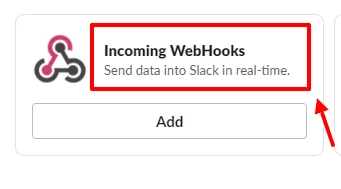
 3. Enter **Incoming WebHooks** in the search bar.
4. Click the app to open its settings.
3. Enter **Incoming WebHooks** in the search bar.
4. Click the app to open its settings.
 5. Navigate to the **Configuration** section.
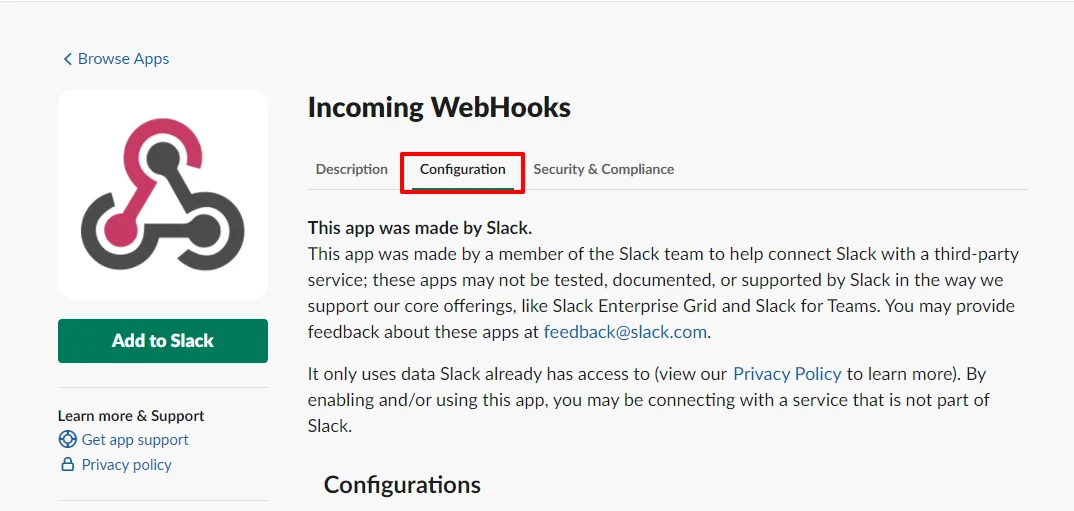 6. Find the channel the notifications are configured for.
7. Click the pencil icon to navigate to the integration settings.
8. In the upper-right corner, click **Disable** to switch off the integration, then click **Remove** to delete it.
6. Find the channel the notifications are configured for.
7. Click the pencil icon to navigate to the integration settings.
8. In the upper-right corner, click **Disable** to switch off the integration, then click **Remove** to delete it.
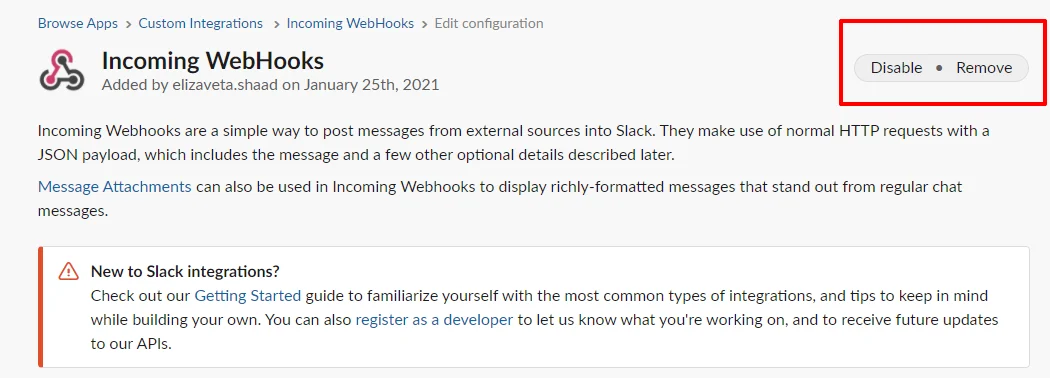 9. Confirm the action.
#### New Slack integration setup
To connect the current Status Page to a Slack workspace:
1. Click **Subscribe via Slack**.
9. Confirm the action.
#### New Slack integration setup
To connect the current Status Page to a Slack workspace:
1. Click **Subscribe via Slack**.
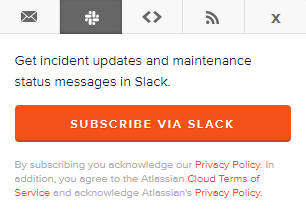 2. Enter the Slack workspace URL.
3. Click **Continue**.
2. Enter the Slack workspace URL.
3. Click **Continue**.
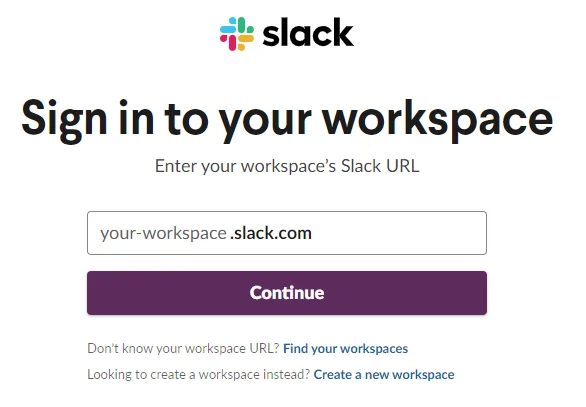 4. Log in with the email address and password for the selected Slack workspace.
5. Review the channel information Status Page provides for the workspace.
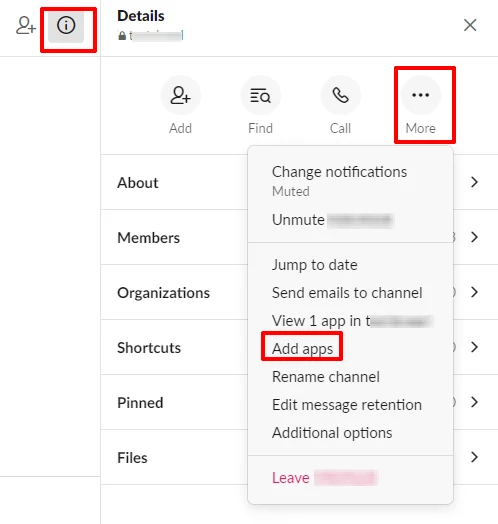
Using a private channel to send notifications requires adding the Status Page app to the channel first: open the channel details and click **More** > **Add Apps**.
4. Log in with the email address and password for the selected Slack workspace.
5. Review the channel information Status Page provides for the workspace.
Using a private channel to send notifications requires adding the Status Page app to the channel first: open the channel details and click **More** > **Add Apps**.
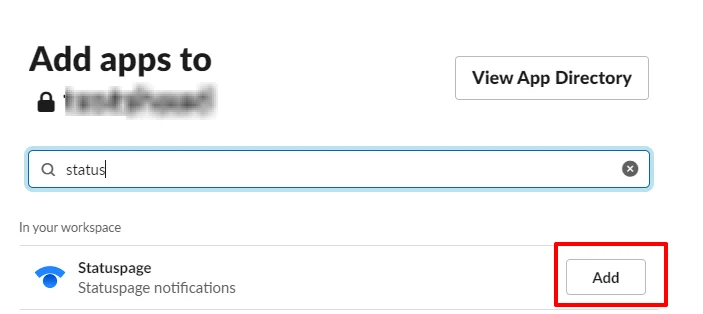
 6. Enter **Status page** and click **Add** next to the app.
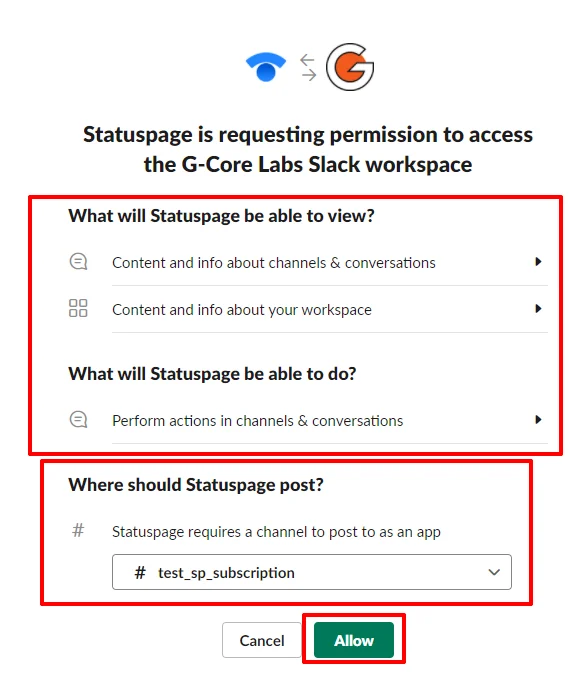
 7. On the integration page, specify the channel to publish notifications to under **Where should Status page post**, then click **Allow**.
 Slack confirms the setup and redirects automatically to the subscription management page.
8. Select the components to receive status information for, then click **Save**.
### Webhook
A webhook subscription requires a URL that Status Page can send update requests to.
1. Enter the URL for sending notifications in the first field.
2. In the second field, specify an email address to use if the URL is unavailable.
Slack confirms the setup and redirects automatically to the subscription management page.
8. Select the components to receive status information for, then click **Save**.
### Webhook
A webhook subscription requires a URL that Status Page can send update requests to.
1. Enter the URL for sending notifications in the first field.
2. In the second field, specify an email address to use if the URL is unavailable.
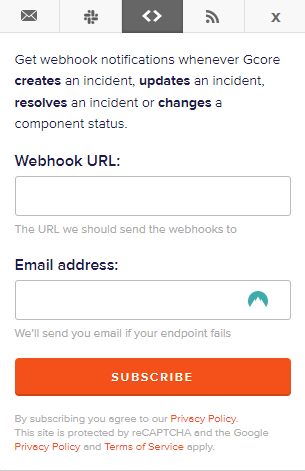 3. Click **Subscribe**. A confirmation message confirms that webhook notifications are configured, and a confirmation email is sent to the specified address.
Webhook documentation is available by clicking **View documentation**.
## Subscription management
Existing subscriptions are changed or cancelled from links in the notifications Status Page already sends, regardless of the delivery channel.
### Email management
The subscription can be changed from any notification sent to the email address.
1. Open the notification.
2. At the bottom of the notification, click **Manage your subscription**.
3. Click **Subscribe**. A confirmation message confirms that webhook notifications are configured, and a confirmation email is sent to the specified address.
Webhook documentation is available by clicking **View documentation**.
## Subscription management
Existing subscriptions are changed or cancelled from links in the notifications Status Page already sends, regardless of the delivery channel.
### Email management
The subscription can be changed from any notification sent to the email address.
1. Open the notification.
2. At the bottom of the notification, click **Manage your subscription**.
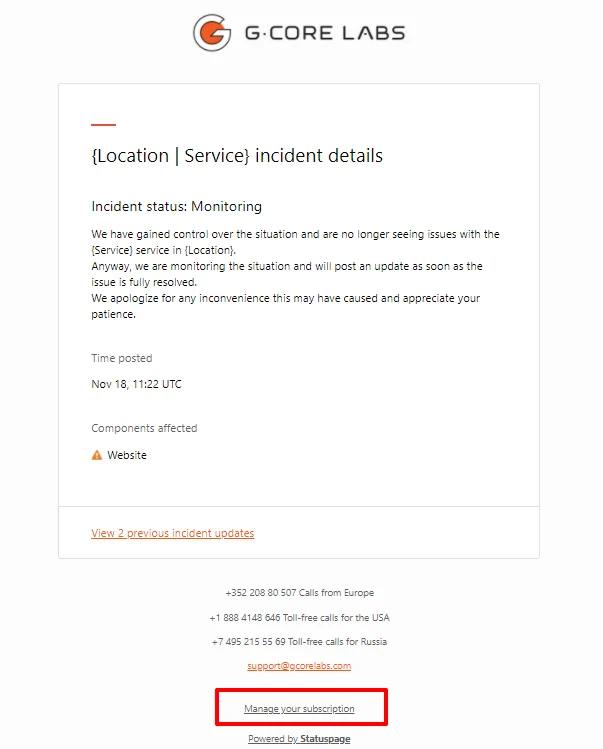 3. Edit the component subscription, then click **Save**.
### Slack management
The subscription can be changed from any notification sent to Slack.
1. Find the notification in Slack.
2. At the bottom of the notification, click **Manage your subscription**.
3. Edit the component subscription, then click **Save**.
### Webhook management
The subscription can be changed from any notification sent to the URL specified during configuration.
1. Open the notification.
2. At the bottom of the notification, click **Manage your subscription**.
3. Edit the component subscription, then click **Save**.
### Subscription cancellation
To stop receiving all Status Page updates:
1. Open the subscription management page and click **Unsubscribe from the updates**.
2. Confirm the action.
## Components
Components are grouped by service; the Edge Cloud service is further split by option and location. Each service, or service and location pairing, can also be divided by geography or function.
The Updates component, under Releases, lists Gcore releases biweekly. The Website component shows the company website's status, and the Knowledge Base component shows knowledge base availability.
### Component statuses
Each component reports one of four statuses.
| Status | Description |
| ----------------- | --------------------------------------- |
| Operational | The component is operating normally |
| Partial Outage | The component is partially unavailable |
| Major Outage | The component is completely unavailable |
| Under Maintenance | The component is under maintenance |
3. Edit the component subscription, then click **Save**.
### Slack management
The subscription can be changed from any notification sent to Slack.
1. Find the notification in Slack.
2. At the bottom of the notification, click **Manage your subscription**.
3. Edit the component subscription, then click **Save**.
### Webhook management
The subscription can be changed from any notification sent to the URL specified during configuration.
1. Open the notification.
2. At the bottom of the notification, click **Manage your subscription**.
3. Edit the component subscription, then click **Save**.
### Subscription cancellation
To stop receiving all Status Page updates:
1. Open the subscription management page and click **Unsubscribe from the updates**.
2. Confirm the action.
## Components
Components are grouped by service; the Edge Cloud service is further split by option and location. Each service, or service and location pairing, can also be divided by geography or function.
The Updates component, under Releases, lists Gcore releases biweekly. The Website component shows the company website's status, and the Knowledge Base component shows knowledge base availability.
### Component statuses
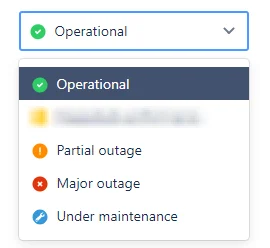
Each component reports one of four statuses.
| Status | Description |
| ----------------- | --------------------------------------- |
| Operational | The component is operating normally |
| Partial Outage | The component is partially unavailable |
| Major Outage | The component is completely unavailable |
| Under Maintenance | The component is under maintenance |
 ### Notification types
Status Page sends eight notification types, covering incident stages and maintenance stages.
| Notification | Description |
| -------------------------- | -------------------------------------------------------------------- |
| Incident \| Investigating | A partial or complete outage is under investigation |
| Incident \| Identified | The incident's cause has been identified and is being resolved |
| Incident \| Monitoring | The incident is resolved and the component is under monitoring |
| Incident \| Resolved | The incident is completely resolved |
| Incident \| Retrospective | A retrospective notification about an incident that already occurred |
| Maintenance \| Scheduled | Notification of upcoming scheduled maintenance |
| Maintenance \| In progress | Scheduled maintenance has started |
| Maintenance \| Completed | Scheduled maintenance has completed |
### Notification types
Status Page sends eight notification types, covering incident stages and maintenance stages.
| Notification | Description |
| -------------------------- | -------------------------------------------------------------------- |
| Incident \| Investigating | A partial or complete outage is under investigation |
| Incident \| Identified | The incident's cause has been identified and is being resolved |
| Incident \| Monitoring | The incident is resolved and the component is under monitoring |
| Incident \| Resolved | The incident is completely resolved |
| Incident \| Retrospective | A retrospective notification about an incident that already occurred |
| Maintenance \| Scheduled | Notification of upcoming scheduled maintenance |
| Maintenance \| In progress | Scheduled maintenance has started |
| Maintenance \| Completed | Scheduled maintenance has completed |