> ## Documentation Index
> Fetch the complete documentation index at: https://docs.preprod.world/llms.txt
> Use this file to discover all available pages before exploring further.
# Expenses
The [Expenses](https://portal.gcore.com/accounts/billing/expenses) page in the [Gcore Customer Portal](https://portal.gcore.com) lists the costs of consumed Gcore products billed to the account.
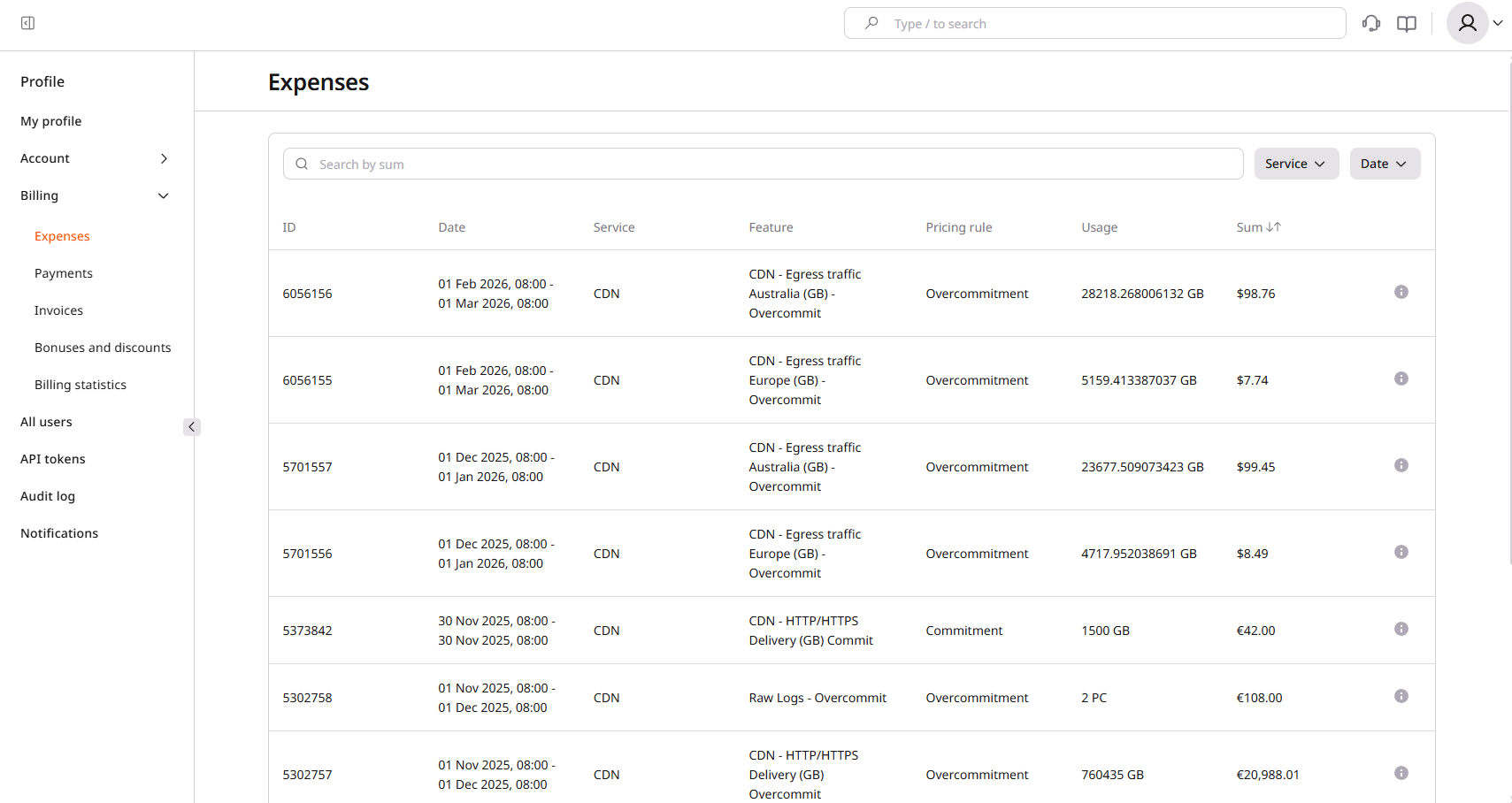 Each row lists the following details for a consumed product:
| Column | Description |
| ------------ | ----------------------------------------------------------------------------------------------- |
| ID | Unique identifier of the expense, used to track billing history, payments, and account activity |
| Date | Date when the Gcore product was consumed |
| Service | Gcore product consumed (Cloud, CDN, or another service) |
| Feature | Particular product feature that was used |
| Pricing rule | Whether usage stayed within a pre-agreed commitment or exceeded it |
| Usage | Amount of the consumed resource |
| Sum | Cost of the consumed resource |
## Pricing rules overview
The **Pricing rule** column applies to [resource reservation](/cloud/getting-started/resource-reservation/about-resource-reservation), a long-term rental of resources at a discount.
| Status | Description |
| -------------- | ----------------------------------------------------------------------------------------------- |
| Commitment | Usage stays within the reserved limit and is billed at the agreed rate, with no additional cost |
| Overcommitment | Usage exceeds the reserved limit, and overage fees apply to the excess |
Overcommit expenses for the previous month are counted on the 2nd day of each month.
## Tax rates and discounts
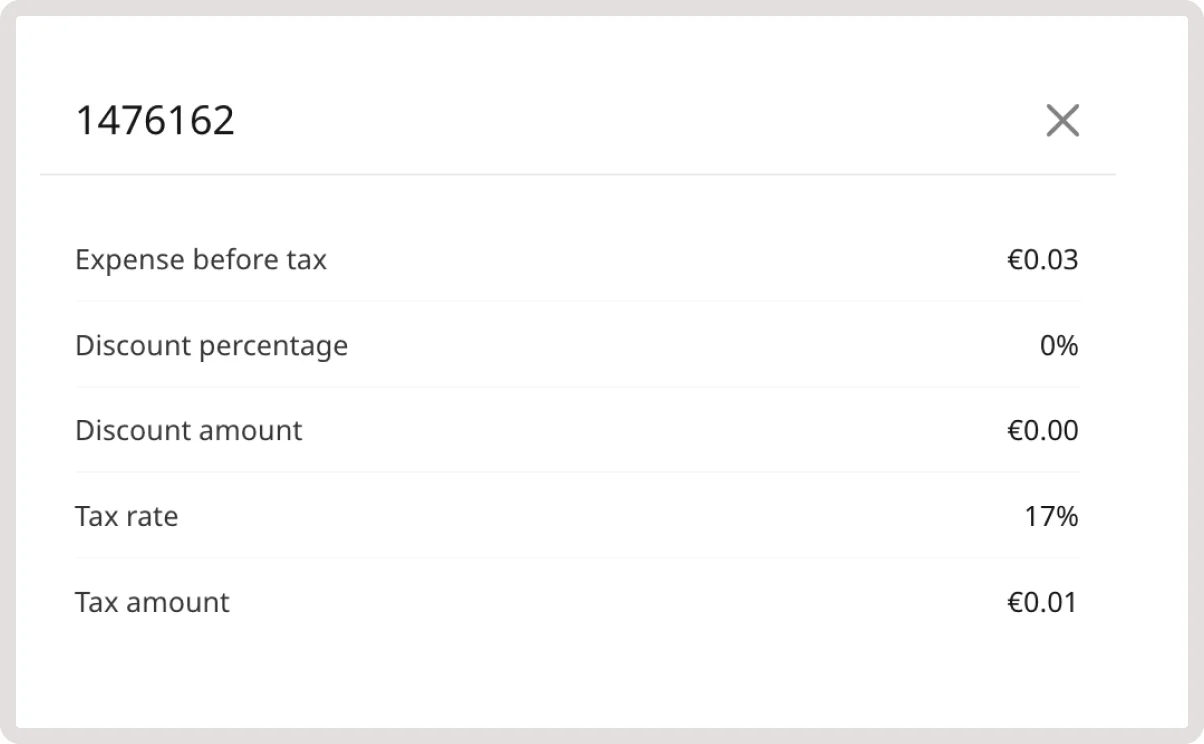
Clicking the info icon next to the Sum column opens a detailed breakdown of the expense, including the collected taxes and applied discounts.
| Field | Description |
| ------------------- | ------------------------------------------------------------------------ |
| Expense before tax | Total amount charged before taxes are applied |
| Discount percentage | Percentage of discount applied to the payment before taxation |
| Discount amount | Amount of the discount |
| Tax rate | Percentage of tax applied to the expense, based on local tax regulations |
| Tax amount | Total amount of tax charged |
Tax rates follow local regulations and vary by country, as listed in [VAT rates](/account-settings/billing/vat-rates).
Each row lists the following details for a consumed product:
| Column | Description |
| ------------ | ----------------------------------------------------------------------------------------------- |
| ID | Unique identifier of the expense, used to track billing history, payments, and account activity |
| Date | Date when the Gcore product was consumed |
| Service | Gcore product consumed (Cloud, CDN, or another service) |
| Feature | Particular product feature that was used |
| Pricing rule | Whether usage stayed within a pre-agreed commitment or exceeded it |
| Usage | Amount of the consumed resource |
| Sum | Cost of the consumed resource |
## Pricing rules overview
The **Pricing rule** column applies to [resource reservation](/cloud/getting-started/resource-reservation/about-resource-reservation), a long-term rental of resources at a discount.
| Status | Description |
| -------------- | ----------------------------------------------------------------------------------------------- |
| Commitment | Usage stays within the reserved limit and is billed at the agreed rate, with no additional cost |
| Overcommitment | Usage exceeds the reserved limit, and overage fees apply to the excess |
Overcommit expenses for the previous month are counted on the 2nd day of each month.
## Tax rates and discounts
Clicking the info icon next to the Sum column opens a detailed breakdown of the expense, including the collected taxes and applied discounts.
| Field | Description |
| ------------------- | ------------------------------------------------------------------------ |
| Expense before tax | Total amount charged before taxes are applied |
| Discount percentage | Percentage of discount applied to the payment before taxation |
| Discount amount | Amount of the discount |
| Tax rate | Percentage of tax applied to the expense, based on local tax regulations |
| Tax amount | Total amount of tax charged |
Tax rates follow local regulations and vary by country, as listed in [VAT rates](/account-settings/billing/vat-rates).
 When the tax rate changes during the billing month, Gcore recalculates expenses to reflect the new rate consistently across the entire invoice; the invoice stays unchanged when the rate remains the same.
Gcore deletes and re-creates all overcommit expenses for daily billed customers, even when the tax rate stays unchanged, keeping expenses consistent with expense statistics. As a result, old expenses can appear as Deleted in both the Customer Portal and the Gcore API.
## Expense data filters
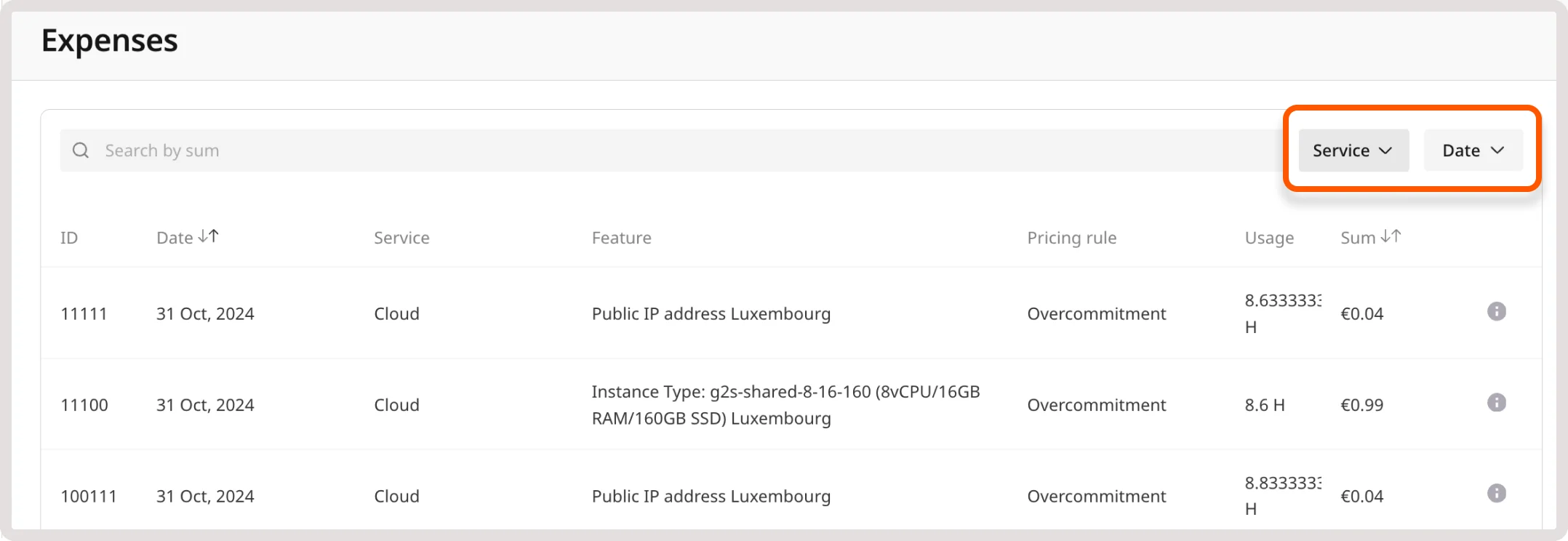
Expenses can be filtered by consumption date or service type. The consumption period defaults to a calendar month, though a custom period can be selected instead using the **Service** or **Date** dropdowns.
When the tax rate changes during the billing month, Gcore recalculates expenses to reflect the new rate consistently across the entire invoice; the invoice stays unchanged when the rate remains the same.
Gcore deletes and re-creates all overcommit expenses for daily billed customers, even when the tax rate stays unchanged, keeping expenses consistent with expense statistics. As a result, old expenses can appear as Deleted in both the Customer Portal and the Gcore API.
## Expense data filters
Expenses can be filtered by consumption date or service type. The consumption period defaults to a calendar month, though a custom period can be selected instead using the **Service** or **Date** dropdowns.