> ## Documentation Index
> Fetch the complete documentation index at: https://docs.preprod.world/llms.txt
> Use this file to discover all available pages before exploring further.
# Payments and payment methods
Payment for Gcore products follows either a pay-as-you-go model, based on actual resource consumption, or a fixed monthly cost tied to a committed plan. Costs for each product are listed on the [Pricing page](https://gcore.com/pricing).
## Payment history
To view payment history:
1. In the [Gcore Customer Portal](https://portal.gcore.com), click the profile icon in the top-right corner.
2. Select **Profile**.
3. Navigate to **Billing** > **Payments**.
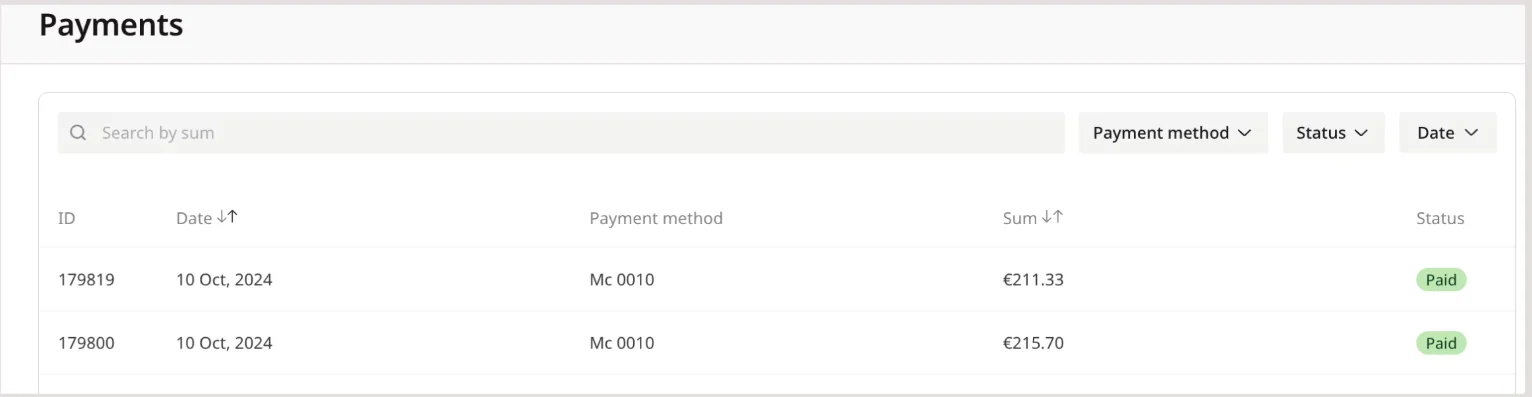
The Payments page lists every payment operation processed for the account.
| Column | Description |
| -------------- | ---------------------------------------------------------------------------------------------- |
| ID | Unique identifier of the transaction |
| Created | Date when the payment operation was created in the system |
| Paid | Date when the payment was successfully completed |
| Payment method | Method used for payment (Credit or debit card, PayPal, bank, Apple Pay, Google Pay, or Alipay) |
| Sum | Total paid amount |
| Status | Current processing state of the transaction |
 ### Payment statuses
The Status column shows one of five processing states.
| Status | Description |
| --------- | ------------------------------ |
| Paid | Payment completed successfully |
| Unpaid | Payment failed |
| Cancelled | Payment was cancelled |
| Pending | Payment is being processed |
| Refunded | Payment has been refunded |
### Payment data filters
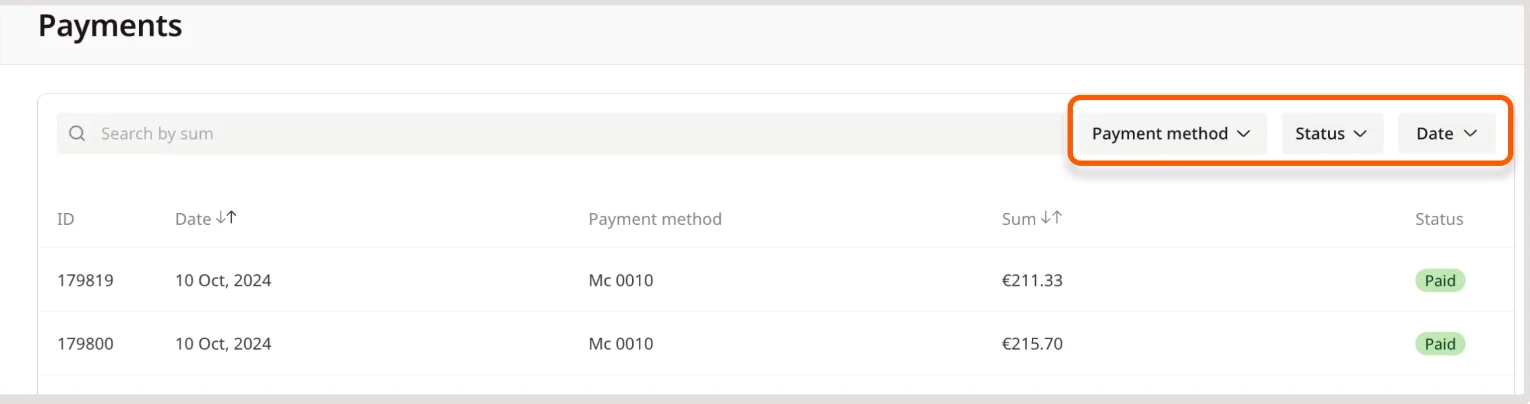
Payments can be filtered by payment method, date, or status using the relevant table dropdowns.
### Payment statuses
The Status column shows one of five processing states.
| Status | Description |
| --------- | ------------------------------ |
| Paid | Payment completed successfully |
| Unpaid | Payment failed |
| Cancelled | Payment was cancelled |
| Pending | Payment is being processed |
| Refunded | Payment has been refunded |
### Payment data filters
Payments can be filtered by payment method, date, or status using the relevant table dropdowns.
 ## Payment methods
Payment methods are added, verified, and removed on the **Payment methods** page. To open it:
1. Click the profile icon in the top-right corner.
2. Select **Profile**.
3. Navigate to **Account** > **Payment methods**.
## Payment methods
Payment methods are added, verified, and removed on the **Payment methods** page. To open it:
1. Click the profile icon in the top-right corner.
2. Select **Profile**.
3. Navigate to **Account** > **Payment methods**.
 ### New payment method
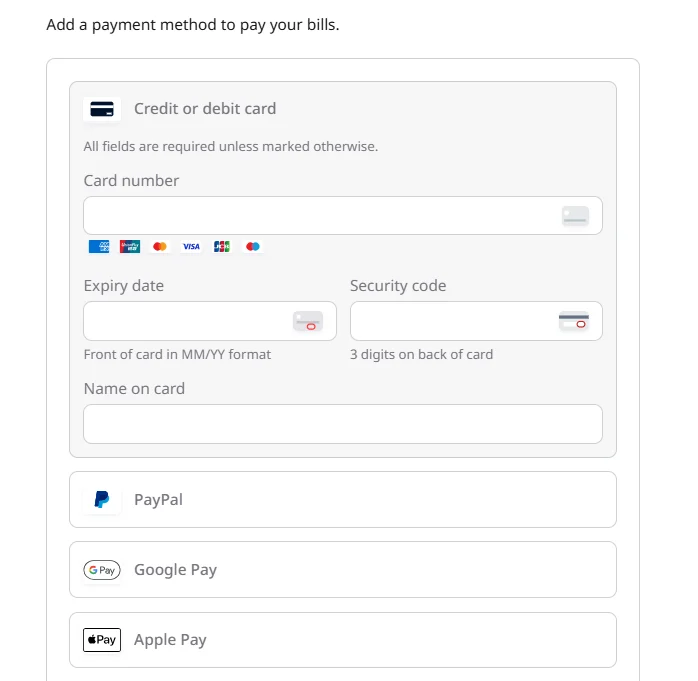
A payment method is added directly on the **Payment methods** page.
1. Select the payment system to use (Credit or debit card, PayPal, Google Pay, or Apple Pay). The form expands.
2. Enter the payment information.
The payment method address is separate from the [billing address](/account-settings/account/overview), so changes made on one page do not affect the other.
3. Click **Confirm information** to apply the changes.
### Payment method verification
Adding a payment card triggers a brief verification step to confirm it's valid before it can be used for charges. A verification charge of approximately 1 EUR/USD applies when a card is added; this is not a fee, but a temporary authorization hold that confirms the card is valid. Refunds are processed automatically, usually instantly or within 24 hours, though it can take up to 3–7 business days depending on the bank. Each attempt to add a card creates a separate hold, and all holds are refunded automatically.
### Default payment method
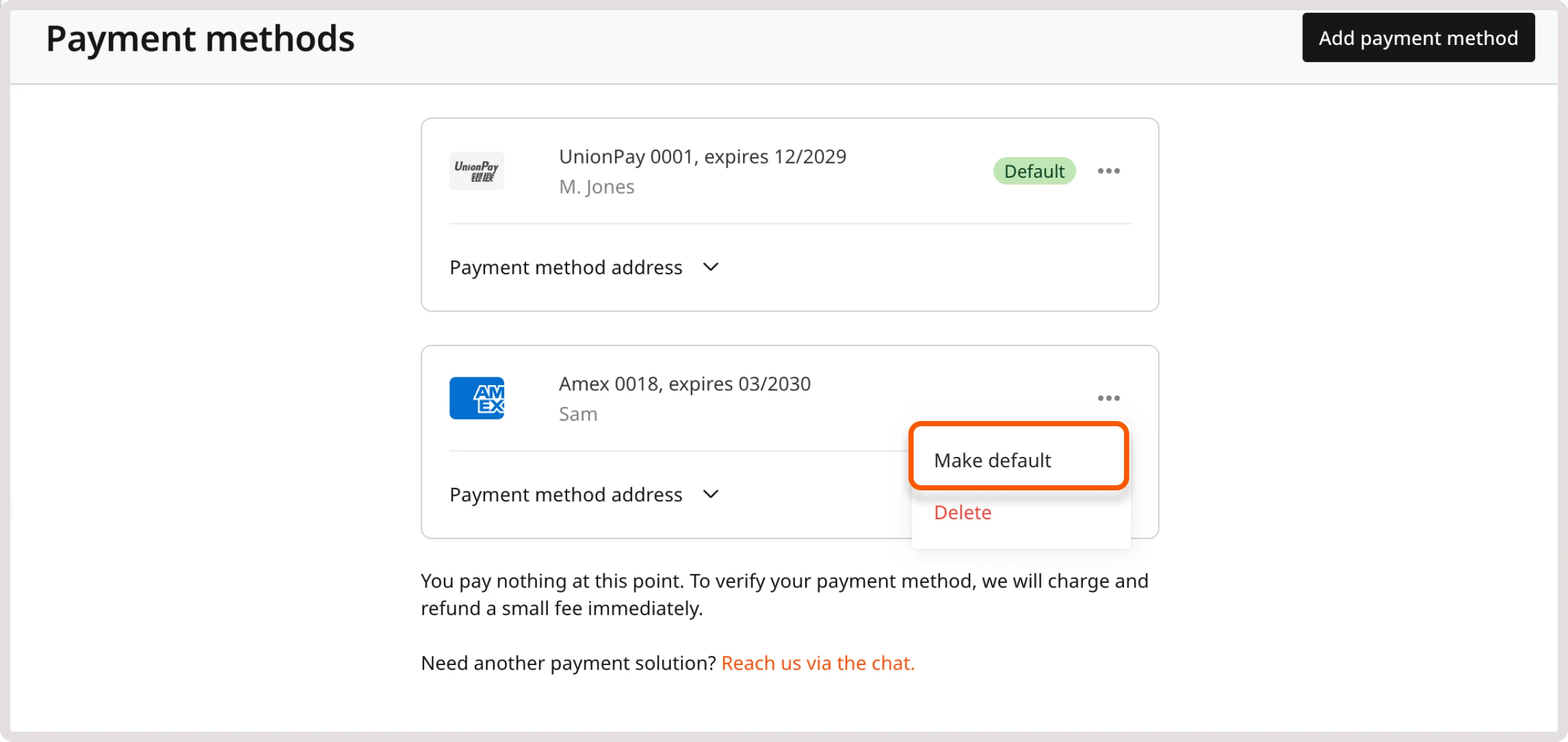
The default payment method is the option automatically selected for transactions unless a different one is selected. Multiple payment methods can be added; the first one added becomes the default, though it can be changed at any time by clicking the three-dot icon next to the preferred method and selecting **Make default**.
### New payment method
A payment method is added directly on the **Payment methods** page.
1. Select the payment system to use (Credit or debit card, PayPal, Google Pay, or Apple Pay). The form expands.
2. Enter the payment information.
The payment method address is separate from the [billing address](/account-settings/account/overview), so changes made on one page do not affect the other.
3. Click **Confirm information** to apply the changes.
### Payment method verification
Adding a payment card triggers a brief verification step to confirm it's valid before it can be used for charges. A verification charge of approximately 1 EUR/USD applies when a card is added; this is not a fee, but a temporary authorization hold that confirms the card is valid. Refunds are processed automatically, usually instantly or within 24 hours, though it can take up to 3–7 business days depending on the bank. Each attempt to add a card creates a separate hold, and all holds are refunded automatically.
### Default payment method
The default payment method is the option automatically selected for transactions unless a different one is selected. Multiple payment methods can be added; the first one added becomes the default, though it can be changed at any time by clicking the three-dot icon next to the preferred method and selecting **Make default**.
 ### Payment method removal
A payment method cannot be deleted if it's the only one on the account.
1. On the **Payment methods** page, locate the card to remove.
2. Click the three-dot icon on the card and select **Delete**.
3. Click **Delete** again to confirm.
## Balance top-ups
Beyond automatic billing, funds can be added to the Gcore account balance manually or through automatic top-ups.
### Manual top-up
A manual top-up adds funds to the Gcore account balance using any available payment method.
Full payment information may be requested during a manual top-up in some cases.
A one-time payment with Alipay is available for manual top-ups, without adding it as a saved payment method.
To top up the balance with Alipay:
1. In the Customer Portal, click **Top-up** in the upper-right corner.
### Payment method removal
A payment method cannot be deleted if it's the only one on the account.
1. On the **Payment methods** page, locate the card to remove.
2. Click the three-dot icon on the card and select **Delete**.
3. Click **Delete** again to confirm.
## Balance top-ups
Beyond automatic billing, funds can be added to the Gcore account balance manually or through automatic top-ups.
### Manual top-up
A manual top-up adds funds to the Gcore account balance using any available payment method.
Full payment information may be requested during a manual top-up in some cases.
A one-time payment with Alipay is available for manual top-ups, without adding it as a saved payment method.
To top up the balance with Alipay:
1. In the Customer Portal, click **Top-up** in the upper-right corner.
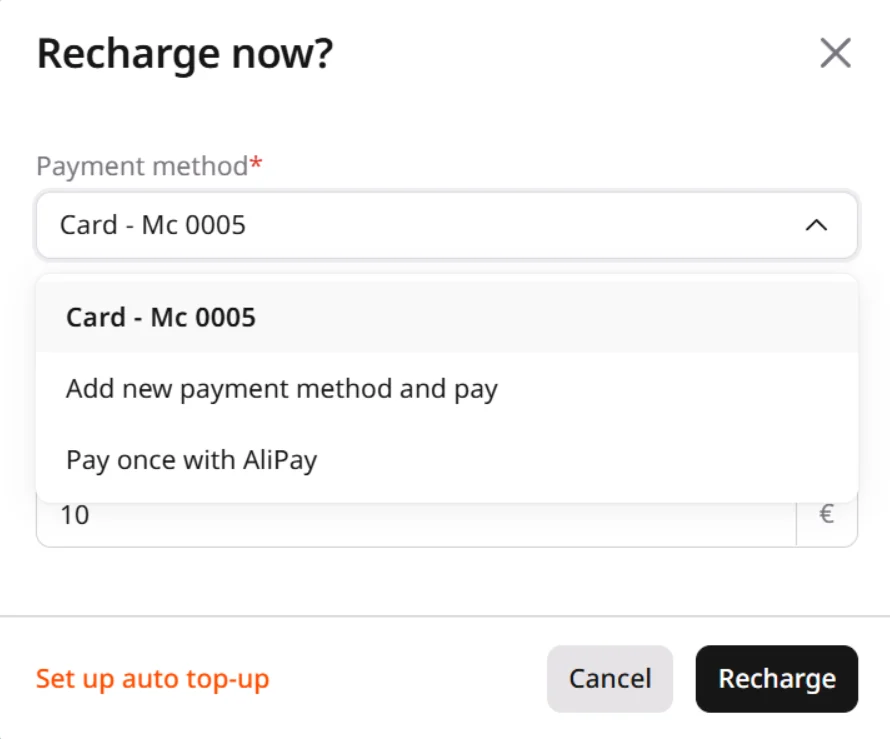
 2. In the **Recharge now?** window, open the **Payment method** list. If a payment method is already added, select it for the top-up, like **Card - Mc 0010**, or select **Pay once with Alipay**.
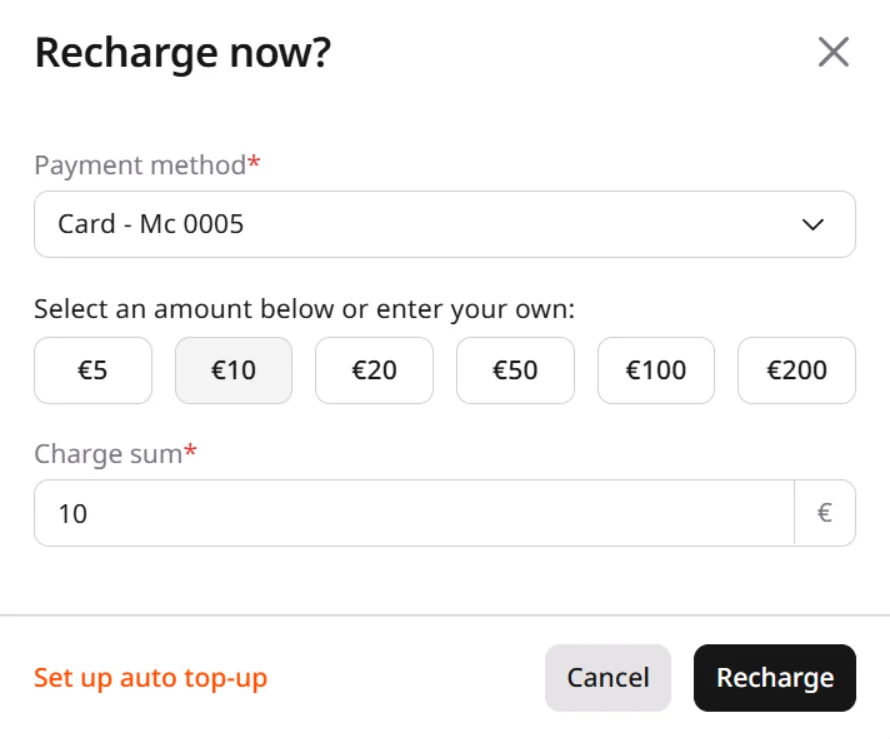
 3. Select a preset amount or enter a custom amount in the **Charge sum** field.
4. Click **Recharge** and complete the payment.
3. Select a preset amount or enter a custom amount in the **Charge sum** field.
4. Click **Recharge** and complete the payment.
 Once the payment completes, the funds are added to the account balance.
### Auto top-up
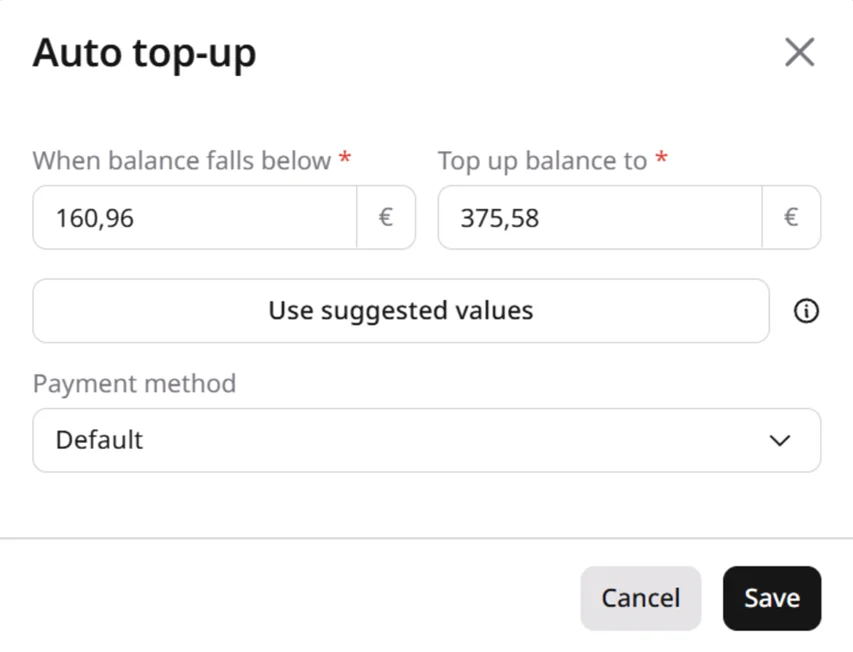
Auto top-up automatically replenishes the Gcore account balance when it falls below a specified amount.
| Setting | Description |
| ------------------------ | -------------------------------------------------- |
| When balance falls below | Threshold amount that triggers an automatic top-up |
| Top up balance to | Target amount reached after the top-up |
| Payment method | Payment method used for automatic charging |
Only active cards and digital wallet payment methods can be used for auto top-up; bank payment methods are not supported.
Auto top-up is configured on the **Payment methods** page.
Once the payment completes, the funds are added to the account balance.
### Auto top-up
Auto top-up automatically replenishes the Gcore account balance when it falls below a specified amount.
| Setting | Description |
| ------------------------ | -------------------------------------------------- |
| When balance falls below | Threshold amount that triggers an automatic top-up |
| Top up balance to | Target amount reached after the top-up |
| Payment method | Payment method used for automatic charging |
Only active cards and digital wallet payment methods can be used for auto top-up; bank payment methods are not supported.
Auto top-up is configured on the **Payment methods** page.
 It can also be enabled by clicking **Top-up** in the top-right corner and selecting **Set up auto top-up**.
Once auto top-up is set up, Gcore charges the selected payment method automatically whenever the balance falls below the threshold.
#### Auto top-up statuses
The auto top-up configuration shows one of three statuses.
| Status | Description |
| --------- | ----------------------------------------------------------------------------- |
| Active | Auto top-up is enabled and working normally |
| Disabled | Auto top-up is configured but disabled |
| Suspended | Auto top-up was temporarily disabled because multiple payment attempts failed |
Updating or verifying the payment method reactivates a suspended auto top-up.
#### Suggested values
Suggested values, generated automatically from recent account usage, offer an alternative to manual entry.
The suggestions include:
* Recommended threshold amount
* Recommended target amount
* Average daily spend
* Maximum daily spend during the analysis period
It can also be enabled by clicking **Top-up** in the top-right corner and selecting **Set up auto top-up**.
Once auto top-up is set up, Gcore charges the selected payment method automatically whenever the balance falls below the threshold.
#### Auto top-up statuses
The auto top-up configuration shows one of three statuses.
| Status | Description |
| --------- | ----------------------------------------------------------------------------- |
| Active | Auto top-up is enabled and working normally |
| Disabled | Auto top-up is configured but disabled |
| Suspended | Auto top-up was temporarily disabled because multiple payment attempts failed |
Updating or verifying the payment method reactivates a suspended auto top-up.
#### Suggested values
Suggested values, generated automatically from recent account usage, offer an alternative to manual entry.
The suggestions include:
* Recommended threshold amount
* Recommended target amount
* Average daily spend
* Maximum daily spend during the analysis period
 Minimum recommended values are suggested instead when no usage history is available.