> ## Documentation Index
> Fetch the complete documentation index at: https://docs.preprod.world/llms.txt
> Use this file to discover all available pages before exploring further.
# Tax location
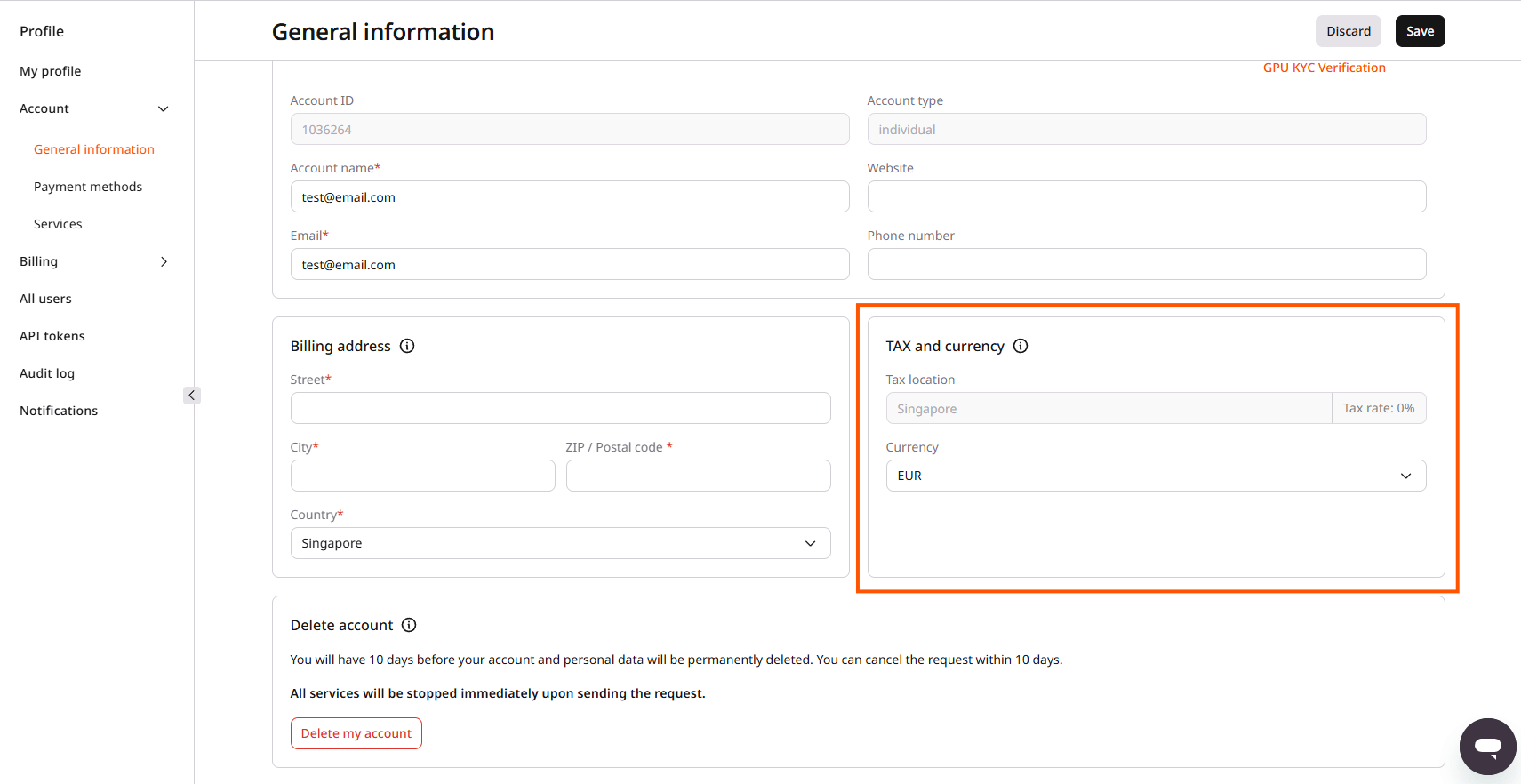
Every Gcore account has a tax location, the country whose tax regulations and rate apply to that account.
To view the tax location and its rate:
1. Click the avatar in the top-right corner of the [Gcore Customer Portal](https://portal.gcore.com).
2. Select **Profile**.
3. Navigate to **Account** > **General information**.
4. Find the **Tax location** field in the **Tax and currency** section.
 ## Tax location calculation
The tax location is calculated from the billing address entered on the General information page. For an individual account, other account details required for EU tax compliance, including the IP address and payment method, are also factored in, because tax laws in some countries require verification beyond a self-reported address. For an organization account, the tax location is based on the billing address, and the resulting VAT rate depends on whether a valid EU VAT number was provided. Standard VAT rates by country and account type are covered in [VAT rates](/account-settings/billing/vat-rates).
## Update billing address
The billing address is updated directly on the General information page: edit the street address, city, postal code, or country fields, then click **Save**. Updating the country field recalculates the tax location and VAT rate accordingly.
If the billing address is correct but the calculated tax location doesn't match expectations, contact support through chat or by emailing [support@gcore.com](mailto:support@gcore.com).
## Add a VAT number
An organization with a registered EU VAT number can remove VAT charges from invoices by providing that number. To add or update a VAT number, contact support through chat or by emailing [support@gcore.com](mailto:support@gcore.com).
## Tax rate changes during a billing period
A tax rate change during a billing month triggers recalculation of that month's [expenses](/account-settings/billing/expenses), which can cause old overcommit expenses to appear as Deleted in the Customer Portal and the API.
## Tax location calculation
The tax location is calculated from the billing address entered on the General information page. For an individual account, other account details required for EU tax compliance, including the IP address and payment method, are also factored in, because tax laws in some countries require verification beyond a self-reported address. For an organization account, the tax location is based on the billing address, and the resulting VAT rate depends on whether a valid EU VAT number was provided. Standard VAT rates by country and account type are covered in [VAT rates](/account-settings/billing/vat-rates).
## Update billing address
The billing address is updated directly on the General information page: edit the street address, city, postal code, or country fields, then click **Save**. Updating the country field recalculates the tax location and VAT rate accordingly.
If the billing address is correct but the calculated tax location doesn't match expectations, contact support through chat or by emailing [support@gcore.com](mailto:support@gcore.com).
## Add a VAT number
An organization with a registered EU VAT number can remove VAT charges from invoices by providing that number. To add or update a VAT number, contact support through chat or by emailing [support@gcore.com](mailto:support@gcore.com).
## Tax rate changes during a billing period
A tax rate change during a billing month triggers recalculation of that month's [expenses](/account-settings/billing/expenses), which can cause old overcommit expenses to appear as Deleted in the Customer Portal and the API.