> ## Documentation Index
> Fetch the complete documentation index at: https://docs.preprod.world/llms.txt
> Use this file to discover all available pages before exploring further.
# DNS Healthchecks
export const Caution = ({children}) => {
return ;
};
Healthchecks keep a site or application available when one or more servers go down. This feature monitors server availability and excludes non-working IPs from DNS responses when issues occur. As a result, traffic is redirected from the problematic server to a working one, and the resource stays available for all users.
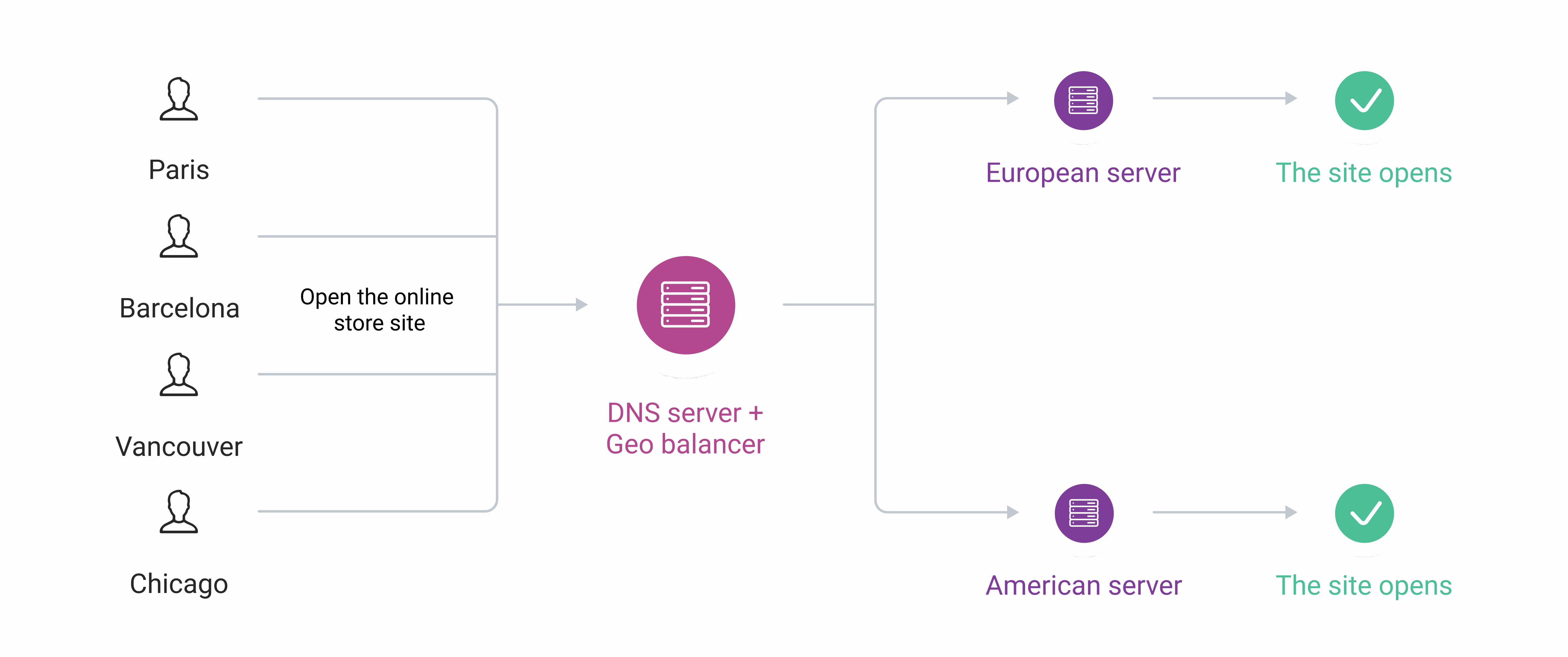
This feature is especially important for business areas where the loss of availability means the loss of customers. Consider an online store that serves Europe and the US. The site runs on two servers — a European one and an American one — with Geobalancing routing visitors to the closest server. Customers from Paris and Barcelona are balanced to the European server, while customers from Vancouver and Chicago are balanced to the American one.
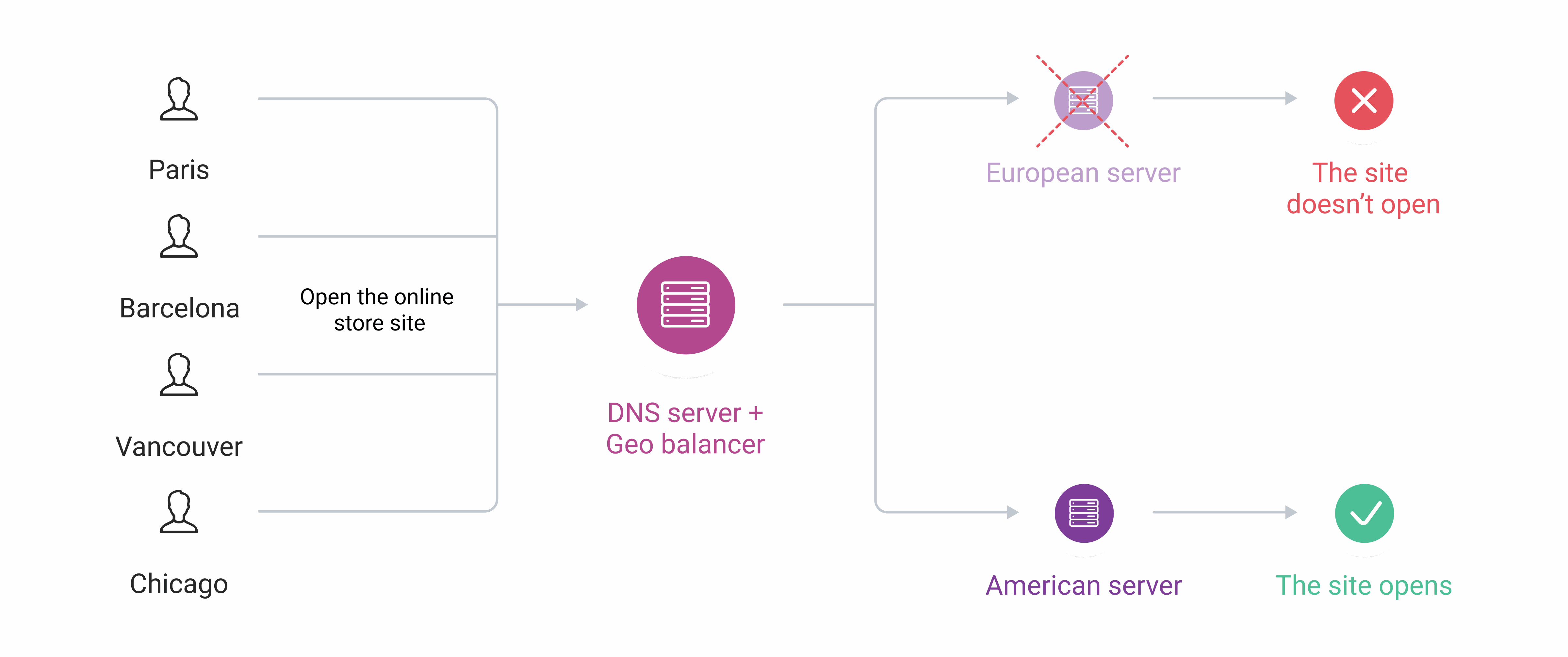
 If the European server crashes, visitors balanced to it receive an error instead of the site. While the server is being fixed, customers visit a competitor's site instead.
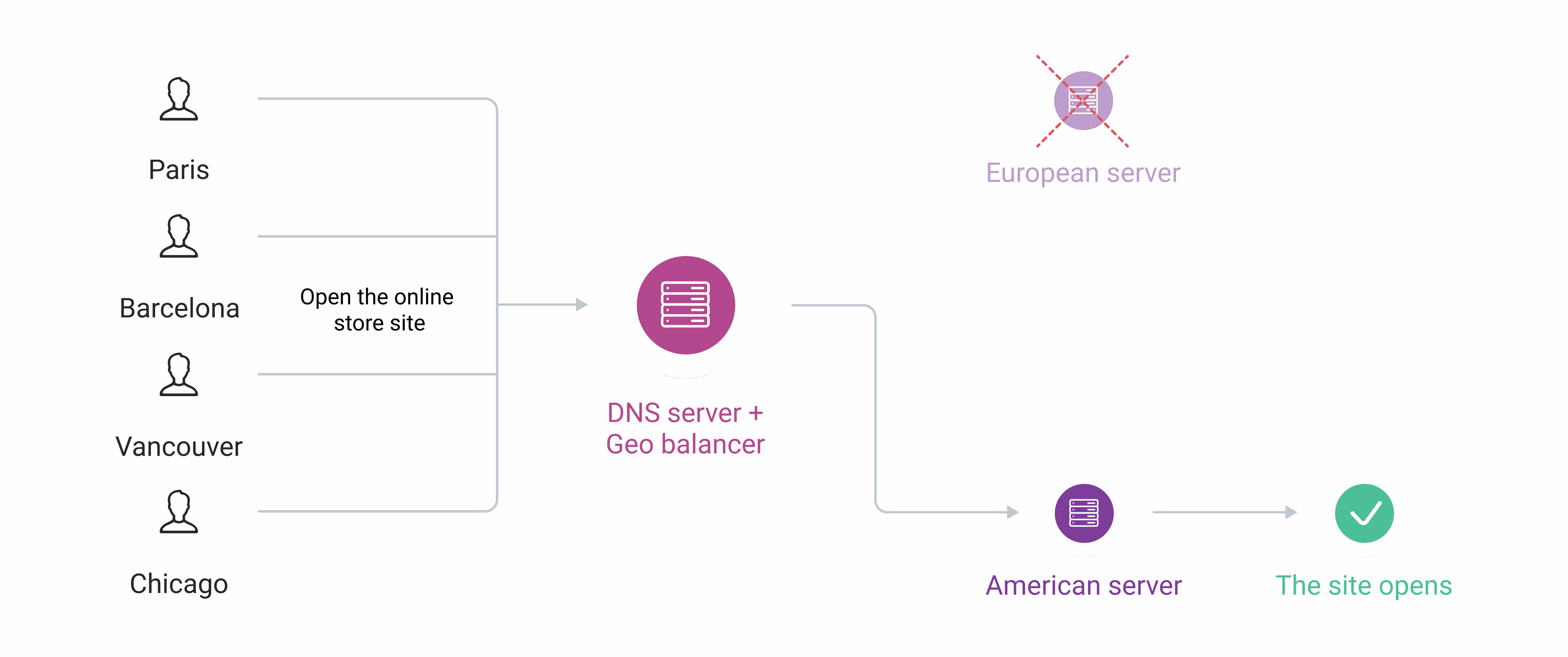
 With Healthchecks enabled, the next time the European server crashes, Healthchecks tells the DNS server not to include the unavailable IP in responses. All requests are directed to the American server, so the web application stays available — customers can continue making purchases without noticing the outage.
 When the European server recovers, Healthchecks detects that and restores its IP in DNS responses for users in Europe.
## Healthchecks mechanism
Healthchecks operate in a continuous poll-detect-respond cycle. The brief overview below covers the essentials; the step-by-step breakdown that follows explains each stage in detail.
**Basic explanation:**
DNS Healthchecks sends regular requests to each configured record to determine whether the server is reachable. A record is excluded from DNS responses when its server stops responding, and restored when it comes back online. By default, round-robin balancing distributes requests across available servers; Geobalancing can also be enabled.
**Detailed explanation:**
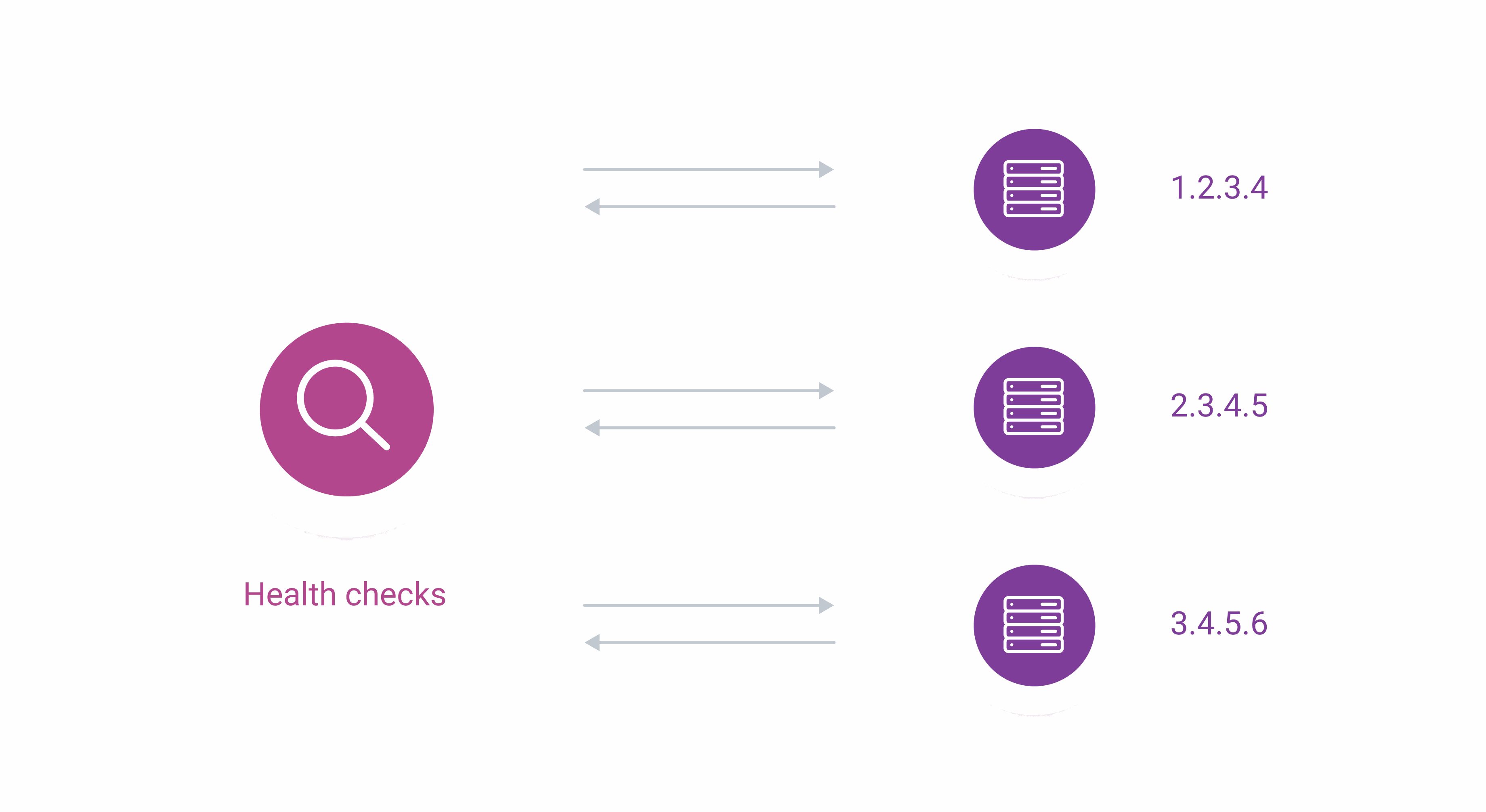
DNS Healthchecks sends requests to servers to check their availability. Configure request settings — protocol, frequency, and others — in the Gcore Customer Portal after the feature is enabled.
The following is an example configuration:
* Protocol: ICMP
* Frequency: 1 minute
* Timeout: 10 seconds
With this configuration, DNS Healthchecks sends requests to web servers via ICMP every 60 seconds.
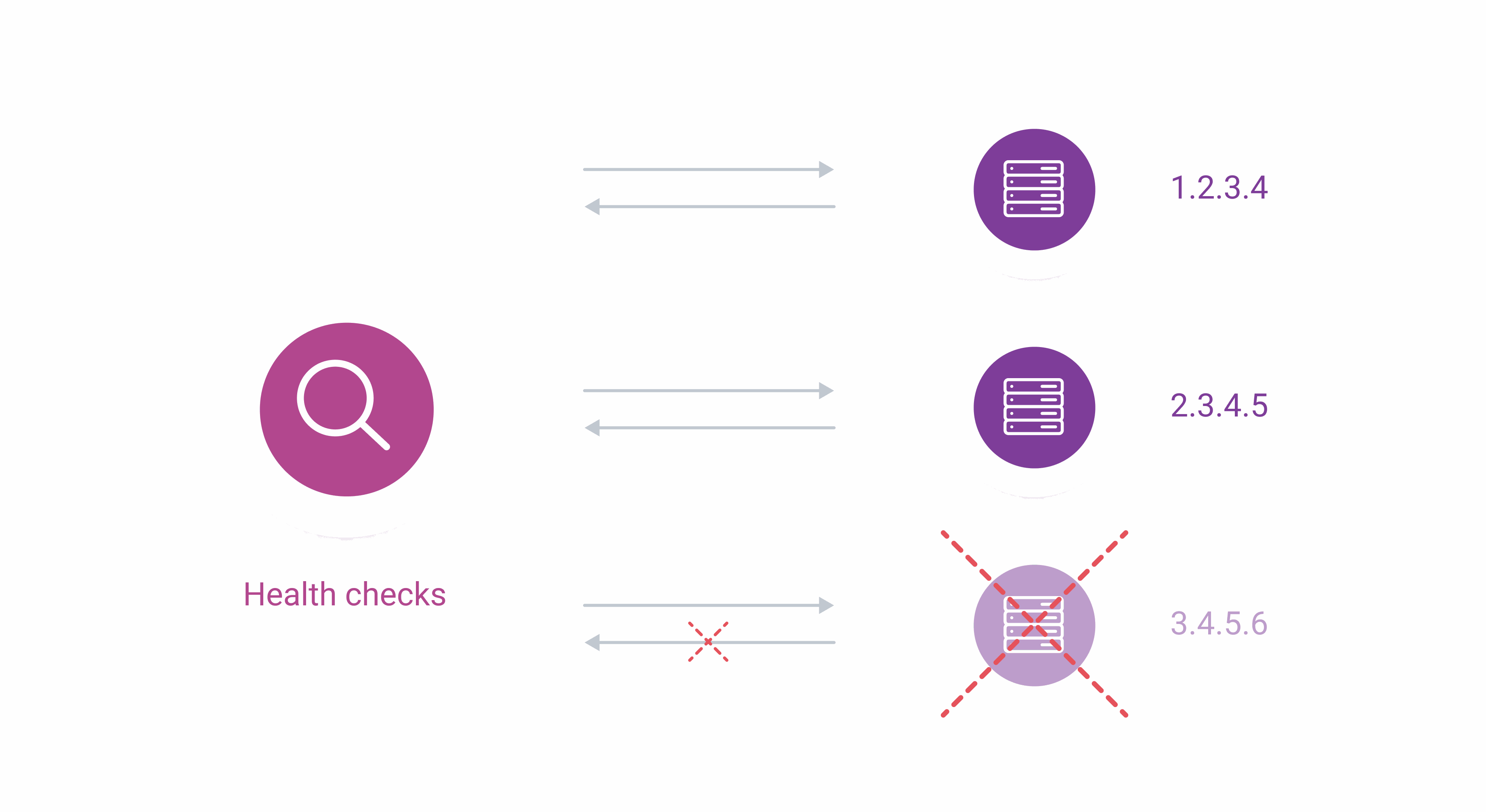
Requests are sent from all Gcore DNS server locations. If web servers respond within the set timeout (e.g., 10 seconds) in 85% of locations, the feature marks them as available. If a web server fails to respond within the timeout in 20% of locations, the feature marks it as unavailable. The gap between these thresholds is intentional — a server must fall below 20% to be marked unavailable, and must recover above 85% to be marked available again, preventing flapping when availability is borderline.
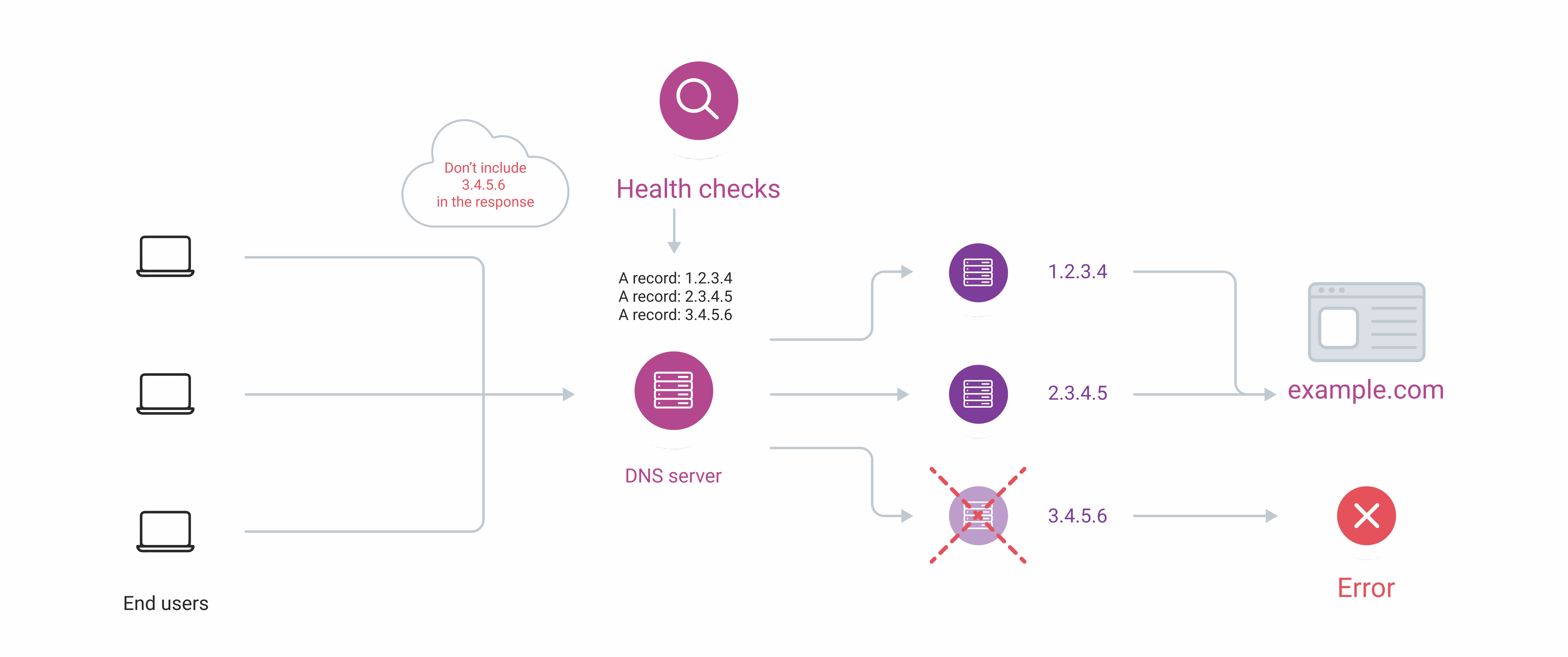
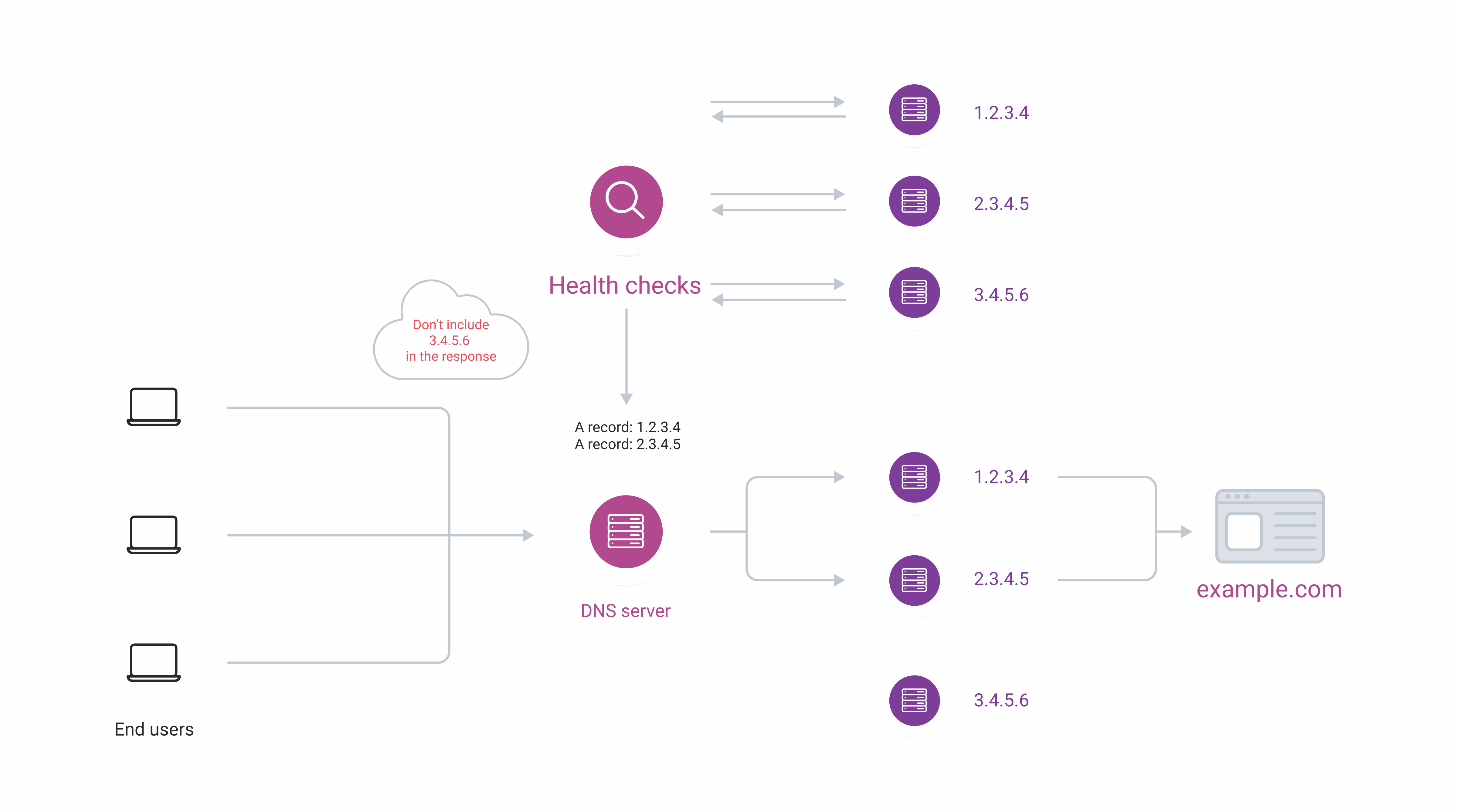
If a web server is unavailable, Healthchecks marks the corresponding record as unavailable, and the DNS server excludes it from responses.
If all Healthchecks fail, their A records will be included in the DNS response, while still adhering to other filters like *geo county* or *first\_n*.
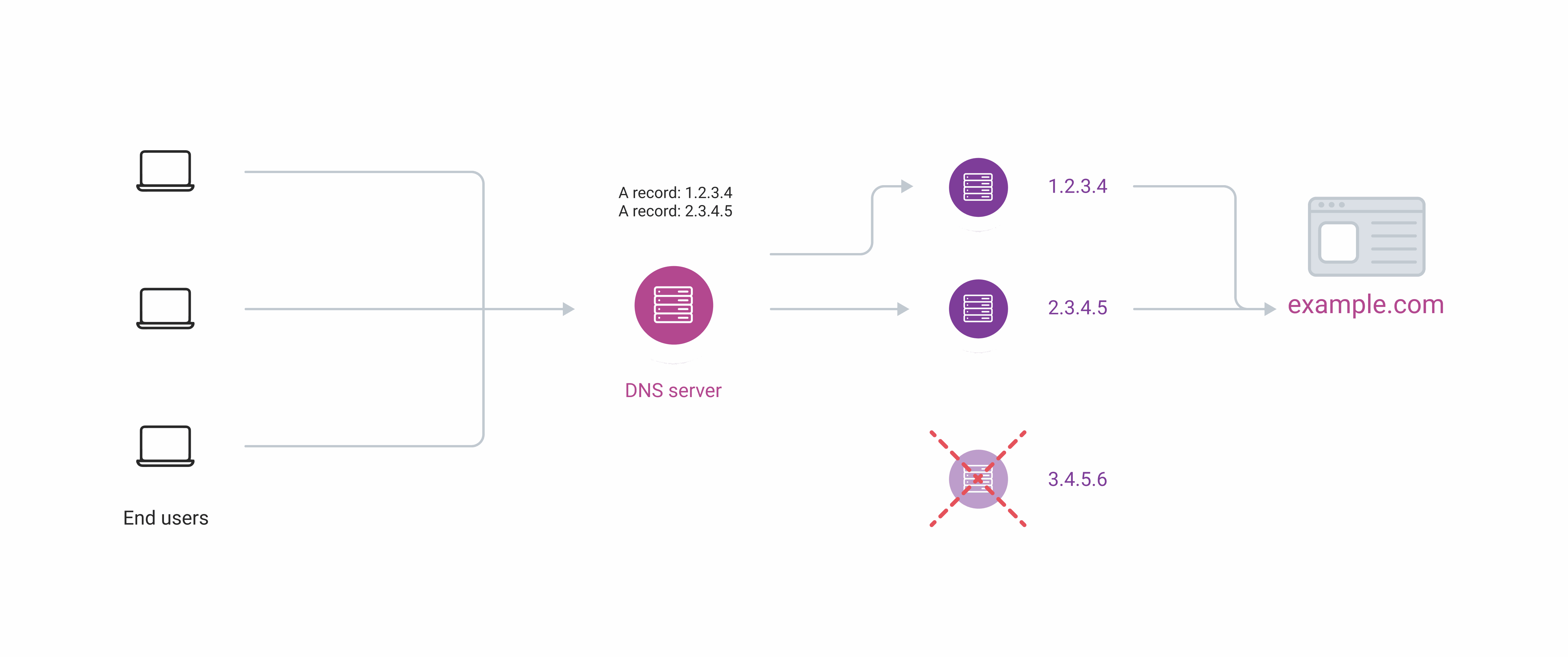
The DNS server removes the A record of the unavailable server from its responses. Any requests intended for the unavailable server are redirected to other available servers.
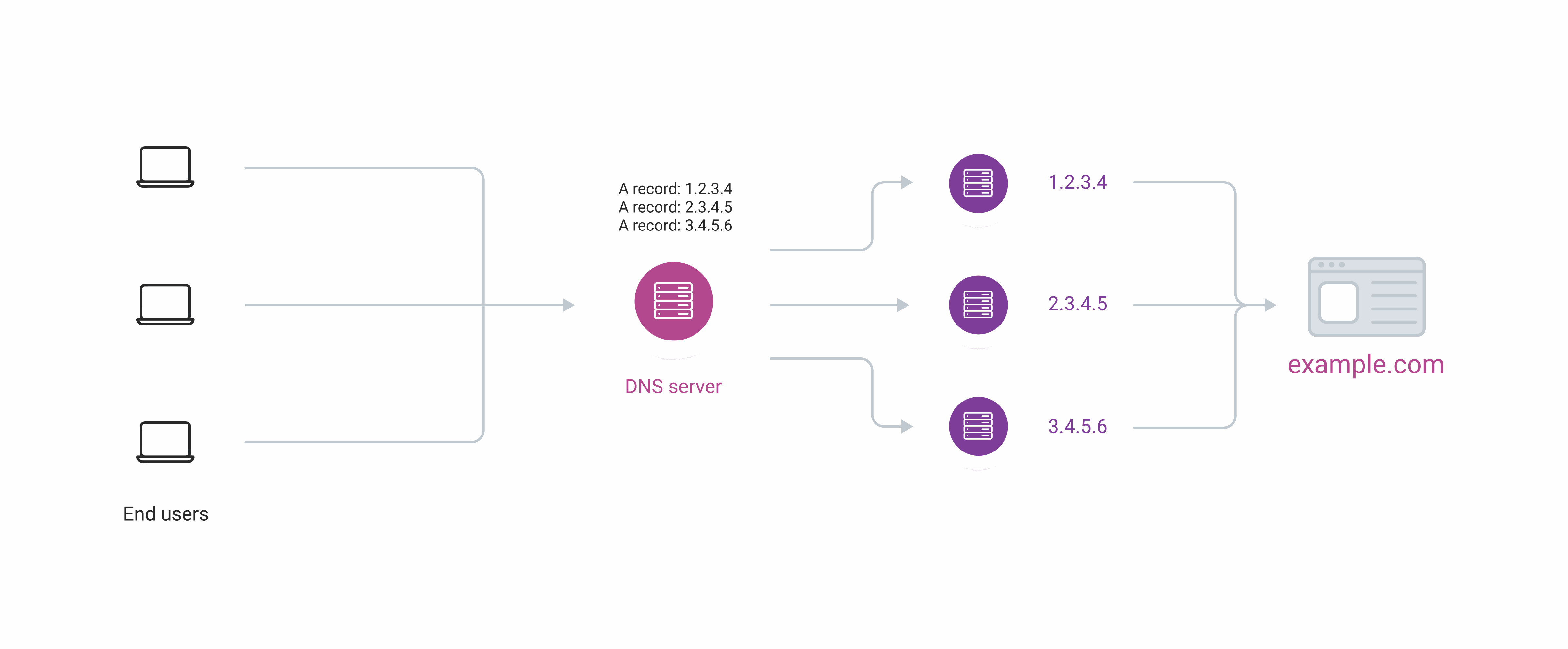
The load balancing mechanism decides which server responds. By default, DNS Healthchecks use round-robin, but a custom mechanism can be configured. [Dynamic response](/dns/dns-records/configure-weight-balancing-and-geobalancing) covers the available load balancing options.
Healthchecks keep sending requests to web servers. When the web server becomes available and responds, the feature sends the appropriate update to the DNS server, and the web server goes back online for end-users.
When the European server recovers, Healthchecks detects that and restores its IP in DNS responses for users in Europe.
## Healthchecks mechanism
Healthchecks operate in a continuous poll-detect-respond cycle. The brief overview below covers the essentials; the step-by-step breakdown that follows explains each stage in detail.
**Basic explanation:**
DNS Healthchecks sends regular requests to each configured record to determine whether the server is reachable. A record is excluded from DNS responses when its server stops responding, and restored when it comes back online. By default, round-robin balancing distributes requests across available servers; Geobalancing can also be enabled.
**Detailed explanation:**
DNS Healthchecks sends requests to servers to check their availability. Configure request settings — protocol, frequency, and others — in the Gcore Customer Portal after the feature is enabled.
The following is an example configuration:
* Protocol: ICMP
* Frequency: 1 minute
* Timeout: 10 seconds
With this configuration, DNS Healthchecks sends requests to web servers via ICMP every 60 seconds.
Requests are sent from all Gcore DNS server locations. If web servers respond within the set timeout (e.g., 10 seconds) in 85% of locations, the feature marks them as available. If a web server fails to respond within the timeout in 20% of locations, the feature marks it as unavailable. The gap between these thresholds is intentional — a server must fall below 20% to be marked unavailable, and must recover above 85% to be marked available again, preventing flapping when availability is borderline.
If a web server is unavailable, Healthchecks marks the corresponding record as unavailable, and the DNS server excludes it from responses.
If all Healthchecks fail, their A records will be included in the DNS response, while still adhering to other filters like *geo county* or *first\_n*.
The DNS server removes the A record of the unavailable server from its responses. Any requests intended for the unavailable server are redirected to other available servers.
The load balancing mechanism decides which server responds. By default, DNS Healthchecks use round-robin, but a custom mechanism can be configured. [Dynamic response](/dns/dns-records/configure-weight-balancing-and-geobalancing) covers the available load balancing options.
Healthchecks keep sending requests to web servers. When the web server becomes available and responds, the feature sends the appropriate update to the DNS server, and the web server goes back online for end-users.
 ## Configure healthchecks
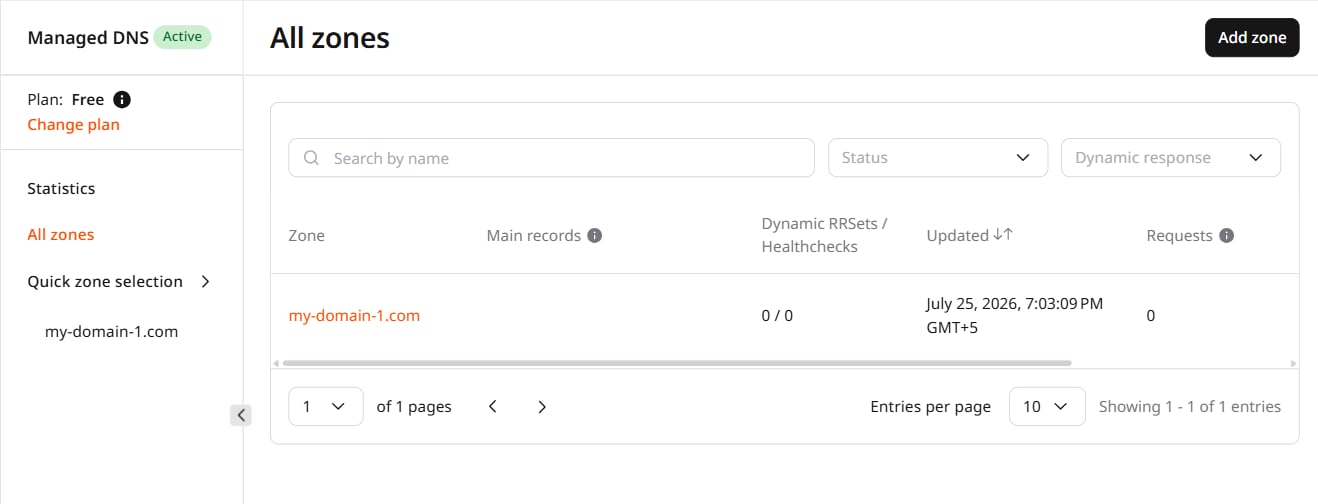
In the [Gcore Customer Portal](https://portal.gcore.com), navigate to **DNS**.
Click the domain name of the DNS zone where Healthchecks will be configured.
## Configure healthchecks
In the [Gcore Customer Portal](https://portal.gcore.com), navigate to **DNS**.
Click the domain name of the DNS zone where Healthchecks will be configured.
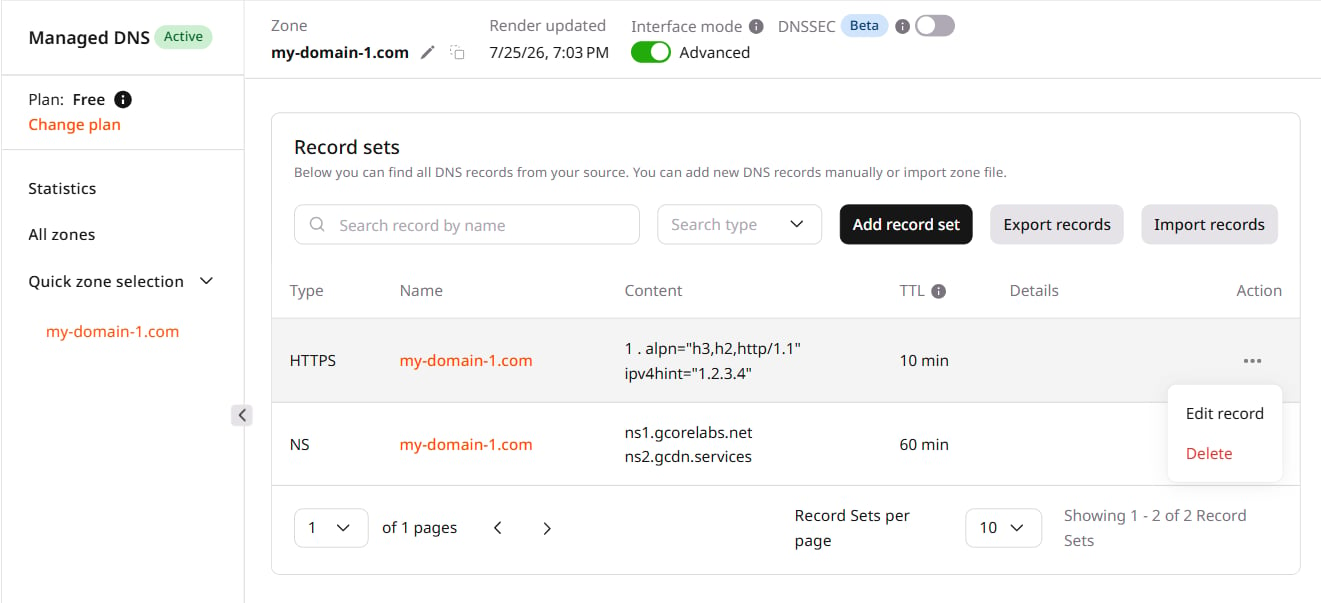
 In non-advanced mode, the Healthchecks feature isn't available.
A Healthcheck picker can be applied only to records of the **A**, **AAAA**, or **CNAME** type.
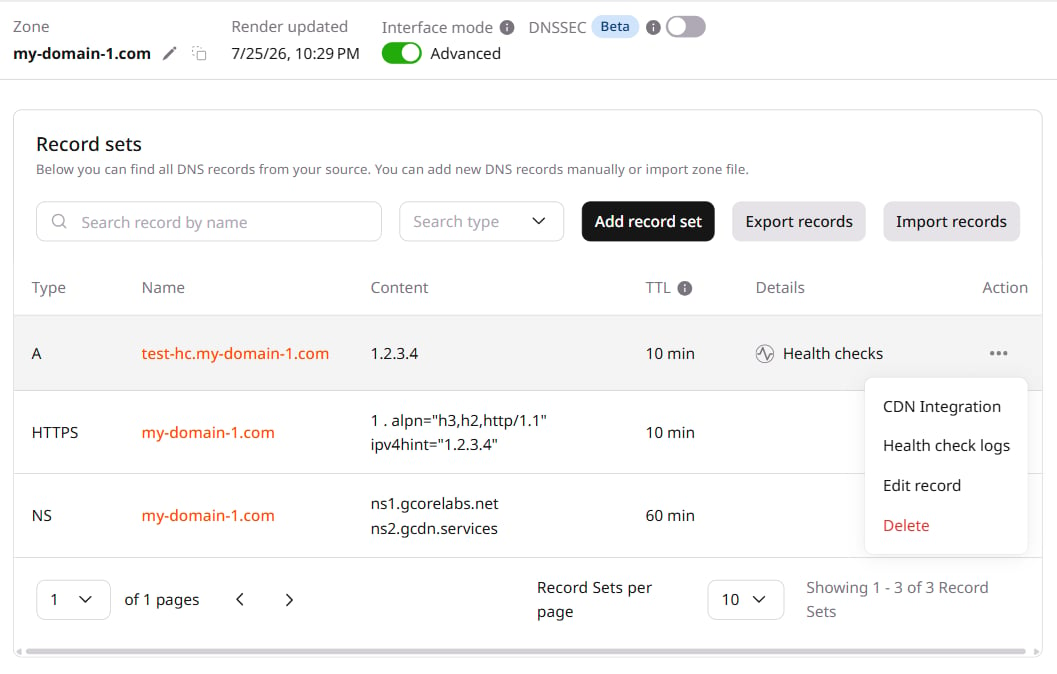
Click the three-dot icon and click **Edit record** in the row of the A, AAAA, or CNAME record.
In non-advanced mode, the Healthchecks feature isn't available.
A Healthcheck picker can be applied only to records of the **A**, **AAAA**, or **CNAME** type.
Click the three-dot icon and click **Edit record** in the row of the A, AAAA, or CNAME record.
 The "Records list/Edit record set" page will open. Perform the remaining steps there.
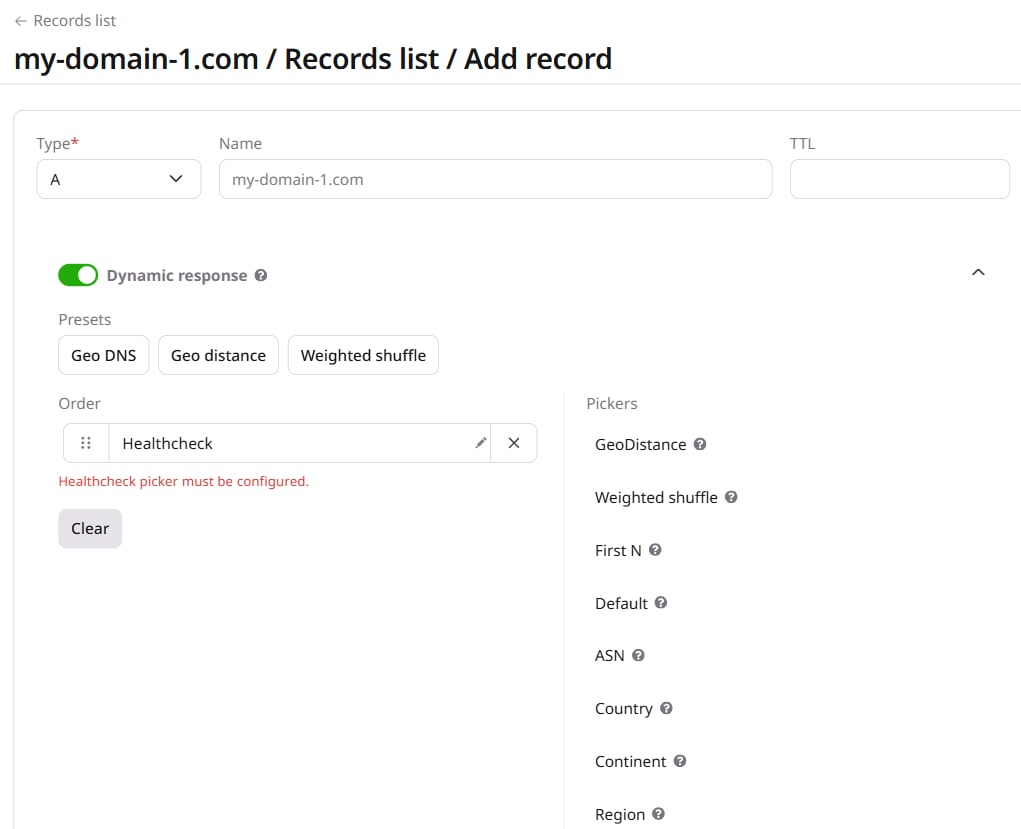 Click the edit icon when the picker is added to the left column.
A pop-up will open. The settings differ depending on the protocol: TCP/UDP, ICMP, or HTTP. Select the relevant tab below to complete configuration.
Click the edit icon when the picker is added to the left column.
A pop-up will open. The settings differ depending on the protocol: TCP/UDP, ICMP, or HTTP. Select the relevant tab below to complete configuration.
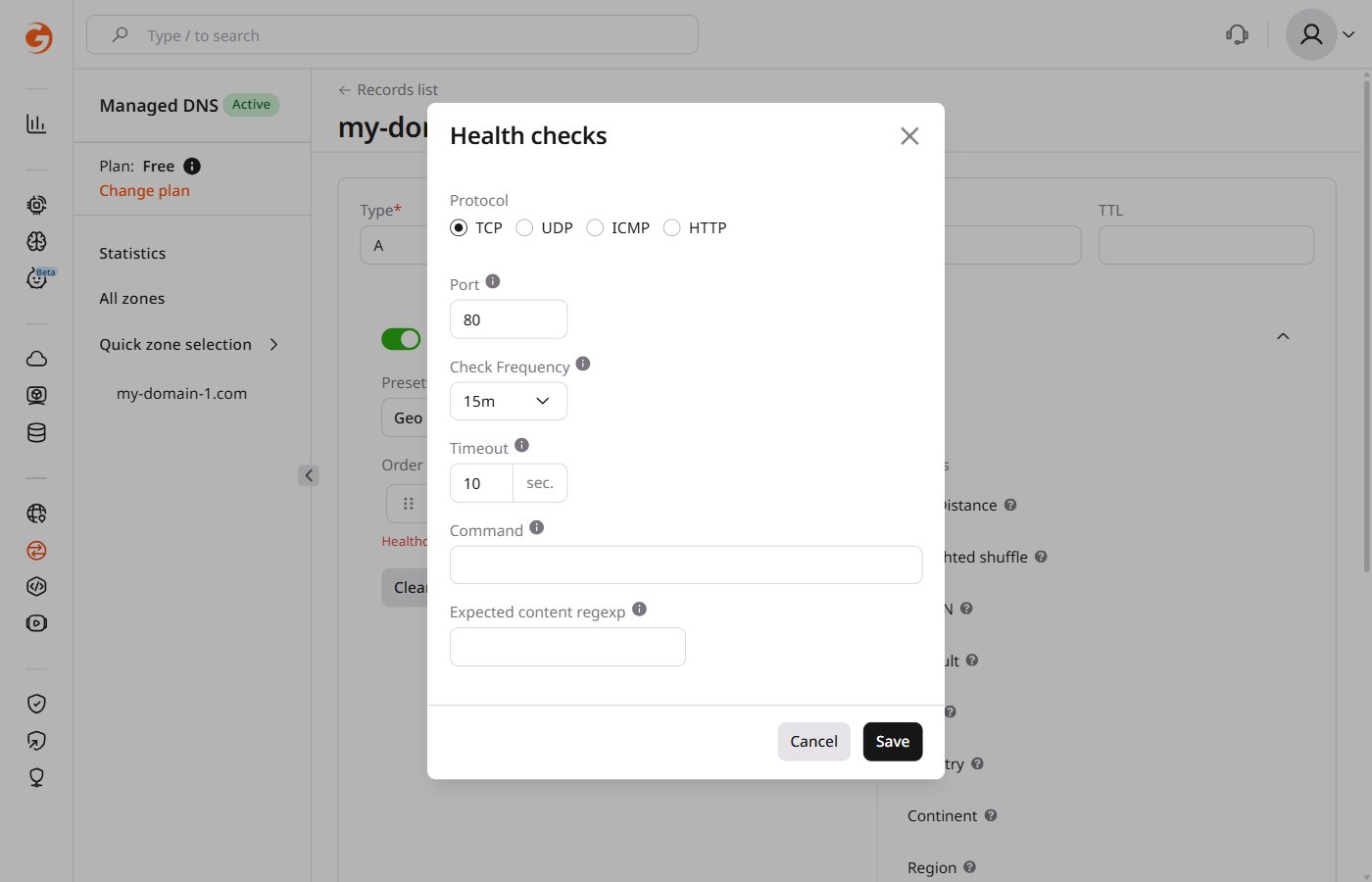 1. Under "Protocol", select **TCP** or **UDP**.
2. In the "Port" field, specify the connection port (e.g., 80 or 443).
3. In the "Check Frequency" field, select the interval of checks from the list.
4. In the "Timeout" field, set the time within which the web servers should give the response before being considered down.
5. (Optional) In the "Command" field, enter the text that will be sent to the host as plain text, for instance: `GET / HTTP/1.1\n\n`.
6. (Optional) In the "Expected content regexp" field, enter a regular expression that matches the response body or leave it blank.
7. Click **Save**.
1. Under "Protocol", select **TCP** or **UDP**.
2. In the "Port" field, specify the connection port (e.g., 80 or 443).
3. In the "Check Frequency" field, select the interval of checks from the list.
4. In the "Timeout" field, set the time within which the web servers should give the response before being considered down.
5. (Optional) In the "Command" field, enter the text that will be sent to the host as plain text, for instance: `GET / HTTP/1.1\n\n`.
6. (Optional) In the "Expected content regexp" field, enter a regular expression that matches the response body or leave it blank.
7. Click **Save**.
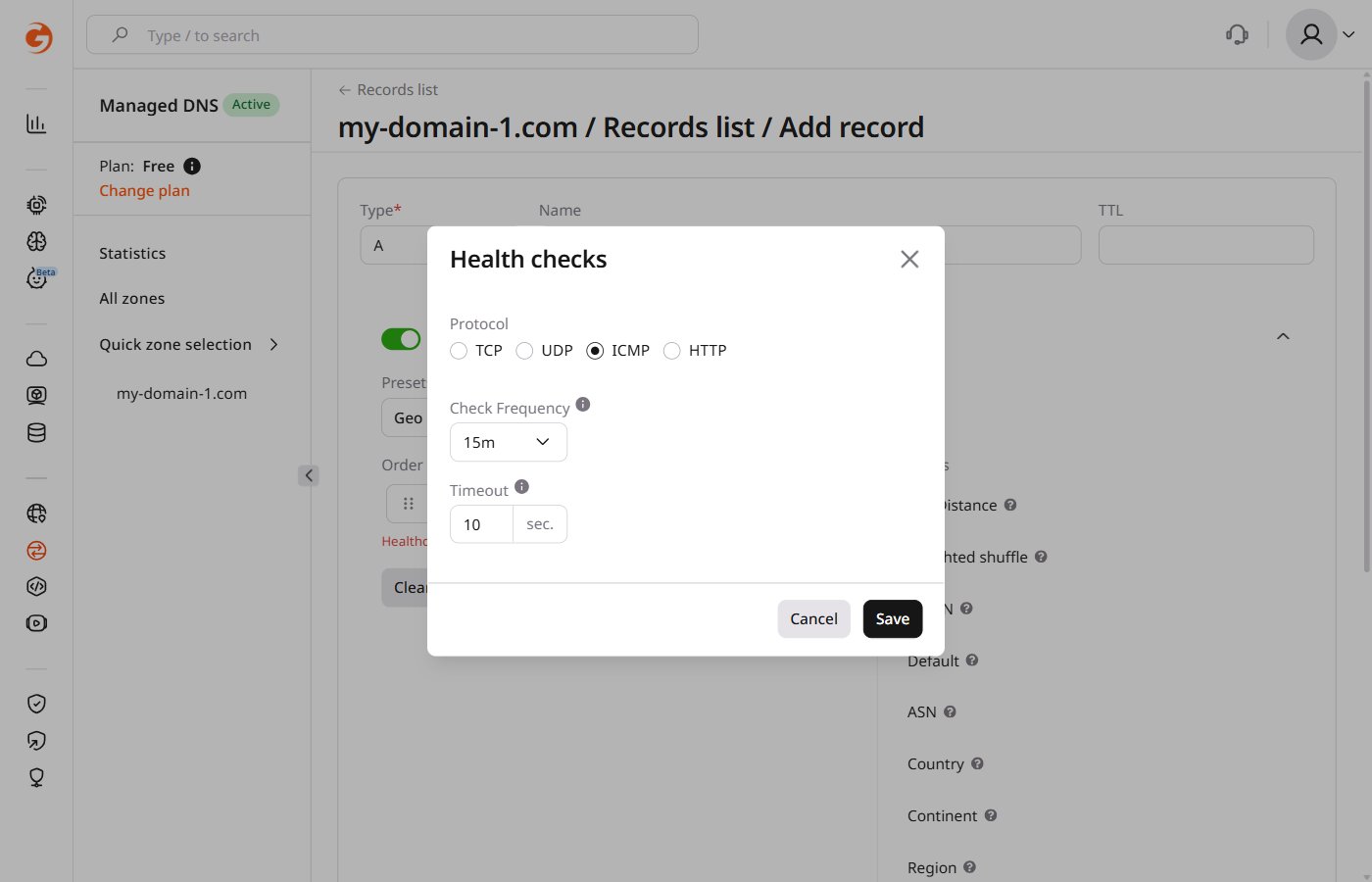 1. Under "Protocol", select **ICMP**.
2. In the "Check Frequency" field, select the interval of checks from the list.
3. In the "Timeout" field, set the time within which the web servers should give the response before being considered down.
4. Click **Save**.
1. Under "Protocol", select **ICMP**.
2. In the "Check Frequency" field, select the interval of checks from the list.
3. In the "Timeout" field, set the time within which the web servers should give the response before being considered down.
4. Click **Save**.
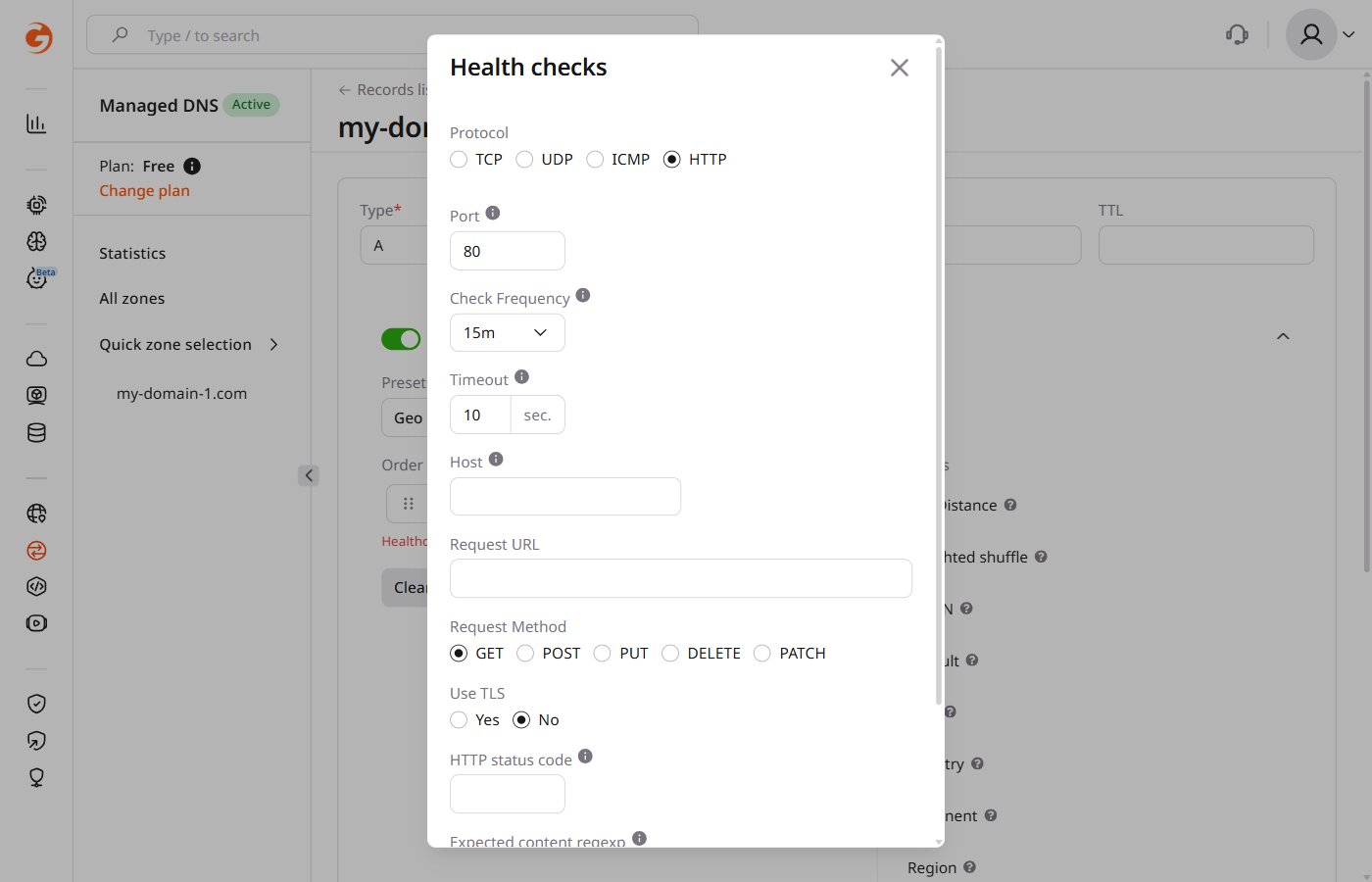 1. In the "Protocol" block, select **HTTP**.
2. In the "Port" field, specify the connection port (e.g., 80 or 443).
3. In the "Check Frequency" field, select the interval of checks from the list.
4. In the "Timeout" field, set the time within which the web servers should give the response before being considered down.
5. (Optional) In the "Host" field, specify a value of the Host header to be passed during the HTTP request.
6. In the **Request URL** field, enter the URL that will be requested for checks.
7. In the **Request Method** block, select the method for checking requests; e.g., GET.
8. In the "Use TLS" block, select whether TLS should be used.
9. In the "HTTP status code" field, put the expected HTTP response code or leave it blank if any response is acceptable.
10. (Optional) In the "Expected content regexp" field, enter a regular expression that matches the response body or leave it blank.
11. Click **Save**.
Healthchecks begin monitoring the configured address on the next check interval. If the server is unreachable, its record is excluded from DNS responses automatically and restored once it recovers. Recent monitoring events are available in the health check logs section below.
## Enable backup metadata
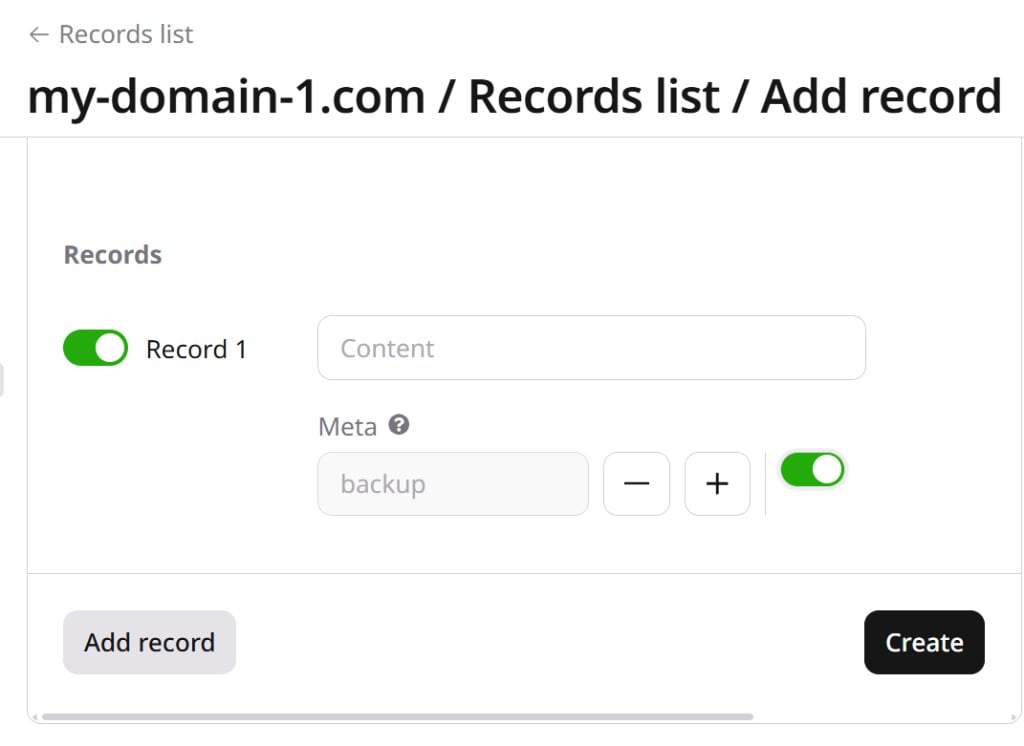
Backup metadata keeps designated records out of DNS responses as long as at least one non-backup record is healthy. When all primary records fail, backup records take over automatically.
To configure backup metadata, select which record will be used as a backup (Record one in the example), select "backup" from the dropdown list, and enable the toggle.
1. In the "Protocol" block, select **HTTP**.
2. In the "Port" field, specify the connection port (e.g., 80 or 443).
3. In the "Check Frequency" field, select the interval of checks from the list.
4. In the "Timeout" field, set the time within which the web servers should give the response before being considered down.
5. (Optional) In the "Host" field, specify a value of the Host header to be passed during the HTTP request.
6. In the **Request URL** field, enter the URL that will be requested for checks.
7. In the **Request Method** block, select the method for checking requests; e.g., GET.
8. In the "Use TLS" block, select whether TLS should be used.
9. In the "HTTP status code" field, put the expected HTTP response code or leave it blank if any response is acceptable.
10. (Optional) In the "Expected content regexp" field, enter a regular expression that matches the response body or leave it blank.
11. Click **Save**.
Healthchecks begin monitoring the configured address on the next check interval. If the server is unreachable, its record is excluded from DNS responses automatically and restored once it recovers. Recent monitoring events are available in the health check logs section below.
## Enable backup metadata
Backup metadata keeps designated records out of DNS responses as long as at least one non-backup record is healthy. When all primary records fail, backup records take over automatically.
To configure backup metadata, select which record will be used as a backup (Record one in the example), select "backup" from the dropdown list, and enable the toggle.
 By default, DNS Healthchecks use round-robin balancing. [Dynamic response](/dns/dns-records/configure-weight-balancing-and-geobalancing) covers the options for configuring how requests are distributed among available servers.
## Check healthchecks logs
After a DNS cache renewal, Healthchecks will start monitoring availability.
To check for recent monitoring events, open the DNS zone page where Healthchecks is configured. Select the relevant record, click the three-dot icon on the right, and click **Health check logs**.
By default, DNS Healthchecks use round-robin balancing. [Dynamic response](/dns/dns-records/configure-weight-balancing-and-geobalancing) covers the options for configuring how requests are distributed among available servers.
## Check healthchecks logs
After a DNS cache renewal, Healthchecks will start monitoring availability.
To check for recent monitoring events, open the DNS zone page where Healthchecks is configured. Select the relevant record, click the three-dot icon on the right, and click **Health check logs**.