> ## Documentation Index
> Fetch the complete documentation index at: https://docs.preprod.world/llms.txt
> Use this file to discover all available pages before exploring further.
# Configure HTTPS records
[Managed DNS](https://gcore.com/dns) supports HTTPS records — a specialized form of the Service Binding (SVCB) DNS record standardized by the IETF. HTTPS records consolidate connection parameters into a single DNS response, reducing the round trips required to establish a secure connection and enabling future protocol upgrades without client-side changes.
## HTTPS record
The HTTPS DNS record provides more detailed information than A or AAAA records about the services available for a specific domain. It communicates supported protocols, ports, and alternate servers that clients can use to connect.
This extended information allows a client to fetch all parameters needed for a secure connection in a single DNS query, rather than performing multiple sequential queries. The result is a faster, more secure connection handshake.
## HTTPS connection overhead
Even when a client connects directly over HTTPS, establishing a connection involves several additional steps beyond the initial DNS lookup. After resolving the A or AAAA records, the client must negotiate TLS and, in some cases, discover the supported application protocols separately — often via a subsequent DNS query or an [Alt-Svc header](https://developer.mozilla.org/en-US/docs/Web/HTTP/Headers/Alt-Svc) returned only after the first response. Sites that still redirect HTTP to HTTPS add an extra round trip before any of this begins.
Each additional round trip increases latency. The HTTPS record eliminates most of these extra steps by delivering protocol parameters — ALPN identifiers, IP hints, and port information — as part of the original DNS response.
## HTTPS record structure
An HTTPS record for `sample-test.com` looks like this:
```sh theme={null}
www.sample-test.com. 1800 IN HTTPS 1 . alpn=h3,h3-29,h2 ipv4hint=1.2.3.4,9.8.7.6 ipv6hint=2001:db8:3333:4444:5555:6666:7777:8888,2001:db8:3333:4444:CCCC:DDDD:EEEE:FFFF
```
Each element represents:
* `www.sample-test.com` — the domain name
* `1800` — Time To Live (TTL)
* `IN` — the record class
* `HTTPS` — the record type
* `1` — the priority (selection preference when multiple HTTPS records exist for the same name)
* `.` — the target host when it is the same as the domain name
* `alpn=h3,h3-29,h2` — the application protocol versions
* `ipv4hint=1.2.3.4,9.8.7.6` — IPv4 addresses (optional)
* `ipv6hint=2001:db8:3333:4444:5555:6666:7777:8888,2001:db8:3333:4444:CCCC:DDDD:EEEE:FFFF` — IPv6 addresses (optional)
When a browser requests the HTTPS record, it receives all parameters needed to connect to `https://sample-test.com` in a single response:
* The exact protocol configuration and server preferences for the domain.
* IP addresses of web servers — potentially from multiple CDNs or providers — which also resolves the limitations of records at the [domain apex](/dns/dns-records/specify-cname-at-root).
Combining all parameters into a single lookup response reduces the additional round trips needed before a connection can begin. When paired with [ECN configuration](https://datatracker.ietf.org/doc/html/rfc3168), this can reduce the number of TLS negotiation steps required, while still supporting multi-CDN deployments.
## Configure HTTPS records
To add an HTTPS record to a zone, navigate to the zone in the Customer Portal and fill in the record form.
In the [Gcore Customer Portal](https://portal.gcore.com), navigate to **DNS** → **All zones** and click the zone name.
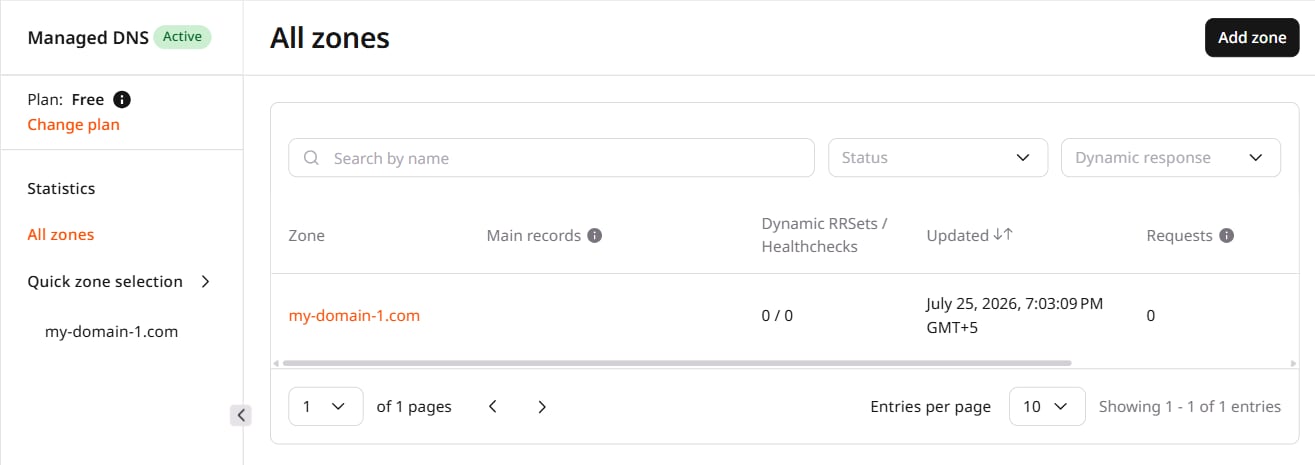
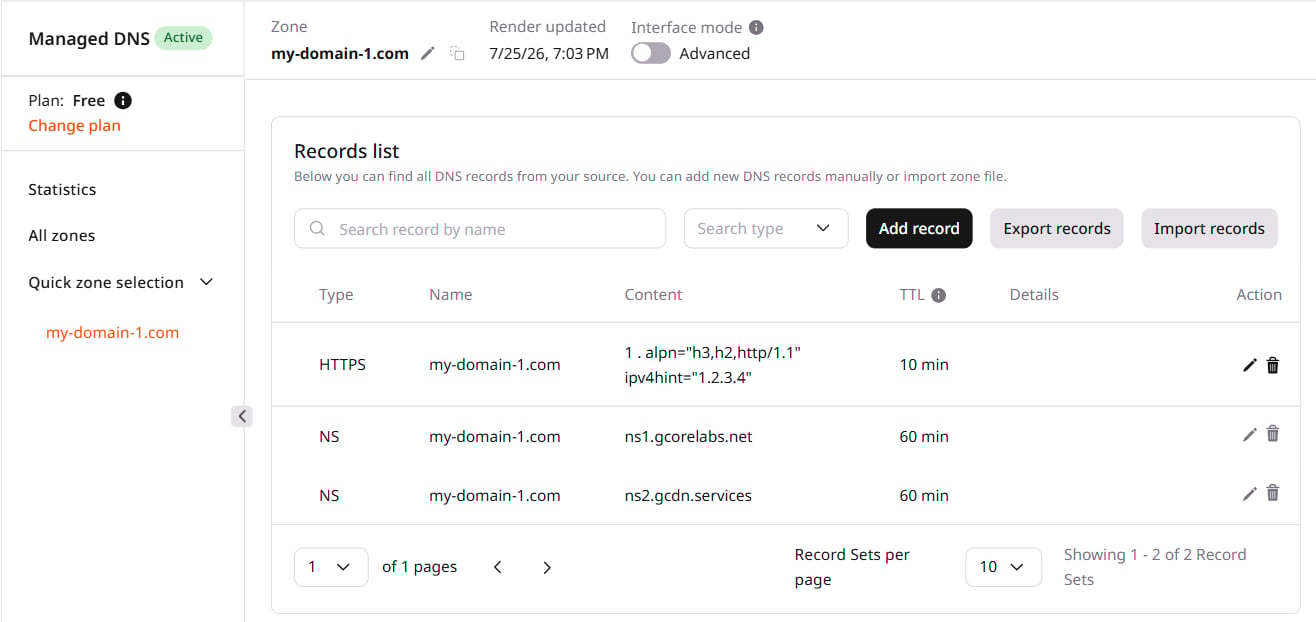 Fill in the form:
1. **Type**: Select **HTTPS**.
2. (Optional) **Name**: Leave empty to create a record for the zone apex. To target a specific subdomain, enter the prefix — `www` for `www.sample-test.com`.
3. (Optional) **TTL**: Leave empty or enter a value in seconds. For production, 1800 or higher allows recursive resolvers to cache the record effectively.
4. **Priority**: Enter a number. Use incrementing values — 1, 10, 20 — when multiple HTTPS records exist for the same name.
5. **TargetName**: Enter a valid domain name or leave it as `.`.
6. In the **Key** dropdown, select `alpn`. The `alpn` attribute identifies the protocol versions supported by the web server, allowing browsers to negotiate the connection protocol without additional round trips.
7. In the value field, enter protocol identifiers as a comma-separated list: `h3`, `h2`, `http/1.1`, or `h3-29`.
8. (Optional) In the **Key** dropdown, select `ipv4hint` or `ipv6hint` to provide the server's IP addresses directly in the DNS response, eliminating additional lookups.
9. (Optional) Enter the IP address.
Fill in the form:
1. **Type**: Select **HTTPS**.
2. (Optional) **Name**: Leave empty to create a record for the zone apex. To target a specific subdomain, enter the prefix — `www` for `www.sample-test.com`.
3. (Optional) **TTL**: Leave empty or enter a value in seconds. For production, 1800 or higher allows recursive resolvers to cache the record effectively.
4. **Priority**: Enter a number. Use incrementing values — 1, 10, 20 — when multiple HTTPS records exist for the same name.
5. **TargetName**: Enter a valid domain name or leave it as `.`.
6. In the **Key** dropdown, select `alpn`. The `alpn` attribute identifies the protocol versions supported by the web server, allowing browsers to negotiate the connection protocol without additional round trips.
7. In the value field, enter protocol identifiers as a comma-separated list: `h3`, `h2`, `http/1.1`, or `h3-29`.
8. (Optional) In the **Key** dropdown, select `ipv4hint` or `ipv6hint` to provide the server's IP addresses directly in the DNS response, eliminating additional lookups.
9. (Optional) Enter the IP address.
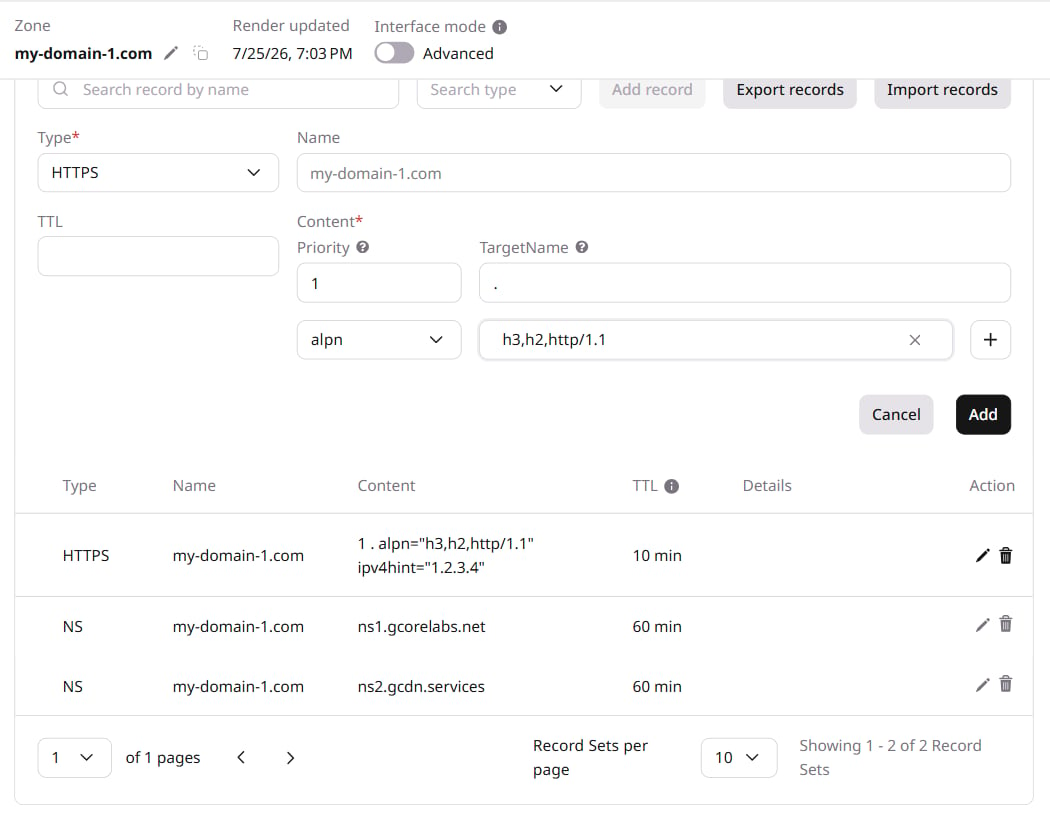 10. Click **Add**.
The record now appears in the zone records list:
10. Click **Add**.
The record now appears in the zone records list:
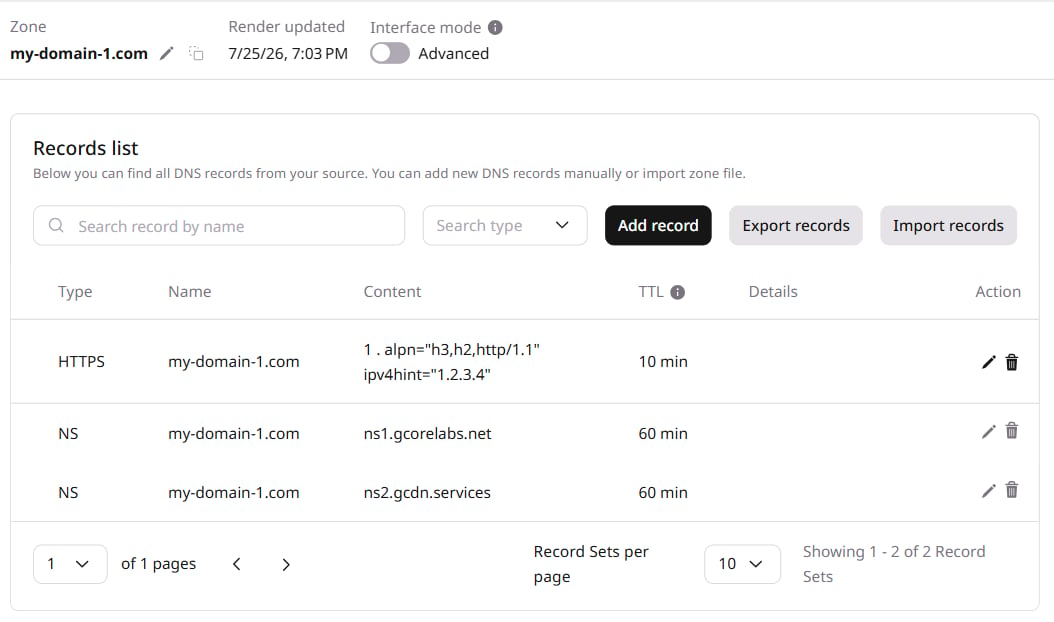 Verify the record using kdig (the [Knot DNS](https://www.knot-dns.cz/) variant of `dig`). When using standard `dig`, confirm the version is current — older versions don't support HTTPS record types. The [DNS Lookup](https://gcore.com/dev-tools/dns-lookup) tool also confirms correct configuration.
```sh theme={null}
kdig https sample-test.com @ns1.gcorelabs.net
;; ->>HEADER<<\- opcode: QUERY; status: NOERROR; id: 34710
;; Flags: qr aa rd; QUERY: 1; ANSWER: 1; AUTHORITY: 0; ADDITIONAL: 0
;; QUESTION SECTION:
;;sample-test.com. IN HTTPS
;; ANSWER SECTION:
sample-test.com. 1800 IN HTTPS 1 . alpn=h3,h2,http/1.1 ipv4hint=1.2.3.4,9.8.7.6 ipv6hint=2001:db8:3333:4444:5555:6666:7777:8888,2001:db8:3333:4444:cccc:dddd:eeee:ffff
```
Verify the record using kdig (the [Knot DNS](https://www.knot-dns.cz/) variant of `dig`). When using standard `dig`, confirm the version is current — older versions don't support HTTPS record types. The [DNS Lookup](https://gcore.com/dev-tools/dns-lookup) tool also confirms correct configuration.
```sh theme={null}
kdig https sample-test.com @ns1.gcorelabs.net
;; ->>HEADER<<\- opcode: QUERY; status: NOERROR; id: 34710
;; Flags: qr aa rd; QUERY: 1; ANSWER: 1; AUTHORITY: 0; ADDITIONAL: 0
;; QUESTION SECTION:
;;sample-test.com. IN HTTPS
;; ANSWER SECTION:
sample-test.com. 1800 IN HTTPS 1 . alpn=h3,h2,http/1.1 ipv4hint=1.2.3.4,9.8.7.6 ipv6hint=2001:db8:3333:4444:5555:6666:7777:8888,2001:db8:3333:4444:cccc:dddd:eeee:ffff
```