Bare Metal GPU clusters provision one or more dedicated GPU servers with no virtualization layer. They are intended for AI training, inference, distributed workloads, and other applications that require full hardware performance. Two cluster types are available: **Bare Metal GPU** for on-demand dedicated servers, and **[Spot GPU](/edge-ai/ai-infrastructure/spot-bare-metal-gpu)** for discounted interruptible capacity that may be reclaimed with 24 hours' notice. Available GPU models and cluster types vary by region.
## Cluster architecture
A cluster consists of one or more bare metal GPU servers provisioned from an identical template. All nodes share the same image, flavor, and network configuration.
```
Cluster
├─ Node 1 (GPU server)
├─ Node 2 (GPU server)
├─ ...
├─ InfiniBand fabric (auto-configured when the flavor supports it)
└─ File Share (optional — shared storage across all nodes)
```
InfiniBand inter-node networking is configured automatically when the selected flavor supports it, enabling efficient distributed training without manual network setup. File shares mount across all nodes and persist independently of cluster state.
## Create a GPU cluster
In the [Gcore Customer Portal](https://portal.gcore.com), navigate to **GPU Cloud**, open **GPU Clusters** > **Bare Metal GPU Clusters**, and click **Create Cluster**.
In the **Region** section, select the data center location for the cluster. Regions are grouped by geography (Asia-Pacific, EMEA). Each region card shows its availability status — file share integration, for instance, is available only in select regions.
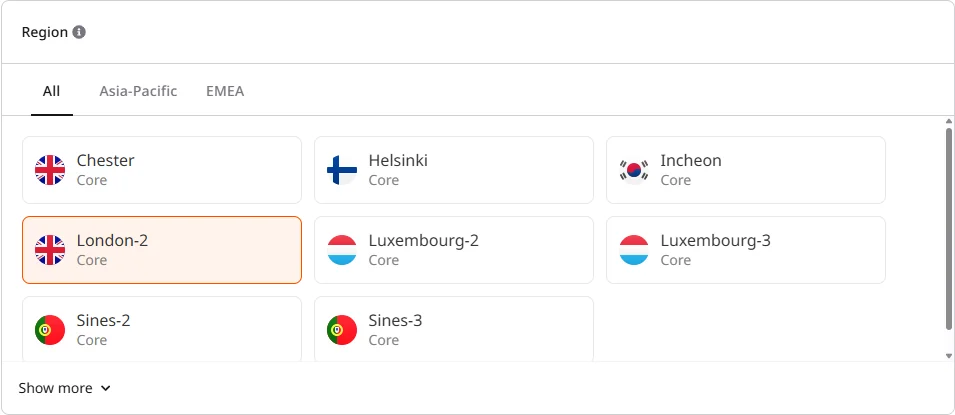 GPU model availability and pricing vary by region. Check other regions if a required GPU model is not available. For help with availability, contact the [sales team](https://gcore.com/contact-sales).
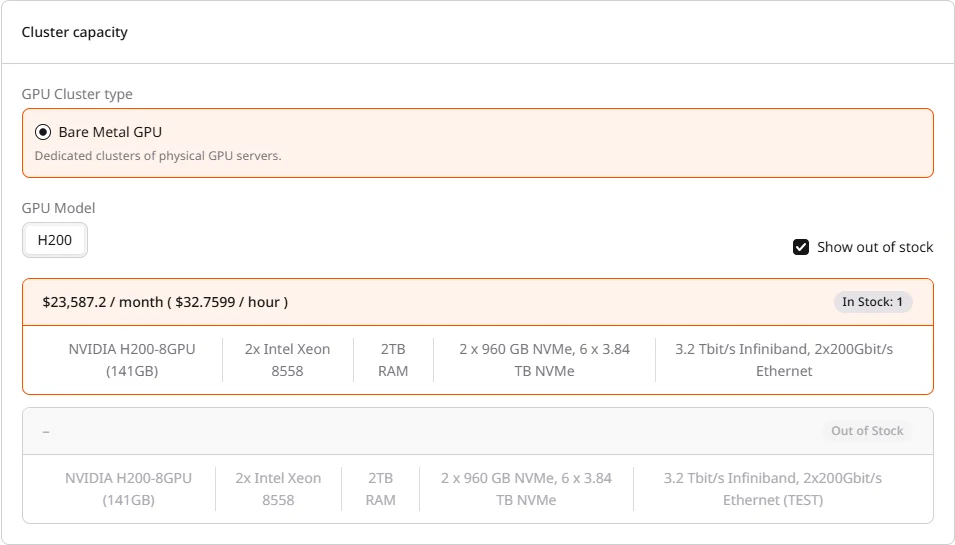
In the **Cluster capacity** section, select the GPU model and flavor that define the hardware configuration for every node. Available options depend on the selected region.
* **GPU Cluster type**: Select **Bare Metal GPU** for dedicated servers, or **Spot Bare Metal GPU** for discounted interruptible capacity — pricing and reclamation details are on the [Spot GPU](/edge-ai/ai-infrastructure/spot-bare-metal-gpu) page.
* **GPU Model**: A100, H100, or H200 — availability depends on the region.
* **Show out of stock**: Toggle to show or hide unavailable flavors.
* **Flavor**: Each card displays GPU configuration, CPU type, RAM, storage, network connectivity, and pricing.
GPU model availability and pricing vary by region. Check other regions if a required GPU model is not available. For help with availability, contact the [sales team](https://gcore.com/contact-sales).
In the **Cluster capacity** section, select the GPU model and flavor that define the hardware configuration for every node. Available options depend on the selected region.
* **GPU Cluster type**: Select **Bare Metal GPU** for dedicated servers, or **Spot Bare Metal GPU** for discounted interruptible capacity — pricing and reclamation details are on the [Spot GPU](/edge-ai/ai-infrastructure/spot-bare-metal-gpu) page.
* **GPU Model**: A100, H100, or H200 — availability depends on the region.
* **Show out of stock**: Toggle to show or hide unavailable flavors.
* **Flavor**: Each card displays GPU configuration, CPU type, RAM, storage, network connectivity, and pricing.
 In the **Number of Instances** section, specify how many servers to provision. Each instance is a separate physical server with the selected flavor configuration. The maximum depends on regional stock availability — there is no fixed per-cluster limit.
 After creation, the cluster can be resized. Scaling up adds nodes with the same configuration used at creation. Scaling down removes a random node — to delete a specific node, use the per-node delete action in the cluster details. Deleting the last node deletes the entire cluster.
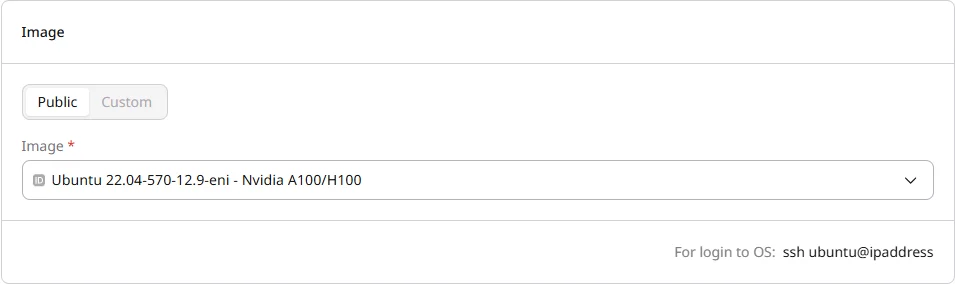
The image defines the operating system and pre-installed software for cluster nodes.
In the **Image** section, select the operating system:
* **Public**: Pre-configured images with NVIDIA drivers and CUDA toolkit (recommended)
* **Custom**: Custom images uploaded to the account
Images with the `eni` suffix are configured for InfiniBand interconnect.
After creation, the cluster can be resized. Scaling up adds nodes with the same configuration used at creation. Scaling down removes a random node — to delete a specific node, use the per-node delete action in the cluster details. Deleting the last node deletes the entire cluster.
The image defines the operating system and pre-installed software for cluster nodes.
In the **Image** section, select the operating system:
* **Public**: Pre-configured images with NVIDIA drivers and CUDA toolkit (recommended)
* **Custom**: Custom images uploaded to the account
Images with the `eni` suffix are configured for InfiniBand interconnect.
 File shares provide shared storage accessible from all cluster nodes. GPU-enabled regions use VAST-backed high-performance shares. This option appears only in regions where file shares are available — — [file shares](/cloud/file-shares/configure-file-shares) documentation describes share types, sizing, and access rules.
1. Enable the **File Share integration** checkbox.
2. Select an existing file share or create a new one.
3. Specify the mount path on cluster nodes (default: `/home/ubuntu/mnt/nfs`).
File shares provide shared storage accessible from all cluster nodes. GPU-enabled regions use VAST-backed high-performance shares. This option appears only in regions where file shares are available — — [file shares](/cloud/file-shares/configure-file-shares) documentation describes share types, sizing, and access rules.
1. Enable the **File Share integration** checkbox.
2. Select an existing file share or create a new one.
3. Specify the mount path on cluster nodes (default: `/home/ubuntu/mnt/nfs`).
 When file share integration is enabled, the cluster automatically adds mount commands to the user data script. If **User data** is also configured in Additional options, do not remove these commands — they handle automatic mounting on first boot.
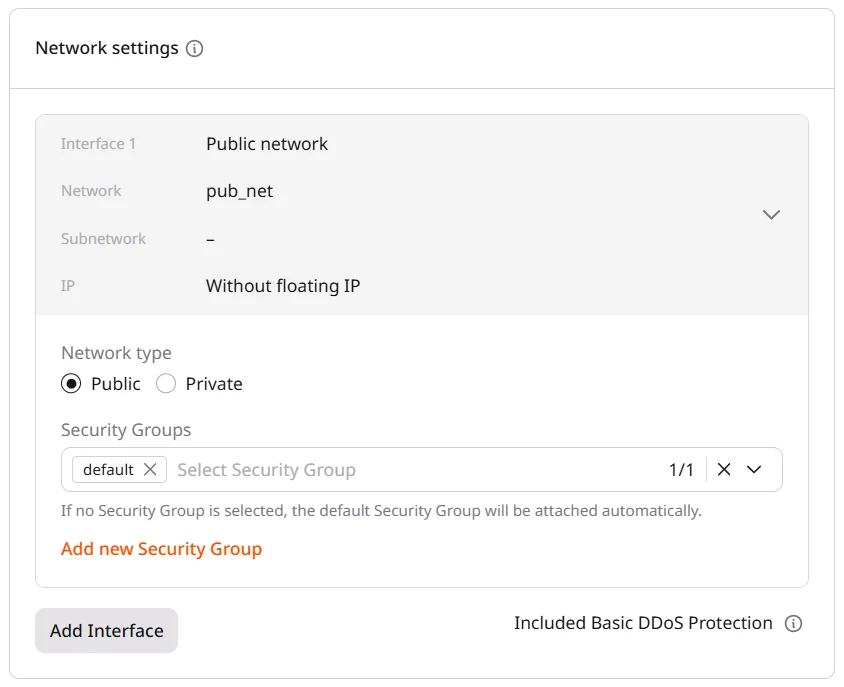
Network settings define how the cluster communicates with external services and other resources. At least one interface is required.
In the **Network settings** section, select the interface type:
| Type | Access | Use case |
| -------------------- | --------------------------------------------- | ----------------------------------------------------- |
| **Public** | Direct internet access with dynamic public IP | Development, testing, quick access to cluster |
| **Private** | Internal network only, no external access | Production workloads, security-sensitive environments |
| **Dedicated public** | Reserved static public IP | Production APIs, services requiring stable endpoints |
To add more interfaces, click **Add Interface**. All public interfaces include Basic DDoS Protection at no additional cost.
Each interface can be expanded to configure [security groups](/cloud/networking/add-and-configure-a-firewall). The `default` security group is pre-selected — if no security group is selected, it is attached automatically.
When file share integration is enabled, the cluster automatically adds mount commands to the user data script. If **User data** is also configured in Additional options, do not remove these commands — they handle automatic mounting on first boot.
Network settings define how the cluster communicates with external services and other resources. At least one interface is required.
In the **Network settings** section, select the interface type:
| Type | Access | Use case |
| -------------------- | --------------------------------------------- | ----------------------------------------------------- |
| **Public** | Direct internet access with dynamic public IP | Development, testing, quick access to cluster |
| **Private** | Internal network only, no external access | Production workloads, security-sensitive environments |
| **Dedicated public** | Reserved static public IP | Production APIs, services requiring stable endpoints |
To add more interfaces, click **Add Interface**. All public interfaces include Basic DDoS Protection at no additional cost.
Each interface can be expanded to configure [security groups](/cloud/networking/add-and-configure-a-firewall). The `default` security group is pre-selected — if no security group is selected, it is attached automatically.
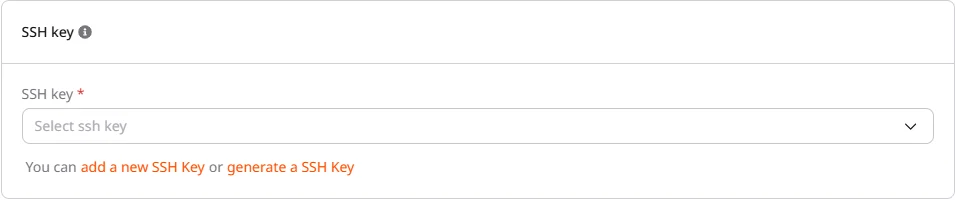
 In the **SSH key** section, select an existing key from the dropdown or create a new one. If generating a new key pair, save the private key immediately as it cannot be retrieved later.
 The **Additional options** section provides optional settings: user data scripts for automated configuration and metadata tags for resource organization.
 In the **GPU Cluster Name** section, enter a name or use the auto-generated one. Review the estimated cost in the right panel, then click **Create Cluster**.
 Once all instances reach **Power on** status, the cluster is ready for use.
Cluster-level settings (image, file share integration, default networks) cannot be changed after creation. New nodes added via scaling inherit the original configuration. To change these settings, create a new cluster.
## Connect and verify the cluster
Once all instances reach **Power on** status, the cluster is ready for use.
Cluster-level settings (image, file share integration, default networks) cannot be changed after creation. New nodes added via scaling inherit the original configuration. To change these settings, create a new cluster.
## Connect and verify the cluster
After the cluster is created, connect to a node via SSH and verify that GPUs are available.
Open a terminal and connect using the default username `ubuntu`:
```bash theme={null}
ssh ubuntu@
```
Replace `` with the public or floating IP shown in the cluster details. For nodes with only private interfaces, connect through a bastion host, VPN, or the Customer Portal [web console](/cloud/virtual-instances/connect/connect-to-your-instance-via-control-panel).
```bash theme={null}
nvidia-smi
```
A successful output shows all available GPUs, driver version, and CUDA version. If no GPUs appear, check that the image includes the correct NVIDIA drivers for the GPU model.
If file share integration was enabled, verify the mount is accessible:
```bash theme={null}
ls /home/ubuntu/mnt/nfs
```
Clusters can also be created programmatically using the [GPU API](/api-reference/cloud/gpu-bare-metal).
Create a Bare Metal GPU cluster by selecting a flavor and image, then provisioning the cluster with a single API call.
An [API token](/account-settings/api-tokens) is required, along with a
[project ID](/api-reference/cloud/projects/list-projects)
and a [region ID](/api-reference/cloud/regions/list-regions).
Bare Metal GPU clusters are available in select regions — the [List flavors](#step-1-list-available-flavors) call confirms availability for the target region.
Open a terminal and set these environment variables before running the examples:
```bash theme={null}
export GCORE_API_KEY="{YOUR_API_KEY}"
export GCORE_CLOUD_PROJECT_ID="{YOUR_PROJECT_ID}"
export GCORE_CLOUD_REGION_ID="{YOUR_REGION_ID}"
export GCORE_SSH_KEY_NAME="{YOUR_SSH_KEY_NAME}"
```
## Quickstart
Complete scripts that list flavors and images, create a one-node cluster, wait for provisioning, and print the SSH command.
```python theme={null}
import os
import time
from gcore import Gcore
client = Gcore()
ssh_key_name = os.environ["GCORE_SSH_KEY_NAME"]
# Step 1. List flavors — select the one with the fewest GPUs
flavors = client.cloud.gpu_baremetal.clusters.flavors.list()
flavor = min(
flavors.results,
key=lambda f: f.hardware_properties.gpu_count,
)
print(f"Flavor: {flavor.name} ({flavor.hardware_properties.gpu_count} GPU(s))")
# Step 2. List images — select the first (latest) image
images = client.cloud.gpu_baremetal.clusters.images.list()
image = images.results[0]
print(f"Image: {image.name}")
# Step 3. Create the cluster
task_id_list = client.cloud.gpu_baremetal.clusters.create(
name="my-gpu-cluster",
flavor=flavor.name,
image_id=image.id,
servers_count=1,
servers_settings={
"interfaces": [{"type": "external"}],
"credentials": {"ssh_key_name": ssh_key_name},
},
)
task_id = task_id_list.tasks[0]
print(f"Provisioning — task: {task_id}")
# Step 4. Poll task until FINISHED
while True:
task = client.cloud.tasks.get(task_id)
if task.state == "FINISHED":
cluster_id = task.created_resources.clusters[0]
print(f"Cluster ID: {cluster_id}")
break
if task.state == "ERROR":
raise RuntimeError(f"Cluster creation failed: {task.error}")
print(f" state={task.state} — retrying in 15s…")
time.sleep(15)
# Step 5. Get the public IP and print SSH command
ifaces = client.cloud.gpu_baremetal.clusters.interfaces.list(
cluster_id=cluster_id,
)
for iface in ifaces.results:
if iface.network_details.external:
ip = iface.ip_assignments[0].ip_address
print(f"SSH: ssh ubuntu@{ip}")
```
```go theme={null}
package main
import (
"context"
"fmt"
"os"
"sort"
"time"
"github.com/G-Core/gcore-go"
"github.com/G-Core/gcore-go/cloud"
)
func main() {
sshKeyName := os.Getenv("GCORE_SSH_KEY_NAME")
client := gcore.NewClient()
ctx := context.Background()
// Step 1. List flavors — select the one with fewest GPUs
flavorList, err := client.Cloud.GPUBaremetal.Clusters.Flavors.List(ctx,
cloud.GPUBaremetalClusterFlavorListParams{})
if err != nil {
panic(err)
}
sort.Slice(flavorList.Results, func(i, j int) bool {
return flavorList.Results[i].HardwareProperties.GPUCount <
flavorList.Results[j].HardwareProperties.GPUCount
})
flavor := flavorList.Results[0]
fmt.Printf("Flavor: %s (%d GPU(s))\n", flavor.Name, flavor.HardwareProperties.GPUCount)
// Step 2. List images — select the first (latest) image
imageList, err := client.Cloud.GPUBaremetal.Clusters.Images.List(ctx,
cloud.GPUBaremetalClusterImageListParams{})
if err != nil {
panic(err)
}
image := imageList.Results[0]
fmt.Printf("Image: %s\n", image.Name)
// Step 3. Create the cluster
taskIDList, err := client.Cloud.GPUBaremetal.Clusters.New(ctx,
cloud.GPUBaremetalClusterNewParams{
Name: "my-gpu-cluster",
Flavor: flavor.Name,
ImageID: image.ID,
ServersCount: 1,
ServersSettings: cloud.GPUBaremetalClusterNewParamsServersSettings{
Interfaces: []cloud.GPUBaremetalClusterNewParamsServersSettingsInterfaceUnion{{
OfExternal: &cloud.GPUBaremetalClusterNewParamsServersSettingsInterfaceExternal{},
}},
Credentials: cloud.GPUBaremetalClusterNewParamsServersSettingsCredentials{
SSHKeyName: gcore.String(sshKeyName),
},
},
})
if err != nil {
panic(err)
}
taskID := taskIDList.Tasks[0]
fmt.Printf("Provisioning — task: %s\n", taskID)
// Step 4. Poll task until FINISHED
var clusterID string
for {
task, err := client.Cloud.Tasks.Get(ctx, taskID)
if err != nil {
panic(err)
}
if task.State == "FINISHED" {
clusterID = task.CreatedResources.Clusters[0]
fmt.Printf("Cluster ID: %s\n", clusterID)
break
}
if task.State == "ERROR" {
panic(fmt.Sprintf("Cluster creation failed: %v", task.Error))
}
fmt.Printf(" state=%s — retrying in 15s…\n", task.State)
time.Sleep(15 * time.Second)
}
// Step 5. Get the public IP and print SSH command
ifaces, err := client.Cloud.GPUBaremetal.Clusters.Interfaces.List(ctx,
clusterID,
cloud.GPUBaremetalClusterInterfaceListParams{})
if err != nil {
panic(err)
}
for _, iface := range ifaces.Results {
if iface.NetworkDetails.External {
ip := iface.IPAssignments[0].IPAddress
fmt.Printf("SSH: ssh ubuntu@%s\n", ip)
}
}
}
```
## Step-by-step
Each step below explains the call, its key parameters, and what the response looks like.
### Step 1. List available flavors
Returns all Bare Metal GPU flavors available in the region. Use the response to pick a flavor name — required when creating the cluster.
| Field | Description |
| ------------------------------- | ------------------------------------------------------------------------- |
| `name` | Flavor identifier — pass this value as `flavor` when creating the cluster |
| `hardware_description.gpu` | GPU model name and VRAM |
| `hardware_properties.gpu_count` | Number of GPUs per node |
| `hardware_properties.nic_ib` | InfiniBand configuration, if present |
| `capacity` | Available node count in the region (`0` means currently out of stock) |
```python theme={null}
from gcore import Gcore
client = Gcore()
flavors = client.cloud.gpu_baremetal.clusters.flavors.list()
for f in flavors.results:
print(f.name, f.hardware_description.gpu, f"GPUs={f.hardware_properties.gpu_count}")
```
```go theme={null}
flavorList, err := client.Cloud.GPUBaremetal.Clusters.Flavors.List(ctx,
cloud.GPUBaremetalClusterFlavorListParams{})
if err != nil {
panic(err)
}
for _, f := range flavorList.Results {
fmt.Printf("%s gpu=%s count=%d\n",
f.Name, f.HardwareDescription.GPU, f.HardwareProperties.GPUCount)
}
```
```bash theme={null}
curl "https://api.gcore.com/cloud/v3/gpu/baremetal/${GCORE_CLOUD_PROJECT_ID}/${GCORE_CLOUD_REGION_ID}/flavors" \
-H "Authorization: APIKey ${GCORE_API_KEY}"
```
The API returns:
```json theme={null}
{
"count": 2,
"results": [
{
"name": "bm3-ai-1xlarge-h100-80-8",
"architecture": "x86_64",
"disabled": false,
"capacity": 0,
"hardware_description": {
"cpu": "2x Intel Xeon 8480+",
"ram": "2TB RAM",
"disk": "8 x 3.84 TB NVMe",
"network": "3.2 Tbit/s Infiniband",
"gpu": "NVIDIA H100-8GPU (80GB)"
},
"hardware_properties": {
"gpu_model": "h100",
"gpu_manufacturer": "nvidia",
"gpu_count": 8,
"nic_eth": "2x100",
"nic_ib": "8x400"
}
}
]
}
```
### Step 2. List available images
Returns all Bare Metal GPU cluster images available in the region. Use the response to pick an image ID — required when creating the cluster.
| Field | Description |
| ------ | --------------------------------------------------------------------- |
| `id` | Image UUID — pass this as `image_id` when creating the cluster |
| `name` | Image name; images with the `eni` suffix are optimized for InfiniBand |
```python theme={null}
from gcore import Gcore
client = Gcore()
images = client.cloud.gpu_baremetal.clusters.images.list()
for img in images.results:
print(img.id, img.name)
```
```go theme={null}
imageList, err := client.Cloud.GPUBaremetal.Clusters.Images.List(ctx,
cloud.GPUBaremetalClusterImageListParams{})
if err != nil {
panic(err)
}
for _, img := range imageList.Results {
fmt.Printf("%s %s\n", img.ID, img.Name)
}
```
```bash theme={null}
curl "https://api.gcore.com/cloud/v3/gpu/baremetal/${GCORE_CLOUD_PROJECT_ID}/${GCORE_CLOUD_REGION_ID}/images" \
-H "Authorization: APIKey ${GCORE_API_KEY}"
```
The API returns:
```json theme={null}
{
"count": 9,
"results": [
{
"id": "e975eac6-e81e-49b6-a0ca-967786907961",
"name": "gcloud-ai-gpu-ubuntu-24.04-580.126.16-open-13.0.2-bm-v1.14.20"
},
{
"id": "0e2600fe-df82-40bf-97f1-0b4b1f8bc9e0",
"name": "ubuntu-22.04-x64-nvidia-a100/h100-eni"
}
]
}
```
### Step 3. Create the cluster
Submits the cluster creation request and returns a task ID for tracking provisioning progress.
| Parameter | Required | Description |
| ------------------------------------------- | -------- | ---------------------------------------------------------------------------- |
| `name` | Yes | Cluster name (two–63 chars, alphanumeric, hyphens, underscores) |
| `flavor` | Yes | Flavor name from Step 1 |
| `image_id` | Yes | Image UUID from Step 2 |
| `servers_count` | Yes | Number of nodes to provision |
| `servers_settings.interfaces` | Yes | At least one interface — use `"type": "external"` for public internet access |
| `servers_settings.credentials.ssh_key_name` | Yes | Name of an existing SSH key in the project |
| `tags` | No | Key-value metadata tags |
```python theme={null}
import os
from gcore import Gcore
client = Gcore()
task_id_list = client.cloud.gpu_baremetal.clusters.create(
name="my-gpu-cluster",
flavor="{FLAVOR_NAME}",
image_id="{IMAGE_ID}",
servers_count=1,
servers_settings={
"interfaces": [{"type": "external"}],
"credentials": {"ssh_key_name": os.environ["GCORE_SSH_KEY_NAME"]},
},
tags={"env": "production"},
)
print(task_id_list.tasks) # save as TASK_ID
```
```go theme={null}
taskIDList, err := client.Cloud.GPUBaremetal.Clusters.New(ctx,
cloud.GPUBaremetalClusterNewParams{
Name: "my-gpu-cluster",
Flavor: "{FLAVOR_NAME}",
ImageID: "{IMAGE_ID}",
ServersCount: 1,
ServersSettings: cloud.GPUBaremetalClusterNewParamsServersSettings{
Interfaces: []cloud.GPUBaremetalClusterNewParamsServersSettingsInterfaceUnion{{
OfExternal: &cloud.GPUBaremetalClusterNewParamsServersSettingsInterfaceExternal{},
}},
Credentials: cloud.GPUBaremetalClusterNewParamsServersSettingsCredentials{
SSHKeyName: gcore.String(os.Getenv("GCORE_SSH_KEY_NAME")),
},
},
})
if err != nil {
panic(err)
}
fmt.Printf("%+v\n", taskIDList.Tasks) // save as TASK_ID
```
```bash theme={null}
curl -X POST \
"https://api.gcore.com/cloud/v3/gpu/baremetal/${GCORE_CLOUD_PROJECT_ID}/${GCORE_CLOUD_REGION_ID}/clusters" \
-H "Authorization: APIKey ${GCORE_API_KEY}" \
-H "Content-Type: application/json" \
-d '{
"name": "my-gpu-cluster",
"flavor": "{FLAVOR_NAME}",
"image_id": "{IMAGE_ID}",
"servers_count": 1,
"servers_settings": {
"interfaces": [{"type": "external"}],
"credentials": {"ssh_key_name": "{YOUR_SSH_KEY_NAME}"}
},
"tags": {"env": "production"}
}'
```
The API returns:
```json theme={null}
{ "tasks": ["e4cecbfc-5258-40bb-b78f-3cd92621c3b2"] }
```
### Step 4. Wait for provisioning
Poll the task endpoint every 15 seconds until `state` is `FINISHED`. Bare Metal GPU nodes typically provision in 15–20 minutes.
```bash theme={null}
curl "https://api.gcore.com/cloud/v1/tasks/e4cecbfc-5258-40bb-b78f-3cd92621c3b2" \
-H "Authorization: APIKey ${GCORE_API_KEY}"
```
While provisioning:
```json theme={null}
{
"id": "e4cecbfc-5258-40bb-b78f-3cd92621c3b2",
"state": "RUNNING",
"created_resources": null
}
```
When complete:
```json theme={null}
{
"id": "e4cecbfc-5258-40bb-b78f-3cd92621c3b2",
"state": "FINISHED",
"created_resources": {
"clusters": ["4146c059-501a-409f-8fe1-04de091d917a"]
}
}
```
Read the cluster ID from `created_resources.clusters[0]`.
### Step 5. Get the cluster public IP
Retrieve the network interfaces to find the node's public IP address for SSH access.
```python theme={null}
ifaces = client.cloud.gpu_baremetal.clusters.interfaces.list(cluster_id="{CLUSTER_ID}")
for iface in ifaces.results:
if iface.network_details.external:
print("Public IP:", iface.ip_assignments[0].ip_address)
```
```go theme={null}
ifaces, err := client.Cloud.GPUBaremetal.Clusters.Interfaces.List(ctx,
"{CLUSTER_ID}",
cloud.GPUBaremetalClusterInterfaceListParams{})
if err != nil {
panic(err)
}
for _, iface := range ifaces.Results {
if iface.NetworkDetails.External {
fmt.Println("Public IP:", iface.IPAssignments[0].IPAddress)
}
}
```
```bash theme={null}
curl "https://api.gcore.com/cloud/v3/gpu/baremetal/${GCORE_CLOUD_PROJECT_ID}/${GCORE_CLOUD_REGION_ID}/clusters/{CLUSTER_ID}/interfaces" \
-H "Authorization: APIKey ${GCORE_API_KEY}"
```
The API returns:
```json theme={null}
{
"count": 1,
"results": [
{
"port_id": "302f6e9c-ff95-4d67-ac19-2d3473e2c3ee",
"ip_assignments": [{ "ip_address": "85.234.84.39", "subnet_id": "351b0dd7-ca09-431c-be53-935db3785067" }],
"network_details": { "name": "pub_net", "external": true }
}
]
}
```
The interface with `network_details.external: true` is the public network. Use its `ip_assignments[0].ip_address` for SSH.
## Connect to the cluster
After the cluster reaches `active` status, connect to a node via SSH using the `ubuntu` user:
```bash theme={null}
ssh ubuntu@{NODE_PUBLIC_IP}
```
Verify that GPUs are detected:
```bash theme={null}
nvidia-smi
```
A successful output shows the list of GPUs, driver version, and CUDA version. For nodes with only private interfaces, connect through a bastion host or VPN.