> ## Documentation Index
> Fetch the complete documentation index at: https://docs.preprod.world/llms.txt
> Use this file to discover all available pages before exploring further.
# Configure user rights
User rights control which sections of the [Gcore Hosting Portal](https://hosting.gcore.com/billmgr) a sub-user can access and which operations they can perform.
## Configure granular permissions
Use **Perm.** to control access at the operation level for individual sections of the Hosting Portal.
1. Navigate to **Client** > **Users**.
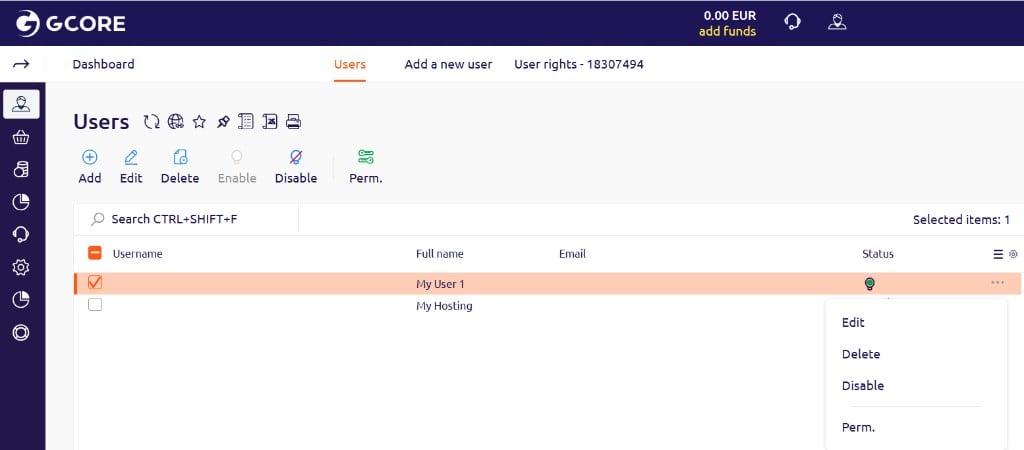 2. Select the user and click **Perm.**
The **User rights** page opens. Rights are grouped by sections — **Client**, **Products/Services**, **Billing**, and others. Each section row represents a group of operations.
2. Select the user and click **Perm.**
The **User rights** page opens. Rights are grouped by sections — **Client**, **Products/Services**, **Billing**, and others. Each section row represents a group of operations.
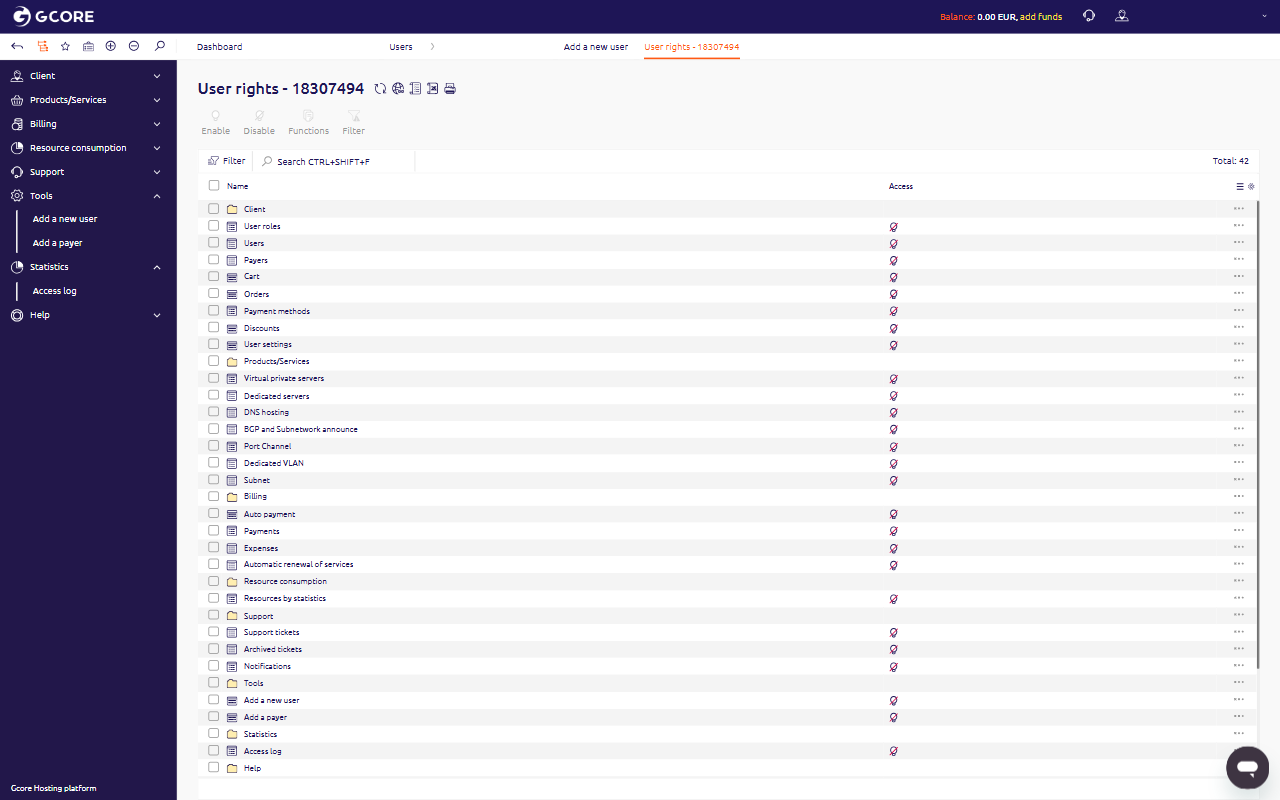 3. Double-click a section row to view its individual operations — **Add**, **Edit**, **Delete**, **Enable**, **Disable**, **Perm.**, **History**, and **Filter**.
4. Select a row and click **Enable** in the toolbar to grant access to that operation.
5. Select a row and click **Disable** to revoke access.
## Grant full access
To give a user unrestricted access to all sections:
1. Navigate to **Client** > **Users**.
2. Select the user and click **Edit**.
3. Select the **Full access** checkbox.
3. Double-click a section row to view its individual operations — **Add**, **Edit**, **Delete**, **Enable**, **Disable**, **Perm.**, **History**, and **Filter**.
4. Select a row and click **Enable** in the toolbar to grant access to that operation.
5. Select a row and click **Disable** to revoke access.
## Grant full access
To give a user unrestricted access to all sections:
1. Navigate to **Client** > **Users**.
2. Select the user and click **Edit**.
3. Select the **Full access** checkbox.
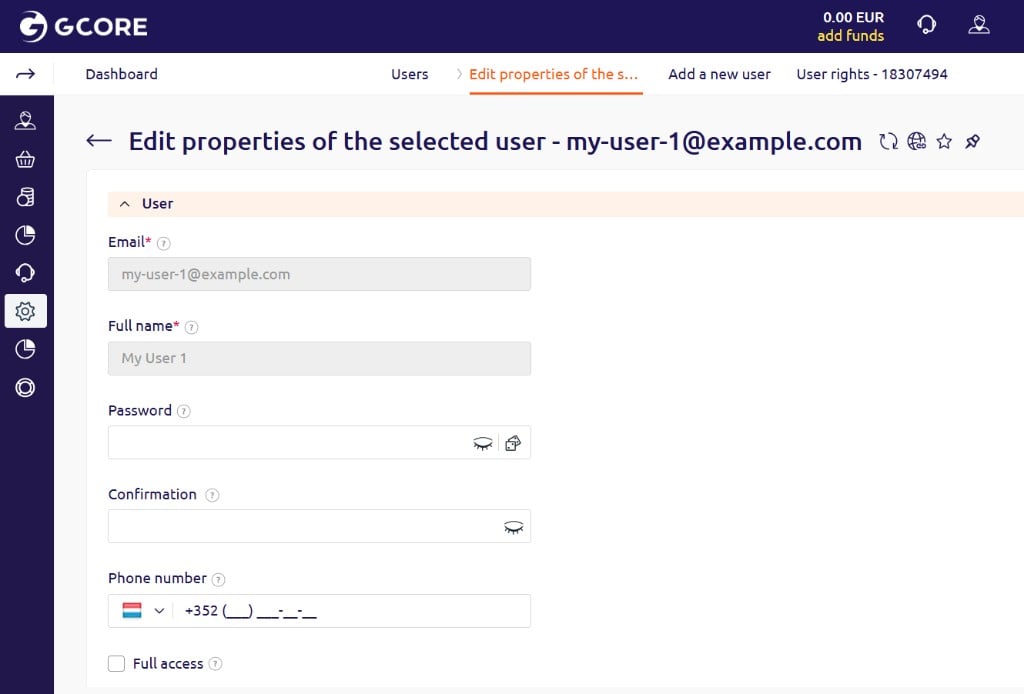 4. Click **Ok**.
When **Full access** is enabled, the granular permission settings in **Perm.** have no effect.
## Suspend a user
To suspend a user's access to the Hosting Portal:
1. Navigate to **Client** > **Users**.
2. Select the user and click **Disable**.
3. In the confirmation dialog, click **Ok**.
4. Click **Ok**.
When **Full access** is enabled, the granular permission settings in **Perm.** have no effect.
## Suspend a user
To suspend a user's access to the Hosting Portal:
1. Navigate to **Client** > **Users**.
2. Select the user and click **Disable**.
3. In the confirmation dialog, click **Ok**.
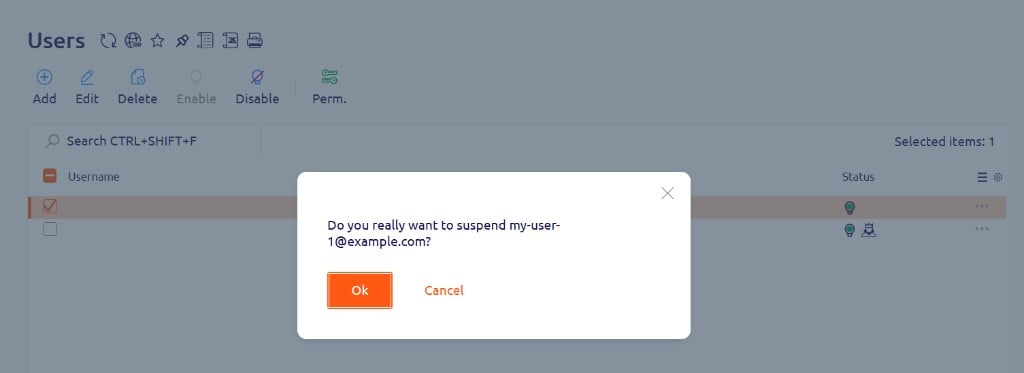 A suspended user who attempts to log in receives an "Invalid username or password" error.