> ## Documentation Index
> Fetch the complete documentation index at: https://docs.preprod.world/llms.txt
> Use this file to discover all available pages before exploring further.
# Install GUI (desktop environment) on Ubuntu, CentOS and Debian
Linux servers are provisioned without a graphical interface. Install XFCE to get a desktop environment for administration or troubleshooting tasks that are easier to perform in a visual workspace. XFCE is lightweight and runs well even on low-resource servers.
 Connect to the server via [SSH](/hosting/virtual-servers/manage/connect/linux-server/connect-to-linux-server-via-ssh) or [VNC](/hosting/virtual-servers/manage/connect/connect-to-a-virtual-server-via-vnc) before starting. The login credentials are available on the **Instructions** tab in the [Gcore Hosting Portal](https://hosting.gcore.com/billmgr).
## Install XFCE
Select the tab that matches the server OS.
1\. Update the package list:
```sh theme={null}
sudo apt-get update
```
2\. Install the XFCE environment and additional components (panel, file manager, and various plugins):
```sh theme={null}
sudo apt-get install xfce4-session xfce4-goodies
```
The system warns that the installation requires several hundred megabytes of disk space.
Connect to the server via [SSH](/hosting/virtual-servers/manage/connect/linux-server/connect-to-linux-server-via-ssh) or [VNC](/hosting/virtual-servers/manage/connect/connect-to-a-virtual-server-via-vnc) before starting. The login credentials are available on the **Instructions** tab in the [Gcore Hosting Portal](https://hosting.gcore.com/billmgr).
## Install XFCE
Select the tab that matches the server OS.
1\. Update the package list:
```sh theme={null}
sudo apt-get update
```
2\. Install the XFCE environment and additional components (panel, file manager, and various plugins):
```sh theme={null}
sudo apt-get install xfce4-session xfce4-goodies
```
The system warns that the installation requires several hundred megabytes of disk space.
 Confirm with: `y`
 3\. Install a display manager to launch XFCE. What happens next depends on the Ubuntu version:
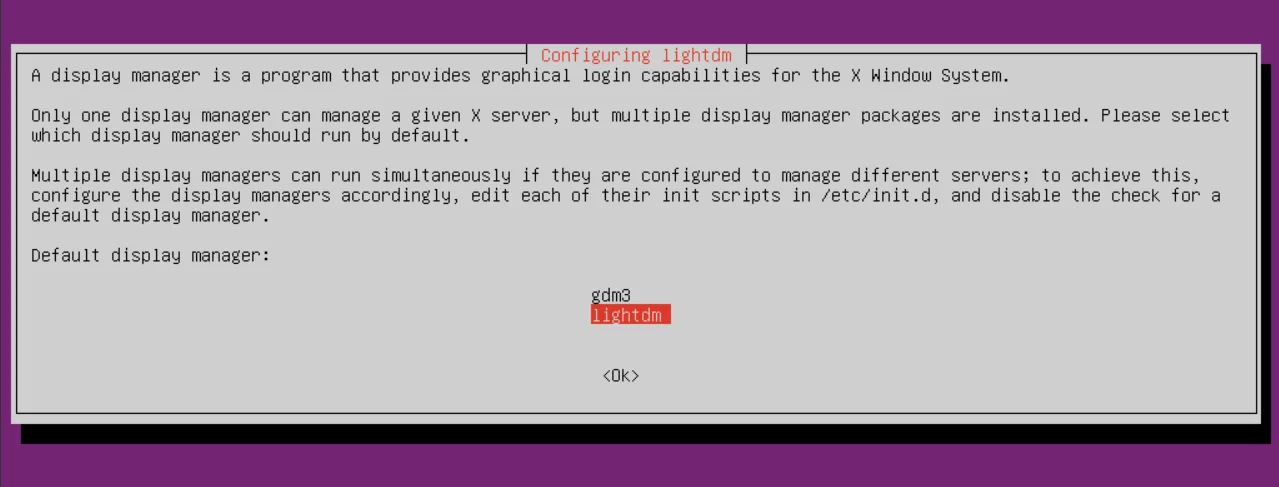
The installer prompts to choose between **gdm3** and **lightdm**. Select **lightdm** and press **Enter**.
3\. Install a display manager to launch XFCE. What happens next depends on the Ubuntu version:
The installer prompts to choose between **gdm3** and **lightdm**. Select **lightdm** and press **Enter**.
 ```sh theme={null}
sudo apt install xinit
```
The system warns that the installation requires several megabytes of disk space.
```sh theme={null}
sudo apt install xinit
```
The system warns that the installation requires several megabytes of disk space.
 Confirm with: `y`
 4\. Start the desktop environment.
If `lightdm` was installed in step 3, reboot the server — the graphical interface starts automatically:
```sh theme={null}
shutdown -r now
```
If `xinit` was installed in step 3, start the graphical interface directly:
```sh theme={null}
startx
```
CentOS 8 reached End of Life on December 31, 2021. The official CentOS 8 package repositories are no longer maintained, so installation commands will fail on a stock CentOS 8 system. For new servers, use AlmaLinux or Rocky Linux as supported alternatives. The instructions below apply to CentOS 7.
1\. Install EPEL (Extra Packages for Enterprise Linux) — an open repository that contains the XFCE desktop environment packages:
```sh theme={null}
yum -y install epel-release
```
2\. Install the X Window System — the foundation for graphical interfaces on Linux.
For CentOS 7:
```sh theme={null}
yum -y groupinstall x11
```
For CentOS 8:
```sh theme={null}
yum -y groupinstall base-x
```
3\. Install the XFCE desktop environment from the EPEL repository:
```sh theme={null}
yum --enablerepo=epel -y groups install "Xfce"
```
4\. Create a startup script for xinit that tells it which desktop environment to launch:
```sh theme={null}
echo "exec /usr/bin/xfce4-session" >> ~/.xinitrc
```
5\. Start the desktop environment:
```sh theme={null}
startx
```
If `startx` returns an error, re-run step 4 and then run `startx` again.
1\. Install the XFCE desktop environment:
```sh theme={null}
apt-get install xfce4
```
The system warns that the installation requires several hundred megabytes of disk space.
4\. Start the desktop environment.
If `lightdm` was installed in step 3, reboot the server — the graphical interface starts automatically:
```sh theme={null}
shutdown -r now
```
If `xinit` was installed in step 3, start the graphical interface directly:
```sh theme={null}
startx
```
CentOS 8 reached End of Life on December 31, 2021. The official CentOS 8 package repositories are no longer maintained, so installation commands will fail on a stock CentOS 8 system. For new servers, use AlmaLinux or Rocky Linux as supported alternatives. The instructions below apply to CentOS 7.
1\. Install EPEL (Extra Packages for Enterprise Linux) — an open repository that contains the XFCE desktop environment packages:
```sh theme={null}
yum -y install epel-release
```
2\. Install the X Window System — the foundation for graphical interfaces on Linux.
For CentOS 7:
```sh theme={null}
yum -y groupinstall x11
```
For CentOS 8:
```sh theme={null}
yum -y groupinstall base-x
```
3\. Install the XFCE desktop environment from the EPEL repository:
```sh theme={null}
yum --enablerepo=epel -y groups install "Xfce"
```
4\. Create a startup script for xinit that tells it which desktop environment to launch:
```sh theme={null}
echo "exec /usr/bin/xfce4-session" >> ~/.xinitrc
```
5\. Start the desktop environment:
```sh theme={null}
startx
```
If `startx` returns an error, re-run step 4 and then run `startx` again.
1\. Install the XFCE desktop environment:
```sh theme={null}
apt-get install xfce4
```
The system warns that the installation requires several hundred megabytes of disk space.
 Confirm with: `y`
2\. Install the optional XFCE components (panel, file manager, and plugins):
```sh theme={null}
apt-get install xfce4-goodies
```
The system warns that the installation requires several megabytes of disk space.
Confirm with: `y`
2\. Install the optional XFCE components (panel, file manager, and plugins):
```sh theme={null}
apt-get install xfce4-goodies
```
The system warns that the installation requires several megabytes of disk space.
 Confirm with: `y`
3\. Start the desktop environment:
```sh theme={null}
startx
```
## First start
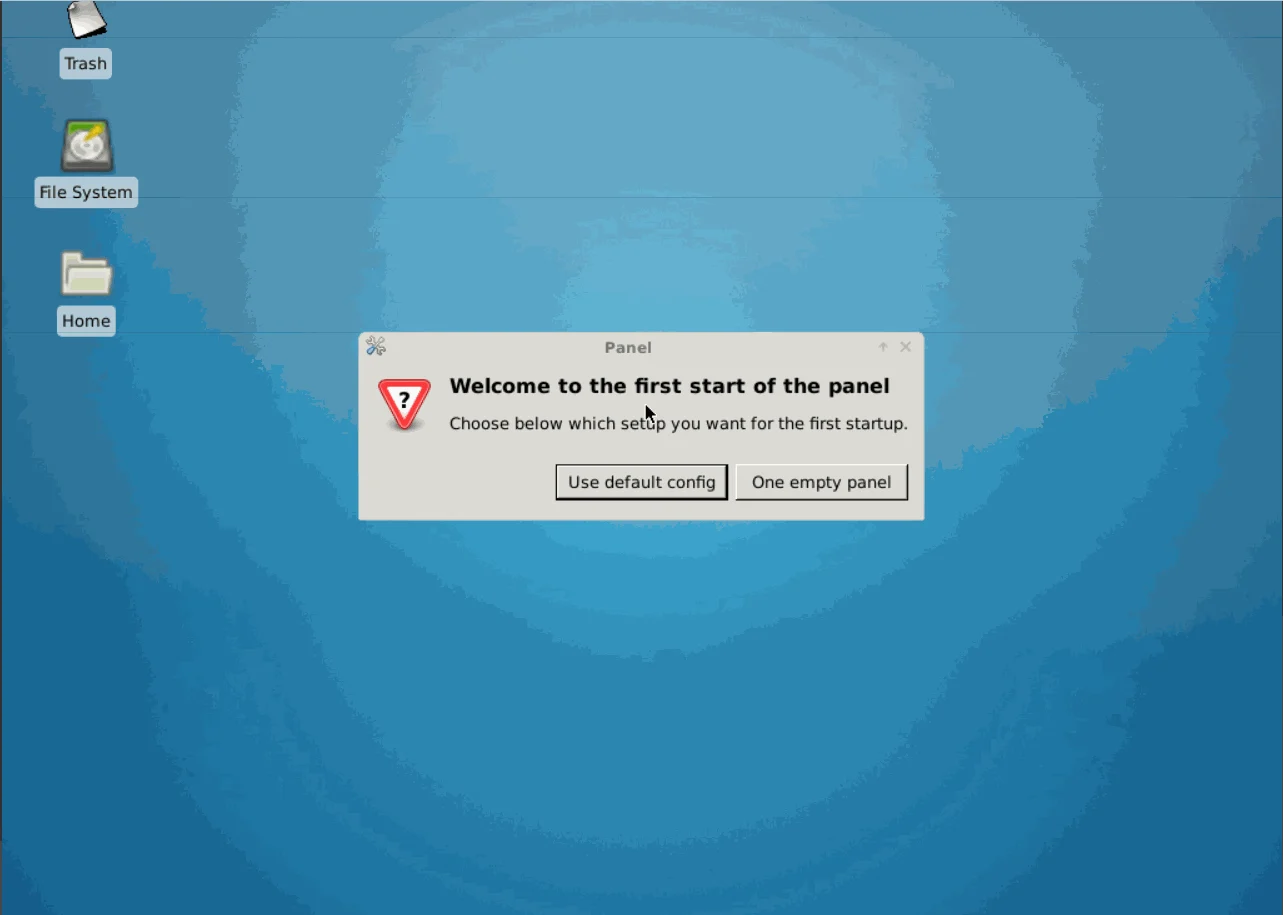
On first start, XFCE prompts to select a panel configuration. Select **Use default config** to get the taskbar, clock, and pre-configured Applications menu. The empty panel option requires manual configuration.
Confirm with: `y`
3\. Start the desktop environment:
```sh theme={null}
startx
```
## First start
On first start, XFCE prompts to select a panel configuration. Select **Use default config** to get the taskbar, clock, and pre-configured Applications menu. The empty panel option requires manual configuration.
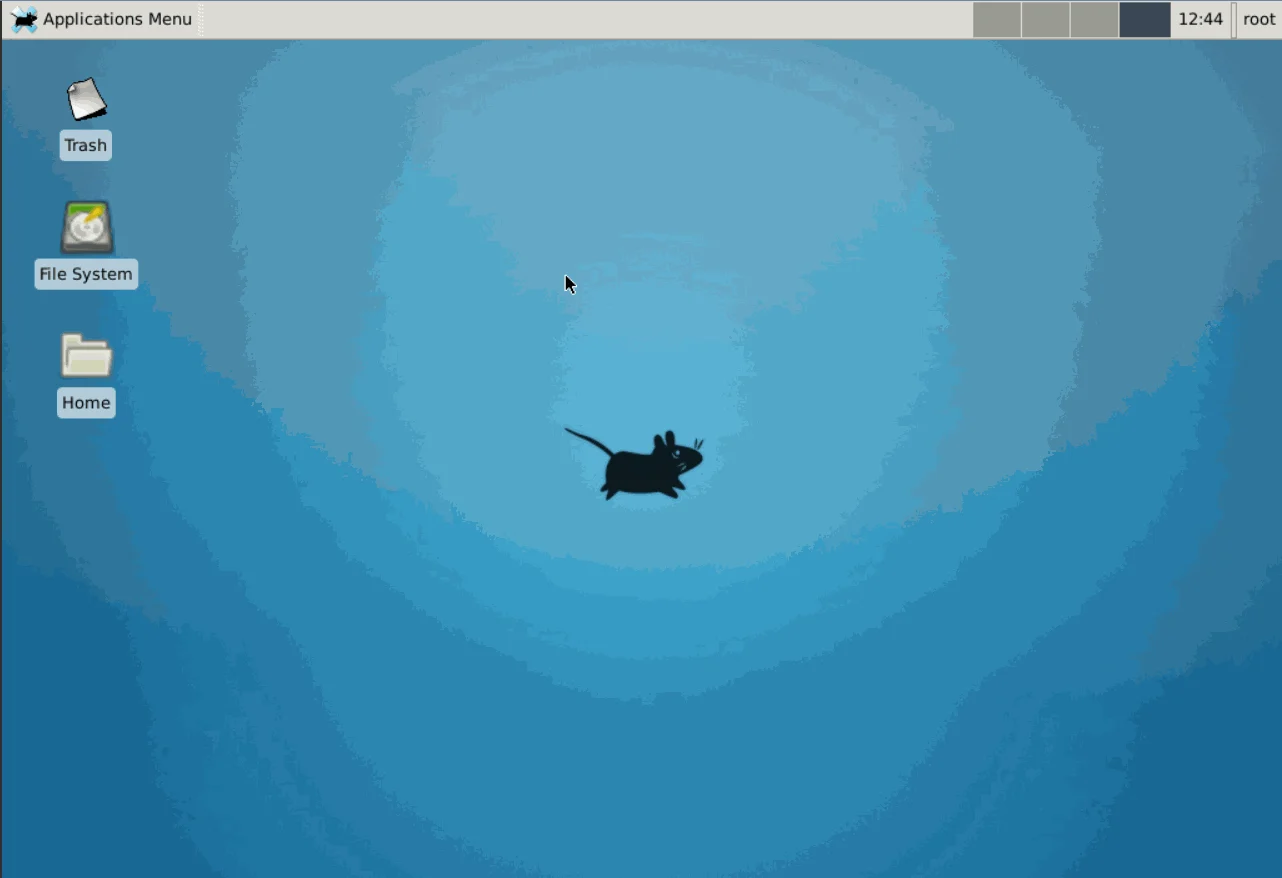
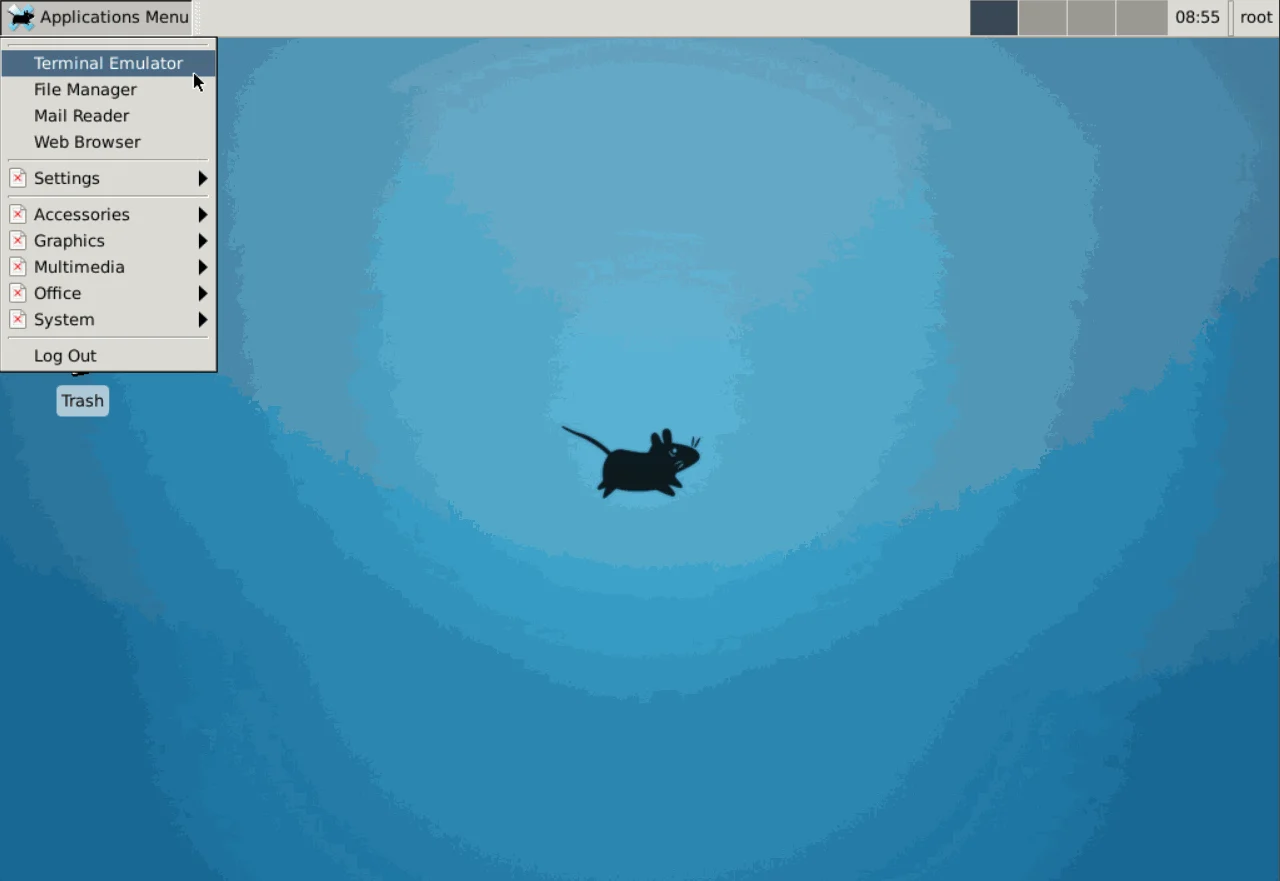
 The desktop with the default configuration looks as follows (minor details may vary by OS):
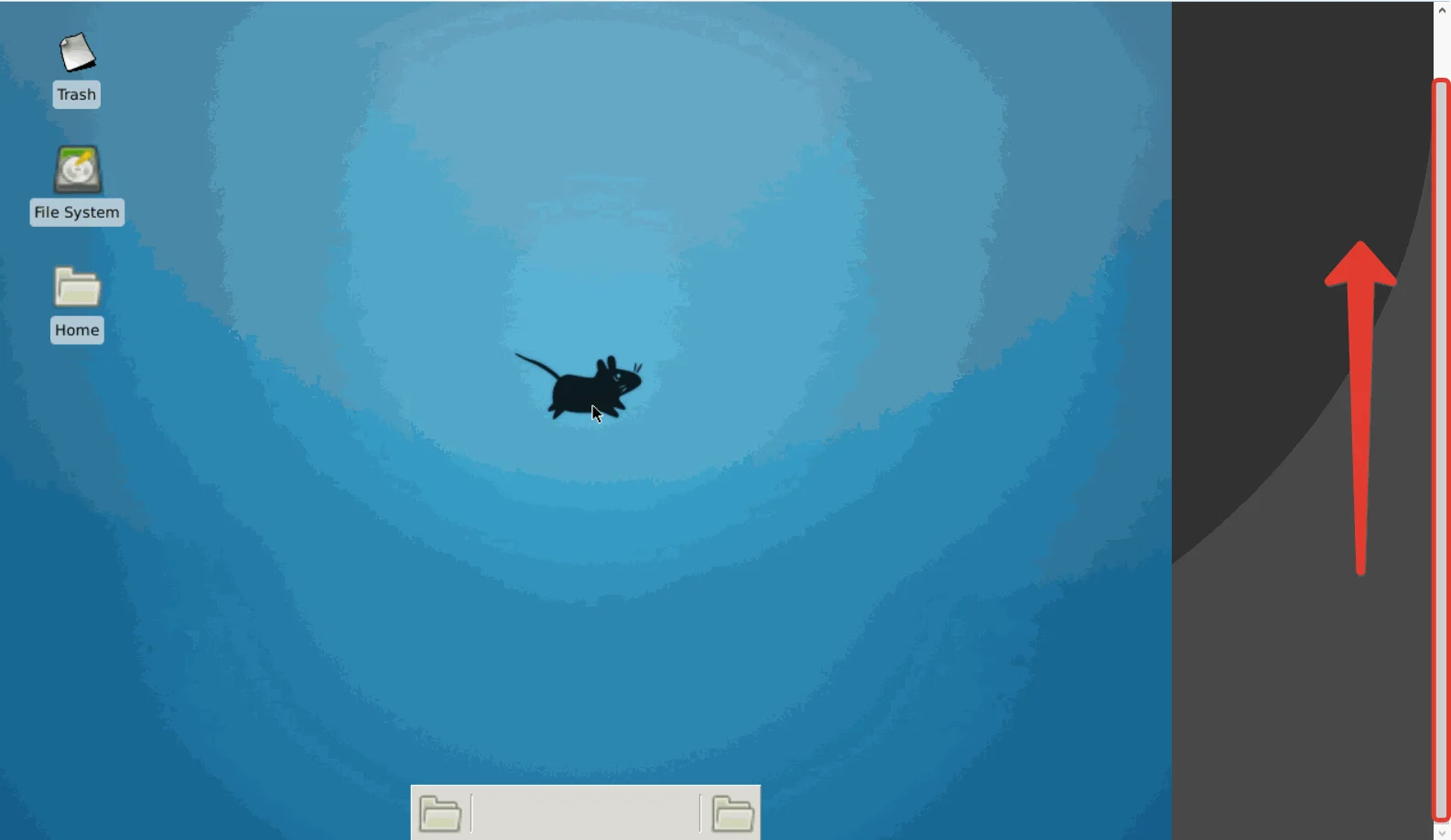
If only folders and widgets are visible and the panel with the **Applications** button is missing, the panel is hidden at the top — move the slider up to reveal it.
The desktop with the default configuration looks as follows (minor details may vary by OS):
If only folders and widgets are visible and the panel with the **Applications** button is missing, the panel is hidden at the top — move the slider up to reveal it.
 On Ubuntu with `lightdm`, the desktop starts automatically on each server boot. On CentOS and Debian (and Ubuntu with `xinit`), the terminal opens after a reboot — run `startx` to start XFCE again.
To open a terminal inside XFCE, click **Applications** in the upper-left corner and select **Terminal Emulator**.
On Ubuntu with `lightdm`, the desktop starts automatically on each server boot. On CentOS and Debian (and Ubuntu with `xinit`), the terminal opens after a reboot — run `startx` to start XFCE again.
To open a terminal inside XFCE, click **Applications** in the upper-left corner and select **Terminal Emulator**.
 ## Log out
Logging out of XFCE returns the session to the terminal.
**On Ubuntu with lightdm:** press **Ctrl+Alt+F1** — the session returns to the terminal immediately. The desktop restarts automatically on the next server boot.
**On CentOS, Debian, and Ubuntu with xinit:**
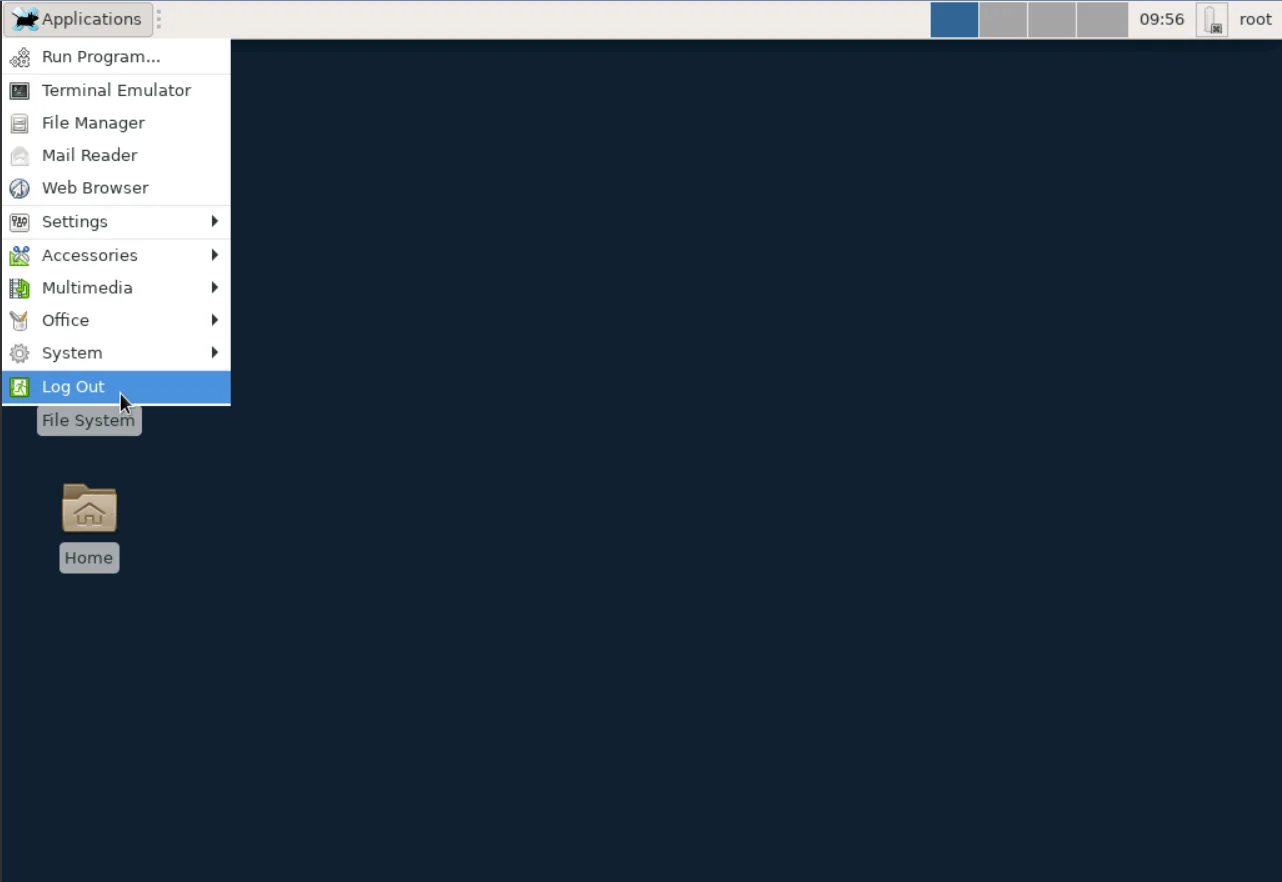
1\. Click **Applications** in the upper-left corner and select **Log Out** from the menu.
## Log out
Logging out of XFCE returns the session to the terminal.
**On Ubuntu with lightdm:** press **Ctrl+Alt+F1** — the session returns to the terminal immediately. The desktop restarts automatically on the next server boot.
**On CentOS, Debian, and Ubuntu with xinit:**
1\. Click **Applications** in the upper-left corner and select **Log Out** from the menu.
 2\. Select **Log Out** in the confirmation window.
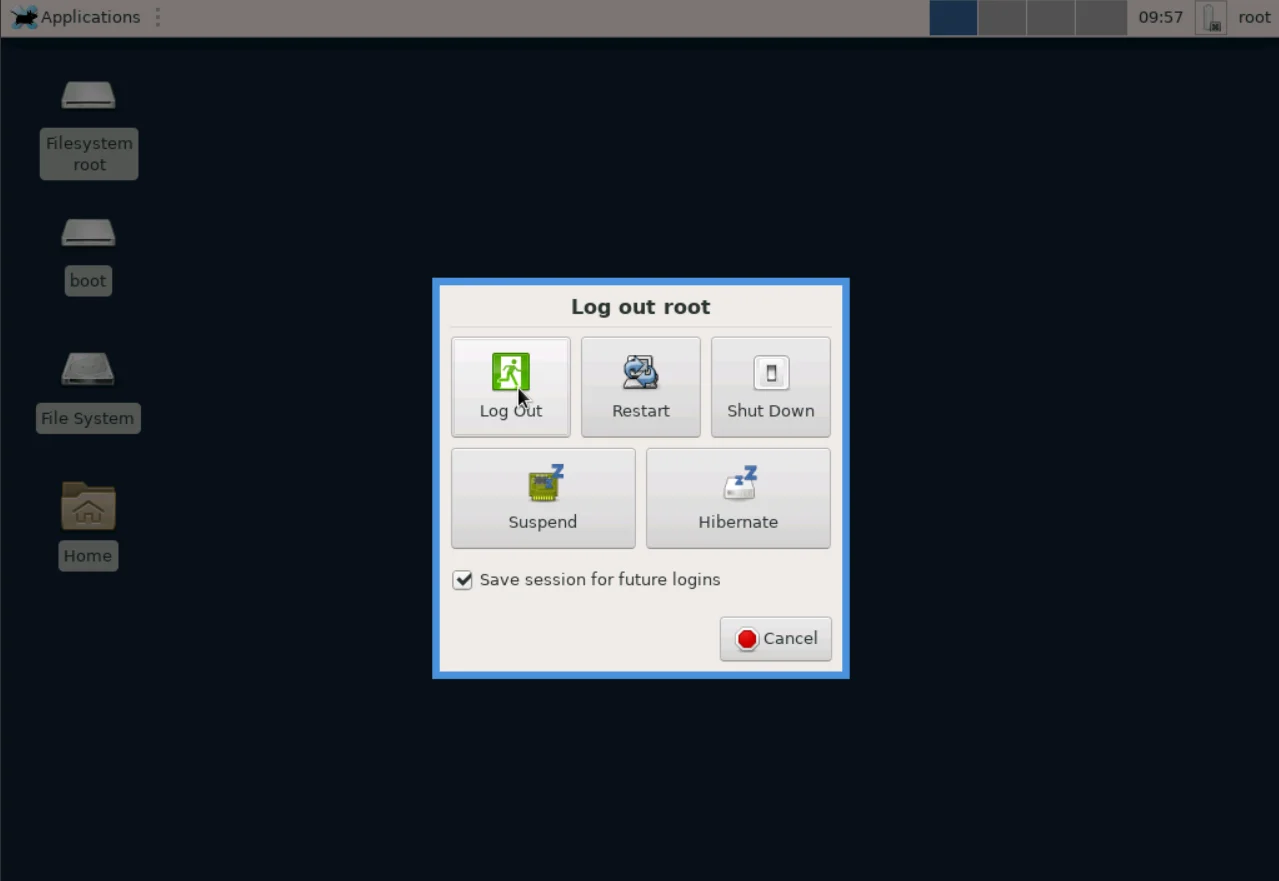 The session returns to the terminal. To start XFCE again, run `startx`.