

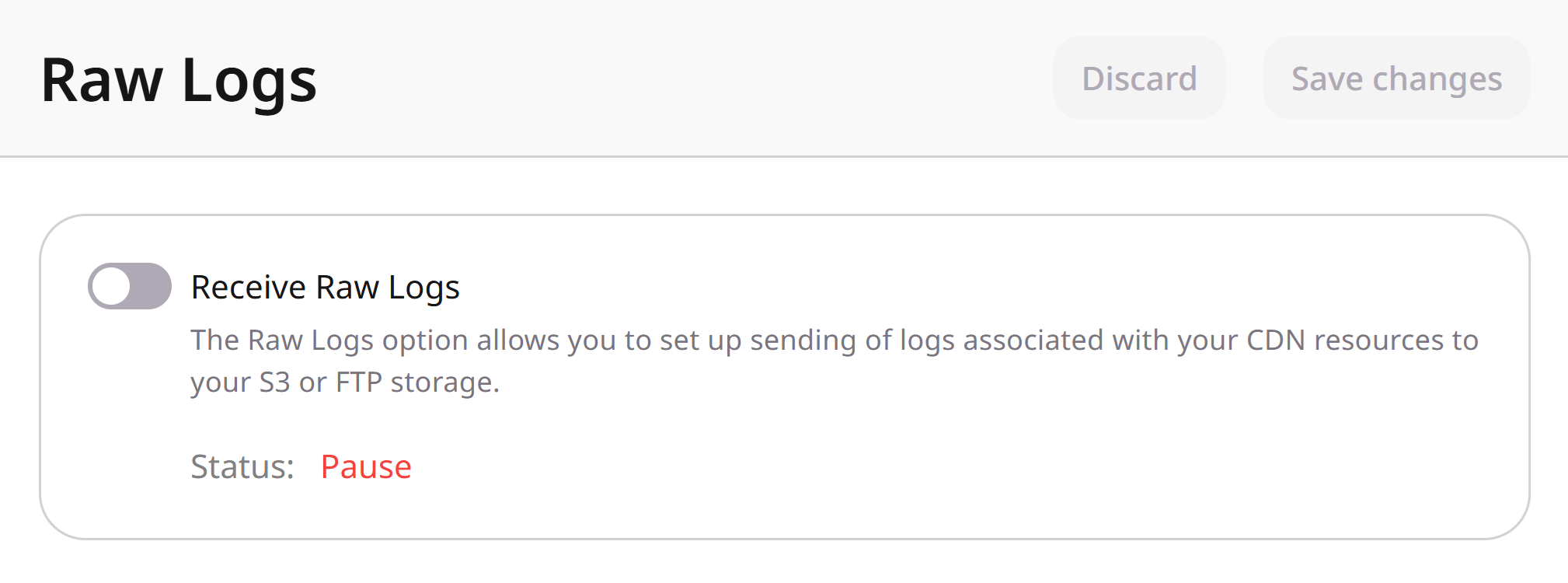
This is a paid feature. Contact Gcore Support to activate Raw Logs. After activation, enable Receive Raw Logs in the Gcore Customer Portal and configure export to S3, FTP, or SFTP storage.
Raw Logs settings
The CDN > Logs > Raw Logs page stores the export destination, empty-file preference, and Origin Shielding inclusion. Status, the hourly interval, and traffic totals come from that configuration.Origin Shielding log inclusion
When Origin Shielding is enabled for the account, the Add logs from Origin Shielding checkbox appears in Raw Logs settings. Select it so the export includes requests to both edge servers and the pre-cache server.
Raw Logs statuses
The Raw Logs status in the Customer Portal can be:- Pending: interval between connecting to storage and the first export
- OK: logs are exported from at least one CDN server
- Failed: a storage connection error occurred, or no export completed within 24 hours
- Pause: Raw Logs is paused
Export interval
Logs are exported at the end of each hour. If Raw Logs is activated at 00:30, the first export runs between 00:45 and 01:00, and the next between 01:45 and 02:00. If the covered CDN resources receive no requests during the export interval and Do not send empty logs is not selected, an empty log file (about 20 bytes) is sent to storage.Log traffic calculation
Raw Logs traffic totals depend on whether Add logs from Origin Shielding is selected. For CDN report metrics, see View statistics on CDN resources.Origin Shielding disabled
Origin Shielding disabled
upstream_bytesis$upstream_response_length: response length from the origin, in bytessent_bytesis$bytes_sent: bytes sent to the client from edge cache servers
$upstream_response_length 10485760 and $bytes_sent 1514848 produce 12000608 bytes.Origin Shielding enabled
Origin Shielding enabled
upstream_bytesis$upstream_response_length: response length from the origin, in bytessent_bytesis$bytes_sent: bytes sent to the client from edge cache serversshield_bytesis$bytes_senton the pre-cache server: bytes sent from the shielding node
Log totals can differ from billing statistics when some files are missing. Common causes:
- Origin Shielding is enabled, but Add logs from Origin Shielding is not selected
- The storage imposes a rate limit, so some files are not delivered to storage
Log path example
Log example
Log format
Log fields
The following table lists the available log fields. Fields marked as internal system variables belong to the CDN control plane and can be ignored for most analytics.Log fields
Log fields
Internal status codes
$gcdn_internal_status_code identifies the CDN rule or feature that generated the response.
When a Secure Token link passes the authenticity check,
$secure_link is set to the link extracted from the request URI. That successful validation does not produce a 403 or 410.
S3 export
- Amazon S3
- Other S3-compatible storage
1
Open Raw Logs
In the Gcore Customer Portal, navigate to CDN > Logs > Raw Logs.
2
Enable the export
Turn on Receive Raw Logs. Keep Do not send empty logs selected to skip empty files, or clear it to receive empty files.
3
Include Origin Shielding logs
If Origin Shielding is enabled, select Add logs from Origin Shielding to include edge and pre-cache logs.
4
Select Amazon S3
Under Receive logs using, select S3. Under Choose S3 storage, select Amazon.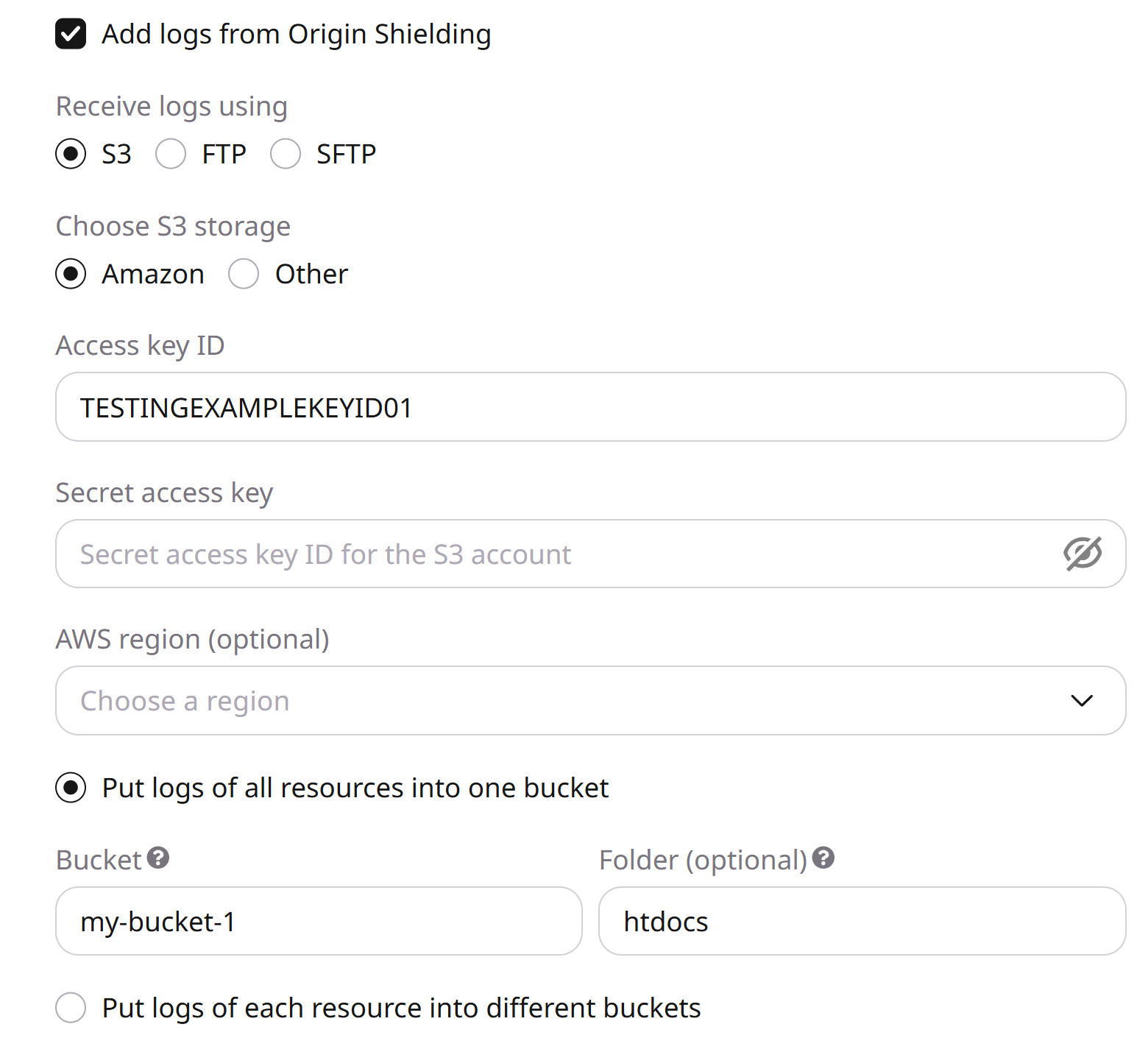
5
Enter credentials
Enter the AWS access key ID and AWS secret access key. See the Amazon access key guide.
6
Set region and buckets
Optionally choose an AWS region. Then choose one bucket for all CDN resources or a separate bucket per resource, and enter an existing bucket name. Add a folder name to write files inside that bucket.
7
Save the configuration
Click Save changes.
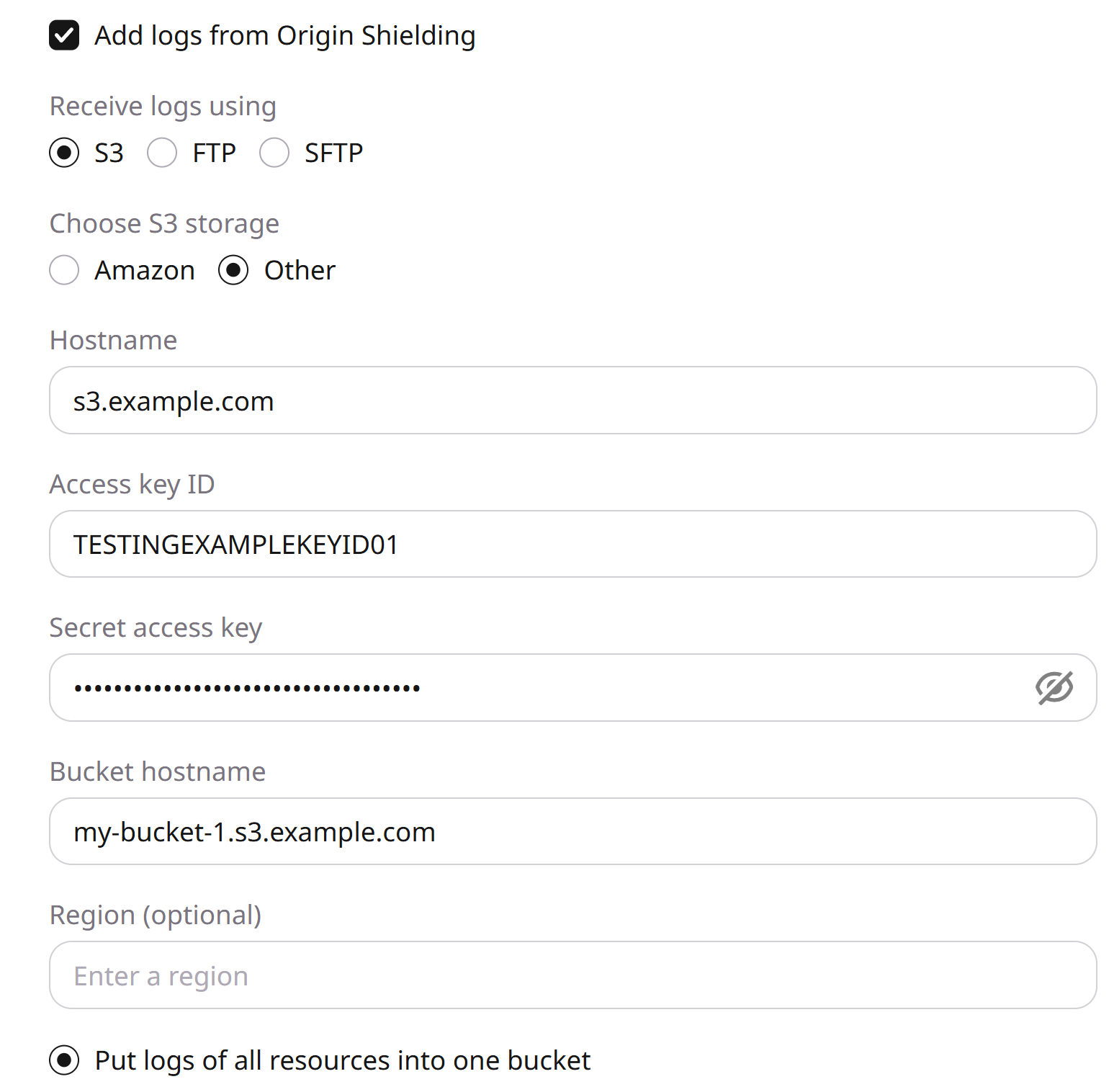
FTP and SFTP export
- SFTP
- FTP
1
Open Raw Logs
In the Gcore Customer Portal, navigate to CDN > Logs > Raw Logs.
2
Enable the export
Turn on Receive Raw Logs. Keep Do not send empty logs selected to skip empty files, or clear it to receive empty files.
3
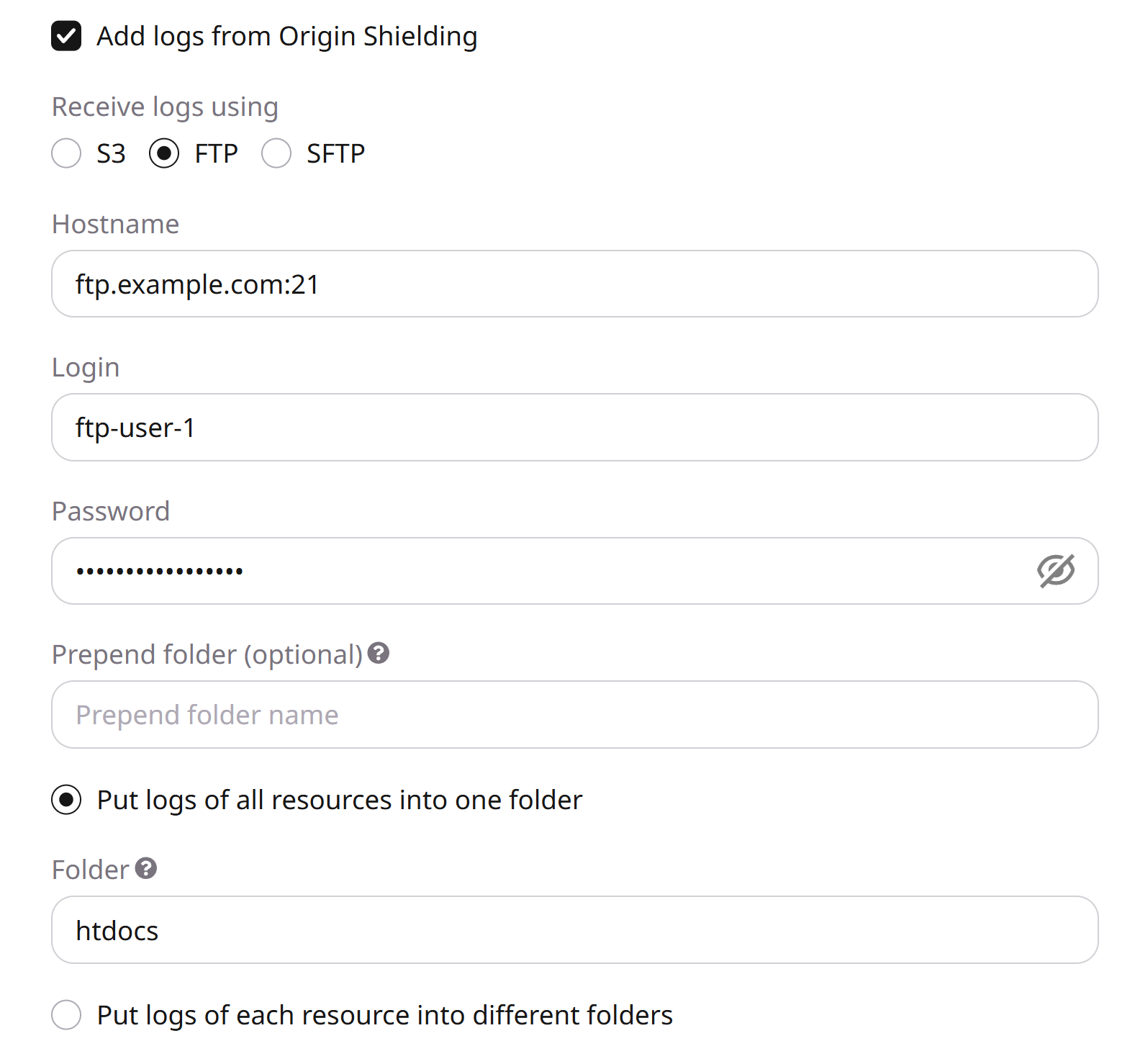
Include Origin Shielding logs
If Origin Shielding is enabled, select Add logs from Origin Shielding to include edge and pre-cache logs.
4
Select SFTP
Under Receive logs using, select SFTP.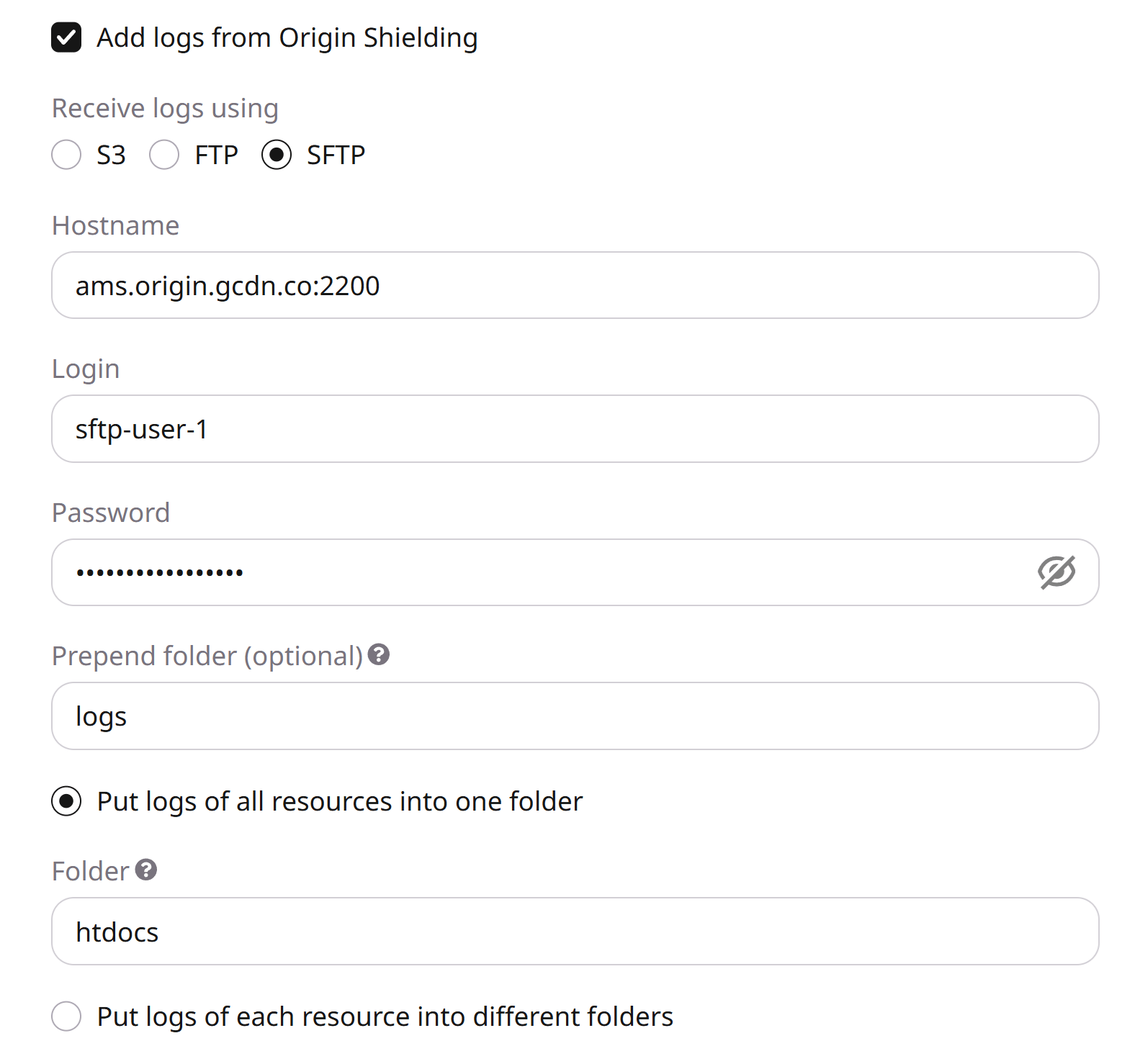
5
Enter the hostname and port
Enter
hostname:port. For Gcore SFTP Storage, copy the hostname from Details and append port 2200, for example ams.origin.gcdn.co:2200. For another provider, use that host and its SFTP port.6
Enter credentials
Enter the Login and Password. For Gcore SFTP Storage, the login is Storage/User name in Details.
7
Enter the destination folder
Optionally enter a Prepend folder. Then enter the Folder. For Gcore SFTP Storage, use the root folder at the end of the Upload path in Details. The home folder is receive-only and cannot be written to directly. The only writable default folder is htdocs. For another provider, enter the folder that should receive files, or leave the field empty if the account starts in that folder.
8
Organize folders
Choose one folder for all CDN resources or a separate folder per resource. A missing folder name sends files to the root folder.
9
Save the configuration
Click Save changes.
Raw Logs deactivation
1
Turn off the export
In the Gcore Customer Portal, navigate to CDN > Logs > Raw Logs and turn off Receive Raw Logs.
2
Save the change
Click Save changes. Delivery stops only after this save. The stored S3, FTP, or SFTP settings remain and apply again when Receive Raw Logs is turned on and saved.