

Request an upgrade
1
Find the server ID and current plan
Navigate to Products/Services → Virtual private servers in the left sidebar.Note the Id and Tariff plan columns for the server to upgrade.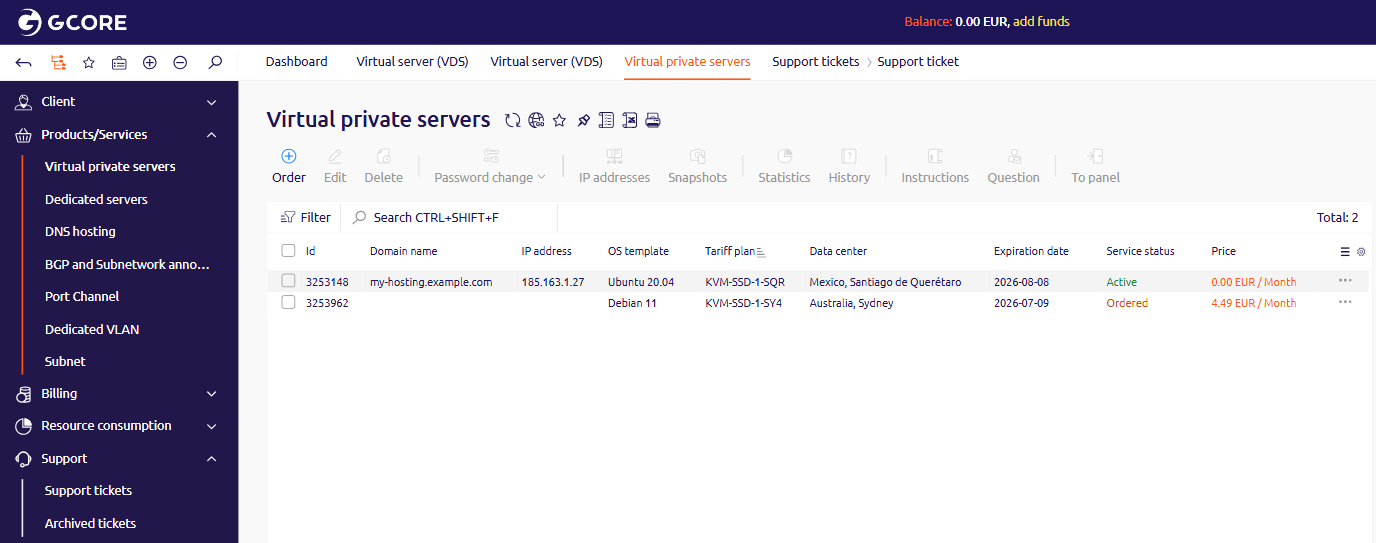
2
Select a target plan
Navigate to Products/Services → Virtual server (VDS) to browse the plan catalog.Use the Data center filter to show only plans available in the same location as the current server. Note the exact plan name from the card header — this is the name to include in the support ticket.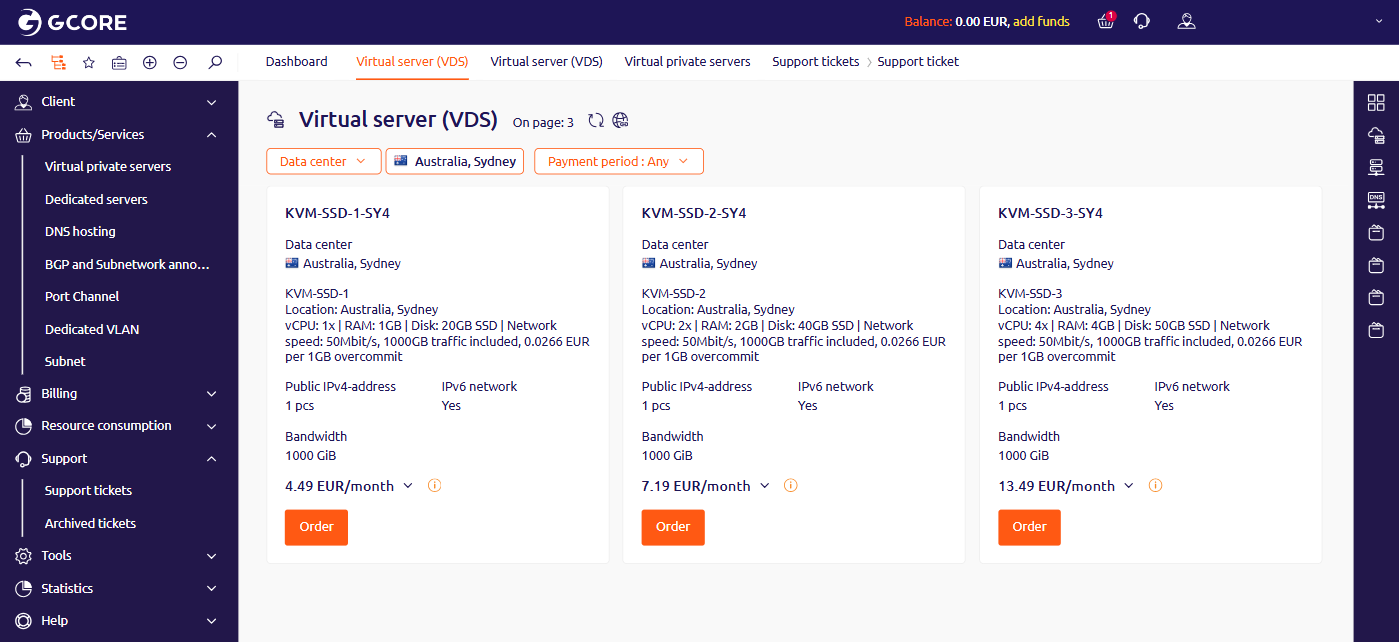
3
Open Support tickets and click Add
Navigate to Support → Support tickets in the left sidebar, then click Add.
4
Fill in the ticket form
Complete the form: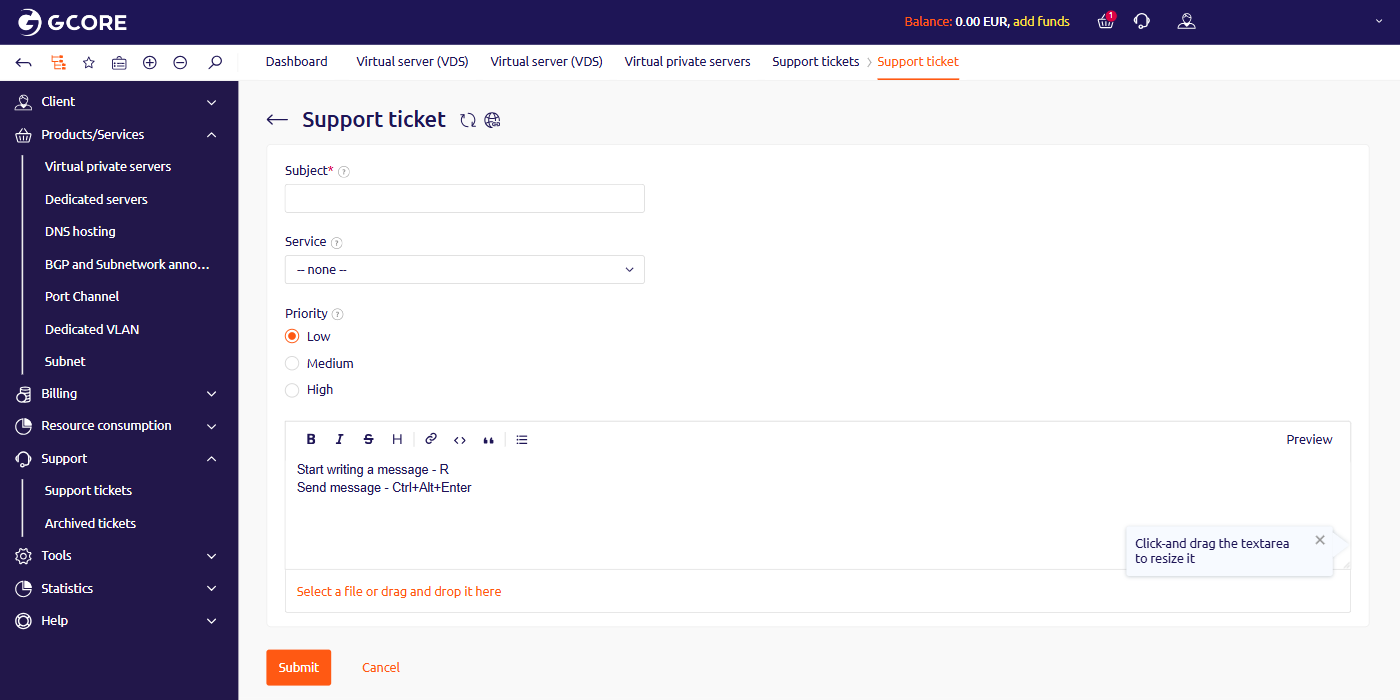
- Subject — describe the request —
Upgrade server 3253148 to KVM-SSD-2-SY4 - Service — select the server from the dropdown list
- Priority — select the urgency level
- Message — add any additional details or preferred upgrade time
5
Submit the ticket
Click Submit. The support team will confirm the request and schedule the upgrade.
After the upgrade
- Server data and IP address are preserved. No data is deleted and the server IP does not change.
- Downtime is 30–60 minutes. During this window the server is unavailable while settings are applied and it reboots.
- Upgrades run on weekdays. Tickets can be submitted any day; the time can be agreed in the ticket chat.
- The plan change is permanent. The previous plan cannot be restored.
- New disk space is not mounted automatically. If the new plan has more disk space, expand the logical partitions inside the OS or create a new partition manually.
- Pricing adjusts from the upgrade date. If the server’s minimum prepaid period has not expired, the remaining prepaid balance is recalculated proportionally based on the new monthly price. Example: a server prepaid for three months at €20/month and upgraded immediately to €40/month leaves enough prepaid balance for only one and a half months.