

Server order
The ordering flow has two stages: select a plan and data center, then configure the server and complete payment.1
Open the plan catalog
In the left sidebar, navigate to Products/Services > Virtual private servers, then click Order in the toolbar.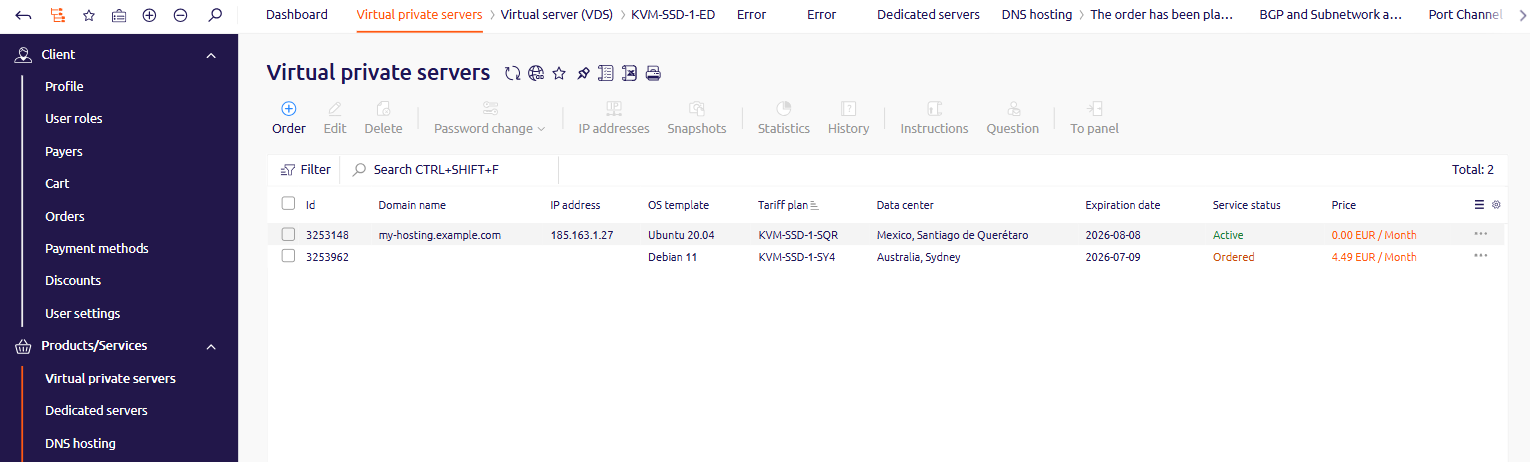
2
Select a data center and plan
Use the Data center filter to select a location. Optionally, use the Payment period filter to narrow the list.Each plan card shows hardware specs, included IPv4 and IPv6, bandwidth, and monthly price — the plan overview compares all configurations in detail. Click Order on the plan.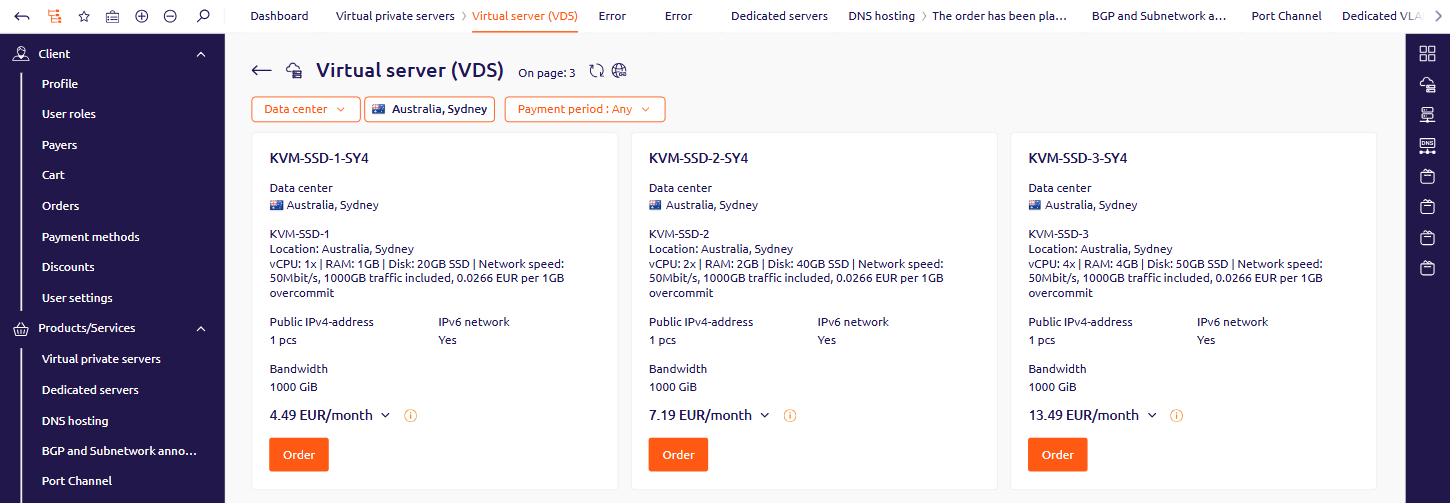
3
Configure the server
On the configuration page, fill in the fields: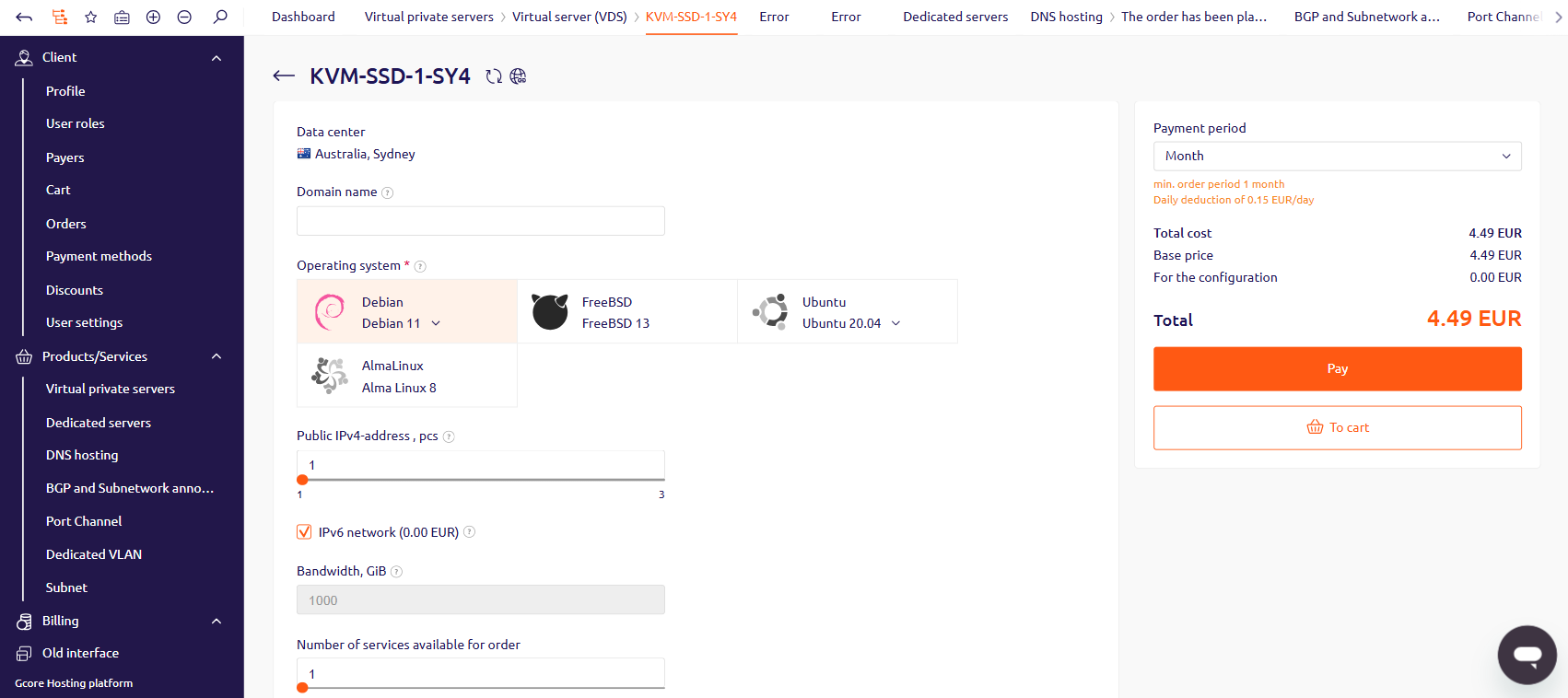
4
Complete the order
Click Pay to proceed to payment immediately, or To cart to save the order and pay later from the cart.After payment, the server status changes to Activation in progress. Activation takes between 15 minutes and 3 hours. Once complete, the status changes to Active and the server is ready to use.
Server statuses
A newly ordered server passes through three statuses before becoming available.
If the server remains in Activation in progress for more than 3 hours, contact support via Support > Support tickets in the left sidebar.