

meet.gcore.com.
Allow the site in the browser first. If the icons stay crossed out, reset that site permission, test extensions, allow the browser in the OS, then confirm that the browser version is supported. If the devices work in the browser but other participants do not receive media, the network is blocking WebRTC. An enabled icon with silence in the room is a different problem — the OS is sending the wrong input device, and that check is in the Windows tab.
Check browser permissions
The address bar on the Real-Time Video page shows whethermeet.gcore.com may use the camera and microphone. Open the tab for the browser in use.
- Chrome
- Edge
- Firefox
- Opera
- Safari
The padlock in the Chrome address bar shows site permissions for 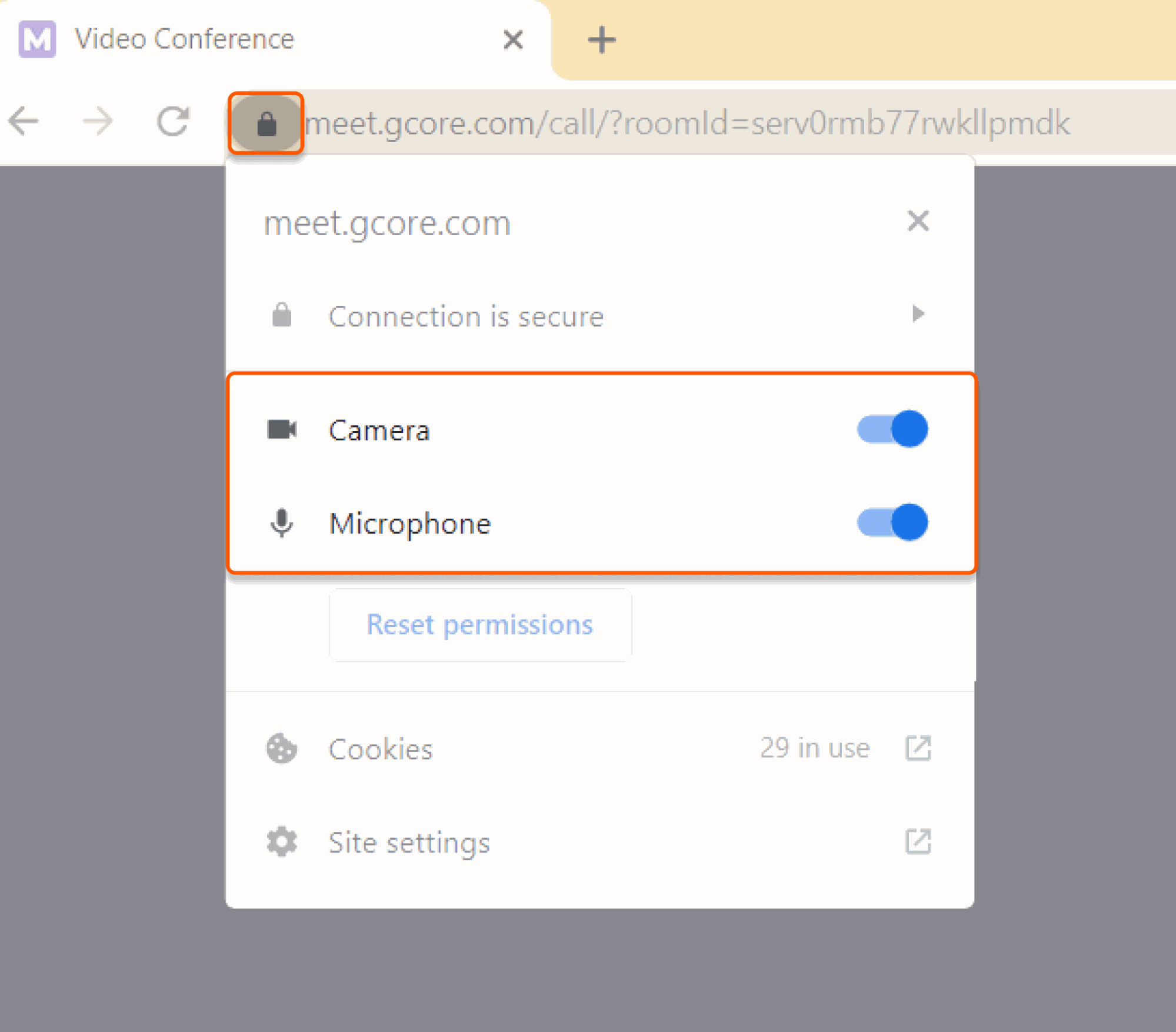
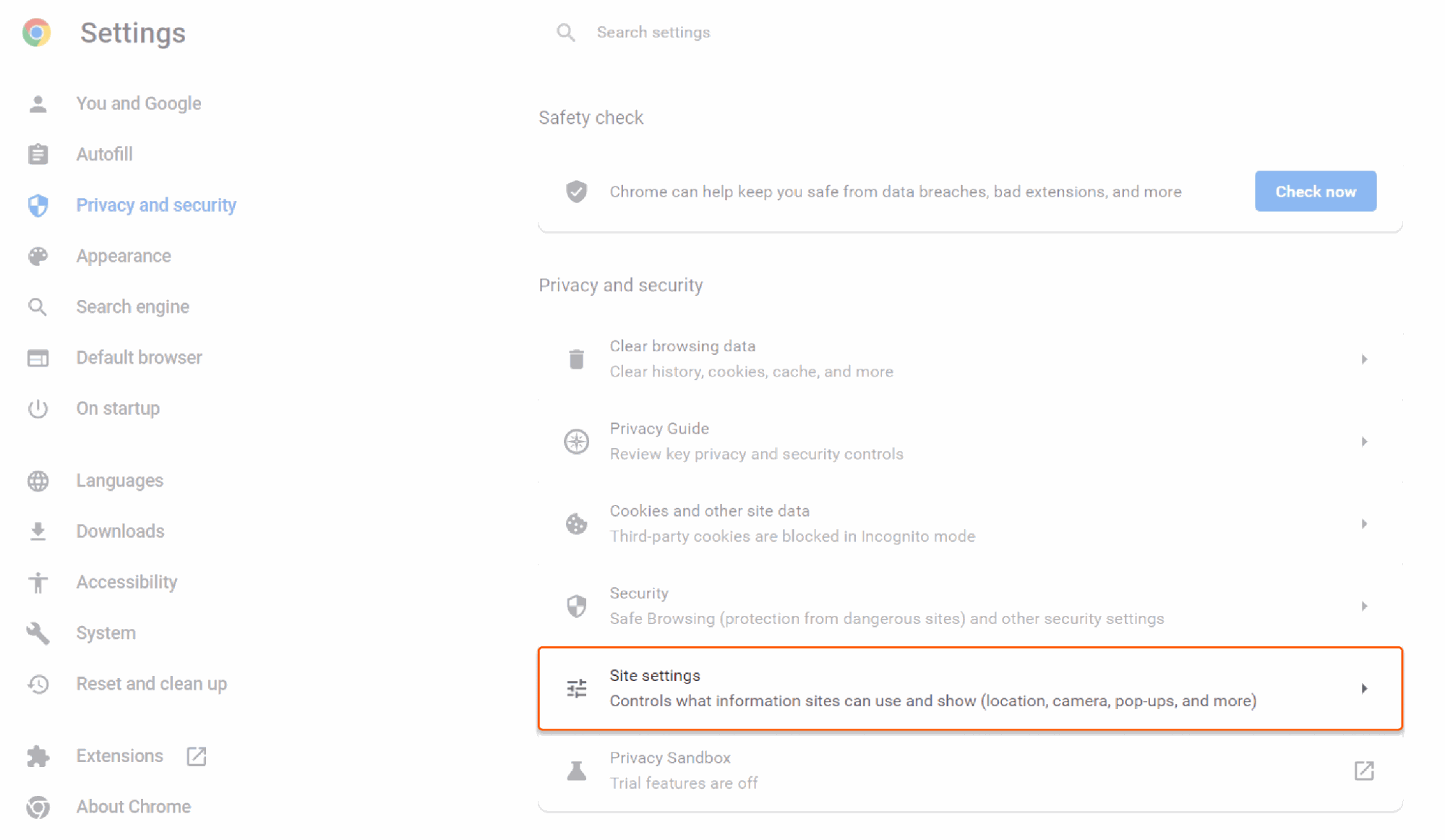
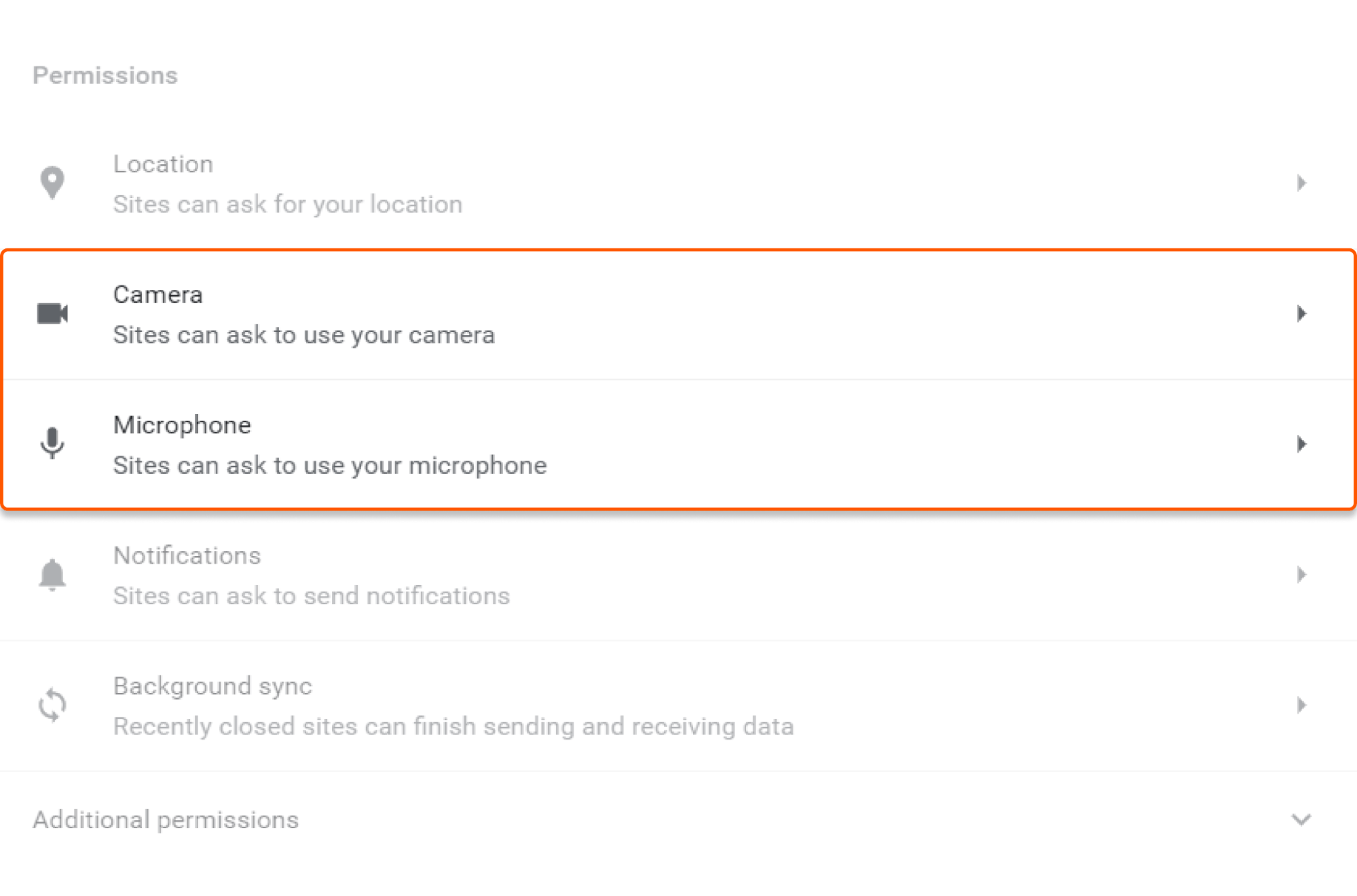
meet.gcore.com. Turn Camera and Microphone on if they are off, then reload the page.meet.gcore.com is not blocked.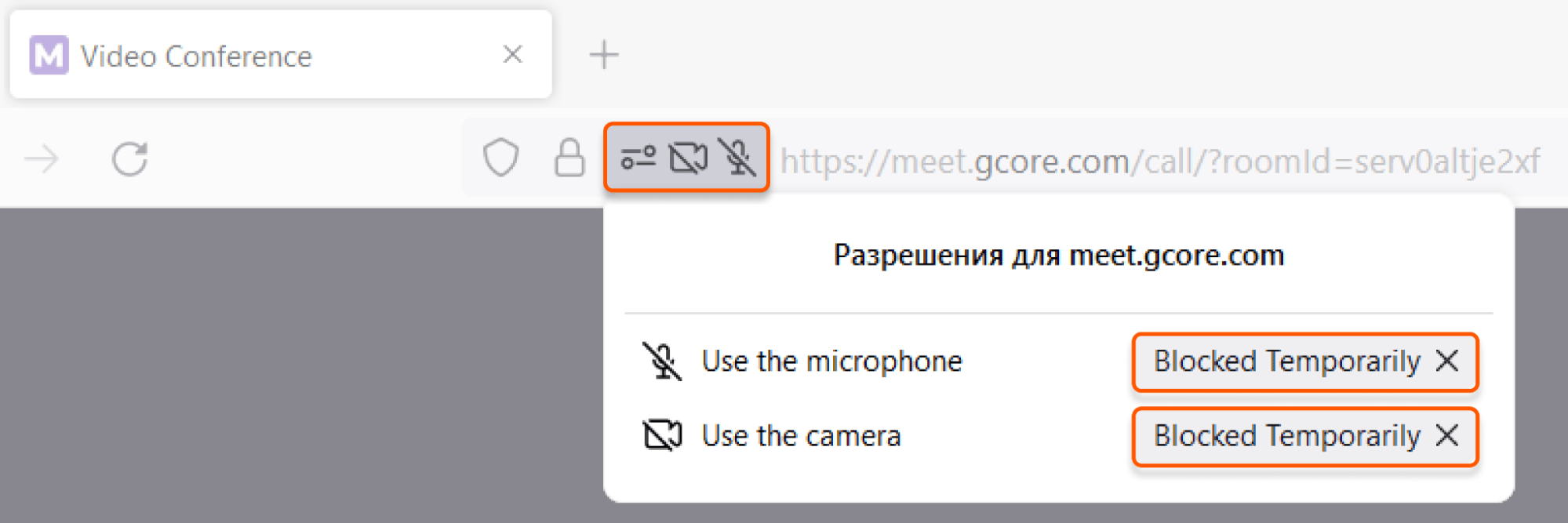
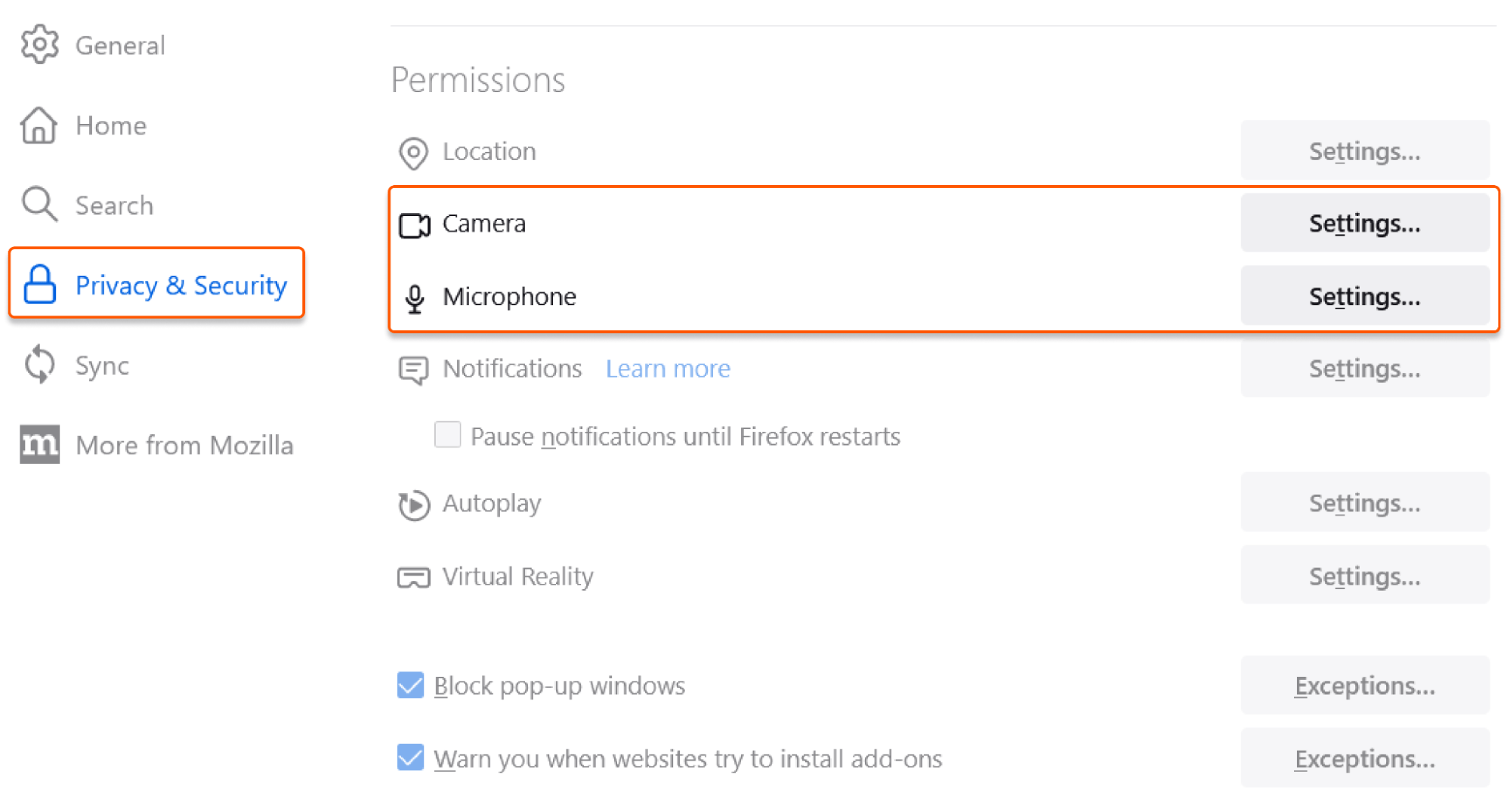
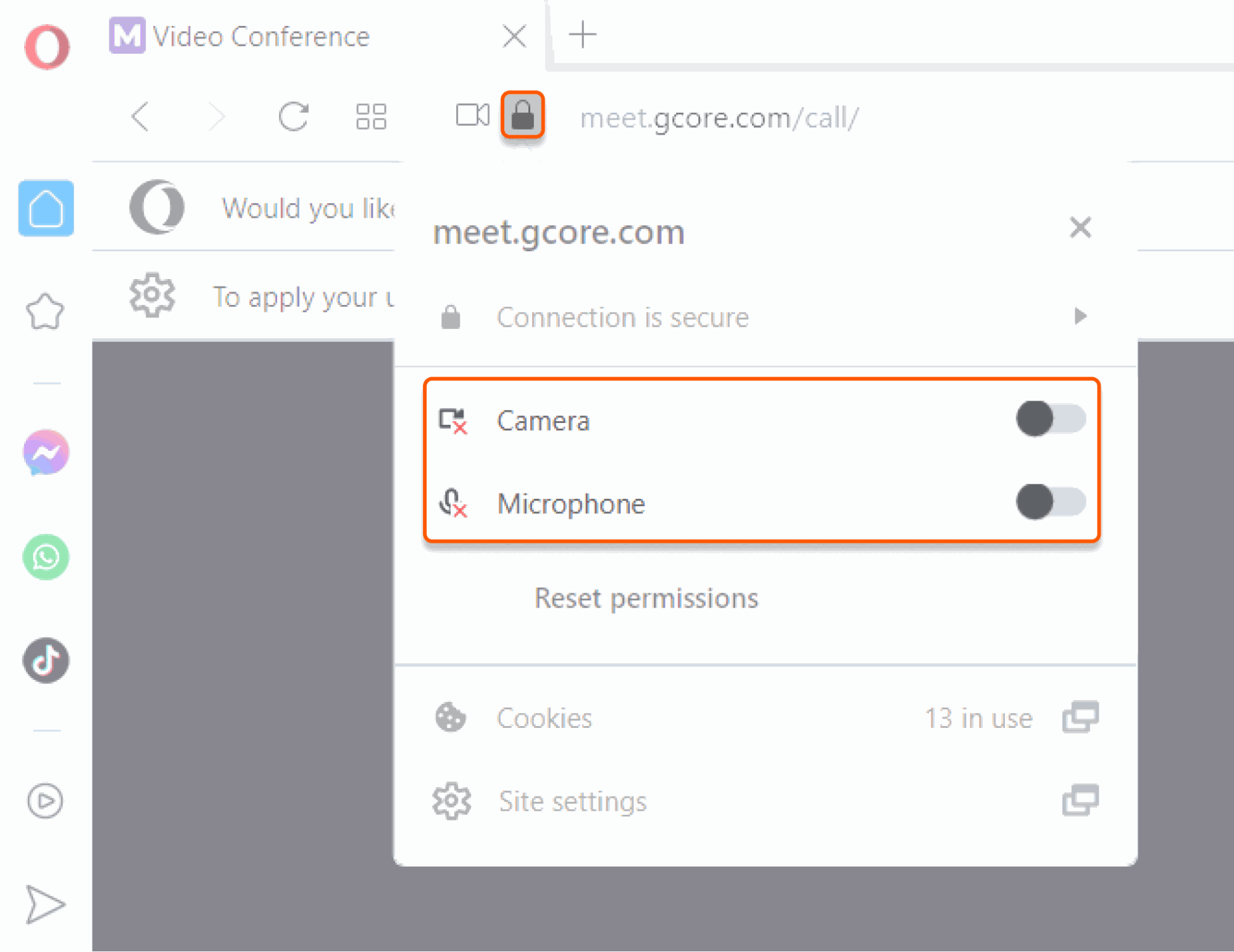
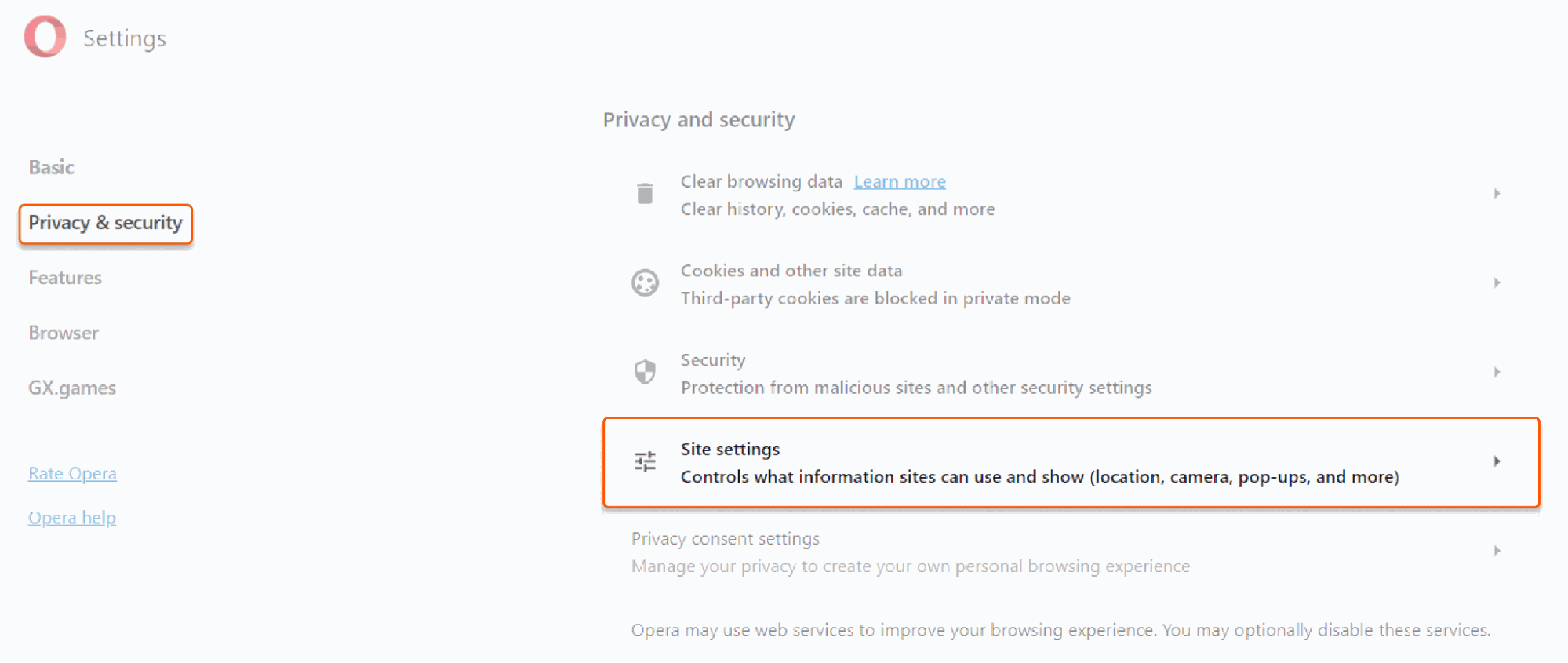
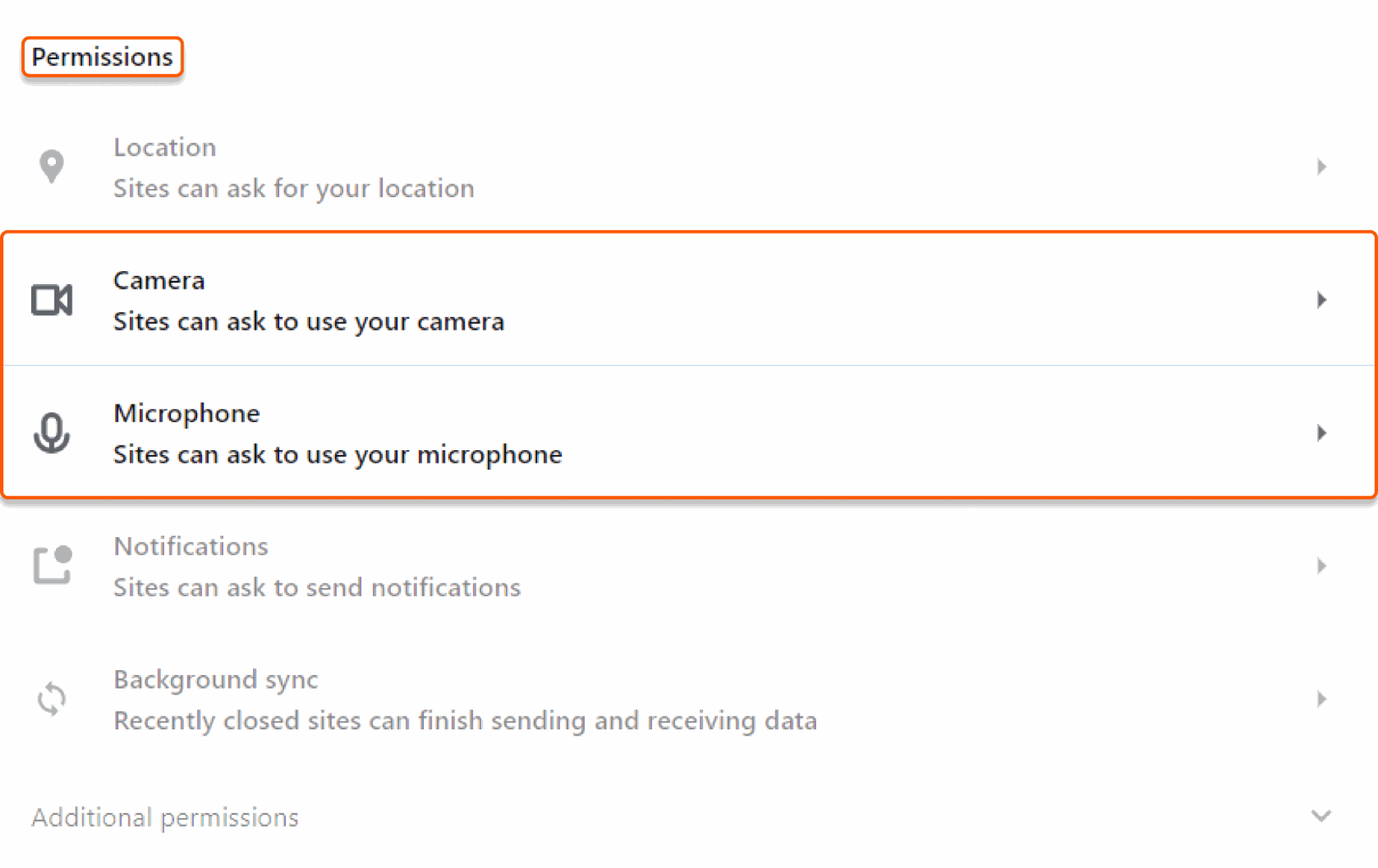
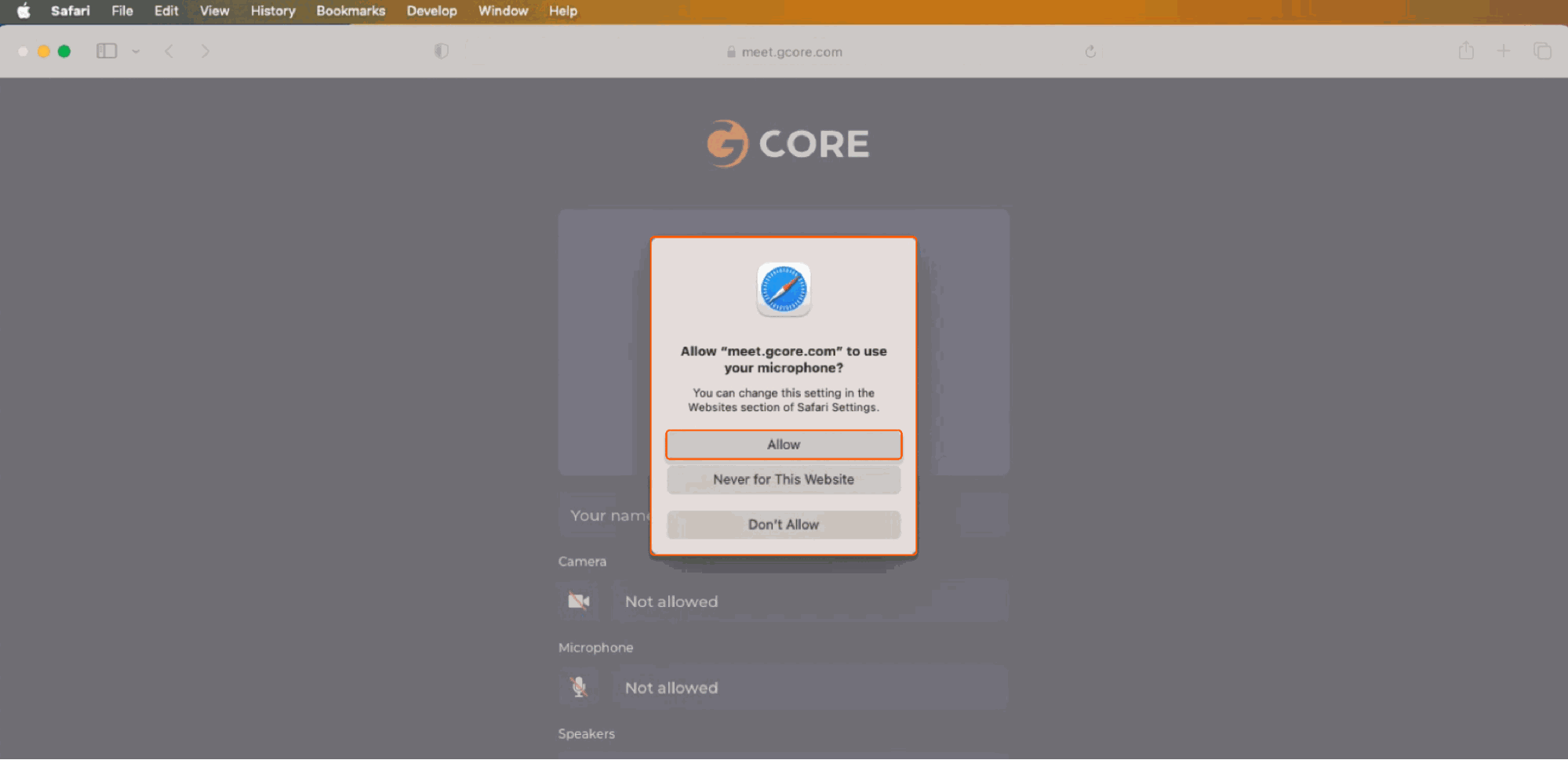
Reset site permissions
If the address-bar toggles were changed but the icons stay crossed out, the browser is still applying a stored permission formeet.gcore.com. Reset that origin only, then reload the page.
- Chrome
- Edge
- Firefox
- Opera
- Safari
In the padlock menu, click Reset permissions, then reload the page. Chrome asks for camera and microphone access again.
Check extensions
A third-party extension can deny camera or microphone access onmeet.gcore.com. Open the Real-Time Video page in a private or incognito window, where most extensions are off.
A private window also uses a separate permission store, so a working call there is not proof that an extension is the cause. If the devices work in the private window, return to the regular window, disable extensions that manage camera, microphone, ads, or privacy one at a time, and reload the call. The extension that restores the devices is the one to leave off during Real-Time Video sessions.
Check operating-system permissions
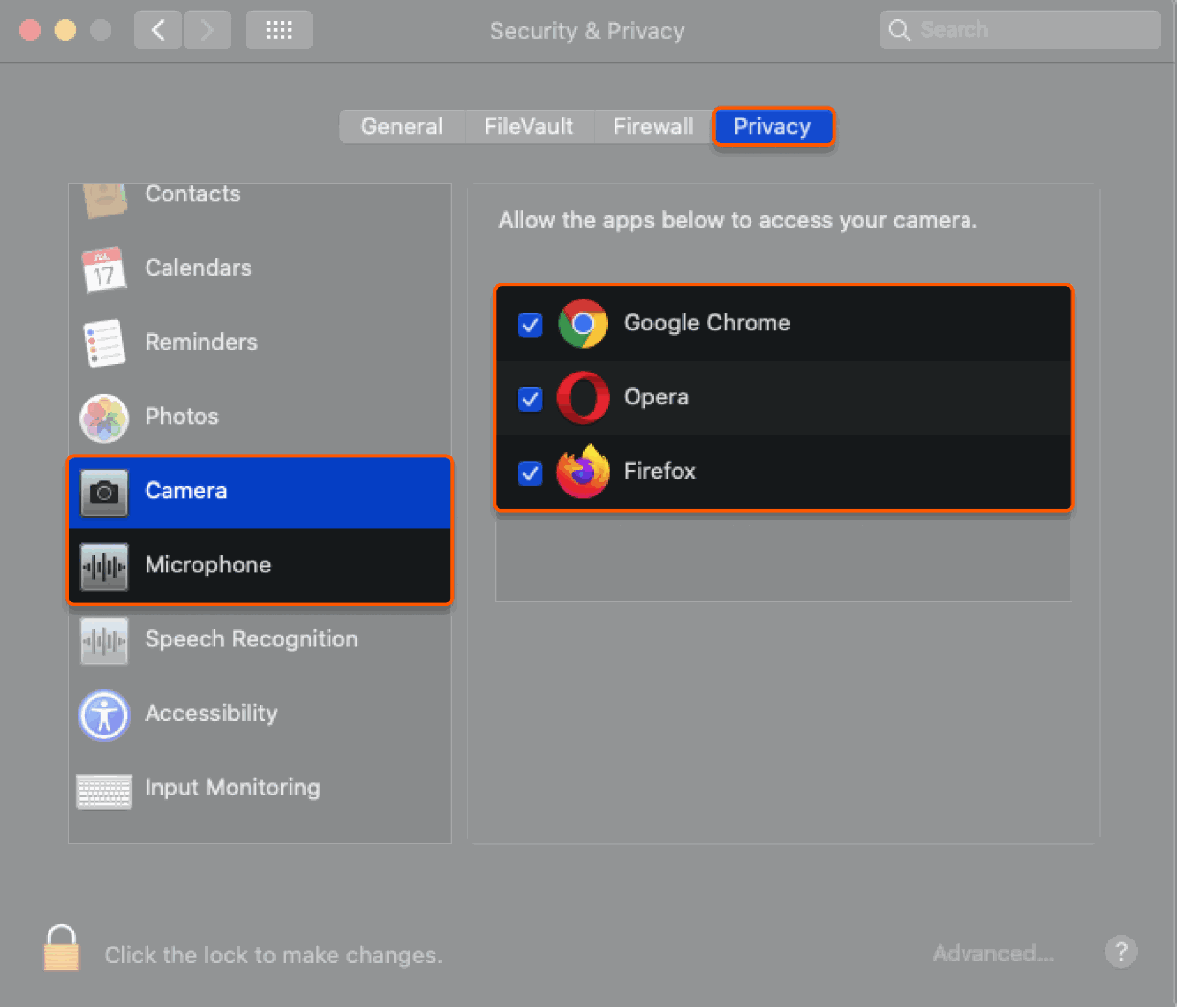
The operating system can block the browser even when the site permission is on. Open the tab for the OS in use.- Windows
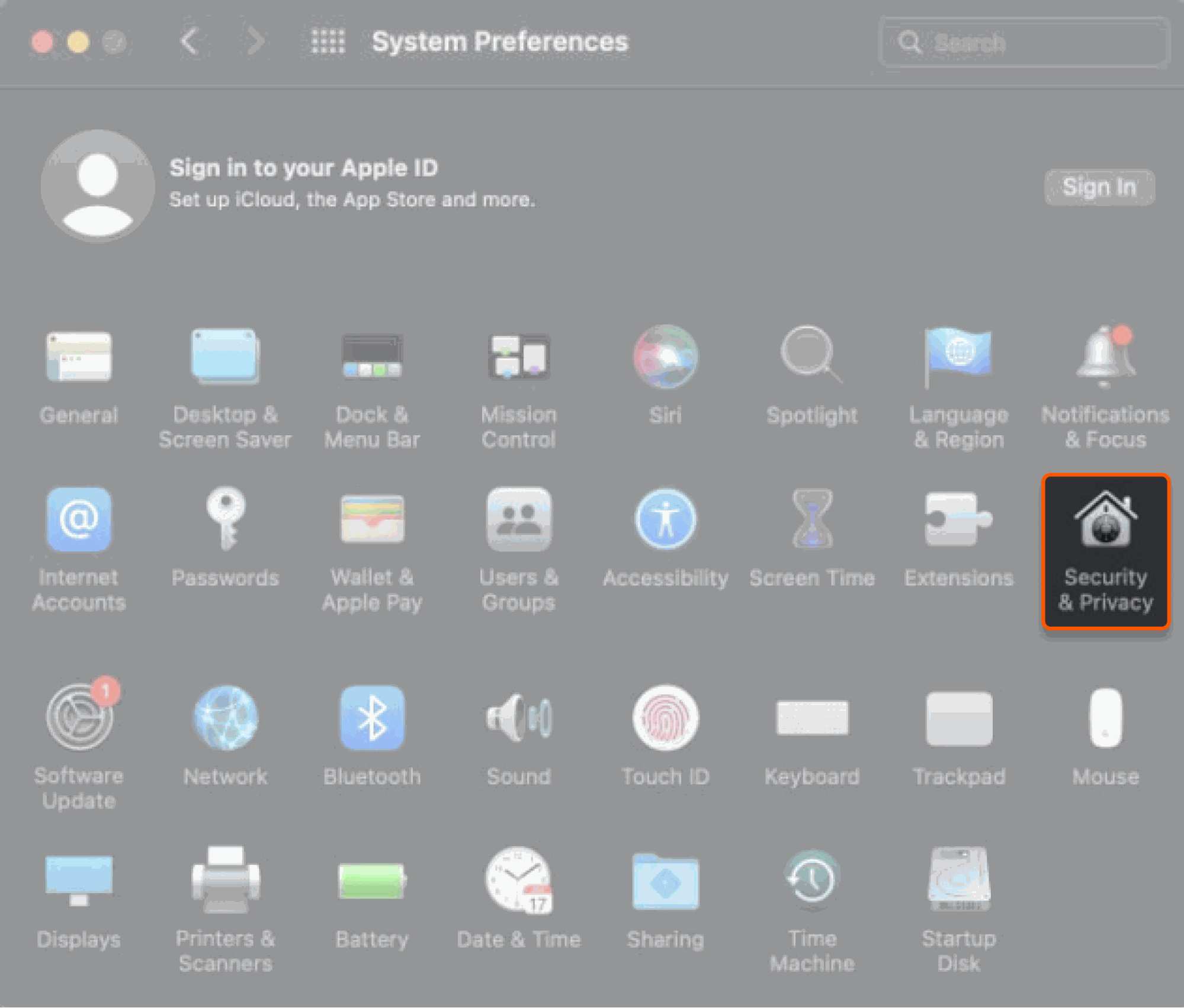
- macOS
- Android
- iOS
Windows 11 can deny camera or microphone access to the browser. Open Settings → Privacy & security, then select Camera or Microphone. Turn camera access or Microphone access on, then allow the browser in the app list.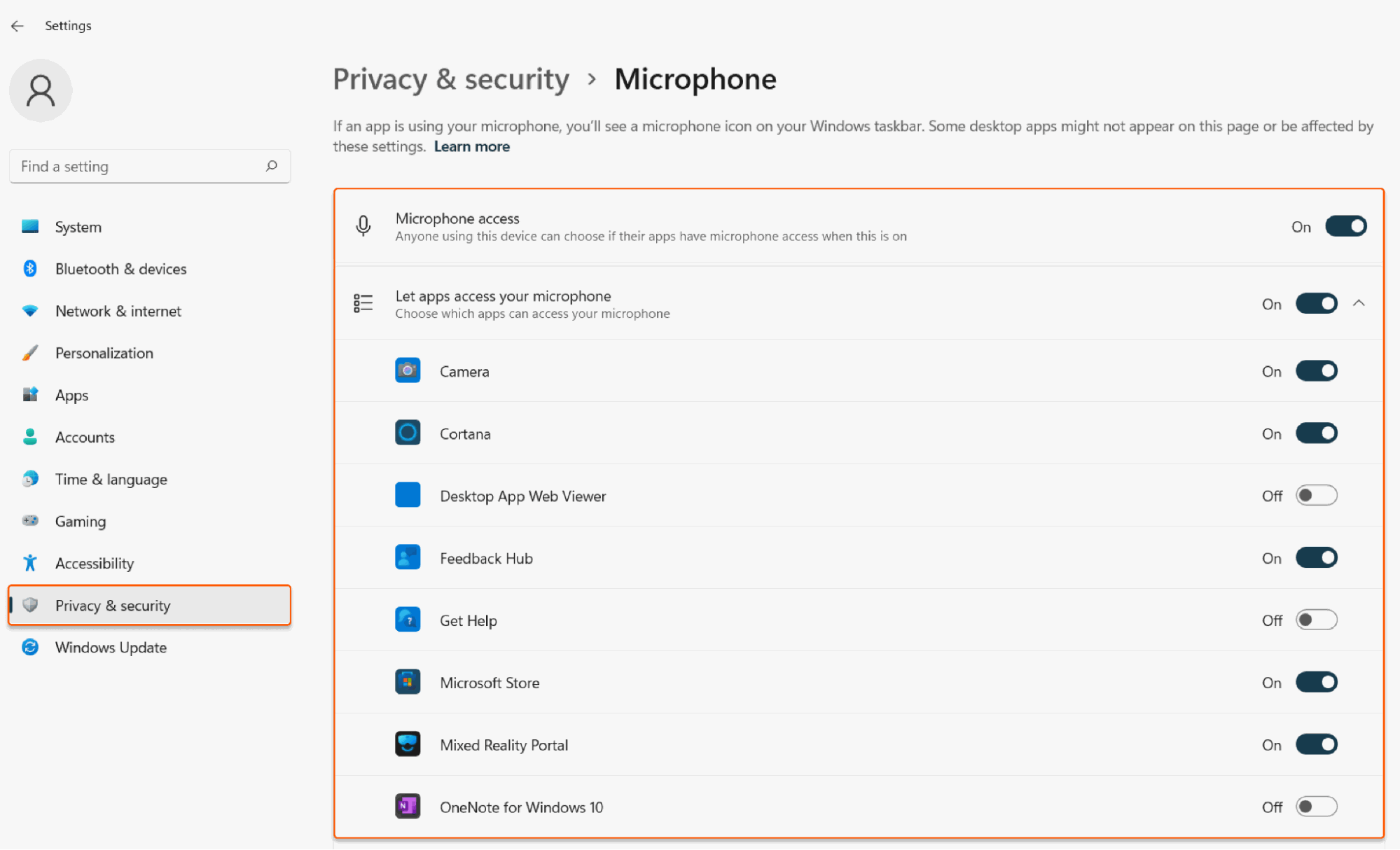
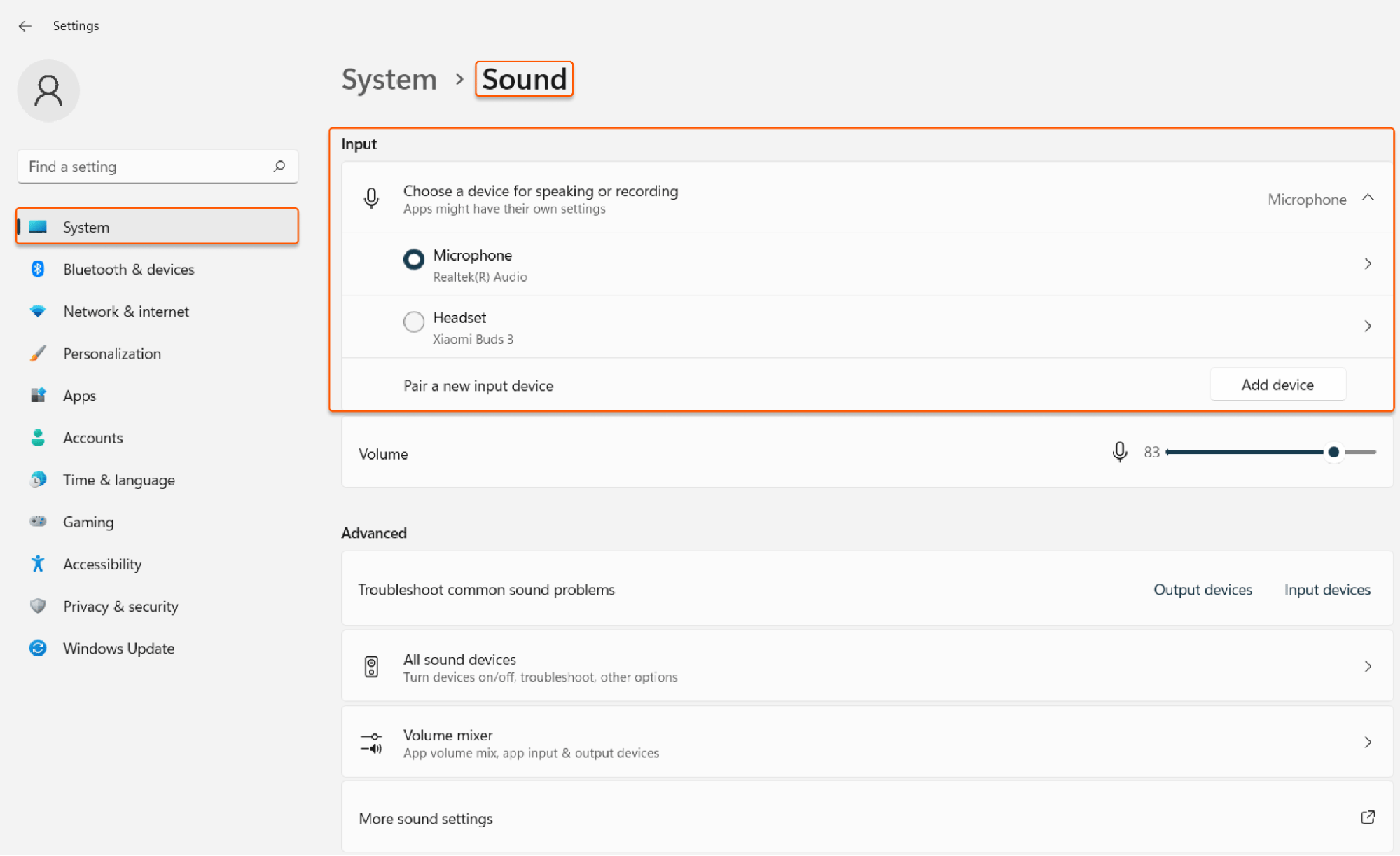
Confirm the browser version
If permissions are correct and the icons are still crossed out, confirm that the browser meets the minimum supported version. Update from the vendor page in the same row if the installed version is lower.Check the network
This step applies only after the camera and microphone are available in the browser — the local preview works, the icons are not crossed out, and the OS permission is on. Corporate networks and strict firewalls can still block WebRTC media, so other participants do not receive audio or video. Switching browsers does not bypass a network that drops those connections. Join the call from another network, or ask the network administrator to allow WebRTC traffic formeet.gcore.com.