Player metrics for a video
Open the video, then read the charts on the Player metrics tab.1
Open the video list
In the Gcore Customer Portal, navigate to Streaming > Video Hosting > All videos.
2
Open video settings
In the video list, click the video name, or open the three-dot menu and click Settings.
3
Select player metrics
On the video settings page, select the Player metrics tab.
Engagement
Engagement charts show how far viewers get through the video and how many of them there are.Average view duration
Despite the name, this chart shows how many viewers remain at each point in the video timeline. A drop marks where viewers left before the video ended.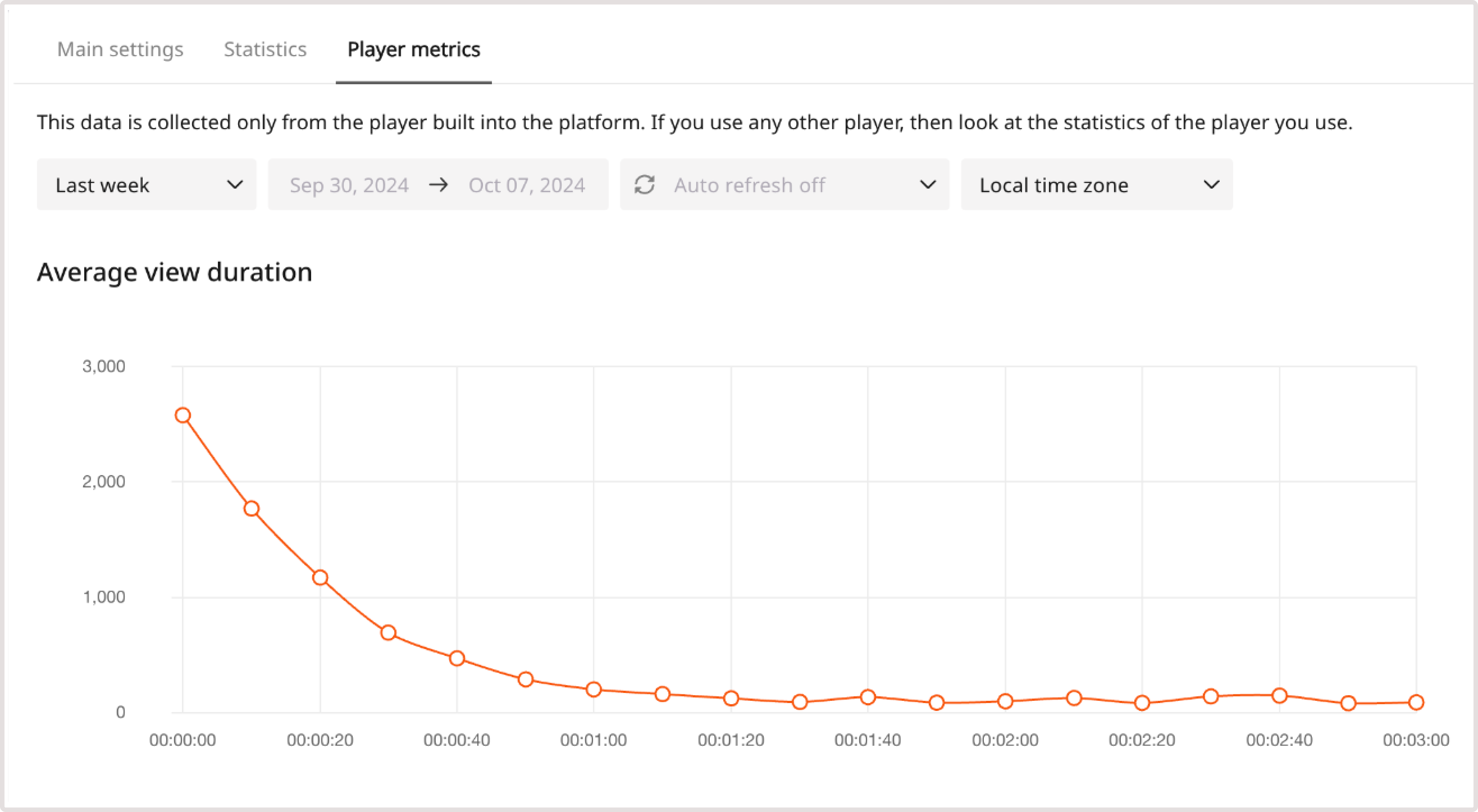
Amount of viewers
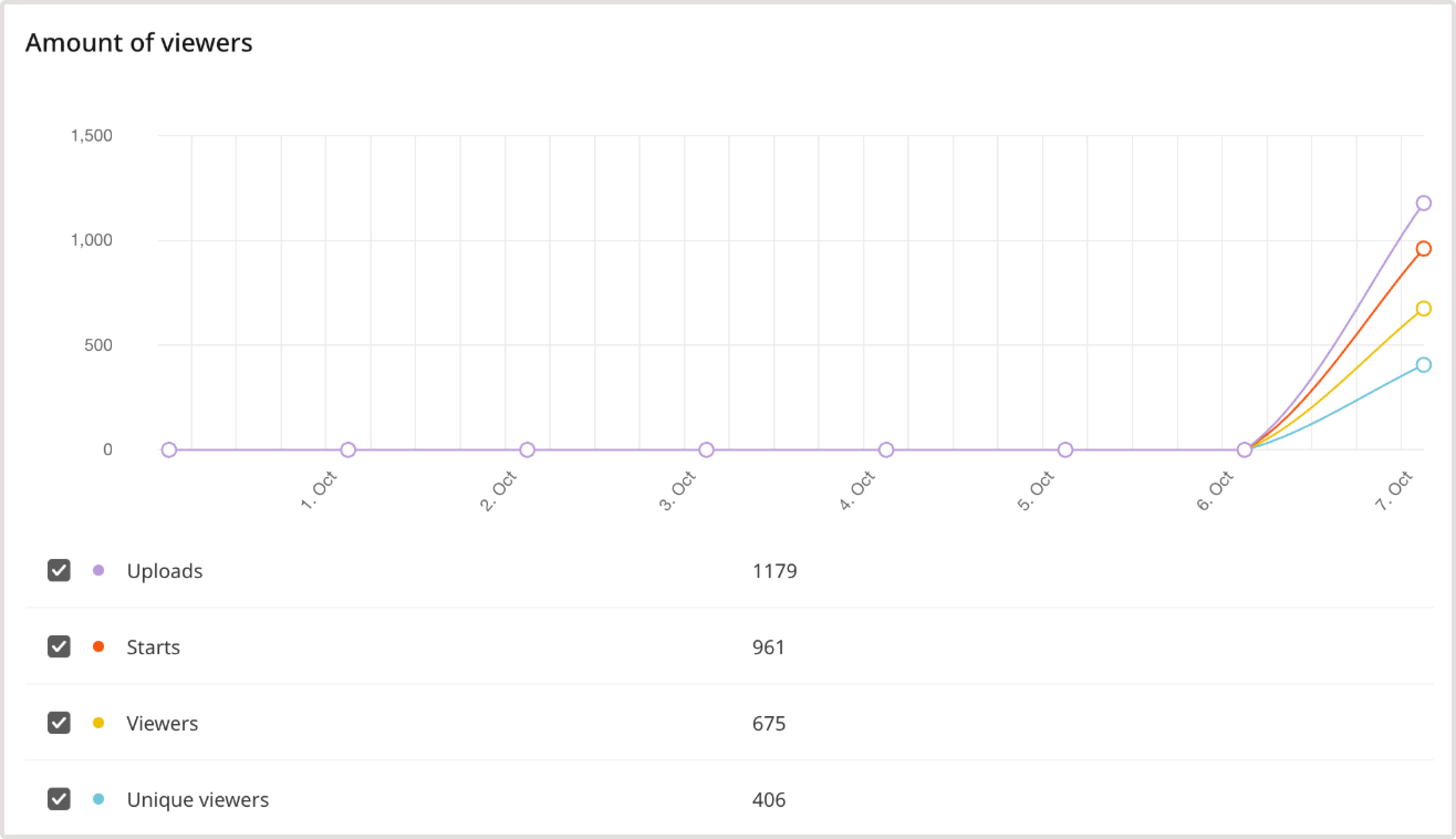
The Amount of viewers chart shows four metrics over the selected date range:- Uploads counts how many times the player was opened. It does not mean file uploads.
- Starts counts how many times playback was started.
- Viewers counts viewers who watched for at least 5 seconds.
- Unique viewers counts distinct viewers by IP address, screen size, browser, and cookies.
Audience
Audience charts show where viewers are and which browser, page, and operating system they use.Browsers
Browser name and version each get a separate bar, so two releases of the same browser stay apart.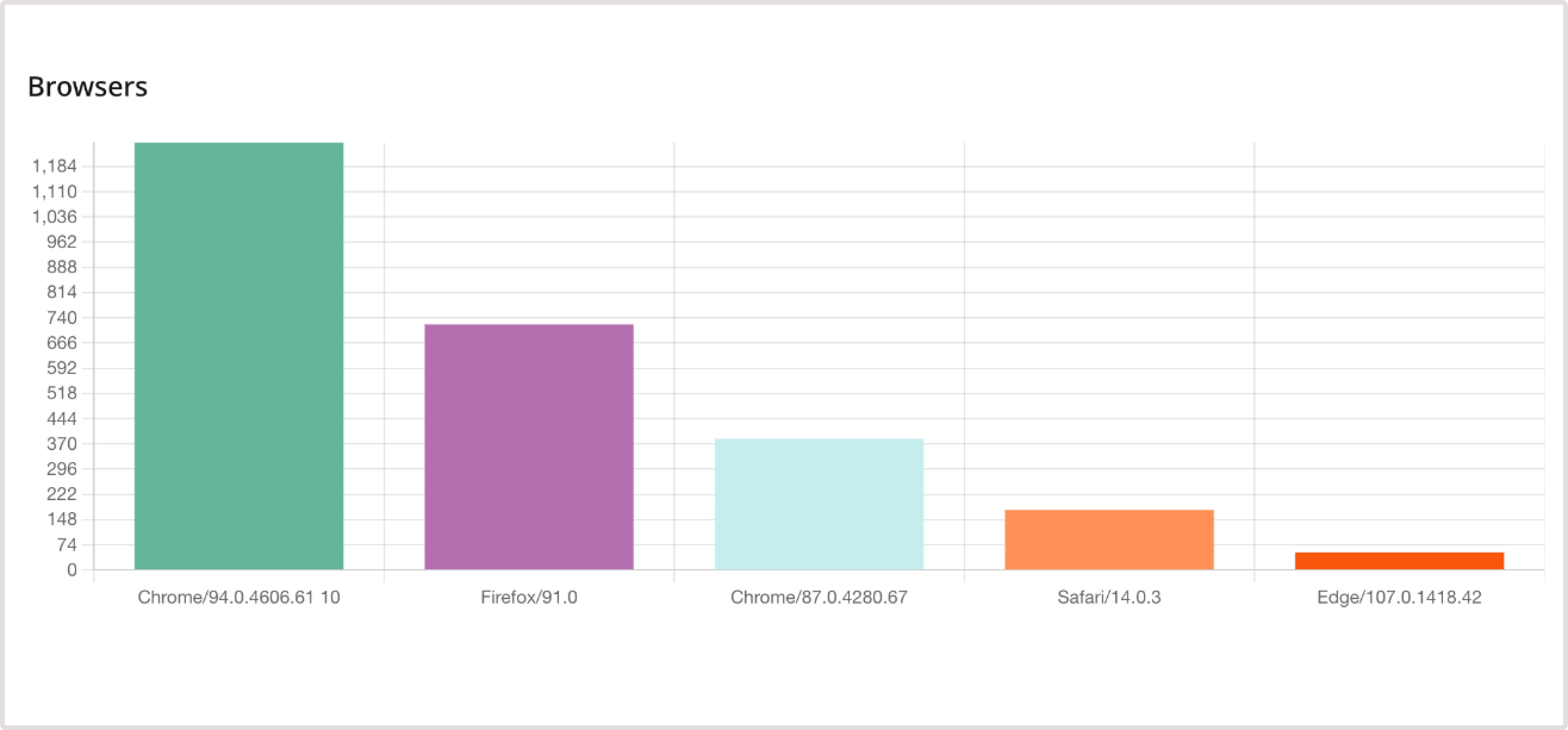
Geography
A country is included after playback lasts at least 5 seconds. The country comes from the viewer IP address.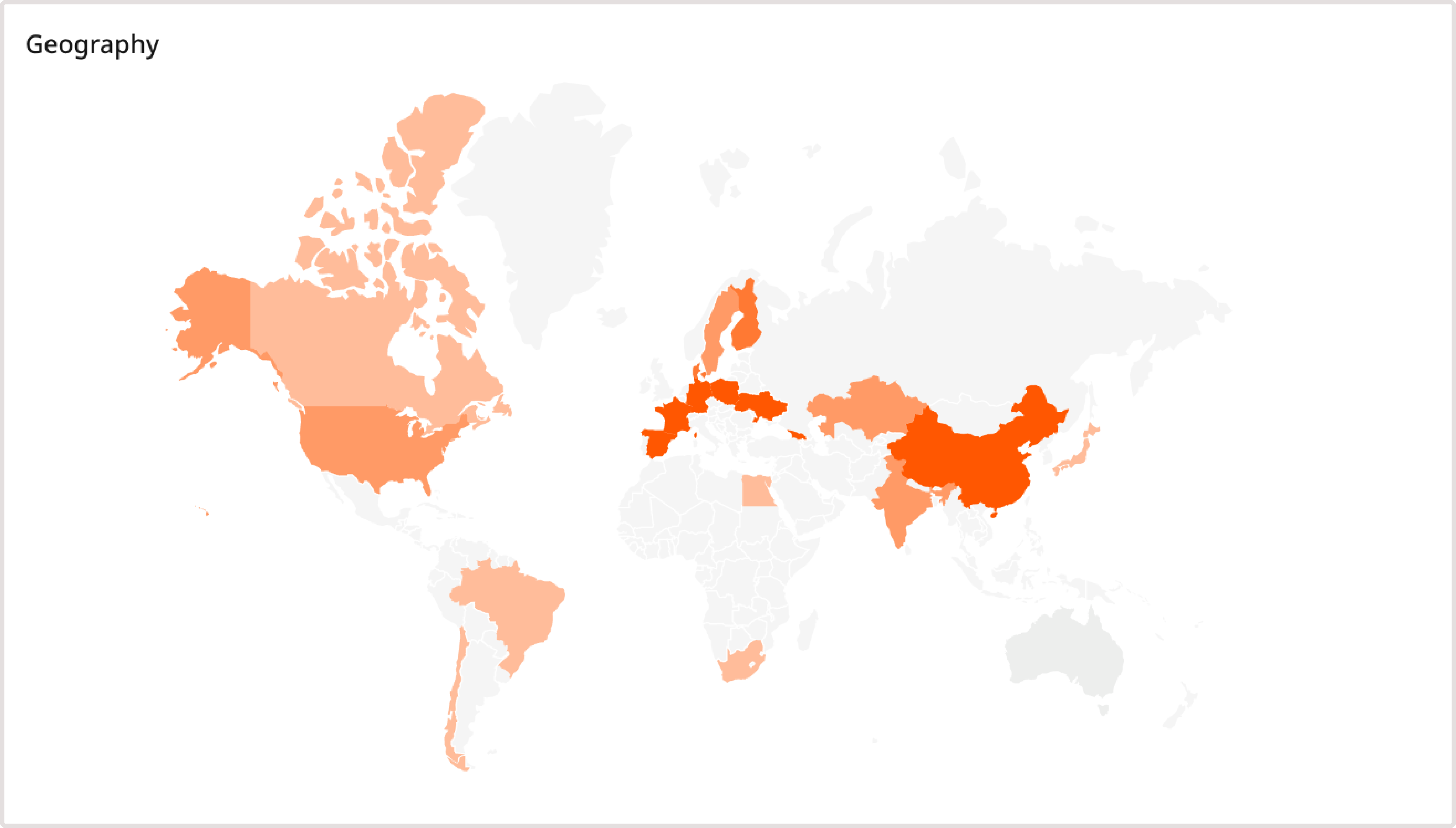
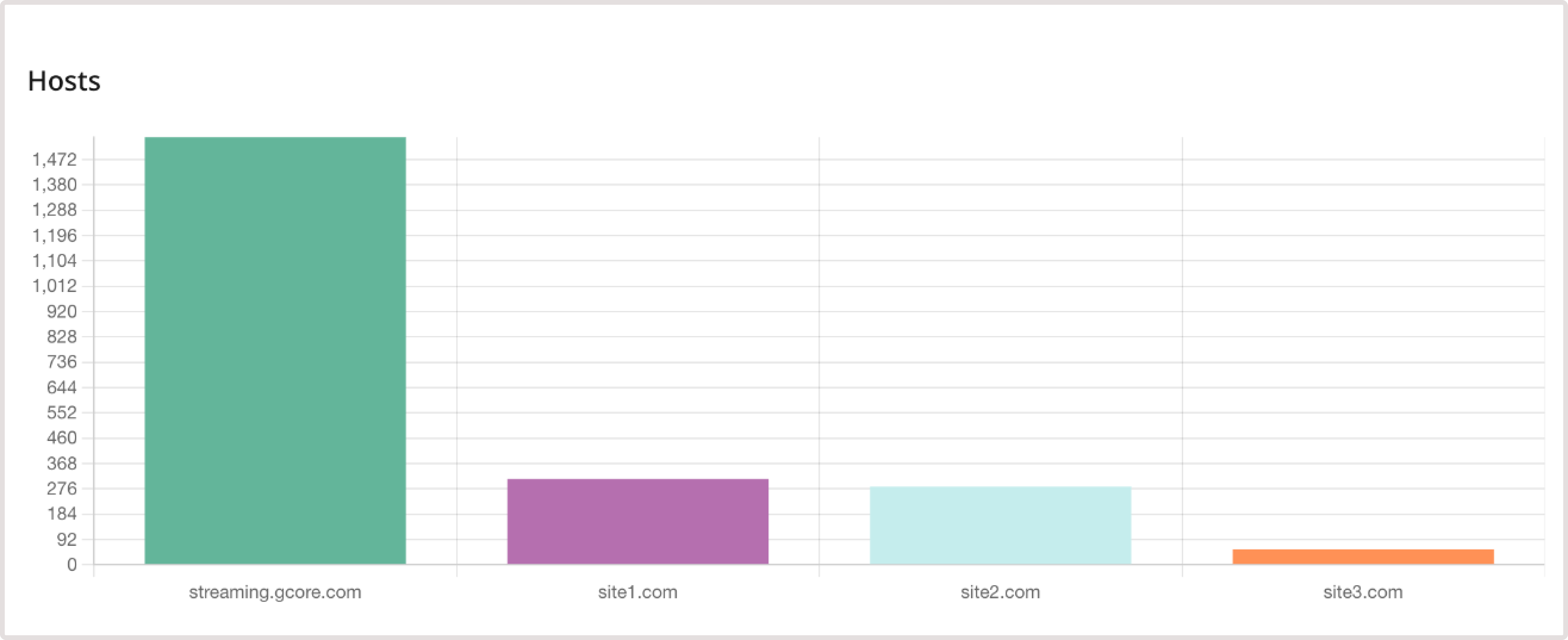
Hosts
Page URLs are included only when the view is longer than 5 seconds. The hoststreaming.gcore.com means the video was watched from a personal Gcore account.
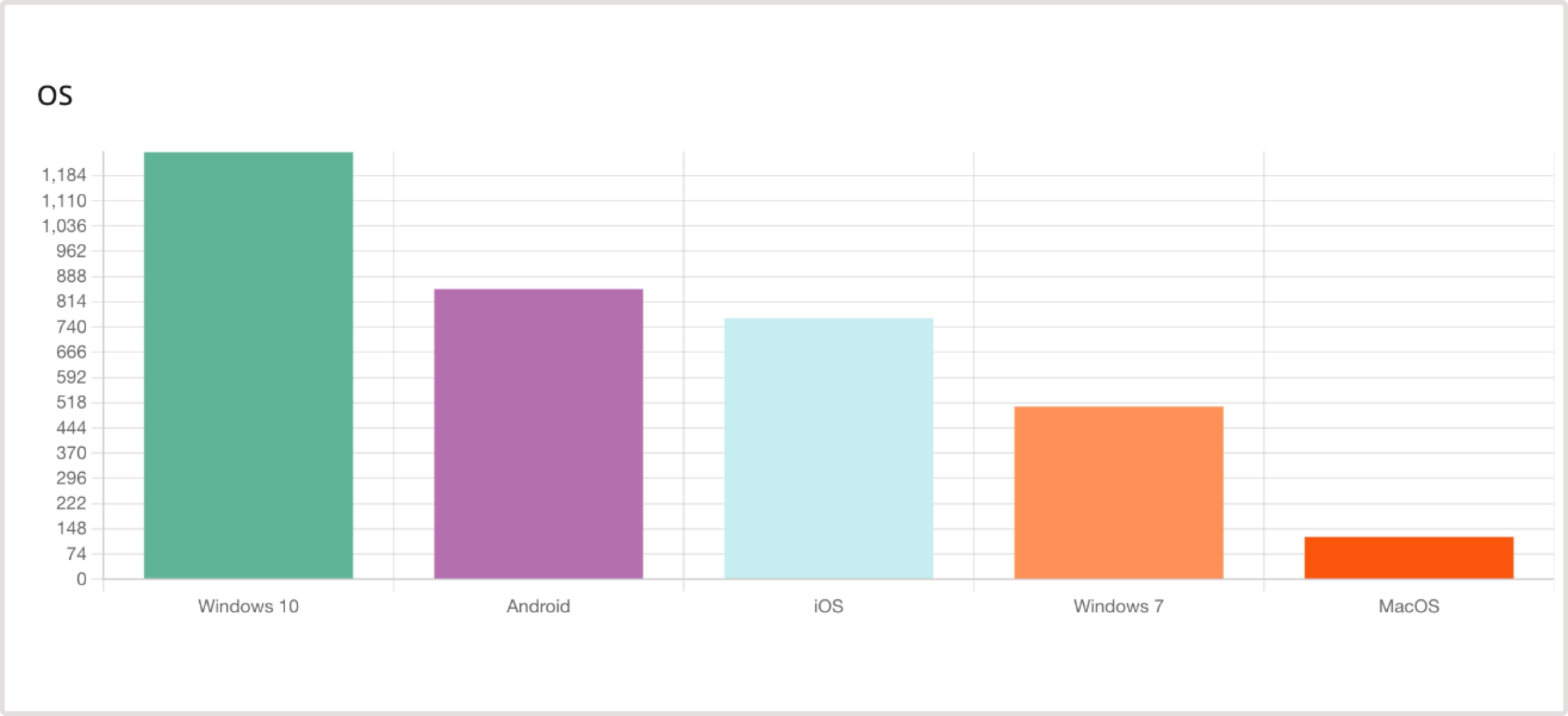
Operating systems
Desktop and mobile systems share the OS chart, and this breakdown is separate from browsers.