

Active account
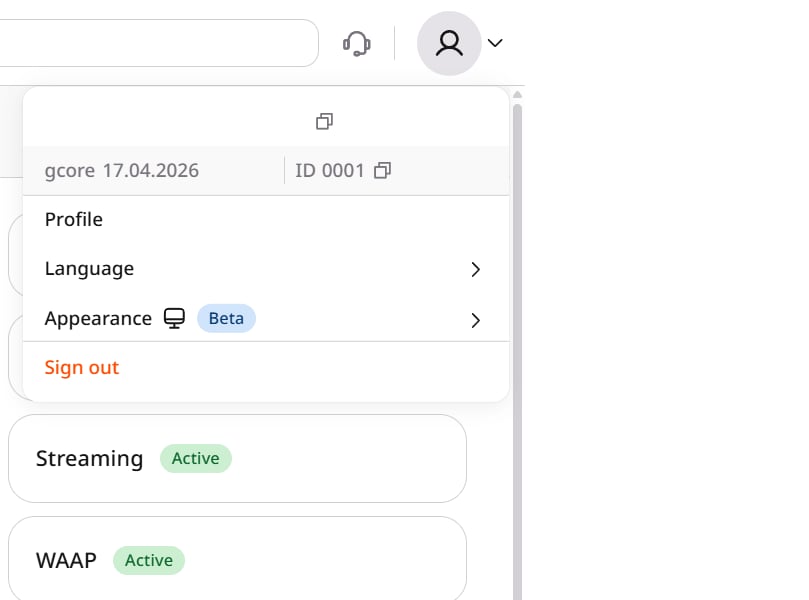
The profile menu shows the account currently in use:- In the Gcore Customer Portal, click the avatar in the top-right corner.
- Read the account name and the account ID in the menu. The email address of the login appears above them.
Create an additional account
Creating another account from the profile menu is not available in the Customer Portal. To get an additional account, contact Gcore Support.Switch to another account
The profile menu does not list other accounts and has no control for changing the active one. Switching happens at sign-in:- In the profile menu, click Sign out. The sign-in page opens.
- Sign in again. When the login belongs to more than one account, select the account to use. A login with a single account opens the Customer Portal directly.