SSO accounts authenticated through Microsoft, Google, or GitHub cannot change their password in the Customer Portal. Use the identity provider instead.
Change a password
1
Open My profile
In the Gcore Customer Portal, click the avatar in the top-right corner and select Profile.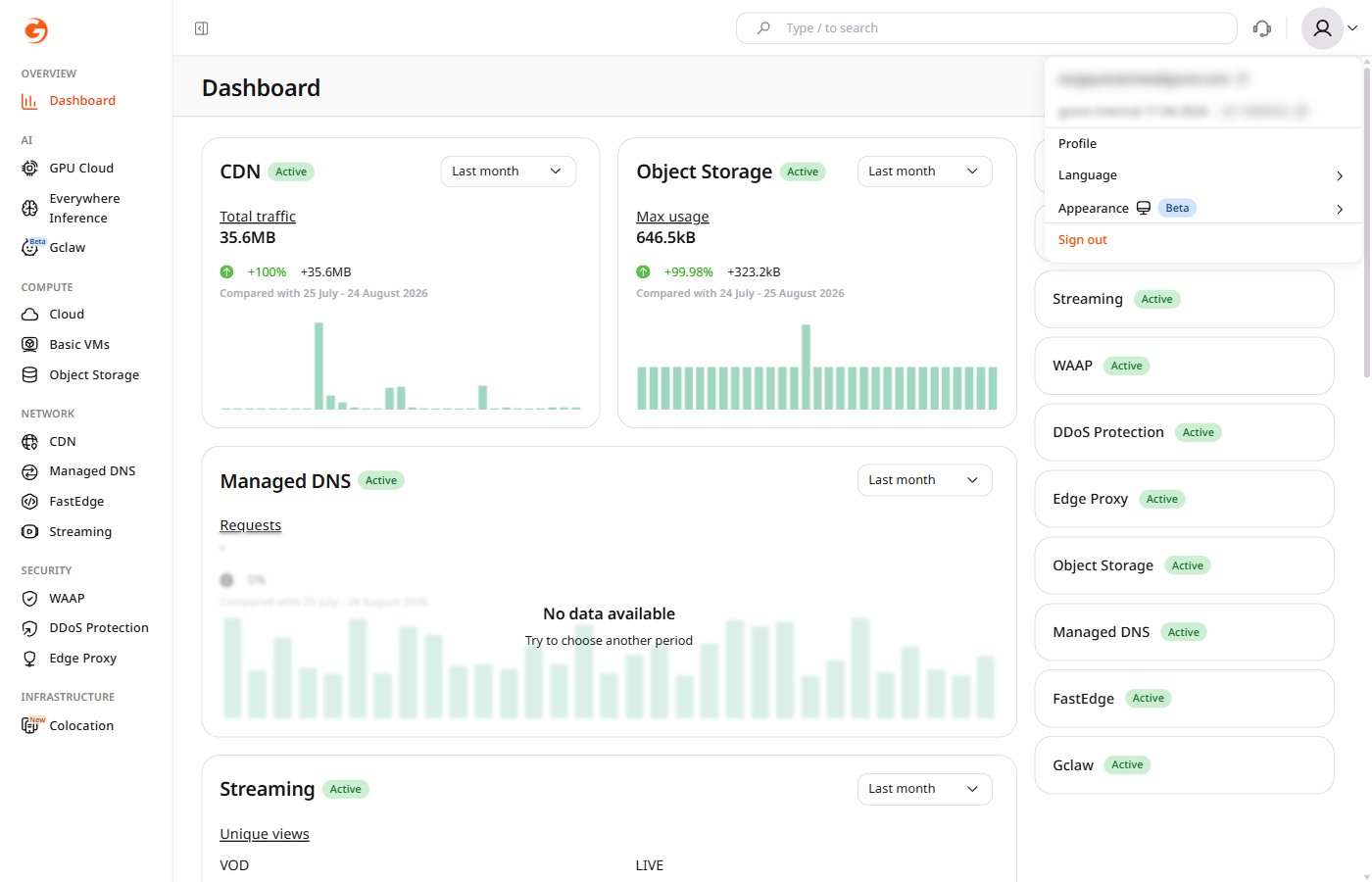
2
Click Change password
In the Password section, click Change password.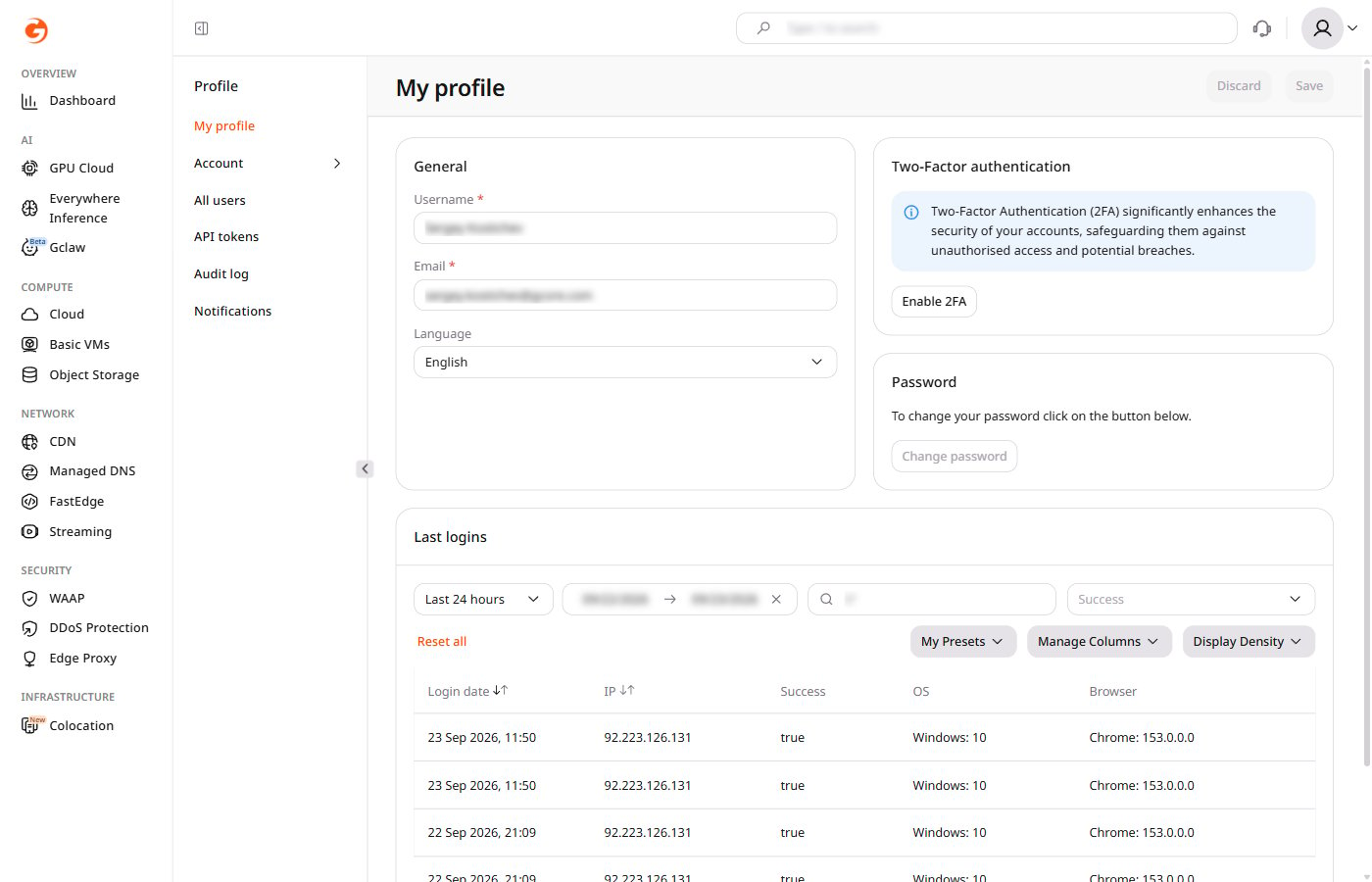
3
Enter the passwords
In the dialog, enter the current password in Verify current password, then enter the new password in New password and Confirm new password.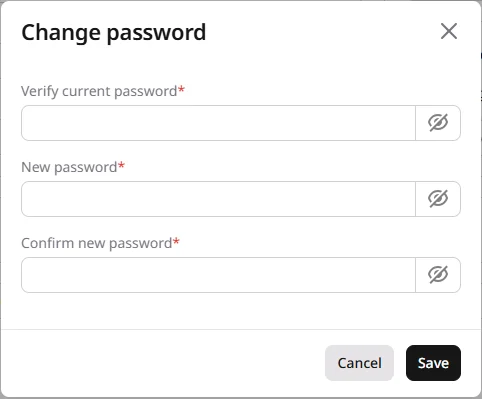
4
Click Save
An email notification confirming the password change is sent to the account’s email address.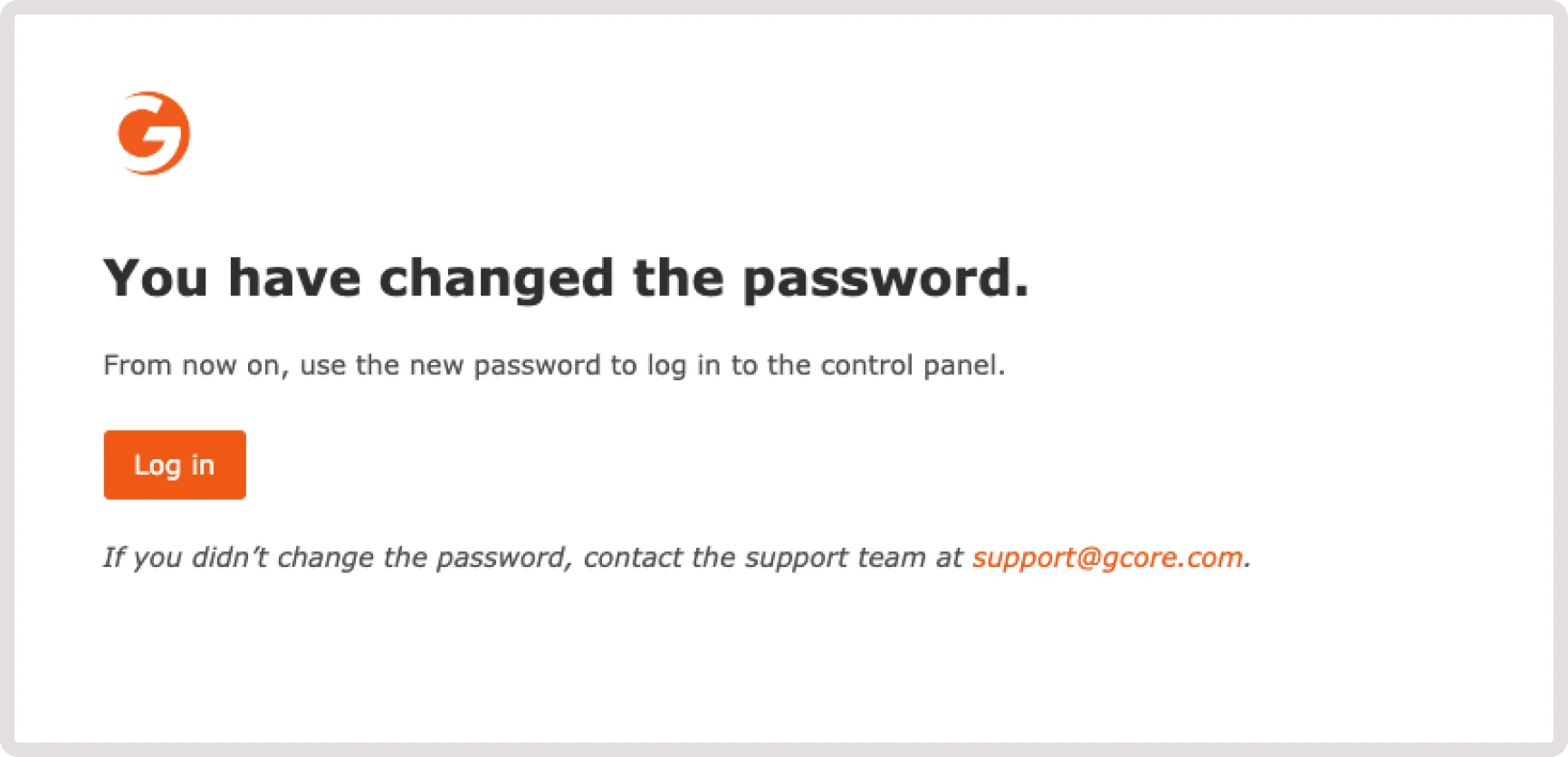
Reset a forgotten password
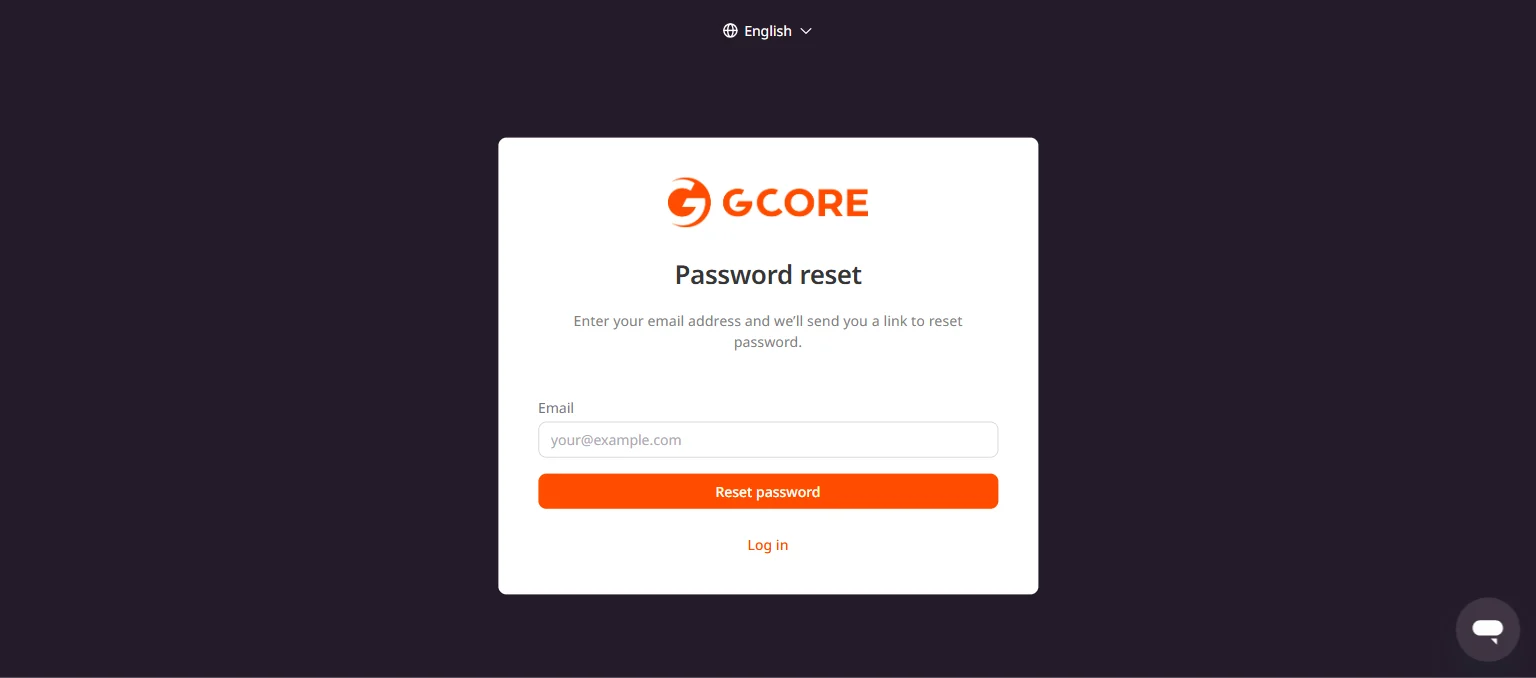
Navigate to the reset password page, enter an email address, and click Reset password. A link to create a new password is sent to that address.