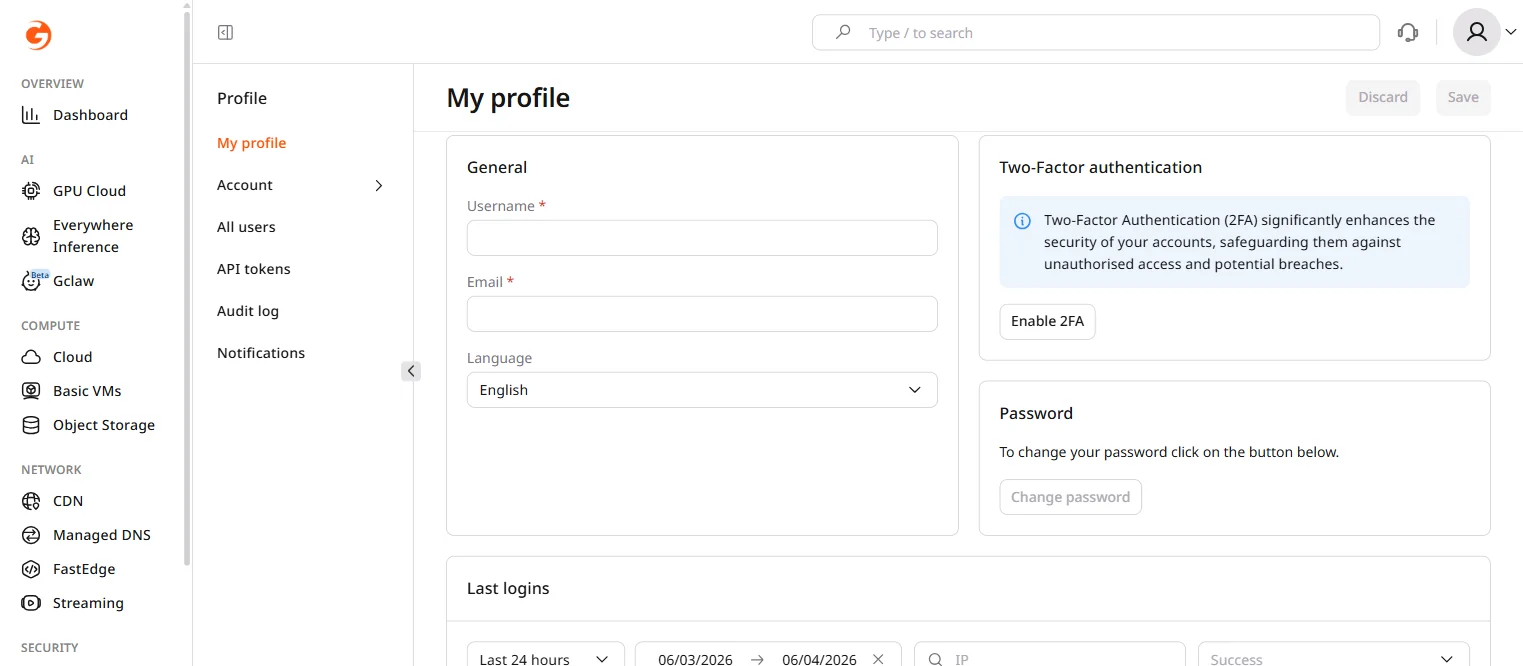
General settings
The General section holds the display name, the login address, and the interface language. Username is the name shown in the Customer Portal. Email is the address used to sign in and to receive notifications, and it can be changed up to 10 times in one hour. Language sets the interface language. Click Save to keep edits to these fields, or Discard to drop them.Email address changes are not available for accounts created with Google or GitHub authentication.
Two-factor authentication
2FA asks for a one-time code at login in addition to the password. When 2FA is off, the section shows Enable 2FA.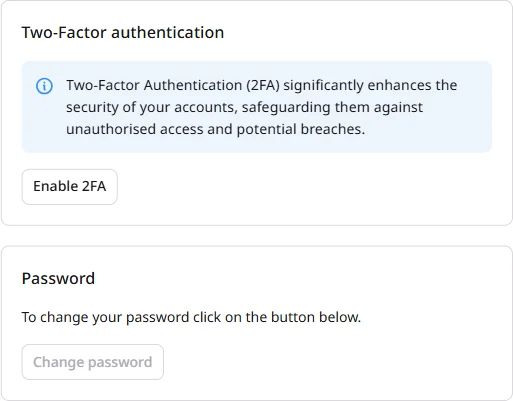
Password
A password account updates its password from this section. Password changes take effect immediately, and existing sessions stay active until logout. In the Password section, click Change password. The dialog asks for Verify current password, New password, and Confirm new password.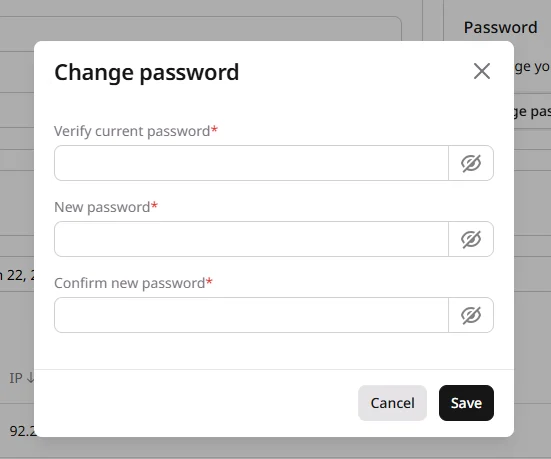
Change password is unavailable for accounts that sign in with SSO (Microsoft, Google, or GitHub). Those passwords are managed by the identity provider.
Last logins
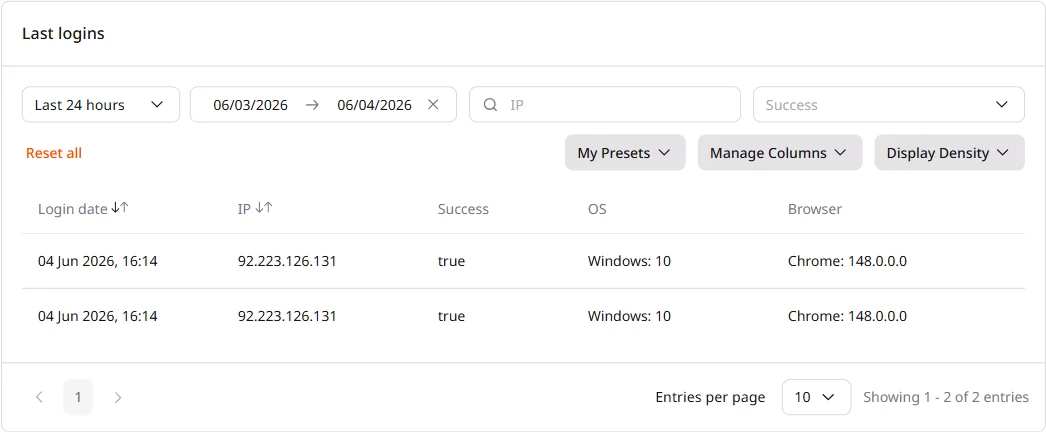
Last logins lists attempts to sign in to this account, including failed attempts. On an account with several users, only an Administrator sees every user’s attempts. Other users see only their own. Each row is one attempt:Login filters
The table filters by date, address, and result:- Date range: Last 24 hours, Last week, Last month, Last 3 months, or a custom range
- IP: match one address
- Success:
trueorfalse
Filter presets
A saved set of filters can be reapplied from My Presets. The menu starts with Default.1
Apply filters
Set the date range, IP address, or success status on the table.
2
Save the current set
Click My Presets and select Save current set as a preset.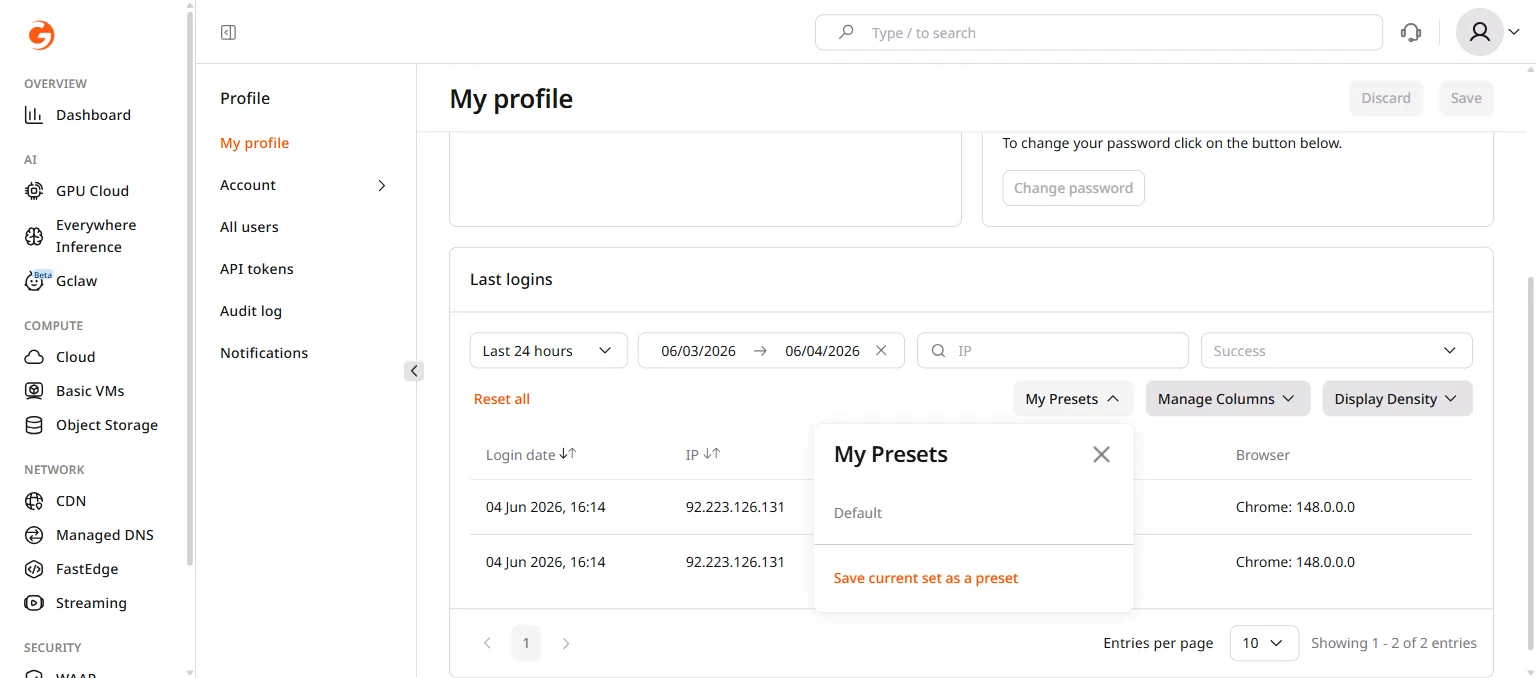
3
Name the preset
Enter a name, then click Create. The preset is then listed in My Presets.
Table display
Manage Columns shows or hides columns. Display Density sets row spacing to Large, Medium, or Small, and can turn on Zebra Stripes.