The Admin Portal dashboard manages accounts and sellers, generates reports, and configures settings such as branding and product visibility. Quick filters and search presets make it faster to find specific accounts and resources.

Admin Portal structure

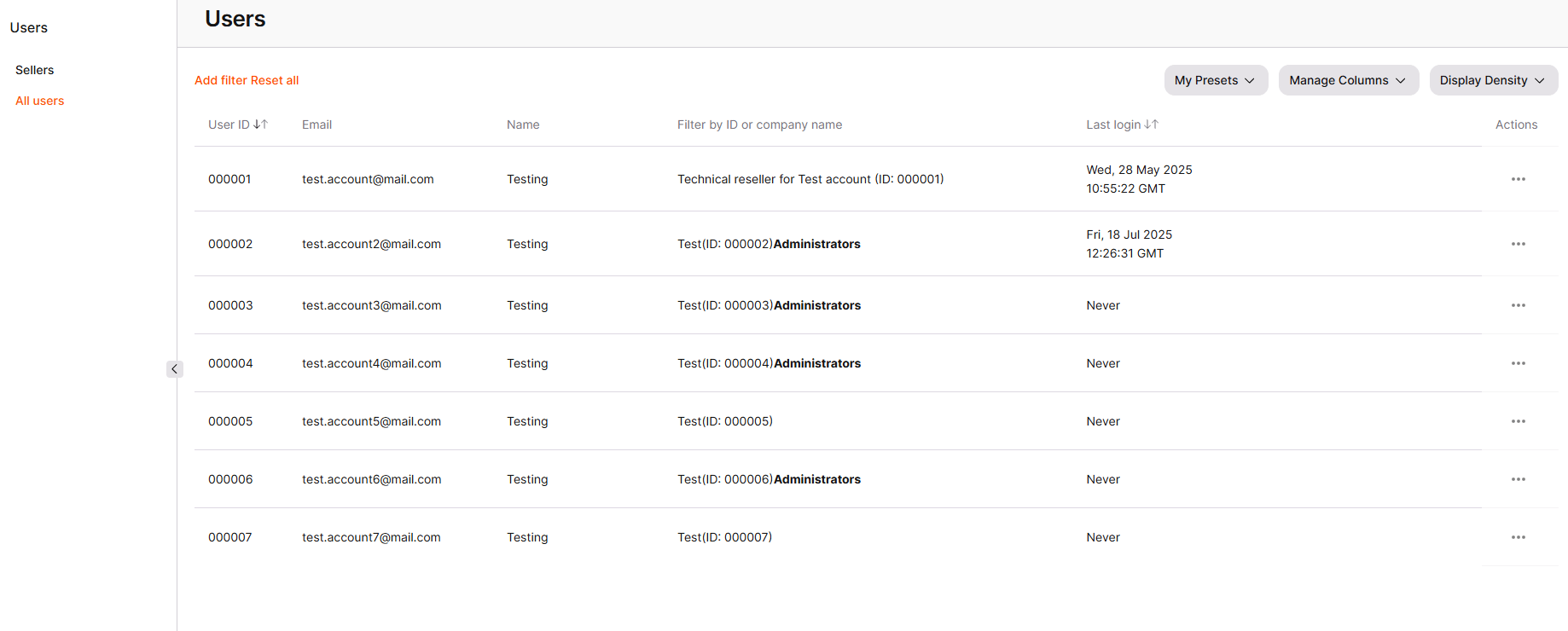
The Admin Portal sidebar contains the following sections.
Structure of the Admin Portal
0. The button that collapses the left-side menu. All screenshots on this page show the interface with the menu collapsed. 1. Accounts: a list of customers. This section manages existing customer accounts, including logging in to the Customer Portal on a customer’s behalf, editing account data, deleting accounts, and adding new accounts. 2. Users: two subsections, Sellers and All users, for finding and managing users in these account categories.
Users
3. CDN: all CDN resources created by customers, searchable by ID or CNAME, with management of free and paid features, activity logs, and origin groups.
CDN
4. Streaming: customer accounts and their Streaming statuses.
Streaming
5. FastEdge: FastEdge applications and templates created by customers.
FastEdge
6. Security: four subsections covering account-level security. Authorization configures SSO for the Customer Portal, the Admin Portal, or both. Activity logs shows account interactions and login history, including IP address and login method. Password policy sets password requirements for reseller accounts. API Tokens creates and manages API tokens for the account.
Security
7. Vendor settings: six subsections for configuring the Customer Portal. Branding settings sets the logo, colors, and contact details shown to customers. Email alerts sets addresses for deletion request and failed login notifications. SMTP Provider Settings configures a custom email provider. DNSaaS settings brands the DNS service for resale. Products controls which products are visible to customers by default. Notifications controls which notification categories customers see in the Customer Portal.
Settings
8. Billing: four subsections for customer billing data. Reports generates monthly reports on customer traffic and storage consumption. Expenses lists customer expenses for manual invoice generation. Addendums shows contract addendums attached to the account, editable only by the account manager. ERP Invoices groups customer expenses for selected dates with service and customer filtering.
Reports
9. Help: links to API documentation, Legal documents, and Product Documentation. 10. Profile: the account name and email, a Copy token action for the API token, and Sign out.

Filtering and search tools

Quick filters and search presets narrow down long account and resource lists.

Quick filters

Quick filters search by account ID, email, name, company name, and customer status.
Quick filters

Search presets

A preset saves a set of filters for reuse in future searches, so the same filters do not need to be recreated each time.
1

Add a filter

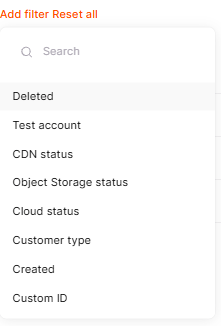
Open the Accounts section and click Add filter.
Add filter
2

Apply the filter

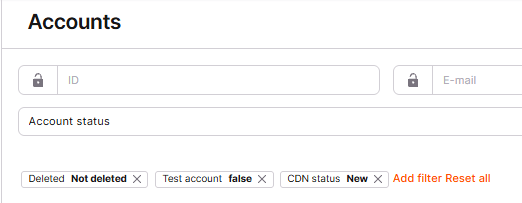
Choose the necessary filters from the list, add the conditions, and click Apply filter. Applied filters appear on the page; for example, a filter for real accounts only, combined with a CDN status of New.
Apply filter
3

Save the preset

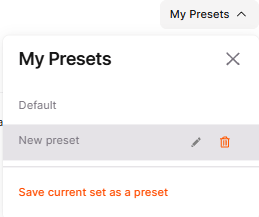
Once the necessary filters are added, click My Presets, then Save current set as a preset.
My Presets panel
4

Name the preset

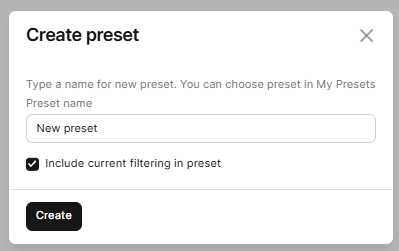
Type a name for the preset, verify the Include current filtering in preset checkbox is selected, and click Create. The preset appears in the list of presets for future use.
Create preset
Feature requests for the Admin Portal can be sent to Gcore support.