WebRTC lets a browser send camera and microphone media directly to Gcore, where the stream is converted to HLS and MPEG-DASH for playback without OBS, encoder software, or manual codec settings.

Start a browser stream

WebRTC publishing uses an existing live stream entity. Open the target stream, or create one first.
  1. Log in to the Gcore Customer Portal and navigate to Streaming > Live Streaming.
  2. Open the live stream to publish to.
  3. In Go live from your browser (beta), click Start WebRTC + webcam.
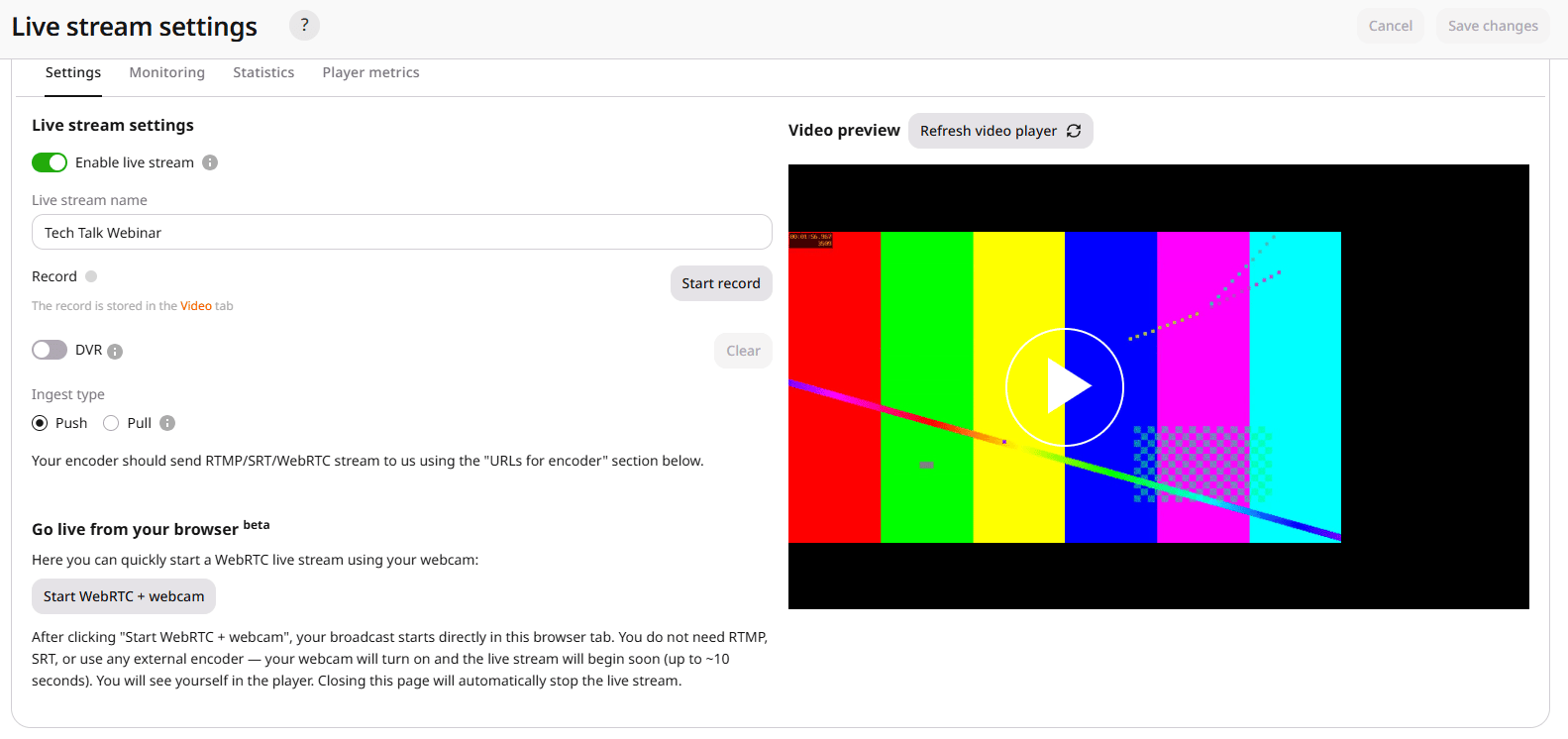
Go live from browser section in live stream settings with the Start WebRTC + webcam button
  1. Allow Gcore to access the camera and microphone.
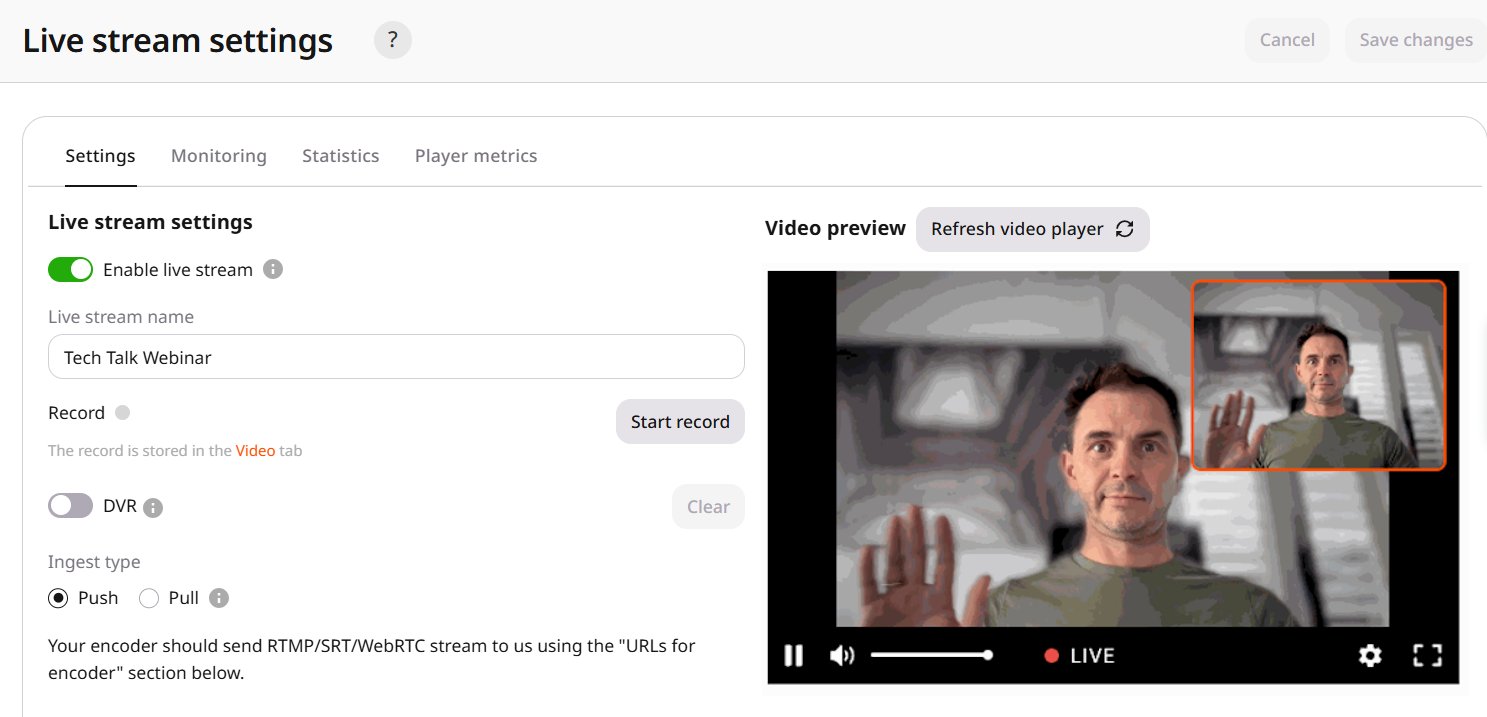
After the browser starts publishing and Gcore begins transcoding the stream, the Video preview section shows the HLS/DASH output. The small corner preview shows the local webcam feed before transcoding; the main Video preview shows the stream returned through Gcore.
Live stream settings page showing active WebRTC webcam stream with Video preview

Publish the stream

Use the export links from the live stream settings to distribute the stream. Choose the format that fits the target platform:
  • Iframe embed code embeds the Gcore player on a webpage.
  • Player URL opens the hosted player page.
  • HLS or MPEG-DASH manifest URL connects a custom player.
For programmatic WebRTC ingest instead of the browser publisher, the WebRTC WHIP protocol guide covers API workflows, SDK usage, WHIP response codes, and codec requirements.