The Gcore Hosting Portal provides two ways to manage the account password: changing it from the profile page while logged in, or recovering it by email if forgotten.

Change a password

  1. Log in to the Hosting Portal.
  2. In the Client section of the sidebar, click Profile.
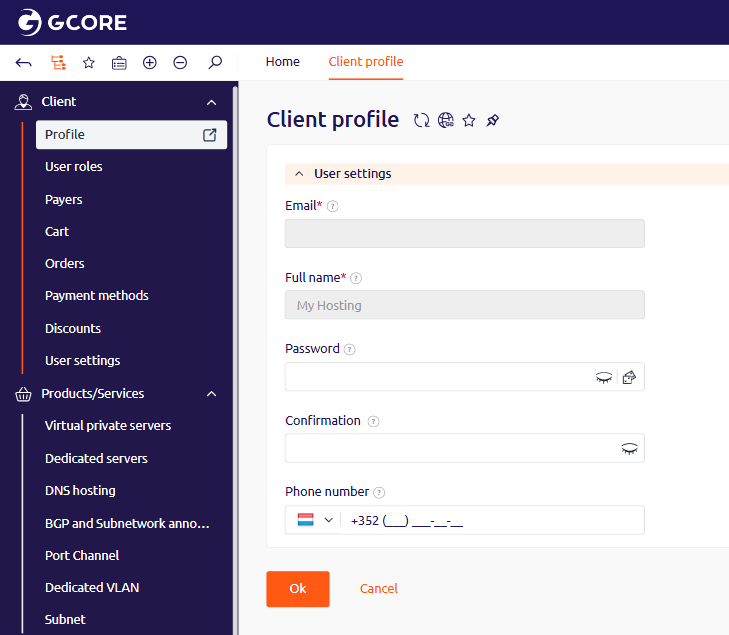
Client profile page with Password and Confirmation fields
  1. In the Password field, enter the new password. It must be at least eight characters long and include at least one uppercase letter and one digit.
  2. In the Confirmation field, re-enter the new password.
  3. Click Ok.

Recover a forgotten password

Forgotten passwords can be reset by email verification. Submit the account email on the recovery page and click Ok.
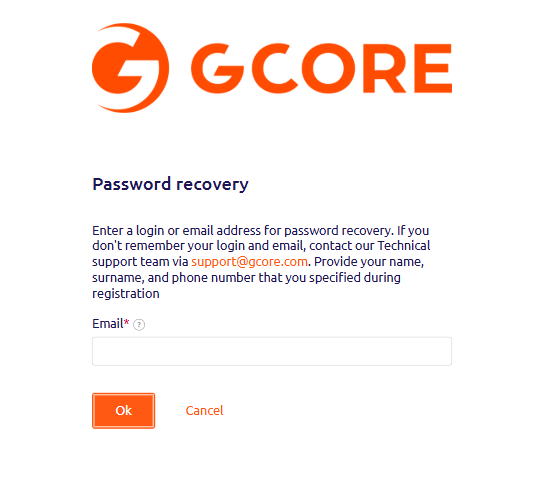
Password recovery page with email input
A recovery email arrives from billing@gcore.com with the subject Password Recovery. If it does not arrive within a few minutes, look in the spam folder. If the email is still missing, submit the request again on the recovery page. After three failed login attempts, the account is temporarily locked. To unlock it, contact support via chat on gcore.com.