

Enable two-factor authentication
- Log in to the Gcore Hosting Portal.
- In the Client section of the sidebar, click User settings.
- Navigate to the Two-factor authentication section and click Enable two-factor authentication.
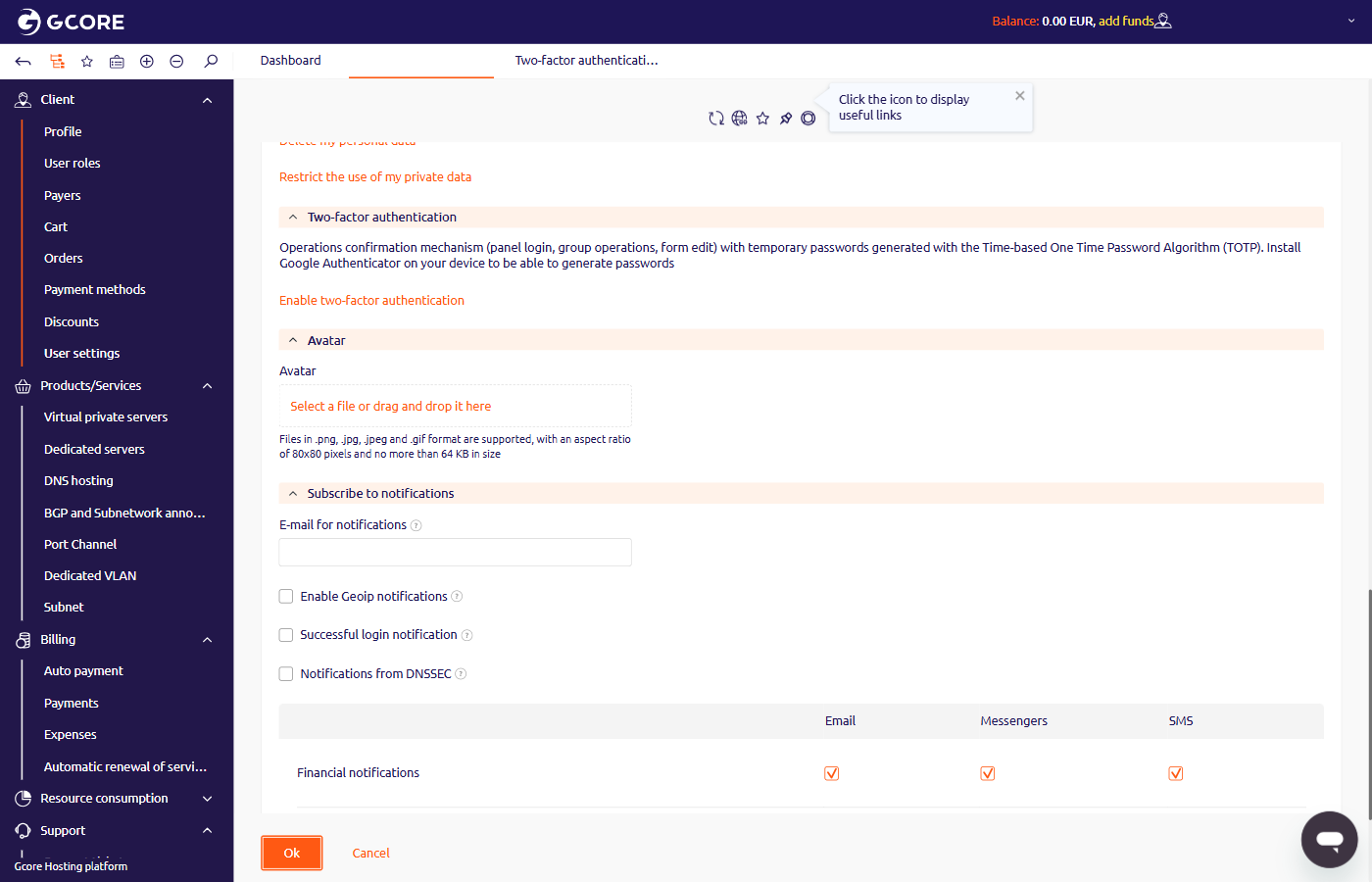
- On the setup form, scan the QR code with the Google Authenticator app.
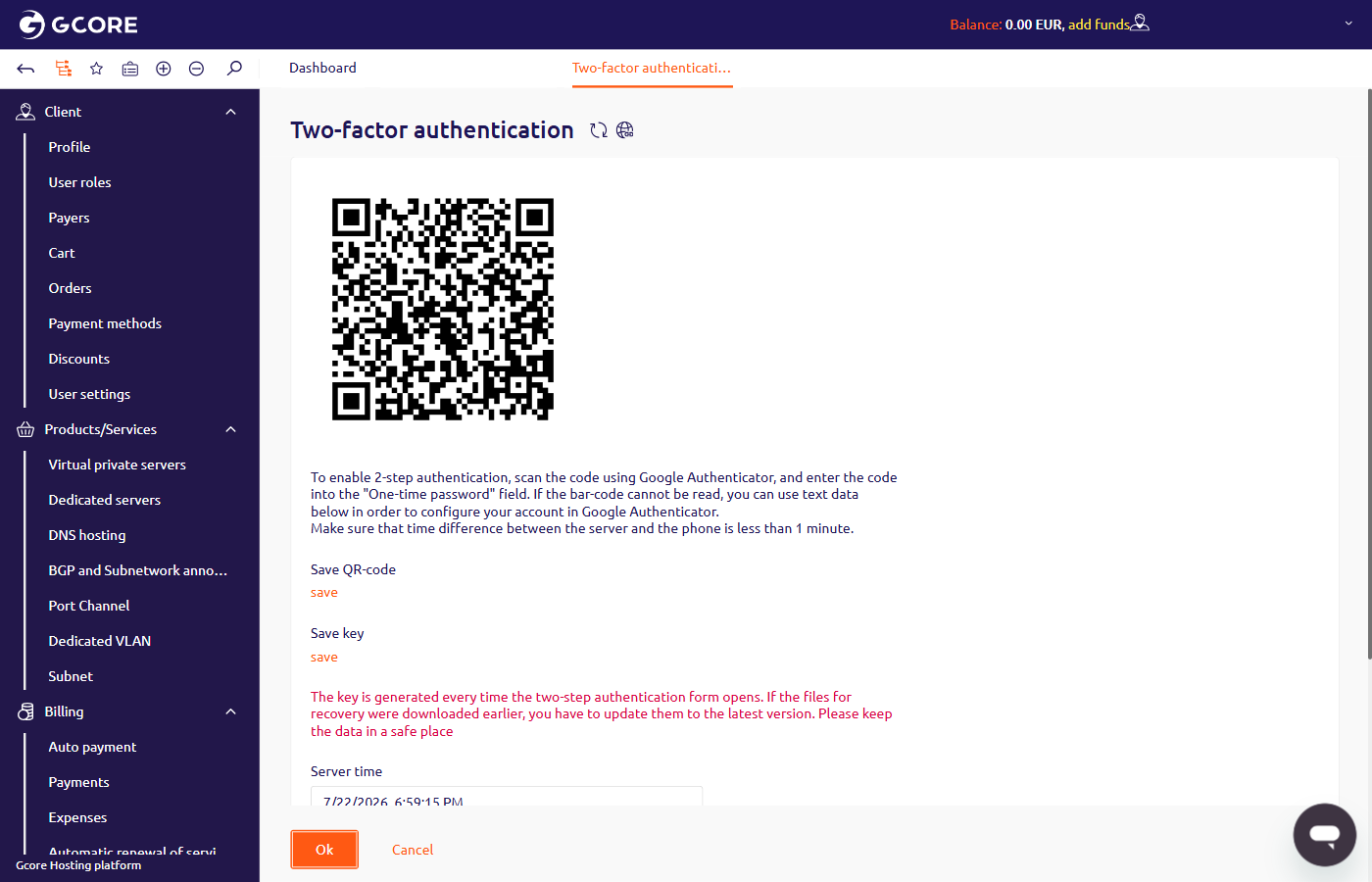
If the QR code cannot be read, enter the value from the Key field manually into the app. The key is regenerated each time the setup form opens — if QR code or key files were saved previously, download fresh copies using the Save QR-code and Save key links on the form.
- In the Temporary password field, enter the six-digit code generated by the app.
- Click Ok.
Authorize with two-factor authentication
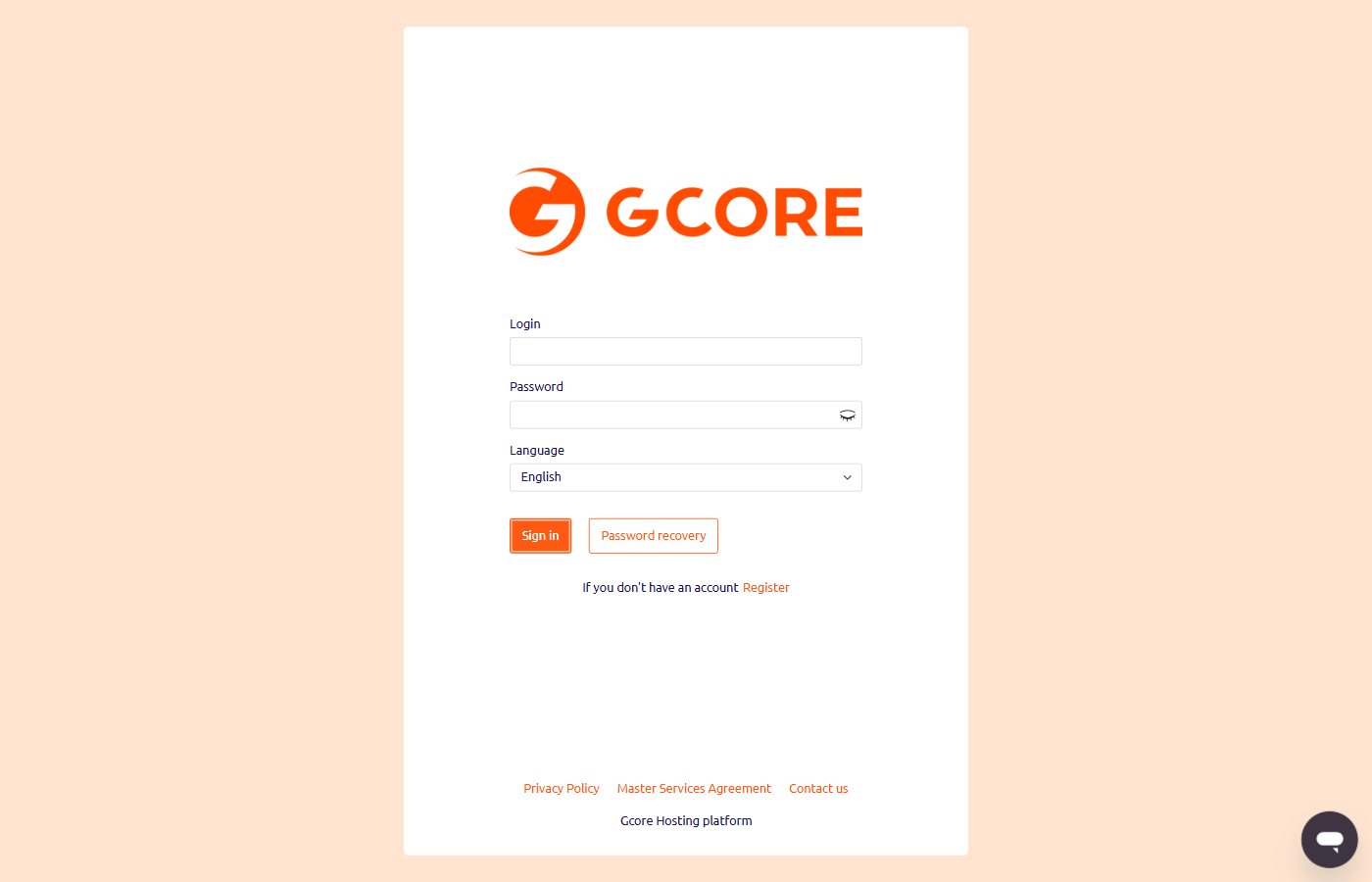
- On the Hosting Portal login page, enter the account login and password.
- In the Language field, select the interface language.
- Click Sign in.
- On the confirmation page, enter the six-digit code from Google Authenticator in the Temporary password field.
- Click Ok.
Disable two-factor authentication
- In the Client section of the sidebar, click User settings.
- Navigate to the Two-factor authentication section.
- In the Disable two-factor authentication field, enter the six-digit code from the Google Authenticator app.
- Click Ok.