

Change hardware specifications
Hardware upgrades include: setting up or changing the RAID type, increasing disk volume and count, expanding RAM, converting between SSD and HDD, and installing 10 Gbps network cards.1
Select the desired specifications
Select the desired specifications in the Dedicated Servers catalog. 10 Gbps network cards are not listed there but can be installed. New specifications must not be lower than the current ones.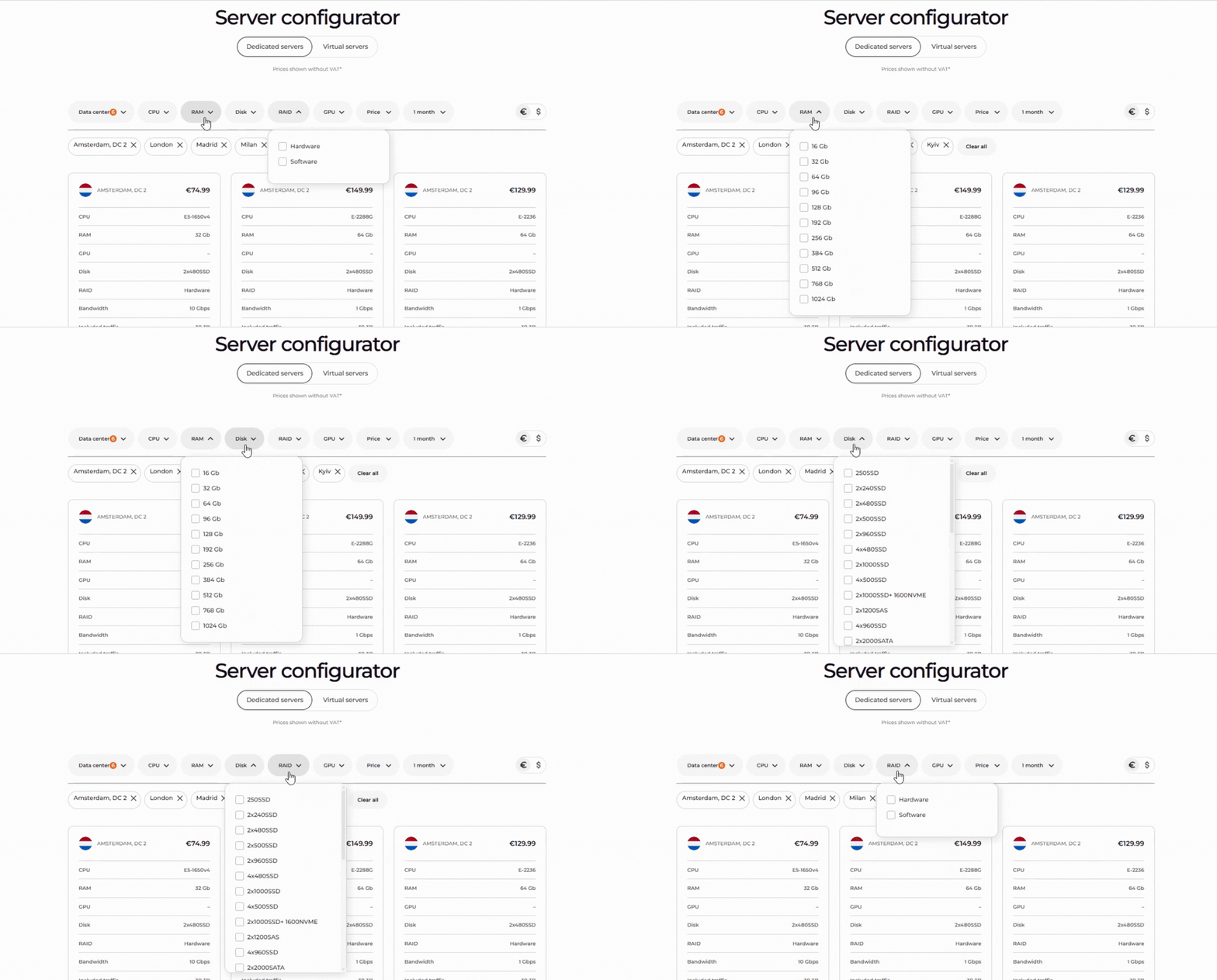
2
Submit a support ticket
Contact technical support to upgrade the server. Open the Support tickets section, click Add, and specify the server ID and the desired specifications in the request.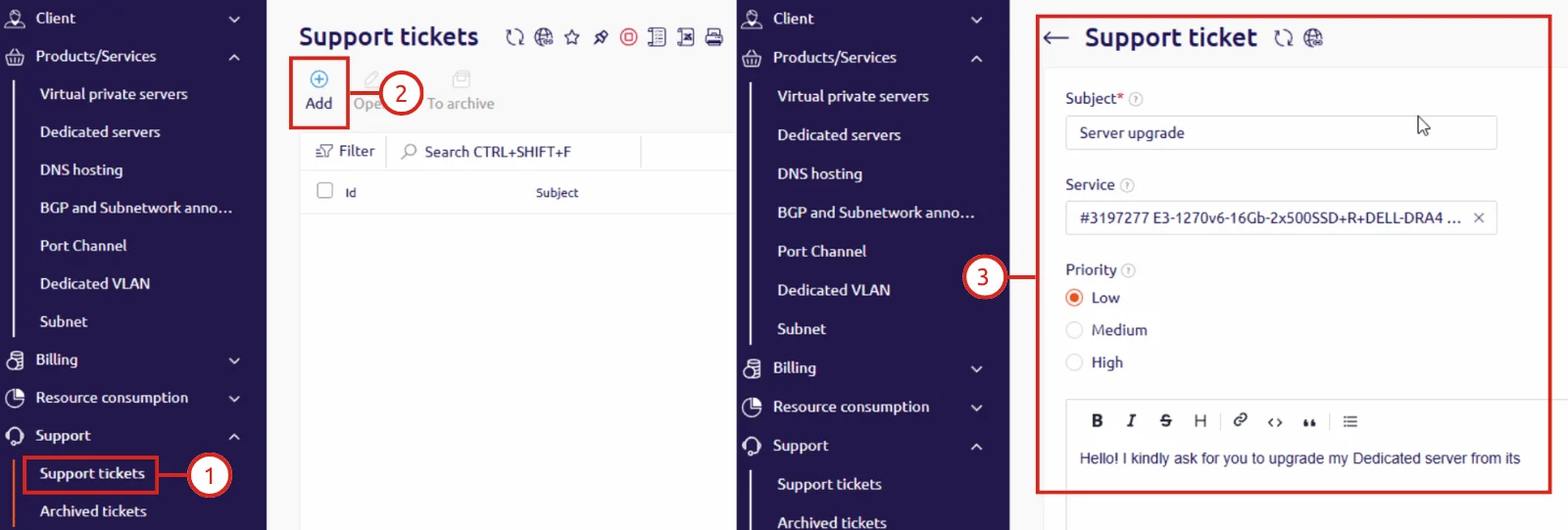
3
Receive a compatibility check
We check whether the server supports the required components and whether they are in stock. If all is available, we begin processing the upgrade. If not, we advise which alternative components can be installed.
4
Confirm the upgrade schedule
We confirm the cost of the new configuration and coordinate the time and date of the upgrade. The server will be unavailable during this period because it must be powered off for component replacement.
5
Pay the upgrade fee
A fee applies for the upgrade. The price depends on the account provider: “Gcore USD” — 150 dollars, “Gcore” — 150 euros (the exact amount is confirmed by support). The provider name is visible in the Gcore Hosting Portal under Dashboard. Support sends a payment notification in chat; the funds must be transferred to the account balance before the upgrade begins.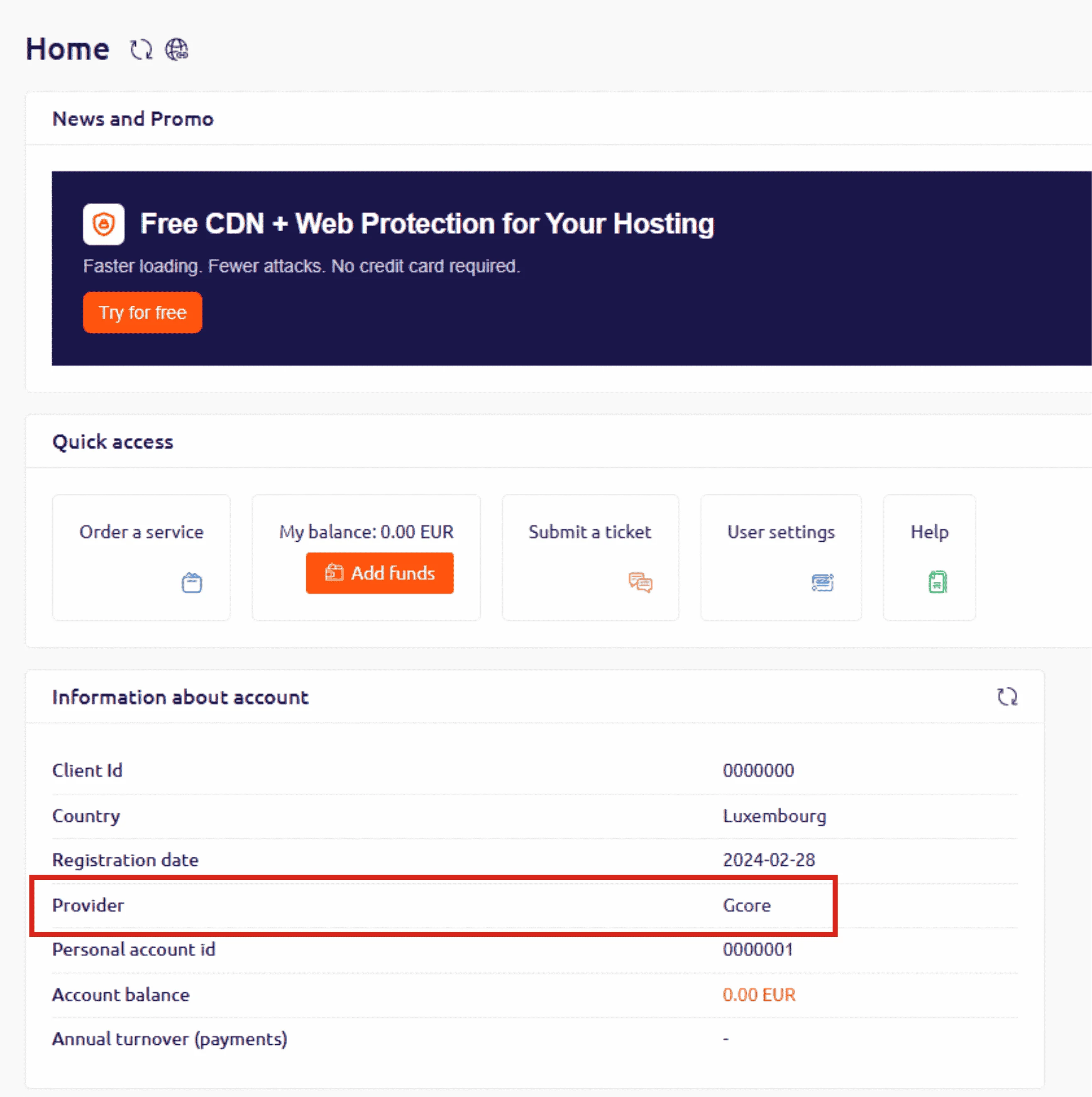
6
Wait for the upgrade to complete
We upgrade the server, verify its performance, and return it to service.
Upgrade limitations
- When changing HDD disks to SSD or vice versa, the new disks will be blank. Back up the old disks first to avoid data loss.
- If the new specifications include more disks, a different disk type, or more storage than the previous ones, new partitions are not mounted automatically. The logical partitions must be expanded inside the OS or a new partition created manually.
- Upgrades can only increase specifications — components cannot be removed or replaced with weaker ones.
Billing after an upgrade
The server price increases after an upgrade, and the End date is recalculated accordingly. Example: if 300 euros cover rent until the 1st and the upgrade is applied on the 10th with the price rising from 300 to 400 euros, the system deducts 10 days at the old rate from the 300-euro balance. The remaining 200 euros cover 15 days at the new rate, so the End date moves to the 26th and the next monthly charge of 400 euros falls on that date.
Change the internet plan
The Internet tariff (traffic package and bandwidth) can be changed independently in the Hosting Portal.1
Open the server settings
Click the line with the required server, then click Edit.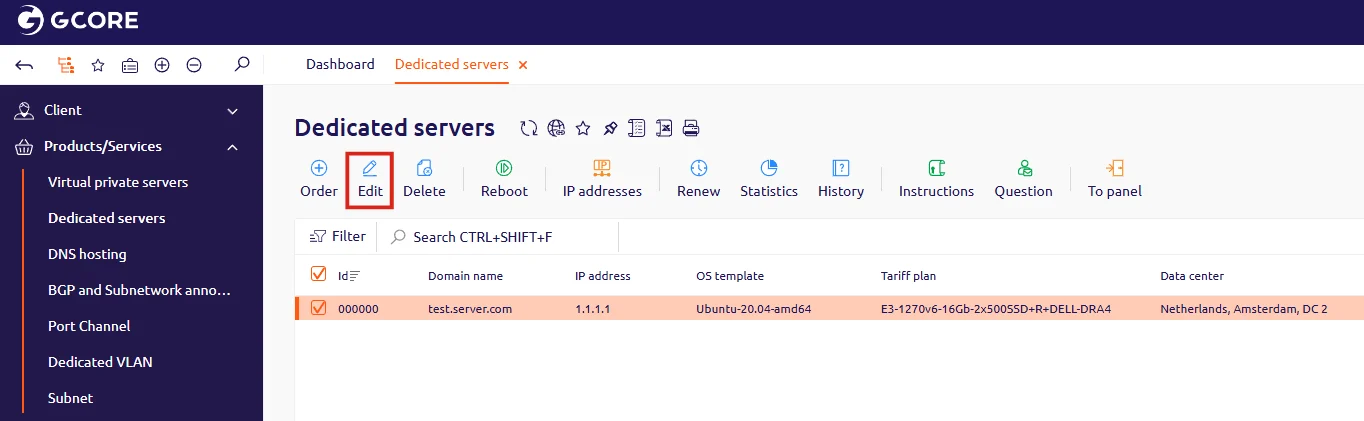
2
Select an internet tariff
In the Add-ons section, select the desired Internet tariff in the Traffic line. The description contains the bandwidth, the included traffic package, and the price for overcommit.
The traffic package covers a calendar month, not a billing cycle. If traffic usage exceeds the tariff limit in a calendar month, the system charges for overcommit.
3
Review the order and add to cart
The Order Information section appears with the price and tariff details. Review it and click To shopping cart.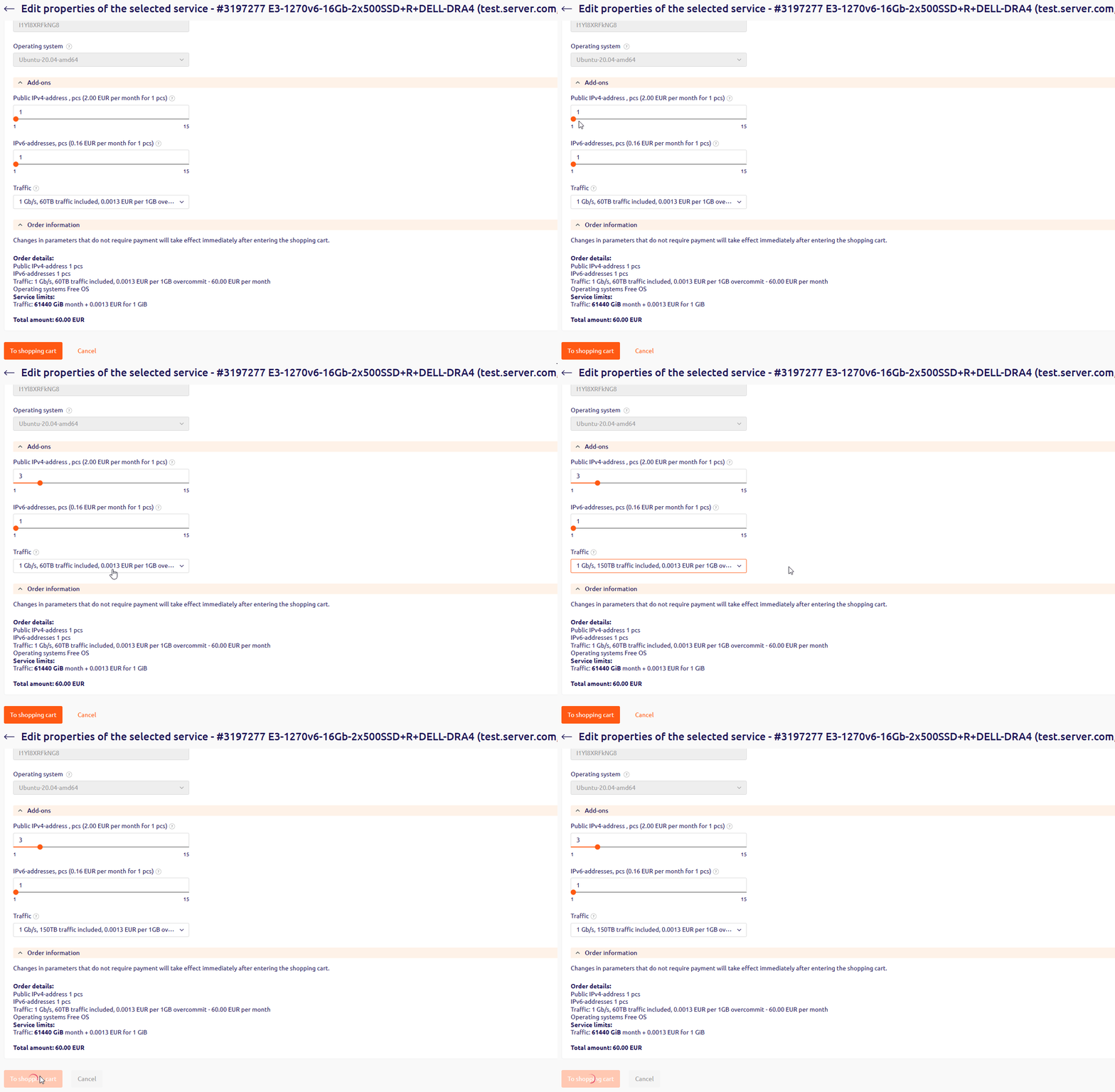
4
Complete payment
Pay for the order. The new internet tariff activates immediately after payment. Further charges occur simultaneously with the server rental write-off, on the date shown in the End date column.