

Copy from external storage
If the source file is available at a public HTTPS or SFTP URL, Gcore downloads it server-side. Supported protocols:- HTTP/HTTPS from external video hosting services (Vimeo, Mux)
- HTTP/HTTPS from S3-compatible storages (AWS S3, Azure Blob Storage)
- SFTP
The source file must be in one of these formats: MP4, 3g2, 3gp, asf, avi, dif, dv, flv, f4v, m4v, mov, mpeg, mpg, mts, m2t, m2ts, qt, wmv, vob, mkv, ogv, webm, ogg, mxf, quicktime, x-ms-wmv, mpeg-tts, vnd.dlna.mpeg-tts.Streaming formats such as HLS (.m3u8/.ts) and DASH (.mpd/.m4v) are intended for end-viewer delivery and cannot be used as source files.
- Valid:
https://demo-files.gvideo.io/gcore.mp4(13.8 MB from S3) - Valid SFTP:
sftp://login:password@domain.com/path/file.mp4 - Invalid (HLS):
https://demo-files.gvideo.io/hls/master.m3u8
POST /streaming/videos with the source URL in the origin_url attribute:
Download behavior
Gcore attempts to download the source file three times, expecting a200 OK response. If all three attempts fail, the video entity stays in Empty status and the error field contains details — delete the empty entity and create a new one with a correct URL.
If the download succeeds, Gcore starts transcoding the video. Check transcoding progress via the GET /streaming/videos/ endpoint or webhook notifications.
Upload from a local device
For uploads from a backend server or from a browser or mobile app, Gcore uses the TUS resumable upload protocol. TUS splits the file into segments and resumes from the last successful segment if an interruption occurs. The upload process consists of three steps.Step 1. Create a video entity
SendPOST /streaming/videos without the origin_url attribute to create a video entity and receive its ID and client_id:
id and client_id — both are required in Step 3.
Step 2. Get TUS session parameters
Use theid from Step 1 to request the TUS upload server URL and session token:
servers— available upload servers; use any server whereactiveistrue.token— session token valid for 4 hours. Once the TUS session starts, the token is no longer needed.video— a copy of the video entity data.
Step 3. Upload via TUS
Use the values collected from Steps 1 and 2 as the TUS client configuration:
Choose a chunk size that fits the network conditions: larger chunks use maximum bandwidth but require re-uploading a larger segment after a failure; smaller chunks are more resilient but slower due to per-request HTTP overhead.
Transmitted data must comply with the Upload-Metadata header rules:
- Header fields must be comma-separated.
- All values are Base64-encoded.
- All keys are unique.
token, video_id, and client_id to test the TUS upload flow:
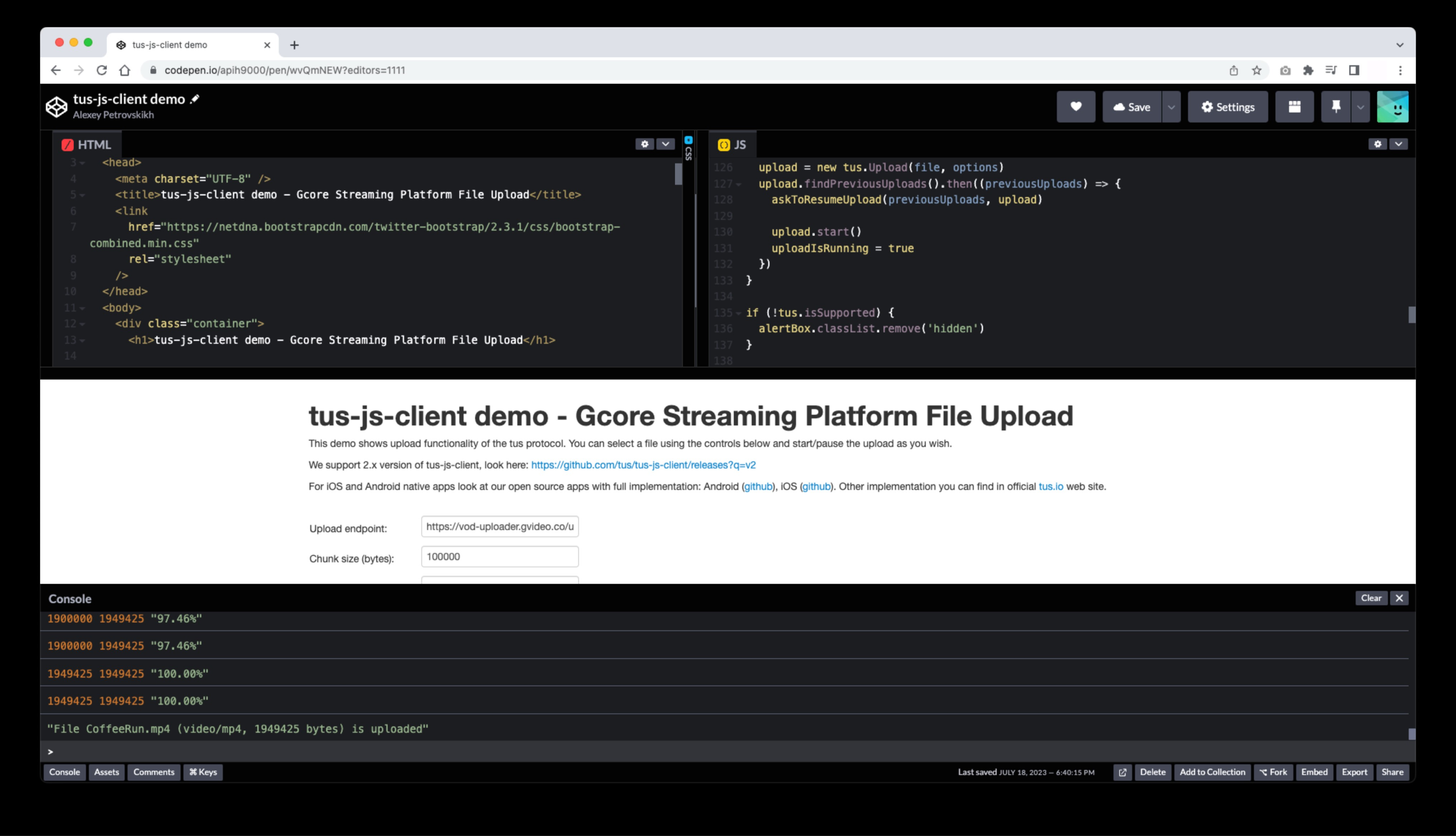
- JS: tus-js-client v2.x — GitHub
- Android: Gcore’s open-source Kotlin demo app
- iOS: Gcore’s open-source Swift demo app
- Other: tus.io/implementations
TUS error reference
Common errors returned by the TUS upload server and their causes:HTTP 405 Method Not Allowed— unexpected response when creating the upload session; check the request parameters.HTTP 429 Too Many Requests— retry the request after a delay.HTTP 500 Internal Server Error:token invalid (null)— check parameter format, Base64 encoding, and key-value separation.token invalid (eyJhbGciOi...)— same as above.token video (12345) does not match this video (23456)—video_idmismatch; do not retry.token client (123) does not match this client (234)—client_idmismatch; do not retry.
Batch migration
For migrating a large collection of videos, Gcore provides a support-assisted batch workflow. Contact support@gcore.com to arrange it. To prepare the migration, obtain an HTTP link to each file in the source storage:- Google Drive
- Amazon S3 — enable public access, then list objects to get URLs
- Vimeo
- Mux
- Dropbox
- Gcore Object Storage or SFTP
Optional upload settings
The following parameters can be included in anyPOST /streaming/videos request body to configure transcoding behavior at upload time.
Processing priority
Every uploaded video enters a transcoding queue. Two priority levels influence scheduling:- Global priority — managed automatically by the system at the infrastructure level and is not user-configurable.
- Account priority — applied within an account, controlled via the
priorityfield.
priority field to adjust scheduling order for transcoding tasks within an account:
- Type: integer
- Range: -10 to 10
- -10 — lowest priority (processed after other jobs)
- 0 — default
- 10 — highest priority (processed first)
AI subtitles
AI-generated subtitles can be created automatically at upload time by adding two parameters to the request body:auto_transcribe_audio_language— transcribes the audio track into subtitles. Set toautofor language detection, or specify a language code such asenorfr.auto_translate_subtitles_language— translates the transcribed subtitles into additional languages. Set todefaultfor the account language, or provide a comma-separated list of language codes.