User rights control which sections of the Gcore Hosting Portal a sub-user can access and which operations they can perform.

Configure granular permissions

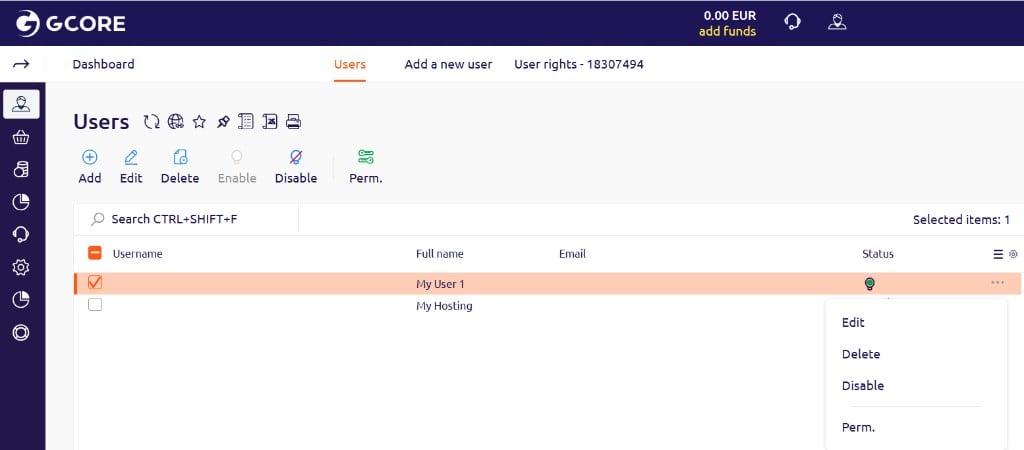
Use Perm. to control access at the operation level for individual sections of the Hosting Portal.
  1. Navigate to Client > Users.
Users list with a selected user and context menu showing Edit, Delete, Disable, and Perm. options
  1. Select the user and click Perm.
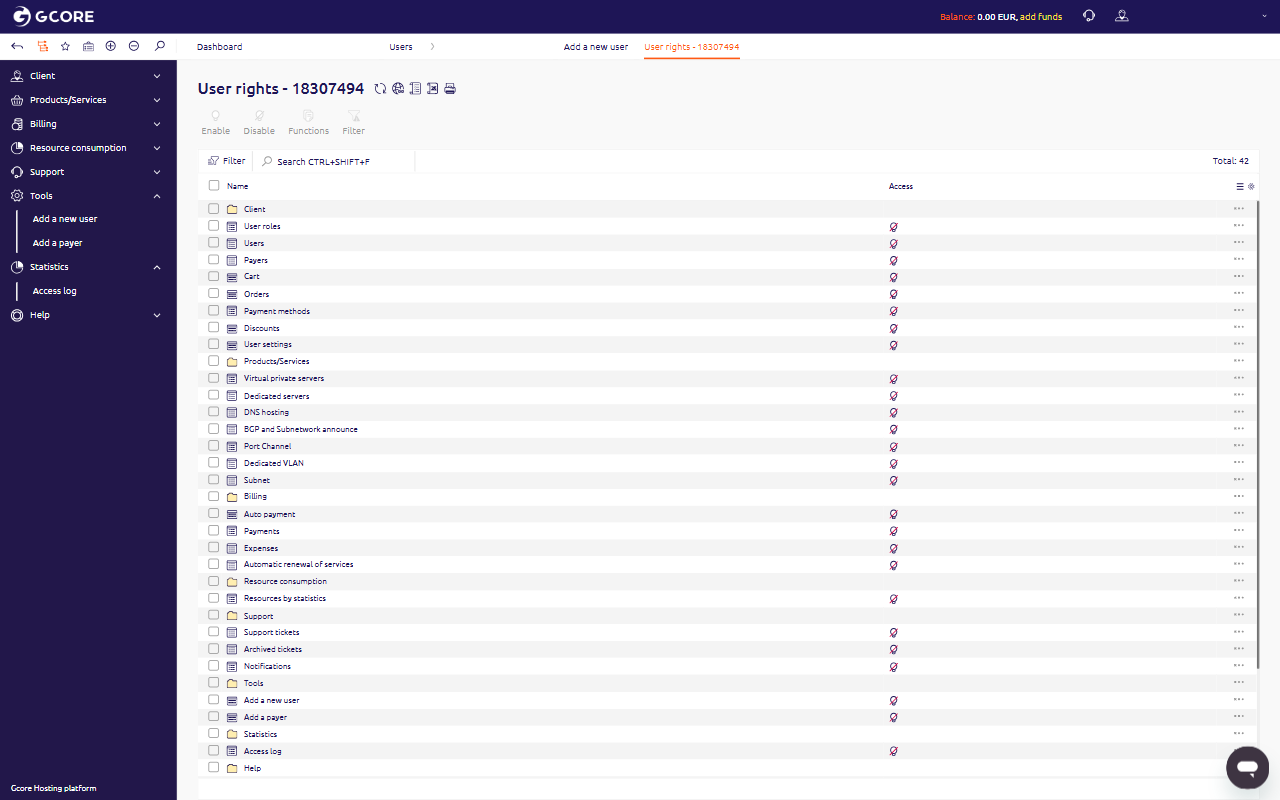
The User rights page opens. Rights are grouped by sections — Client, Products/Services, Billing, and others. Each section row represents a group of operations.
User rights page showing permission sections with Enable, Disable, Functions, and Filter buttons in the toolbar
  1. Double-click a section row to view its individual operations — Add, Edit, Delete, Enable, Disable, Perm., History, and Filter.
  2. Select a row and click Enable in the toolbar to grant access to that operation.
  3. Select a row and click Disable to revoke access.

Grant full access

To give a user unrestricted access to all sections:
  1. Navigate to Client > Users.
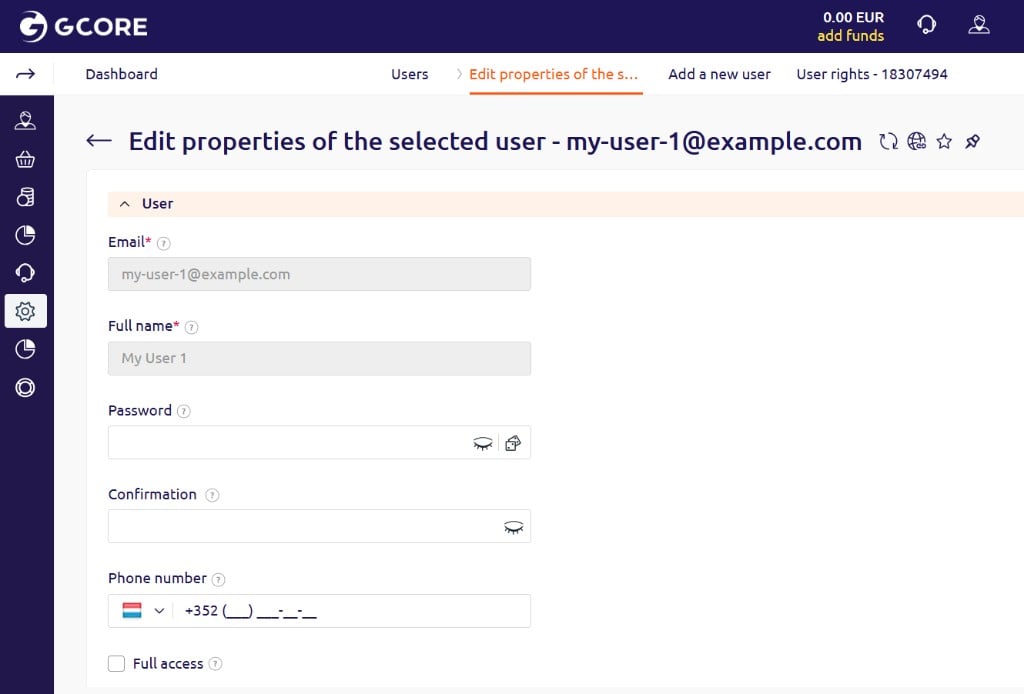
  2. Select the user and click Edit.
  3. Select the Full access checkbox.
Edit user form showing Email, Full name, Password, and Full access checkbox fields
  1. Click Ok.
When Full access is enabled, the granular permission settings in Perm. have no effect.

Suspend a user

To suspend a user’s access to the Hosting Portal:
  1. Navigate to Client > Users.
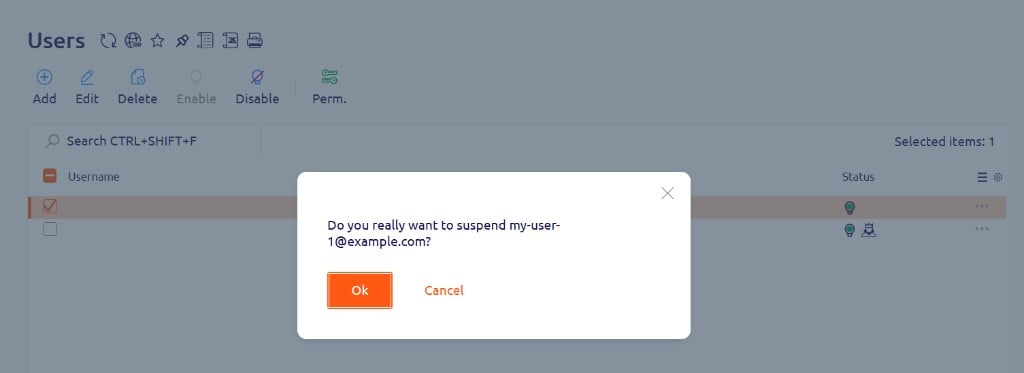
  2. Select the user and click Disable.
  3. In the confirmation dialog, click Ok.
Confirmation dialog asking whether to suspend a user, with Ok and Cancel buttons
A suspended user who attempts to log in receives an “Invalid username or password” error.