

1
Open the plan list
In the Hosting portal, navigate to Virtual private servers and click Order.
2
Find a plan that supports Windows Server
Use the Data center filter to select a region. KVM-SSD-4 and KVM-HIGHCPU-SSD-4 plans and higher display the Operating systems: Free OS tag — these support Windows Server. Click Order on the plan.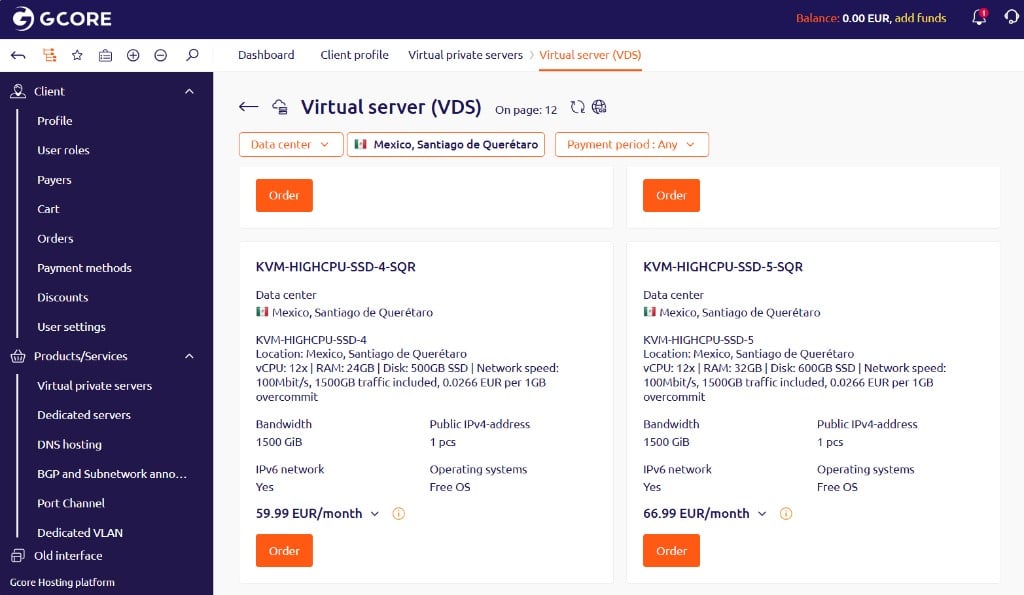
3
Select Windows Server
In the Operating system field, select Windows, then select a version.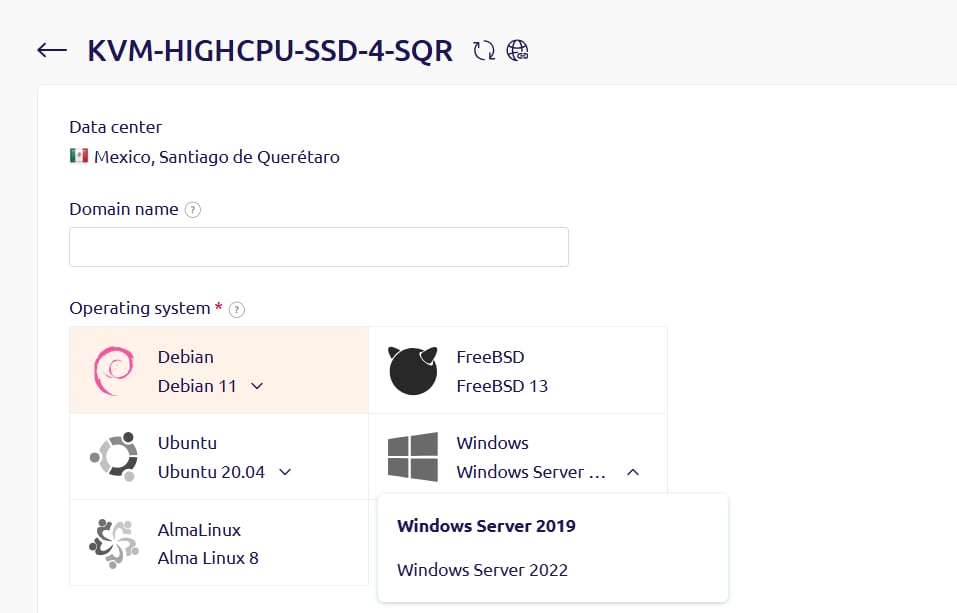
4
Complete the order
Configure the remaining options, then click Registration and payment.
Windows Server notes
Keep these constraints in mind before ordering.- Windows Server can only be selected at order time. It cannot be added to a server that was ordered with a Linux OS.
- Reinstalling with Linux via an OS template is possible, but the Windows license fee continues to be charged. Reinstalling Windows afterward requires contacting support.
To avoid reinstallation constraints, create separate servers for Windows and Linux rather than reinstalling the same server.