

1
Open VMmanager 6
In the Gcore Hosting Portal, navigate to Products/Services → Virtual private servers, select the server checkbox, and click To panel.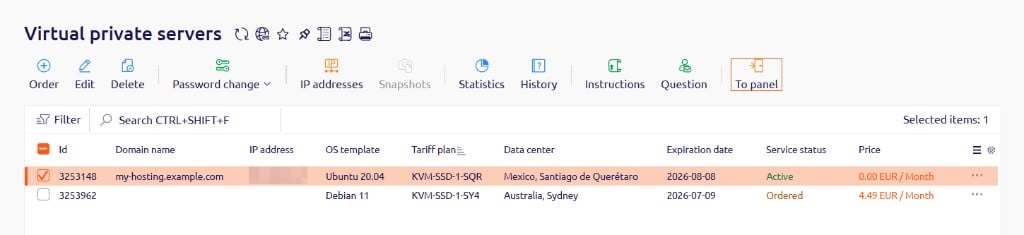
2
Open the ISO mount dialog
In VMmanager 6, go to the Virtual machines list. Open the three-dot menu on the right side of the server row and select Mount ISO-image.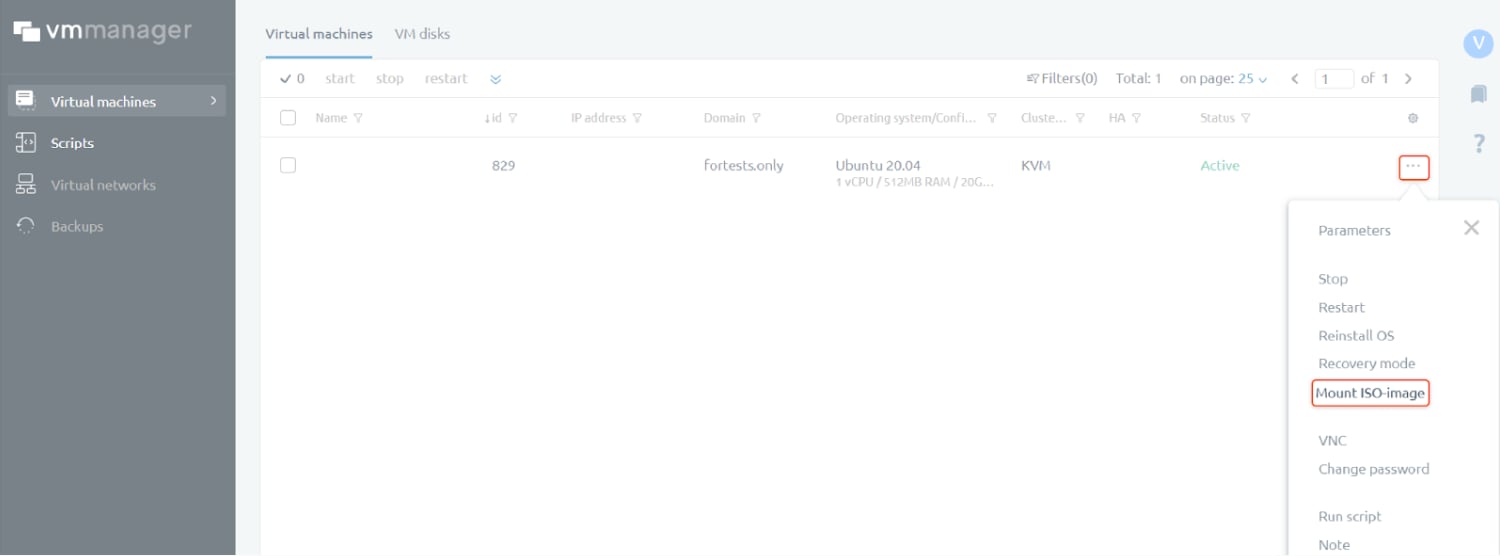
3
Enter the ISO image URL
In the URL field, enter a direct link to the ISO file.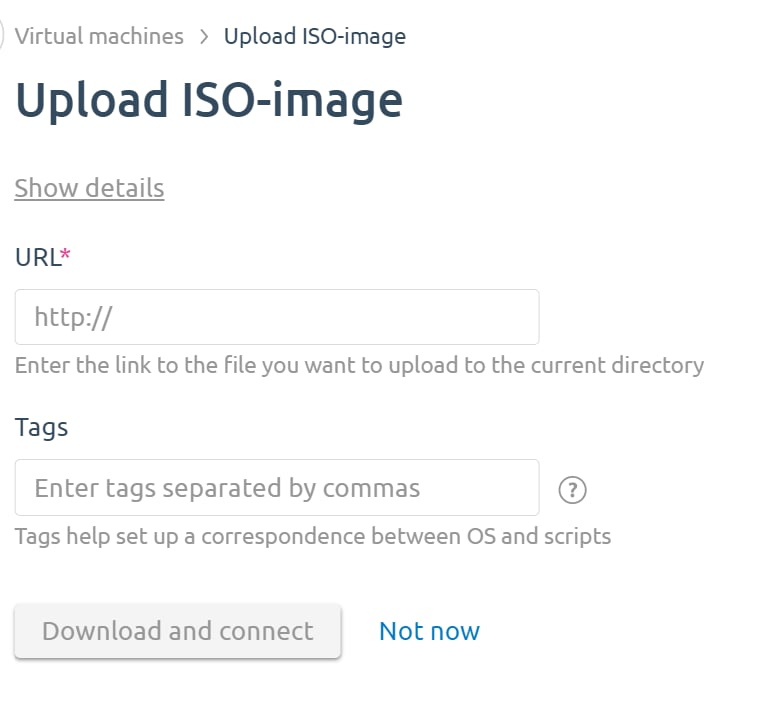
Add Tags to trigger VMmanager automation scripts that use matching tag values.
4
Download and connect
Click Download and connect. VMmanager downloads the ISO image, mounts it as a bootable disk, and reboots the server from it automatically.
5
Complete the installation via VNC
After the server reboots, connect via VNC to reach the installer. The ISO boot menu appears in the console. Follow the installer steps to complete the OS installation.
After the installation is complete, disconnect the ISO image to restore normal boot: open Virtual disk in the left sidebar, disconnect the mounted ISO image, and restart the server.