

1
Open VMmanager 6
In the Gcore Hosting Portal, navigate to Products/Services → Virtual private servers, select the server checkbox, and click To panel.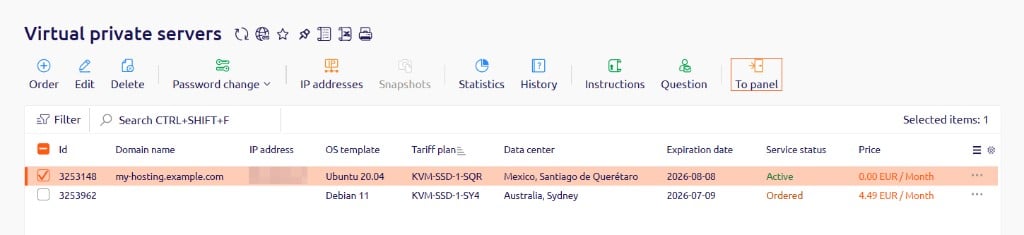
2
Open the Reinstall OS menu
In VMmanager 6, click Menu in the upper right and select Reinstall OS.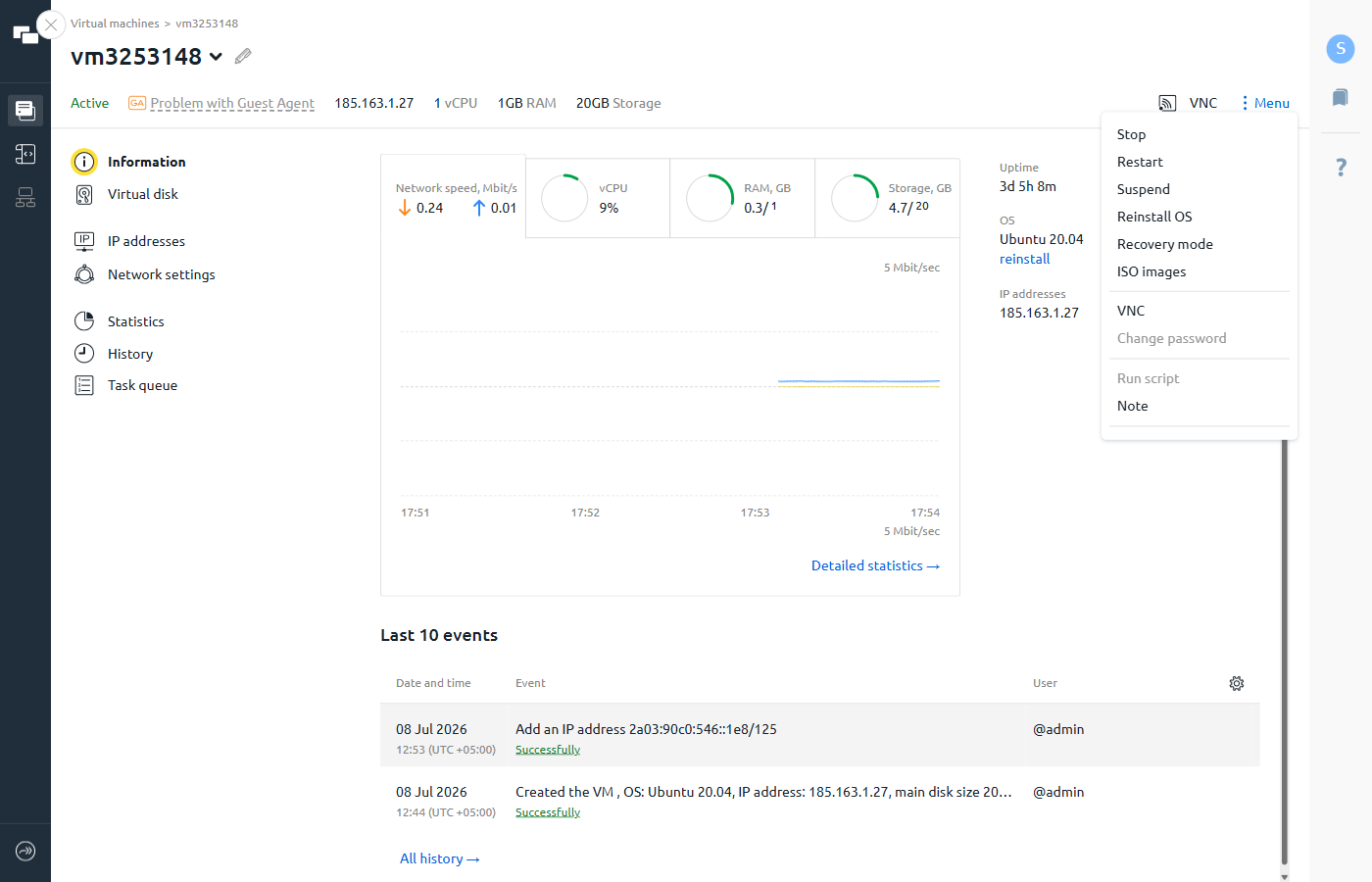
3
Select an OS template
Choose a distribution from the available templates and select the version from the dropdown.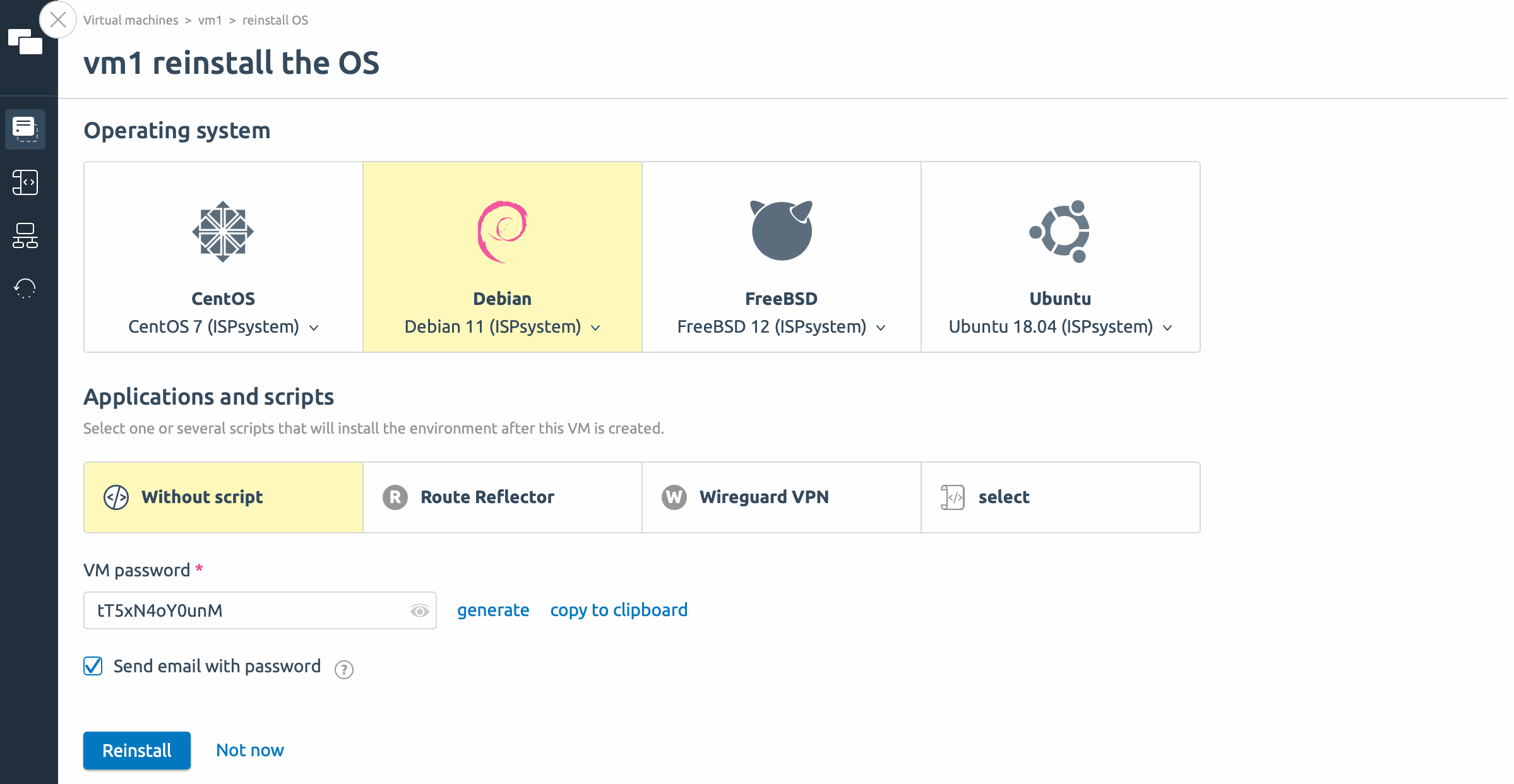
4
Select application scripts (optional)
In Applications and scripts, select a script to run automatically after the OS is installed. Scripts can install packages and update configuration files. Select Without script to skip this step.
5
Set a VM password
Enter a new password for the server or click Generate to create one automatically. The previous password becomes invalid after reinstallation.
Select Send email with password to receive the new password by email.
6
Confirm reinstallation
Click Reinstall. The server is reinstalled and becomes temporarily unavailable. When its status changes back to Active, the new operating system is ready to use.