Generate a report
1
Open the report dialog
- Navigate to Billing > Reports.
- Click Create new report in the upper-right corner.

2
Configure the report
Select Reseller Statistics V2 from the Report template dropdown to generate a usage report; the Expenses template covers a different, billing-focused report type.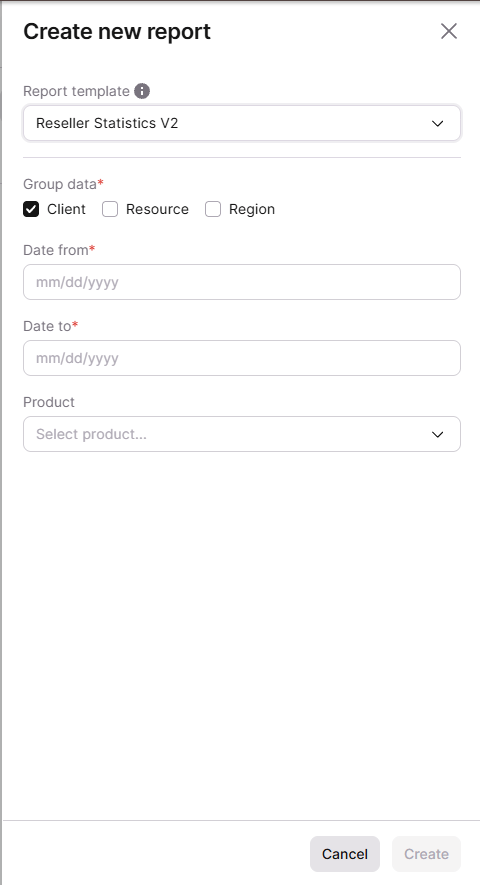
- Under Group data, select Client, Resource, Region, or any combination, to control how the usage data is broken out. At least one selection is required.
- In the Date from and Date to fields, enter the reporting period.
- Optionally, select a Product to limit the report to a single product.
- Click Create.
Read a report
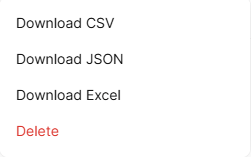
Once a report is Completed, its row’s action menu downloads the report as CSV, JSON, or Excel. The CSV file lists one row per usage metric for each of the reseller’s customers, grouped by client:
An example of two rows from a CSV report:
Delete a report
Opening a report row’s action menu also deletes the report, alongside the CSV, JSON, and Excel download options.