

Create an account
Open the Accounts subsection and click Add new account in the upper-right corner.
en for English.
On the right, toggle on the products to make available to the customer. The global product visibility settings are inherited by default.
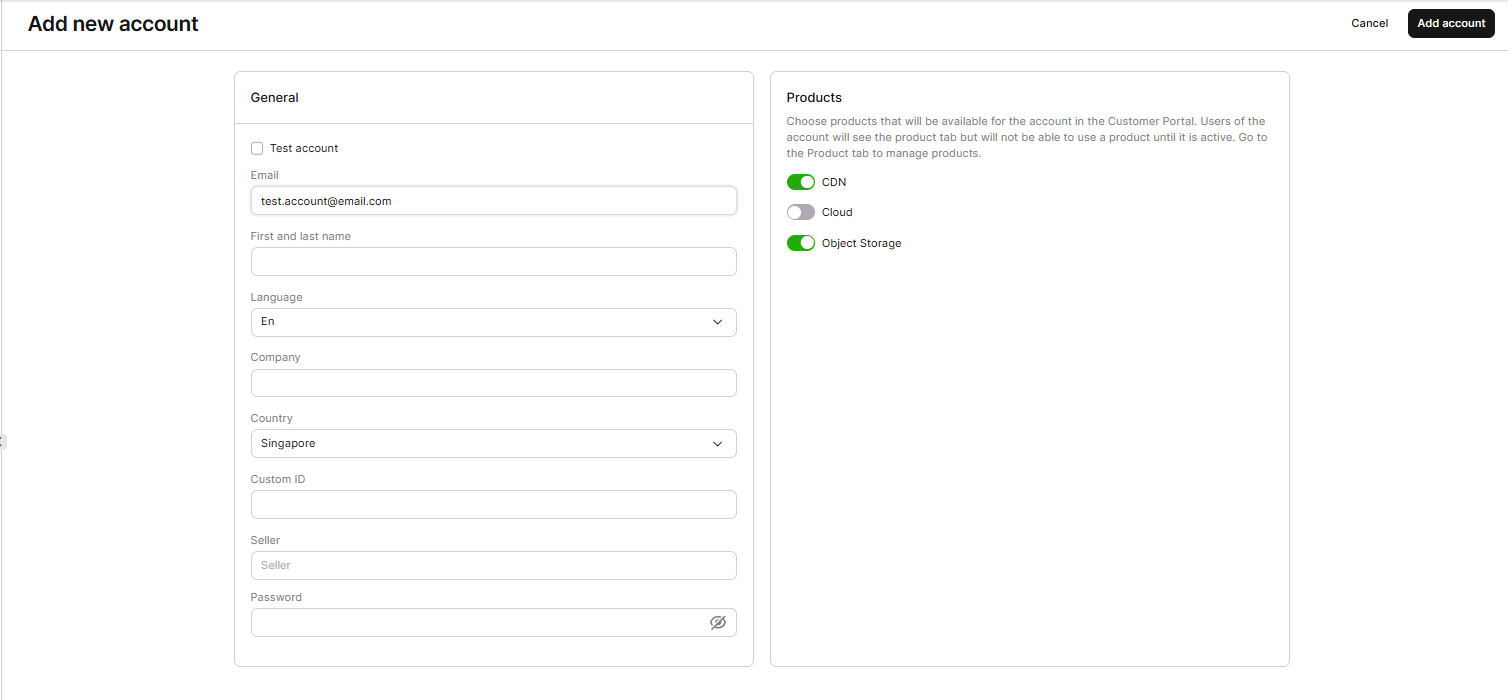
Overriding the global product visibility settings for a specific customer, covered in configuring personal visibility, happens on the Products subsection of that customer’s settings. Further changes to the global product visibility settings don’t affect a customer’s overridden visibility once set.

Edit an account
Creating a customer account allows setting up its products, editing personal data, and managing the rights of its users. Product setup is covered in dedicated articles: To edit personal data and manage user rights, click the ID of the customer, or click the three-dot icon next to the customer and select Edit.Edit account tab
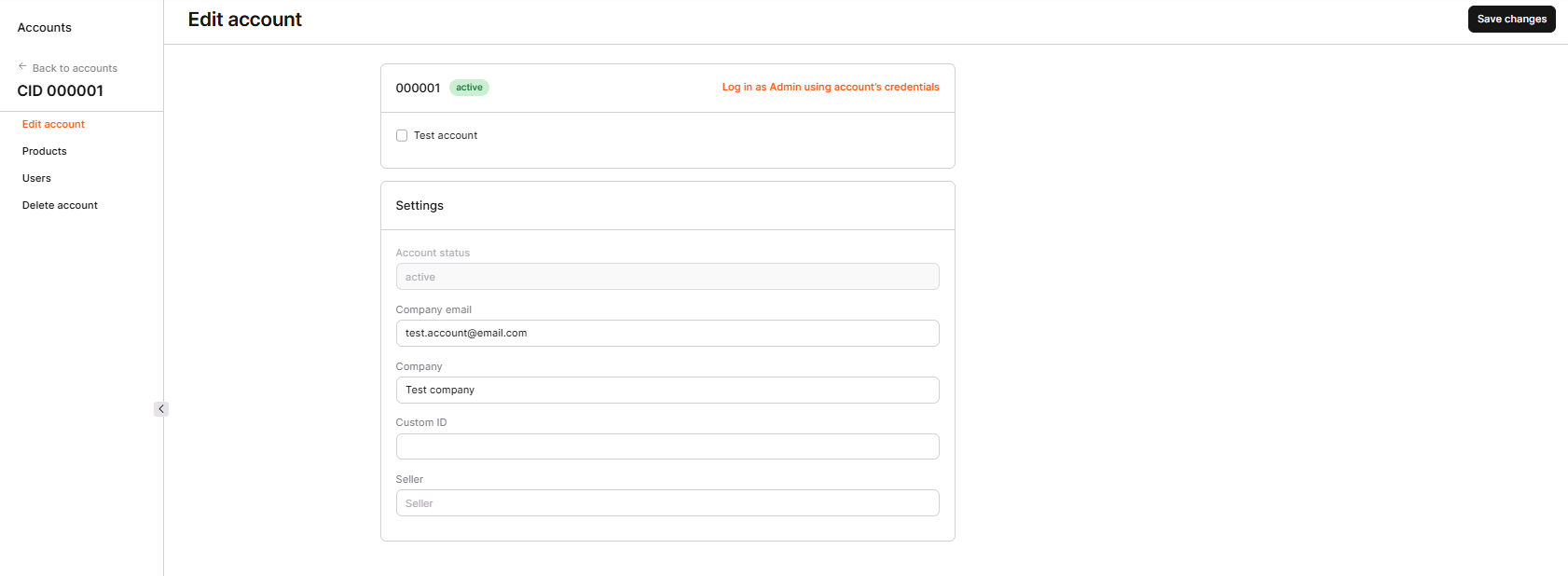
This tab includes a Log in as Admin action that opens the customer’s Customer Portal using the account’s credentials, and a Test account checkbox that hides the customer from the default view of the Customers subsection; accounts marked this way appear only when the filter is set to Test account: true. The Settings section on this tab includes the following fields.- Account status shows the current stage of the account, set automatically:
- New: the customer has signed up but hasn’t confirmed the email yet.
- Preparation: the customer has confirmed the email, signed up through a social network without email confirmation, or the account was created directly by a seller, reseller, or admin.
- Ready: the customer has signed up and provided billing information.
- Trial: the account has at least one product in Trial status and none in Active status.
- Trial End: at least one product is in Deleted, Trial End, or Paused status, and none is in Active or Trial status; submitting a deletion request also pauses all active and trial products, moving the account to this status.
- Active: the account has at least one product in Active status.
- Deleted: the account is deleted.
- Company email and Company update the customer’s email address and company name.
- Custom ID sets a custom account ID for the customer, using letters, numbers, and special characters; customers see the value in API requests but can’t edit it.
- Seller assigns a seller to the customer account, to make the account easier to find in searches.
The Account status field can’t be edited directly.
Products tab
This tab chooses which products are available to the customer in the Customer Portal, matching the toggles set when creating the account. Enabling a product here adds its tab to the account but doesn’t activate it; managing an active product happens on that product’s own tab, and overriding visibility for one product is covered in configuring personal visibility.Users tab
This tab edits a customer’s name, email address, language of automatic emails, and user type. Inviting new users is only possible from the customer’s Customer Portal; about users covers the available user types.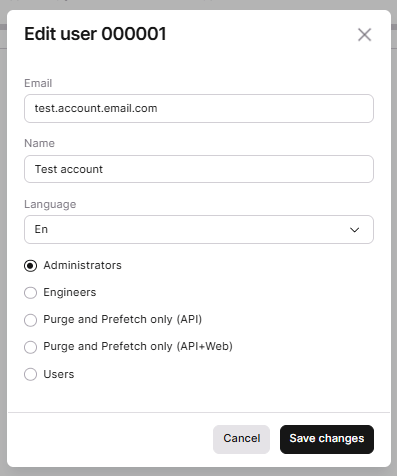
Delete an account
Customers request account deletion from their own Customer Portal, navigating to the Profile section.

Log in to a customer account
In the Accounts section, finding a customer and clicking the three-dot icon next to it, then Log in, logs in to the customer’s Customer Portal as that customer’s admin user.Reseller and Seller roles currently share the same UI and available operations in the customer’s Customer Portal.