

Branding settings
Branding settings replace Gcore’s default logo, colors, and contact information with the reseller’s own in the customer’s Customer Portal; by default, before branding is configured, the Customer Portal shows Gcore’s own links, email address, and phone number.Domain and portal mode
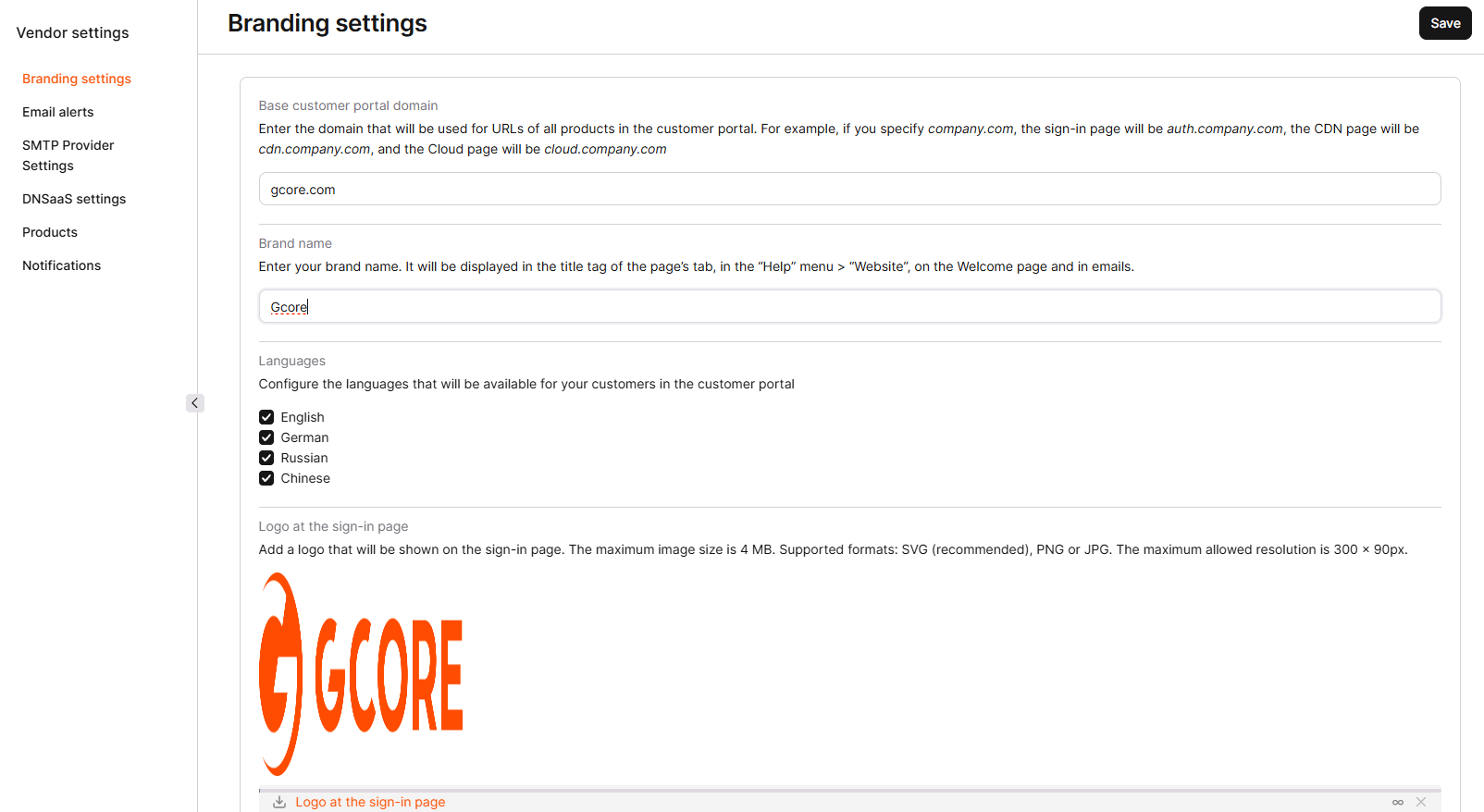
The Base customer portal domain field sets the domain used to generate product URLs for customers: enteringcompany.com makes the sign-in page auth.company.com, the CDN page cdn.company.com, and the Cloud page cloud.company.com.
Colors and logo
The Brand name field sets the name displayed in the browser tab title, the Help menu’s Website item, the Welcome page, and in email notifications and their sender name. The Languages setting controls which languages are available to customers in the Customer Portal. The Logo at the sign-in page field sets the logo shown on the sign-in page, limited to 4 MB and a 300 x 90 px resolution, in SVG (recommended), PNG, or JPG format.


Customer support tools
The Help menu in the customer’s Customer Portal shows contact details and links configured on this tab, including the technical support phone number and email, links to legal documents, API documentation, product documentation, the Status Page, and the Roadmap; a link that isn’t configured doesn’t appear in the Help menu. The Support phone number field sets the technical support phone number shown to customers, and the Support email field sets the technical support email address shown to customers.


Email alerts
The Email alerts tab sets email addresses that receive notifications about customer account deletion requests and failed login attempts, separately from the notifications customers themselves receive. The Email for deletion requests field receives notifications when a customer requests account deletion, cancels a deletion request, or has an account deleted. The Email for unsuccessful login attempts field receives notifications about unsuccessful login attempts across all admin portal users, which helps identify suspicious account activity. Enabling either alert requires turning on its toggle and entering an email address; clicking the + button adds additional addresses, and changes take effect after clicking Save.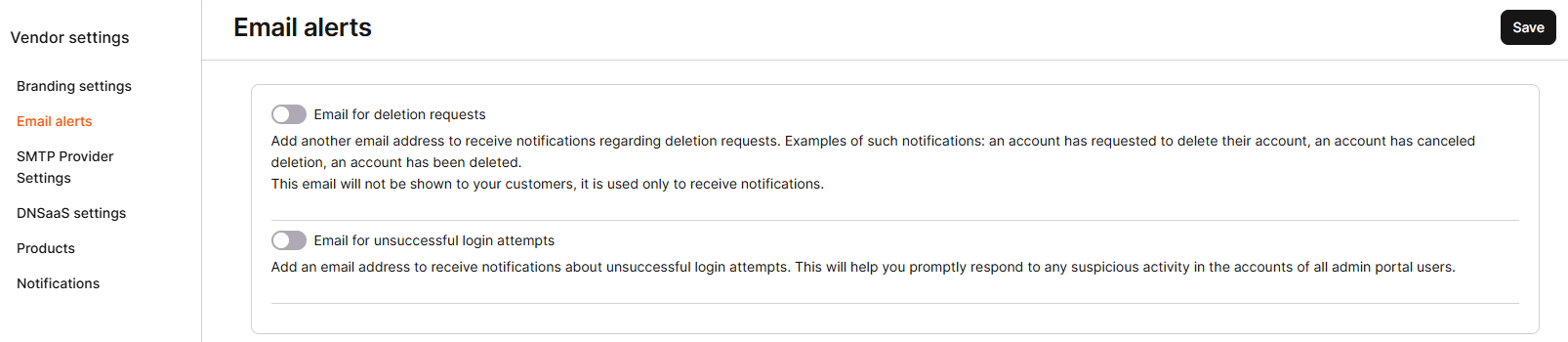
SMTP Provider Settings
By default, customers receive automatic product emails, including trial start and end notices, password changes, and new user additions, from a Gcore mail provider using the addresssupport@gcore.com. Sending these emails from a reseller’s own address instead requires setting up an SMTP server:
1
Set the base domain
Open Branding settings and verify the Base customer portal domain field is filled in; if it’s empty, emails aren’t sent.
2
Enable product emails
Open the SMTP Provider Settings tab and select the Email for product emails checkbox.
3
Configure the SMTP server
Enter the Email from address that appears in the From field of outgoing emails, the SMTP Server address (a domain like 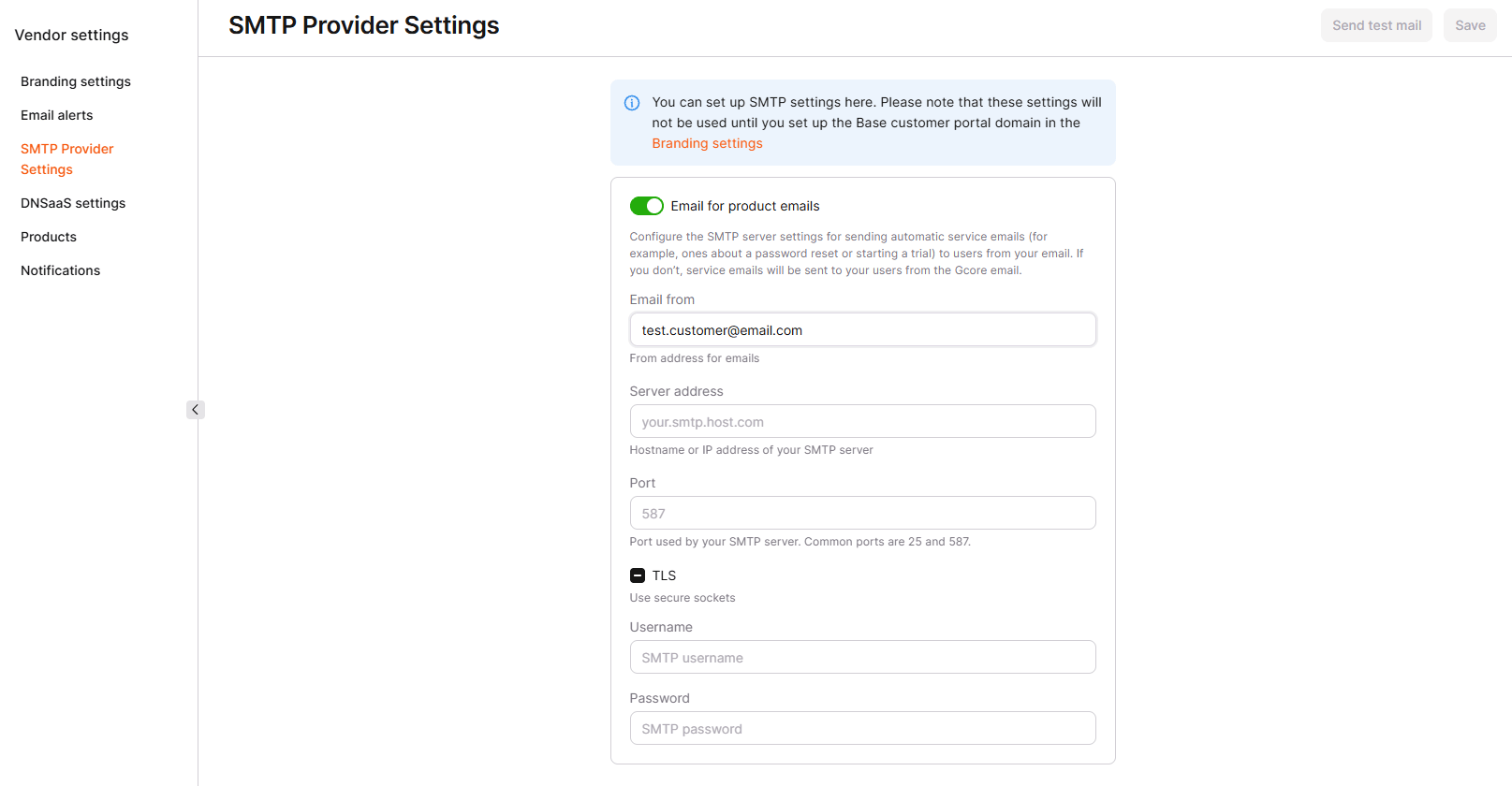
smtp.serveraddress.com, or an IP address), and the Port the server uses, commonly 25 or 587. Select TLS if the server uses secure sockets, then enter the server’s Username and Password.4
Save and test
Click Save, then click Send test mail to confirm the configuration works; the test email goes to the account’s primary email address.
DNSaaS settings
Resellers offering the Managed DNS product configure the Contact email address, Primary name server, and Secondary name server used to generate SOA records; these values appear in the customer’s Customer Portal when adding a domain to a DNS zone. Before configuration, customers see Gcore’s own primary and secondary name servers and Gcore’s email address.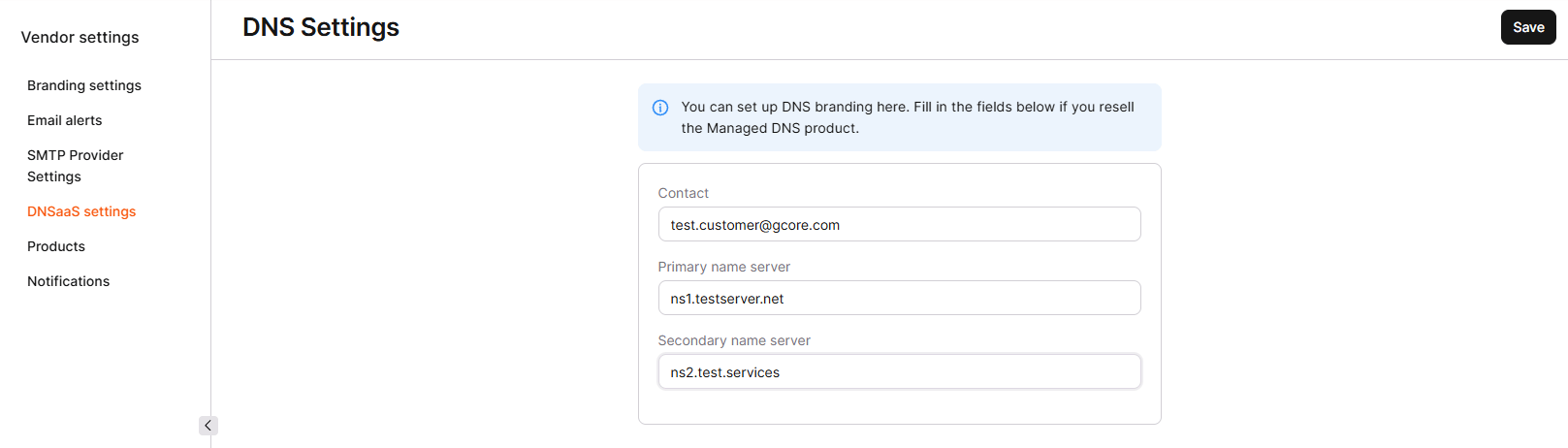
Products
The Products tab controls which products are available and visible to customers, at two levels of visibility: global and personal. The global visibility settings set product visibility for all customers by default.

Notifications
The Notifications tab controls which categories of email notifications each Gcore product can send to customers, grouped by product. Each group has a master toggle plus individual toggles for specific notification types within it; disabling a group’s master toggle disables all of its notification types for customers.- System notifications: account-level notifications, including reminders during the base trial and updates about account deletion requests.
- General notifications: cross-product notifications, including payments, product trial start and end, expiring API tokens, and Protected Network alerts.
- CDN notifications: SSL certificate errors and expiration, resource suspension, and traffic consumption limits.
- Object Storage notifications: bucket object count and storage request limits.
- Cloud notifications: DDoS attack alerts, Kubernetes cluster certificate renewal, resource cleanup, and AI cluster creation.
- Streaming notifications: live stream start and stop alerts.
- Colocation notifications: scheduled maintenance alerts.